
PBX Call Activity Report
The PBX Call Activity report breaks down internal and external call activity by hour, day, and month, giving you a clear view of how traffic moves through your trunks and extensions. (PBX stands for Private Branch Exchange, the phone system that routes your organization’s calls.) This page shows how to open the report, tune what it displays, and what each metric means.
Open the PBX Call Activity report
Section titled “Open the PBX Call Activity report”-
Sign in to the PBX web portal and go to Reports and Recordings > Call Reports.
-
Open the report:
-
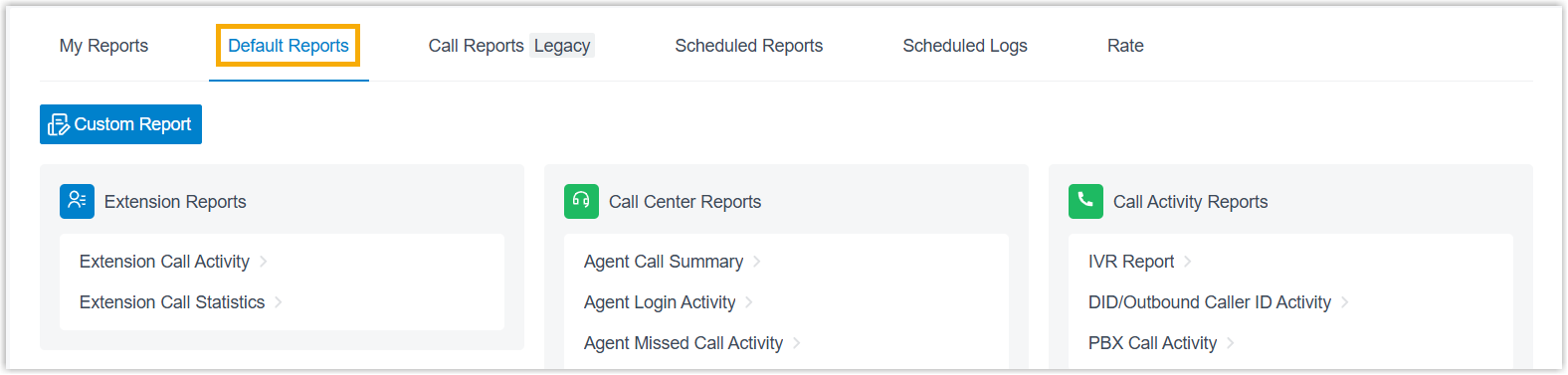
Select the Default Reports tab.
-
In the Call Activity Reports pane, click PBX Call Activity.
-
-
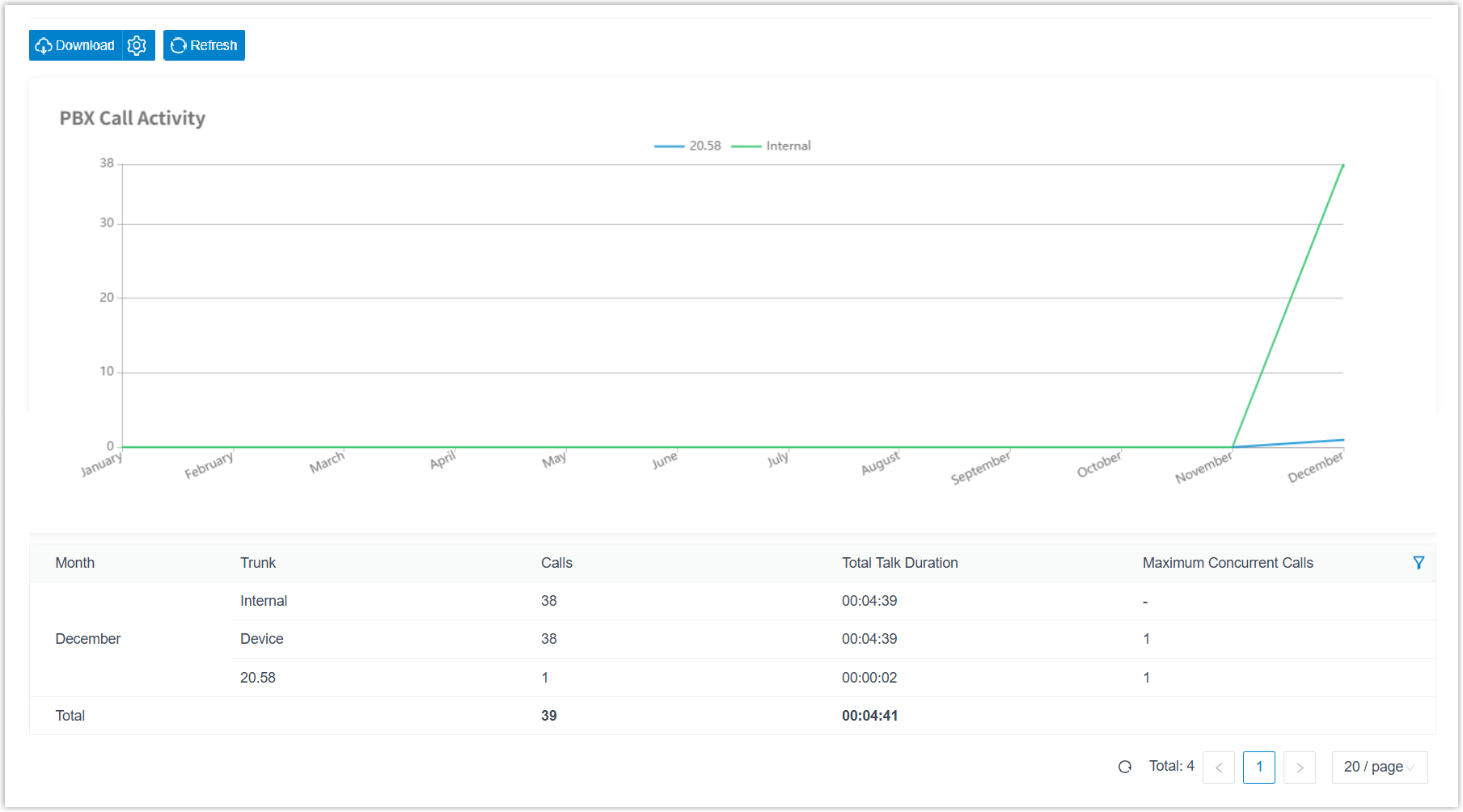
Set the filters that determine what the report covers.

-
Use the Time Range and Select Date fields to set the period the report should span.
-
Narrow the data by trunk, call type, or communication type. The report refreshes to show only the matching activity.
-
-
Optional: Adjust the columns so the report focuses on the metrics you care about.
Task How Choose which columns appear Click the column-filter icon, then select the columns to display. 
Reorder columns Click the drag handle next to a field and drag it to the position you want. 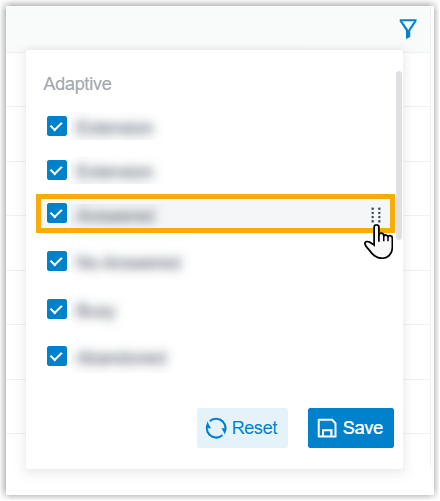
-
Optional: Save the report for quick access later, or schedule it to be emailed automatically.
Task How Add to My Reports Keep the report handy in your My Reports list.
1. At the bottom of the page, click Add to My Reports.
2. Give the report a name you’ll recognize, and adjust the filters or metrics if needed.
3. Click Save.Add to Scheduled Reports Have the report emailed on a schedule. At the bottom of the page, click Add to Scheduled Reports, then complete the scheduled task settings. Download the report Save a copy to your computer for offline review and analysis. 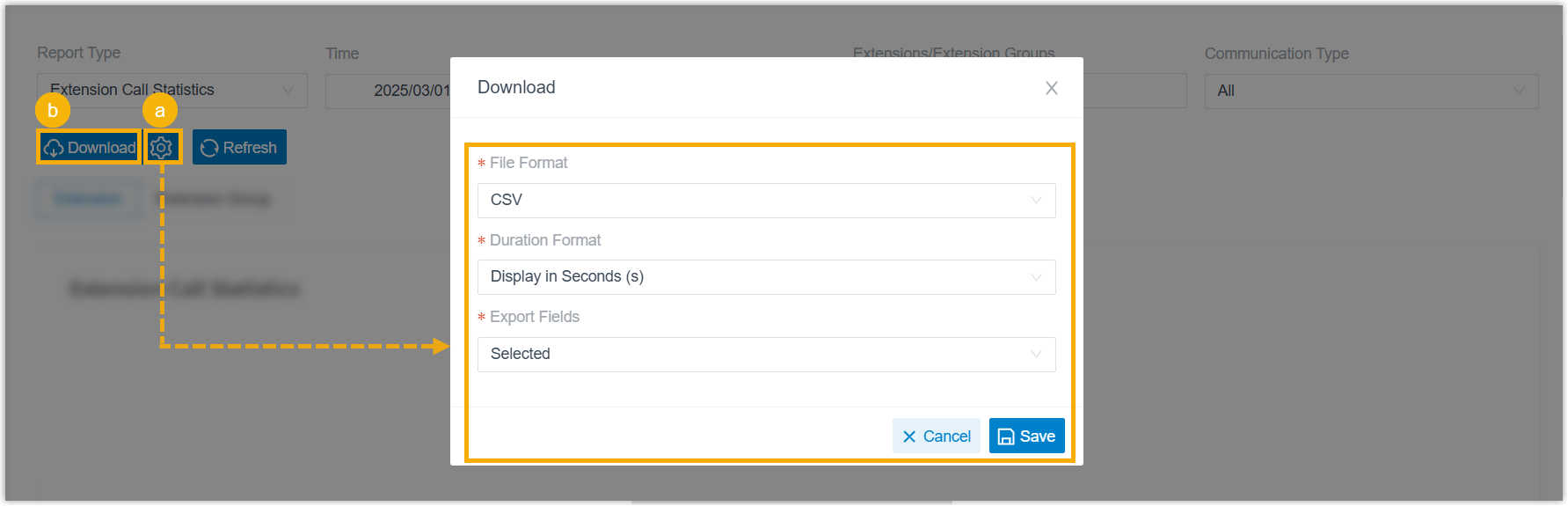
1. Optional: Click the settings icon to change the download options, then save your changes:
- File Format:CSV,XLS,HTML, orPDF.
- Duration Format: show durations Display in Second (s) or Display as HH:MM:SS.
- Export Fields: export All fields or only the Selected ones.
2. Click Download.
Report metrics
Section titled “Report metrics”| Metric | Description |
|---|---|
| Trunk | The trunk the activity is grouped under. - {trunk_name}: calls placed or received over that trunk. - Internal: calls between extensions. - Device: activity for the whole system, covering internal calls plus inbound and outbound calls on every trunk. This row appears only when the Communication Type filter is set to All. |
| Calls | The number of calls placed or received. |
| Total Talk Time | The combined time from when calls were answered to when they ended. |
| Maximum Concurrent Calls | The highest number of calls active at the same time during the selected period. - Calls between extensions and calls received over WebRTC (Web Real-Time Communication) trunks are not included in this calculation. - When the Trunk value is Device, this figure reflects the peak concurrency for the entire phone system. |
Question about this page?
Ask the AI assistant. It starts from this page, then searches the rest of the docs.
Ask Cloud Voice AI
Answers are AI-generated from the docs and may contain mistakes. Verify with the linked pages.