
View or Change Permissions for Group Members
Every member of an extension group is granted a set of permissions based on their user type. This page shows you how to check what each user type can do inside a group and how to change those permissions when your needs change. How you make the change depends on the member’s user type, so the steps below are split into two cases: the built-in Manager and User types, and the Custom type.
View or change permissions for managers and users
Section titled “View or change permissions for managers and users”Members assigned the Manager or User type share a single permission set for that type. In other words, every manager in the group has the same permissions as every other manager, and the same is true for users. Because of this, editing a type’s permissions updates all members of that type at once.
- Sign in to the Cloud Voice management portal and go to Extension and Trunk > Extension Group, then open the group you want to edit.
- Select the Group Permissions tab. Here you can see exactly which permissions are granted to the Manager type and to the User type.
- To adjust the permissions, do the following:
a. Select or clear the checkboxes for the permissions you want to grant or remove from Manager and User. The available permissions include:
- Allow Using Operator Panel: Lets members carry out the specified call-control actions from the Operator Panel (the live call-management dashboard).
- Allow Call Operations in the Extension page: Lets members carry out the specified call-control actions from the Extension page of the Cloud Voice App (Desktop or Web). b. Click Save and then Apply.
Once you apply the change, the new permissions take effect for every manager and every user in the group in a single batch.
If you instead want to switch a member’s type between Manager and User, see Assign a default user type to a group member.
View or change permissions for a member with a custom user type
Section titled “View or change permissions for a member with a custom user type”Members assigned the Custom type do not share a common permission set. Each one can have a different combination of permissions, so you review and edit these permissions per member rather than per type.
-
Sign in to the Cloud Voice management portal and go to Extension and Trunk > Extension Group, then open the group you want to edit.
-
In the Members section, find the member whose user type is Custom and click the edit icon
 next to their name.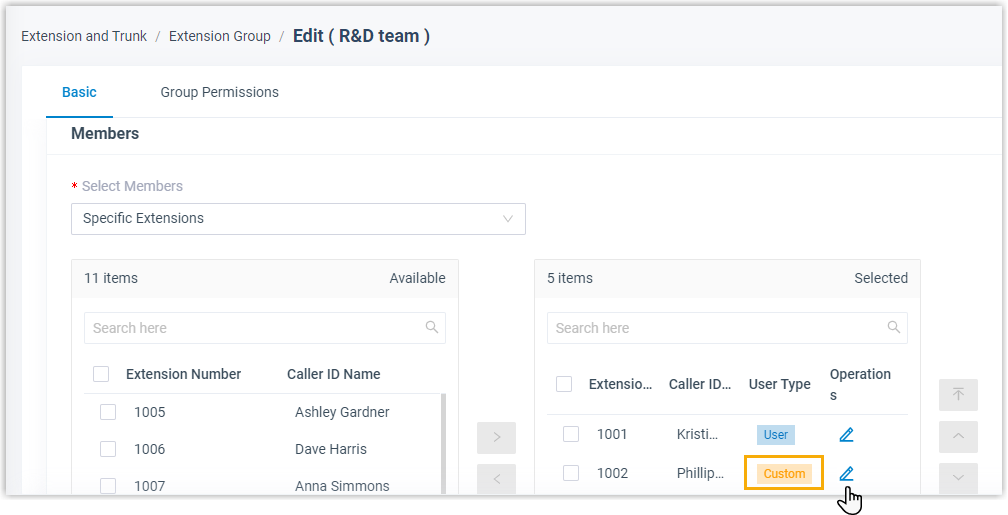
a. In the window that opens, select or clear the checkboxes for the permissions you want this member to have. b. Click Confirm.
-
Click Save and then Apply.
The selected member’s permissions are updated.
Question about this page?
Ask the AI assistant. It starts from this page, then searches the rest of the docs.
Ask Cloud Voice AI
Answers are AI-generated from the docs and may contain mistakes. Verify with the linked pages.