
Call Detail Record (CDR) Overview
A Call Detail Record (CDR) captures the details of every inbound and outbound call handled by Cloud Voice, giving you the raw data you need to review call activity and fine-tune how your organization communicates. This page introduces the two ways CDRs can be displayed, the methods you can use to reach them, and how the system manages call-log storage over time.
CDR views
Section titled “CDR views”Cloud Voice can present call logs in either of two views, each offering a different depth of detail.
Standard View
Section titled “Standard View”The Standard View gathers the core metrics for each leg of a call into a single flat layout, so you can scan overall call activity at a glance.
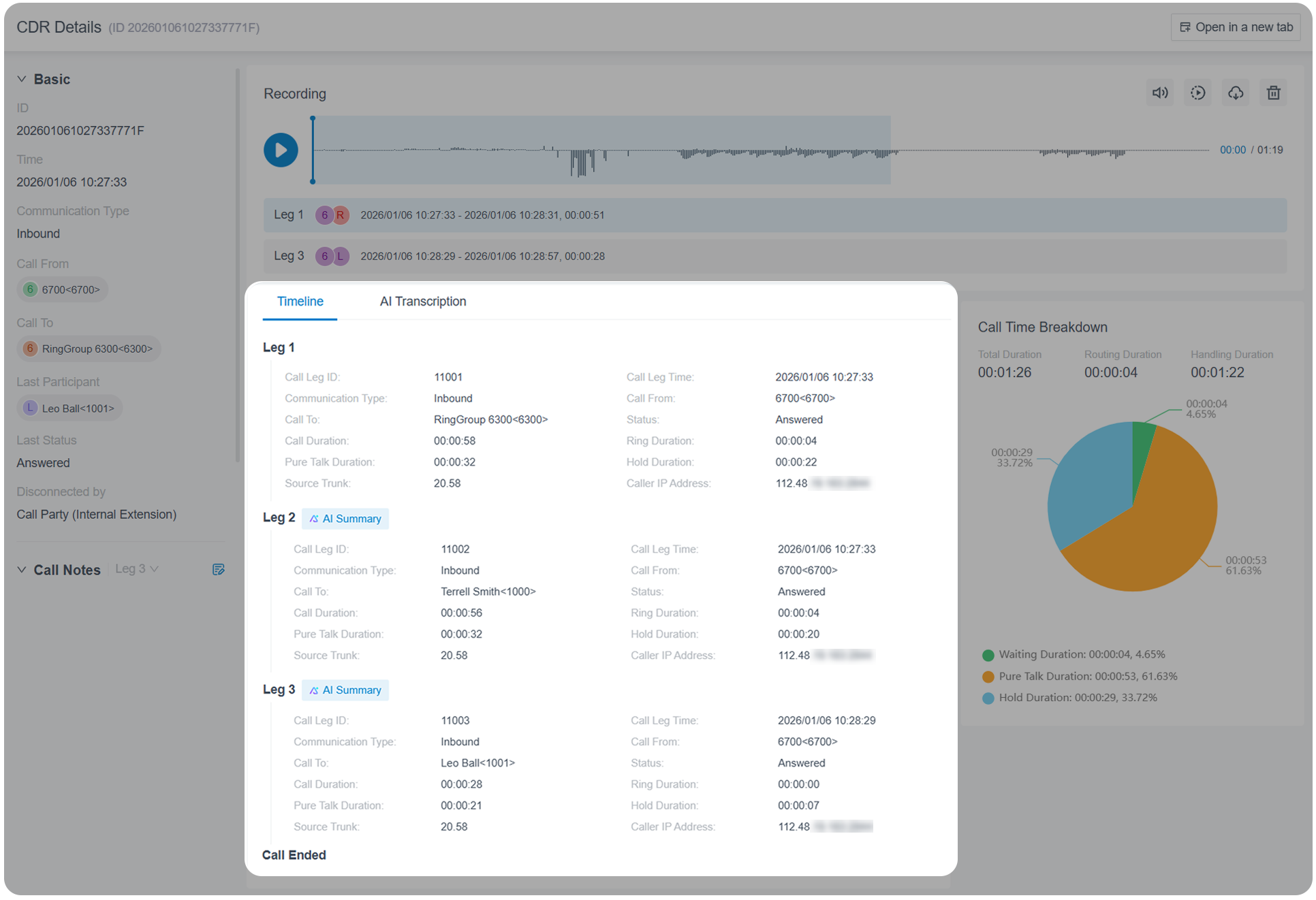
For details, see View CDR and Key Metrics for CDR Details.
Timeline View
Section titled “Timeline View”The Timeline View lays out each record as a call timeline, listing every event from the moment a call starts to the moment it ends in chronological order. This gives you a granular, step-by-step picture of what happened during the call, which makes troubleshooting faster.
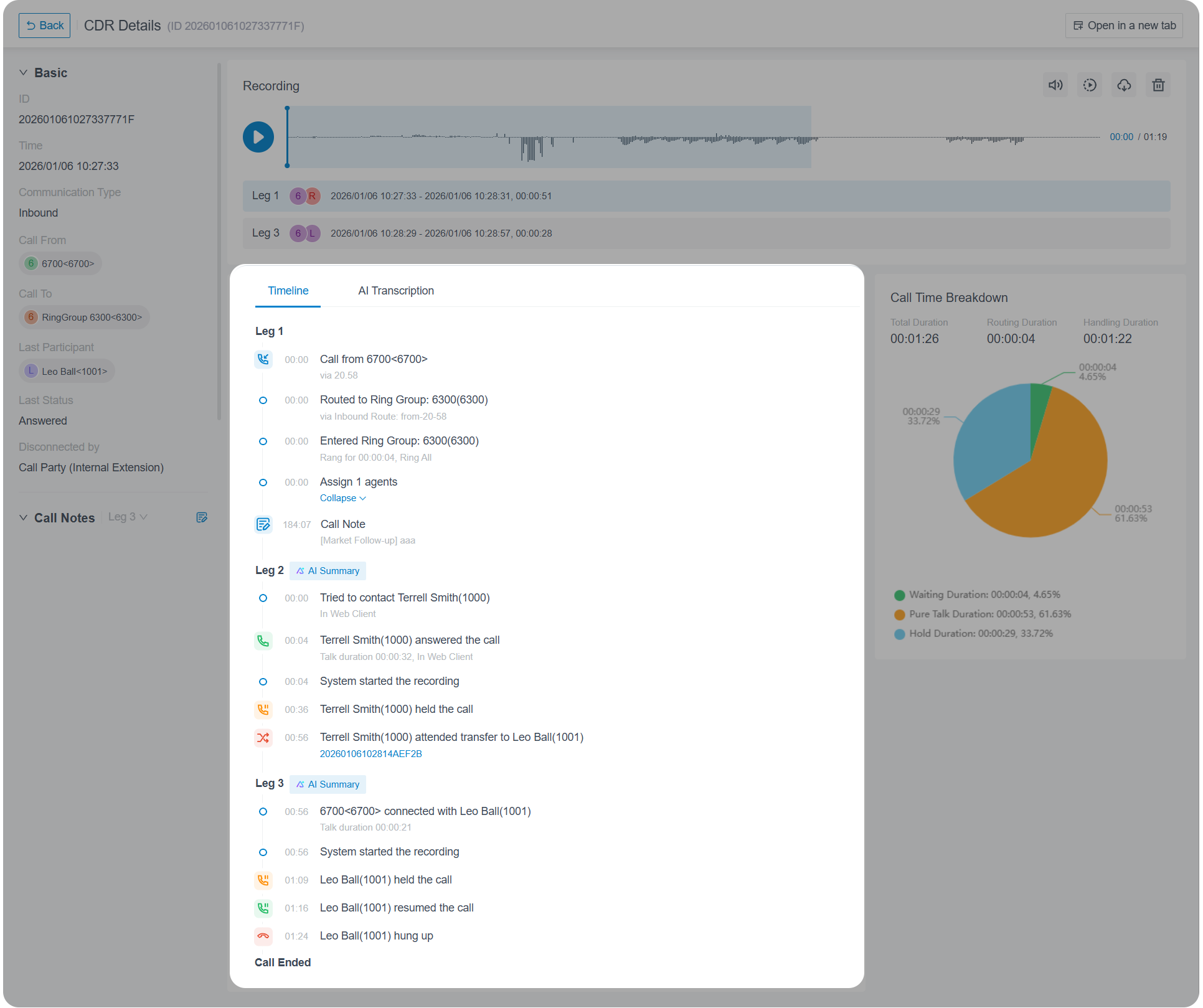
To use the Timeline View, complete the following:
- Make sure your phone system is running version 84.21.0.117 or later.
- Enable the call timeline feature for CDR.
- Access CDRs from the web portal and review the key metrics.
Ways to access CDRs
Section titled “Ways to access CDRs”Cloud Voice offers two methods for getting to your call records.
- On demand: Open CDRs directly in the web portal whenever you need them, and download them as required. See View CDR and Download CDR from the Web Portal.
- Scheduled delivery: Have CDRs sent automatically to specific mailboxes at a time you choose, then download them as needed. Recipients open the record through a download link in the email and can save it as CSV, XLS, PDF, or HTML. See Schedule Automatic CDR Delivery via Email.
Automatic cleanup
Section titled “Automatic cleanup”By default, once the number of stored call logs reaches 200,000, Cloud Voice begins removing the oldest records to make room for new ones. You can raise or lower that ceiling, or instead define a maximum retention period, to match your needs.
For details, see Auto Cleanup Settings.
Question about this page?
Ask the AI assistant. It starts from this page, then searches the rest of the docs.
Ask Cloud Voice AI
Answers are AI-generated from the docs and may contain mistakes. Verify with the linked pages.