
Schedule Automatic Call Report Delivery via Email
Cloud Voice can build a call report on a schedule you choose and email it to a set of recipients. Each message contains a download link, and recipients can save the report as a CSV, XLS, PDF, or HTML file. This saves anyone from logging in to pull the same report by hand: for example, you can send a weekly queue-performance summary to a manager every Monday morning automatically. This page walks through creating one of these scheduled delivery tasks.
Before you begin
Section titled “Before you begin”Your system email server must be configured and working, since Cloud Voice uses it to send the report emails.
Limitations
Section titled “Limitations”You can create up to 2000 scheduled report-delivery tasks.
Create a scheduled report
Section titled “Create a scheduled report”-
Sign in to the PBX (Private Branch Exchange, your phone system) web portal and go to Reports and Recordings > Call Reports.
-
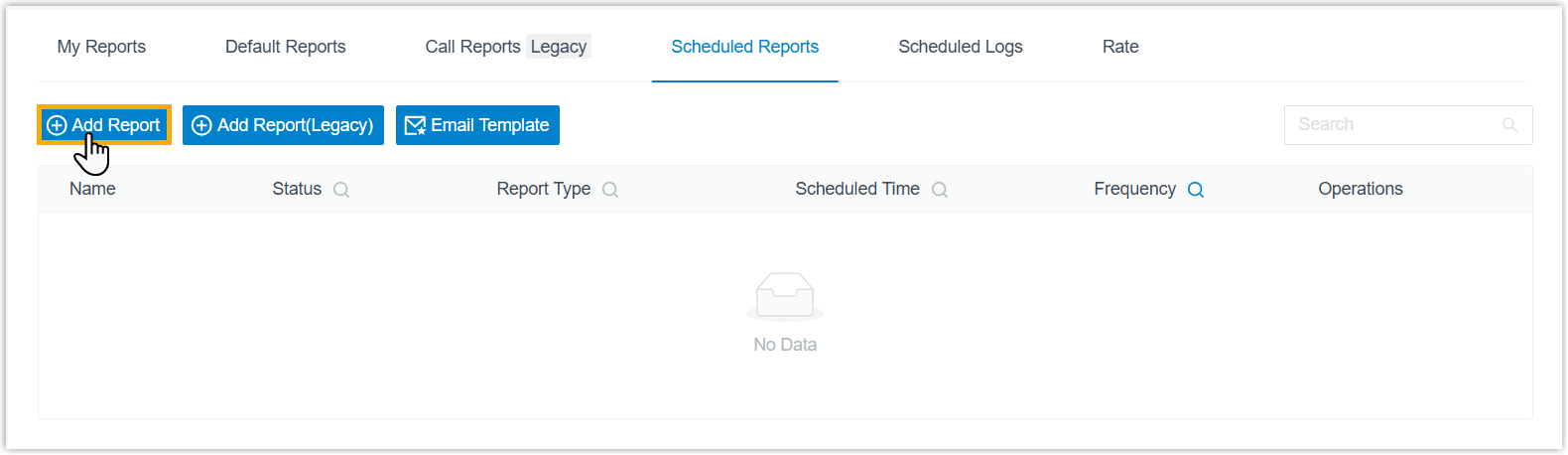
Open the Scheduled Reports tab and click Add Report.
-
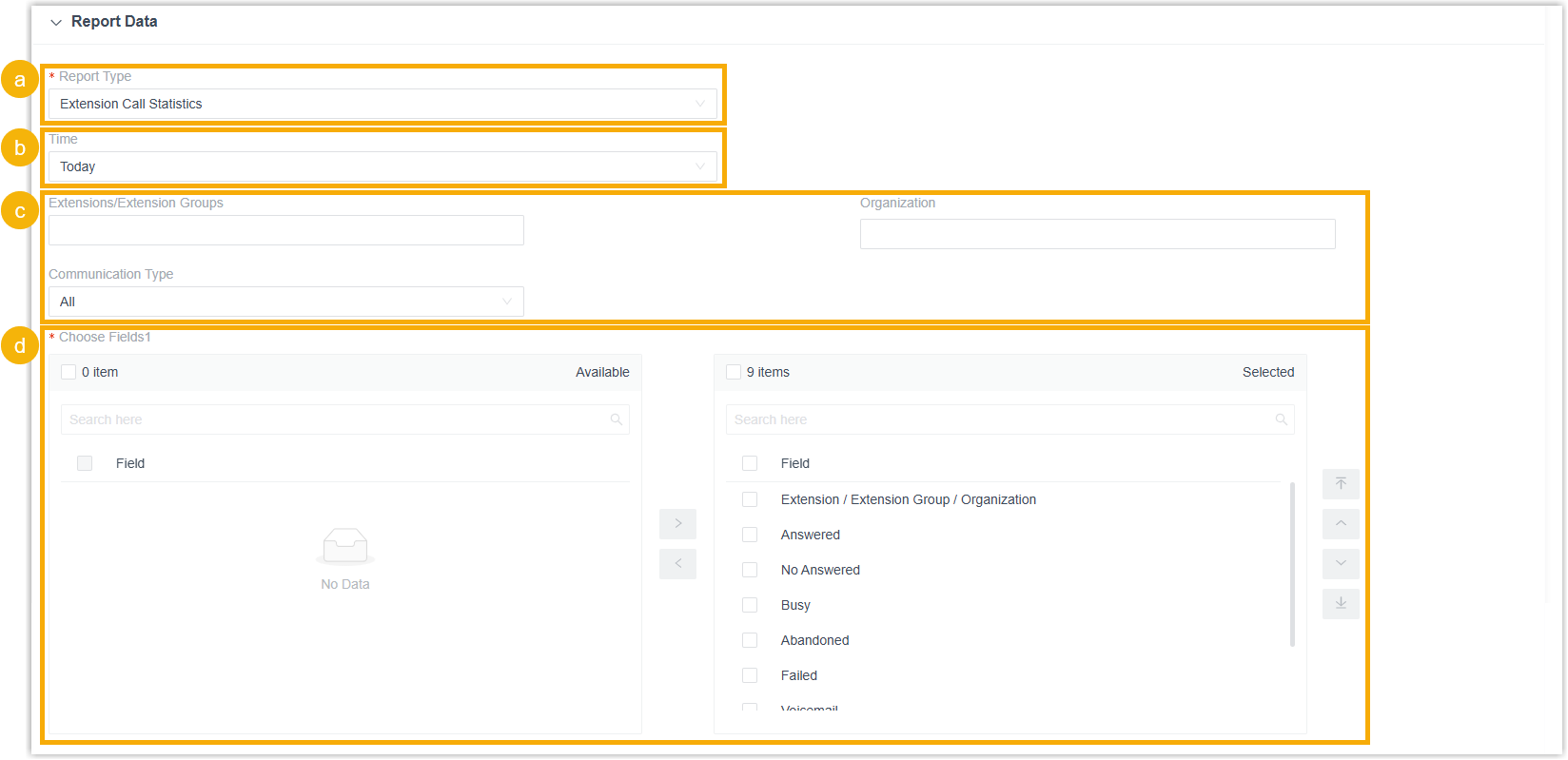
In the Report Data section, define what the report contains.
-
From the Report Type drop-down list, choose the report you want to send.
-
Set the time range the report should cover.
-
Set the report-specific filters that narrow the data. The filters available depend on the report you selected:
Category Report Available filters Extension Extension Call Activity Extensions/Extension Groups; Organization; Communication Type Extension Extension Call Statistics Extensions/Extension Groups; Organization; Communication Type Accounting Extension Call Accounting Extensions/Extension Groups; Trunk; Organization Accounting Extension Call Accounting Details Extensions/Extension Groups; PIN Code; Organization; Trunk Call Activity IVR Report Type; IVR Call Activity DID/Outbound Caller ID Activity Trunk; DID; DOD; Communication Type Call Activity PBX Call Activity Trunk; Include internal calls; Communication Type Call Center Agent Call Summary Queue; Agent Call Center Agent Login Activity Queue; Agent Call Center Agent Missed Call Activity Queue; Agent Call Center Satisfaction Survey Detail Queue; Agent Call Center Agent Pause Activity Queue; Agent; Pause Reason Call Center Agent Performance Queue; Agent; Exclude Calls Abandoned within Xs Call Center Queue AVG Wait & Talk Time Queue Call Center Satisfaction Survey Queue Call Center Queue Callback Summary Queue Call Center Queue Callback Activity Queue; Callback Result Call Center Queue Performance Activity Queue; Exclude Calls Abandoned within Xs Call Center Queue Performance Queue; Exclude Calls Abandoned within Xs; Exclude Calls within Xs Call Center Inbound Queue Activity Analysis Queue; Wait Time Range; Time Range & Select Date; Exclude Calls Abandoned within Xs; Exclude Calls within Xs Call Center Unreturned Missed Call Report Call From; Call To; Call Destination; Missed Call Type; Callback Status; Exclude Calls Abandoned within Xs Call Center Ring Group Statistics Ring Group Call Center Inbound Queue Logs Queue; Communication Type; Call From; Queue Status; Answered Agent; Wait Time; Agent Answer Time; Talk Time; Pure Talk Time; Hold Time; Source Trunk; DID/DDI; Exclude Calls Abandoned within Xs; Exclude Calls within Xs Call Center Agent Activity Analysis Queue; Agent; Time Range & Select Date; Exclude Calls Abandoned within Xs; Exclude Calls within Xs Call Center Inbound Queue Logs for Agent Queue; Agent; Communication Type; Call From; Agent Last Call Status; Queue Status; Process Result; Wait Time in Queue; Agent Wait Time; Talk Time; Pure Talk Time; Hold Time; Source Trunk; DID/DDI; Exclude Calls Abandoned within Xs; Exclude Calls within Xs AI AI Receptionist Call Activity Receptionist AI Transcription Usage Details - Several filters carry a specific meaning:
- Include internal calls: Choose whether internal call activity is counted (PBX Call Activity).
- Time Range & Select Date: The period the report covers. If you combine it with other time-based filters, only the overlapping period is reported.
- Wait Time Range: The interval used to group how long callers waited in the queue before reaching an agent.
- Wait Time, Wait Time in Queue, Agent Answer Time, Agent Wait Time, Talk Time, Pure Talk Time, Hold Time: Duration filters. You can enter a plain number, a numeric range, or an operator (
-,=,<,<=,>,>=). Talk Time includes hold time, while Pure Talk Time excludes it. - Exclude Calls Abandoned within Xs: A ring-duration threshold. Calls abandoned before this many seconds are left out of the report.
- Exclude Calls within Xs: A talk-duration threshold. Calls that end before this many seconds are left out of the report.
- Call From / Call To: The caller’s or callee’s number or name.
- Call Destination: The type of destination an inbound call was routed to.
- Missed Call Type: The category of missed call.
- Callback Status: Whether the missed call was returned.
- Process Result: The handling result for an abandoned or missed queue call.
-
In the Choose Fields pane, move any columns you do not want in the report from the Selected box to the Available box.
-
-
In the Scheduled Info section, configure how and when the report is delivered.

Setting Description Name A name that helps you recognize the task. Email Address The recipients’ email addresses. You can add up to 10 addresses, separated by semicolons ( ;).Frequency How often the report is sent:
- Once: sent immediately after you save the task.
- Daily: pick a time; the report goes out at that time every day.
- Weekly: pick a day of the week and a time; the report goes out then each week.
- Monthly: pick a day and a time; the report goes out on that day and time each month.Validity Period of the Download Link How long the download link stays active. Once it expires, recipients can no longer download the report through the link. File Format The download format: CSV, XLS, PDF, or HTML. For reports that have a Details view (such as IVR Report or Queue Performance), a PDF download omits the call details shown in that view. Duration Format How all duration fields are displayed: Display in Second (s) or Display as HH:MM:SS. Include Details Whether to download the list data only or include call details. If you include details, choose how they are delivered: Download data as multiple files/sheets, or Details are displayed as indented, offset rows within the same list. This option appears only for reports that contain call details, such as IVR Report or Queue Performance. Send Attachment Optional. When enabled, the report file is attached directly to the email. Attachments in CSV, XLS, or PDF format do not include chart data. -
Click Save.
Result
Section titled “Result”-
The task is created and appears in the Scheduled Reports list.

-
At each scheduled time, Cloud Voice sends the report to the recipients’ mailboxes automatically. You can also review what was sent from the Scheduled Logs tab.

Question about this page?
Ask the AI assistant. It starts from this page, then searches the rest of the docs.
Ask Cloud Voice AI
Answers are AI-generated from the docs and may contain mistakes. Verify with the linked pages.