
Enable Microsoft Teams User Presence Synchronization
Through the Microsoft Entra ID (Azure Active Directory) integration, Cloud Voice can keep an extension’s presence in step with the Microsoft Teams status of the user who owns it. Enabling this takes two parts: switch the feature on for the whole system, then turn it on and define a mapping for each synced user’s extension.
Before you start
Section titled “Before you start”Make sure the following are in place:
- Cloud Voice is already connected to Microsoft Entra ID. Which procedure applies depends on your system’s firmware version:
- 84.22.0.138 or later: Integrate Cloud Voice with Azure Active Directory.
- Earlier than 84.22.0.138: Integrate Cloud Voice with Azure Active Directory (Legacy).
- You have synchronized users from Microsoft Entra ID to Cloud Voice. Presence synchronization applies only to the extensions created from those synced users.
Step 1. Turn on Teams presence synchronization for the system
Section titled “Step 1. Turn on Teams presence synchronization for the system”-
Sign in to the Cloud Voice management portal and open Integrations > Collaboration.
-
Scroll to the bottom of the page and enable Microsoft Teams User Presence Synchronization.

-
Click Save.
Step 2. Configure synchronization on each extension
Section titled “Step 2. Configure synchronization on each extension”-
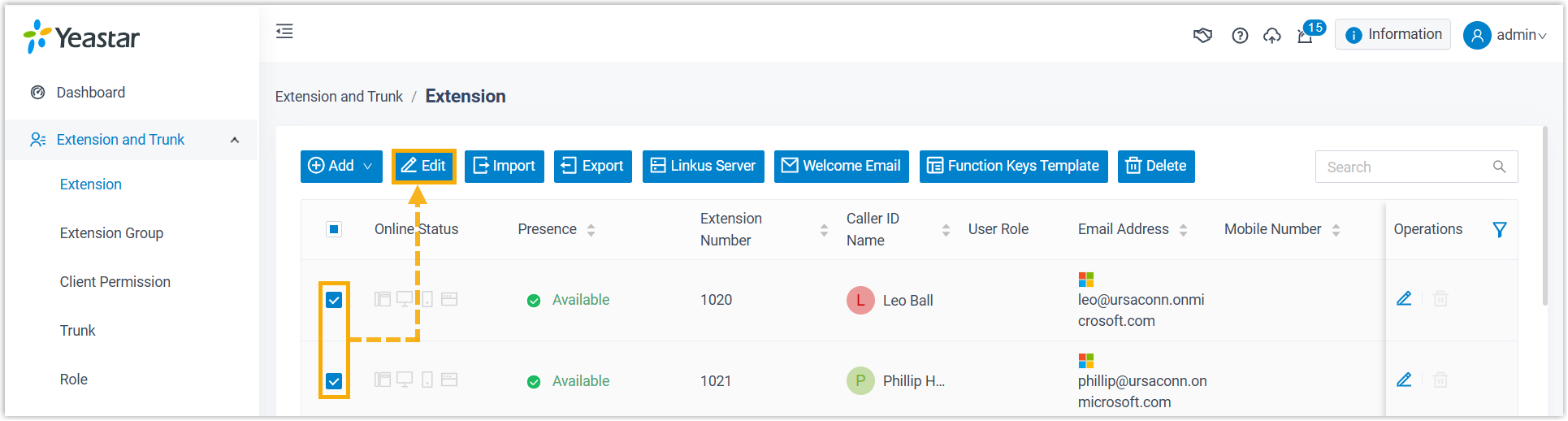
Go to Extension and Trunk > Extension.
-
Select the checkbox beside each synced user’s extension, then click Edit.
-
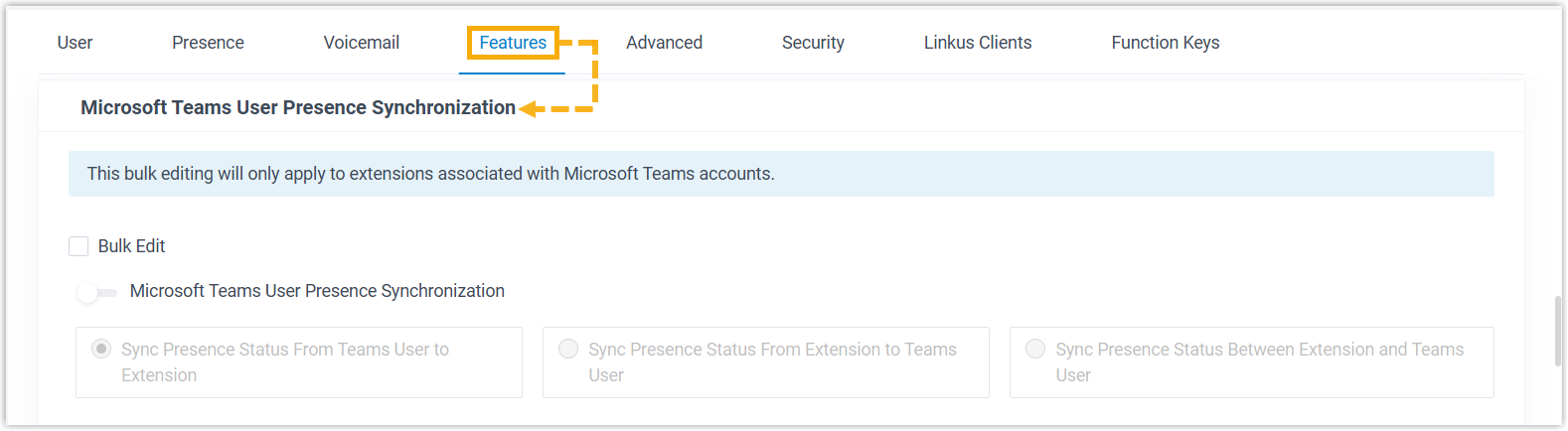
Open the Features tab and scroll down to the Microsoft Teams User Presence Synchronization section.
-
Enable and configure synchronization:
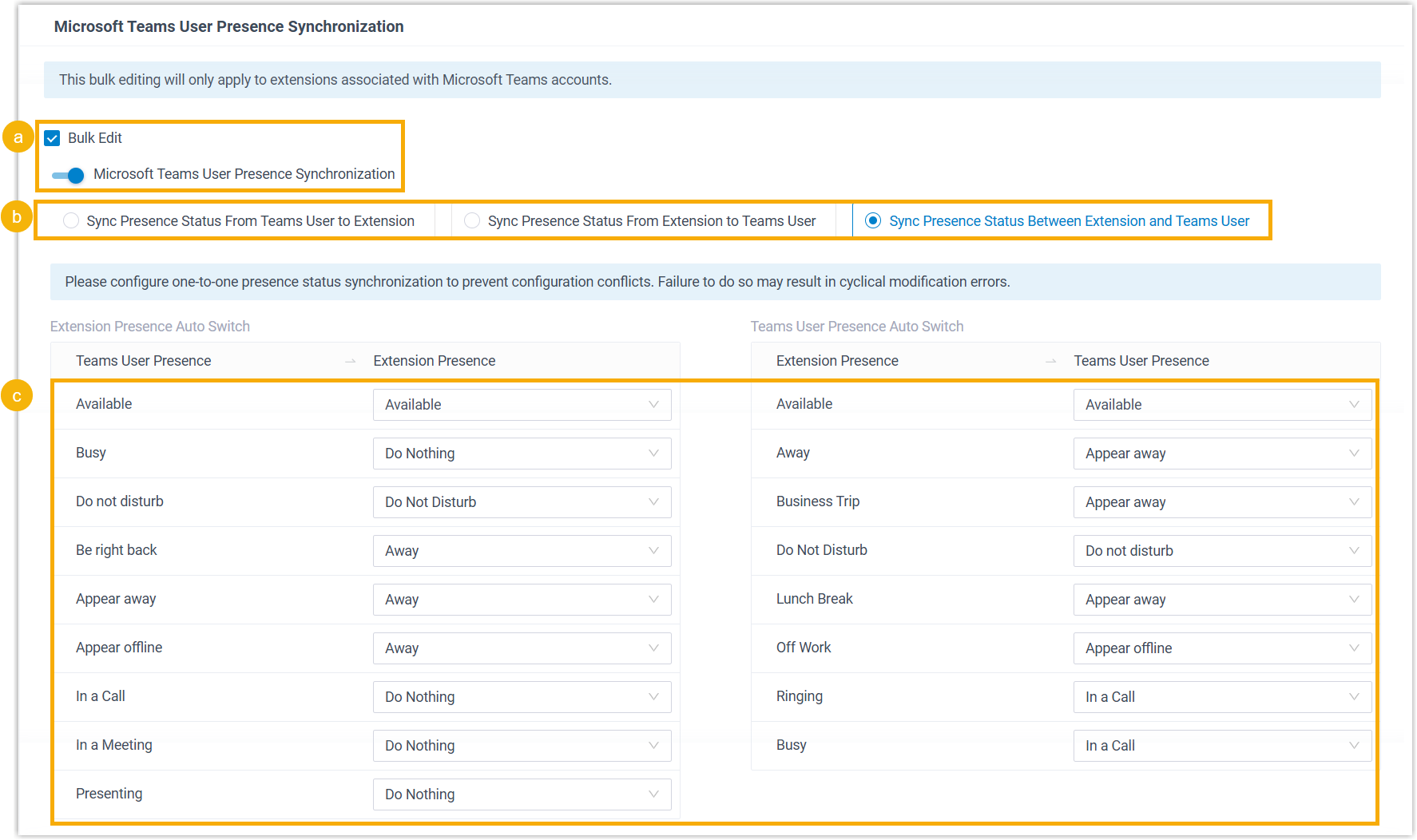
- Select the Bulk Edit checkbox, then turn on Microsoft Teams User Presence Synchronization.
- Choose an option that sets how presence flows between each user’s Teams account and their Cloud Voice extension. The choice controls direction: presence can flow one way (from Teams to the extension, or from the extension to Teams) or both ways. See Result for how the two-way option behaves.
- Map each Teams presence state to its corresponding extension presence.
-
Click Save.
Result
Section titled “Result”Presence changes on either side, the user’s Teams account or their Cloud Voice extension, are now reflected on the other according to the rule you defined.
Question about this page?
Ask the AI assistant. It starts from this page, then searches the rest of the docs.
Ask Cloud Voice AI
Answers are AI-generated from the docs and may contain mistakes. Verify with the linked pages.