
Receive Inbound Calls through the Extended FXO Trunks
Once Cloud Voice is linked to a TA810 FXO gateway, the analog lines terminated on the gateway’s FXO ports act as extended trunks for your phone system. An FXO (Foreign Exchange Office) port is the analog interface that plugs into a phone line from the traditional phone network, the PSTN (Public Switched Telephone Network). To deliver a call that lands on one of those trunks to an extension, you set up routing in two places: a route on the gateway that forwards the call to Cloud Voice over SIP (Session Initiation Protocol, the signaling used for calls over an IP network), and an inbound route on Cloud Voice that sends the call to a destination.
Scenario
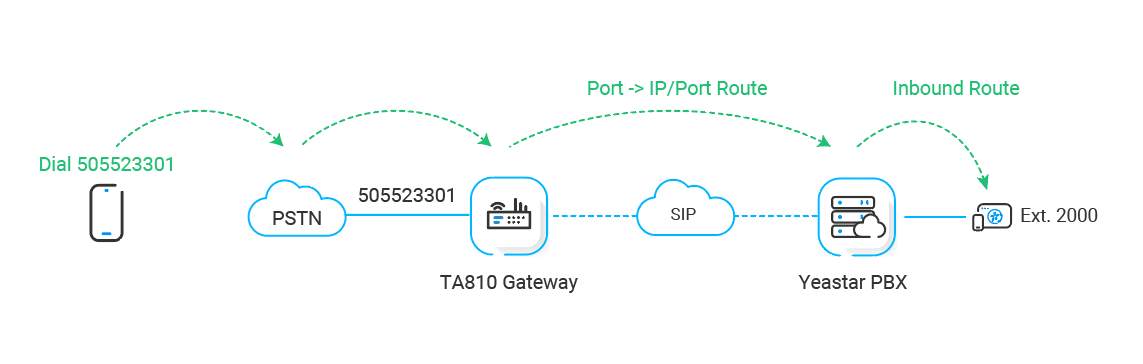
Section titled “Scenario”The diagram below traces how a call travels from the gateway’s FXO trunks into Cloud Voice.
Step 1. Create a Port-to-IP route on the gateway
Section titled “Step 1. Create a Port-to-IP route on the gateway”On the TA810 gateway, add a Port->IP route so calls arriving on the FXO trunks are forwarded to Cloud Voice.
-
Sign in to the gateway’s web interface, go to Gateway > Route Settings > Port->IP/Port, and click Add Port->IP/Port Route.
-
Configure the route in the window that opens.
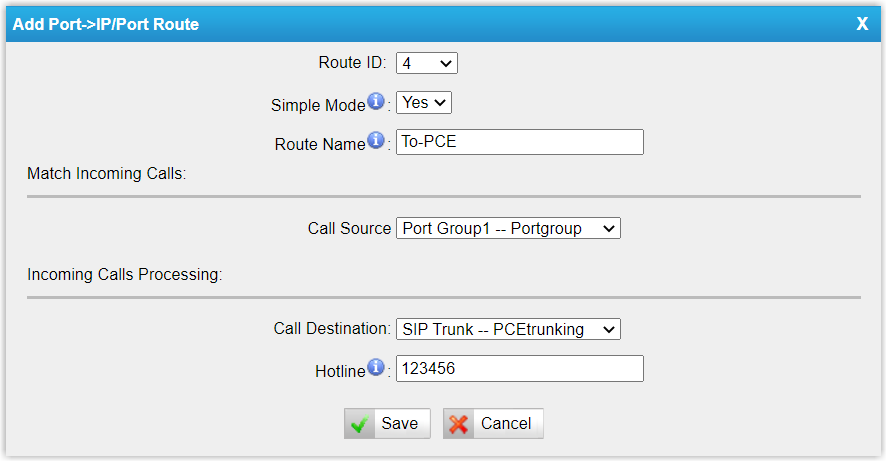
- Simple Mode: Select Yes.
- Route Name: Enter a name that is easy to recognize.
- Call Source: Choose the FXO trunk or trunks to route from. This example uses all FXO trunks.
- Call Destination: Choose the SIP trunk that connects to Cloud Voice. This example uses the trunk CloudVoice-Trunk.
- Hotline: Enter a hotline number, such as
123456.
-
Click Save, then Apply Changes.
Step 2. Create an inbound route on Cloud Voice
Section titled “Step 2. Create an inbound route on Cloud Voice”Add an inbound route so Cloud Voice accepts the calls arriving from the gateway and points them at a destination.
-
Sign in to the Cloud Voice management portal, go to Call Control > Inbound Route, and click Add.
-
Complete the fields below, leaving everything else at its default value.
-
Name: Enter a name that is easy to recognize.
-
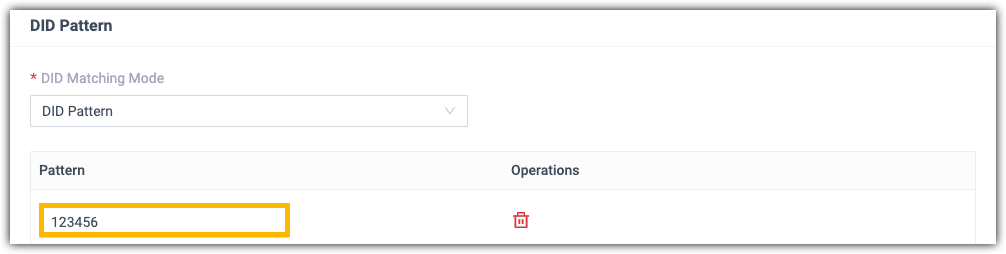
DID Pattern: Define how the DID is matched.
- DID Matching Mode: Select DID Pattern.
- Pattern: Enter the hotline number you set on the gateway so it matches the incoming calls,
123456in this example.
-
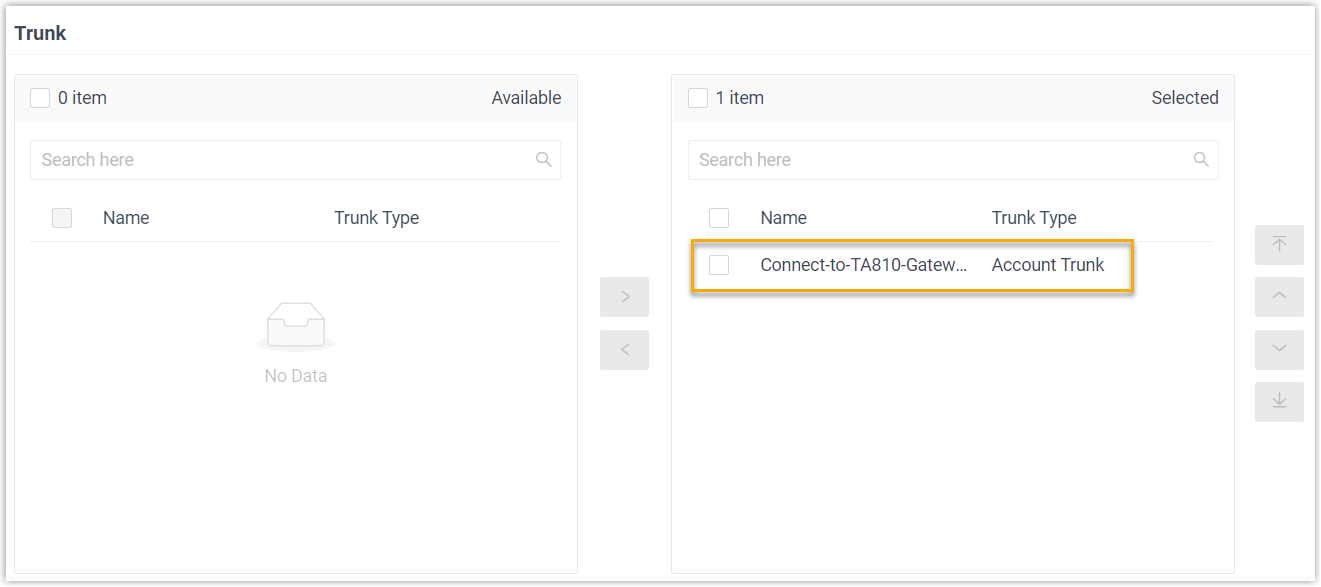
Trunk: Select the SIP account trunk that connects to the gateway (the Cloud Voice side of the same link the gateway route points at). This example uses the trunk Connect-to-TA810-Gateway.
-
Default Destination: Choose where matched calls should land. This example points to extension 2000, so any call coming in from the gateway rings that extension.

-
-
Click Save, then Apply.
Step 3. Test the FXO trunk
Section titled “Step 3. Test the FXO trunk”Place a call to the number of an extended FXO trunk to confirm the routing works end to end. For example, if the trunk’s number is 505523301, dialing 505523301 rings extension 2000 on Cloud Voice.
Question about this page?
Ask the AI assistant. It starts from this page, then searches the rest of the docs.
Ask Cloud Voice AI
Answers are AI-generated from the docs and may contain mistakes. Verify with the linked pages.