
Set up Call Popup
Once Cloud Voice is linked to Zoho Desk, an inbound call from a known Zoho Desk contact opens a browser tab with that contact’s record by default. This page shows how to change that behavior so the popup fires on a call event you choose, or only when the agent asks for it.
Before you start
Section titled “Before you start”Make sure you have already integrated Cloud Voice with Zoho Desk.
Configure the popup
Section titled “Configure the popup”-
Sign in to the PBX (Private Branch Exchange) web portal and open Extension and Trunk > Extension.
-
Find the extension that belongs to the helpdesk agent and click the edit icon
 to open its settings.
 -
Open the Cloud Voice App tab, locate the client you want to configure, and turn on Open Contact URL Using System-Integrated Helpdesk.
-
Under Popup Method, choose how the contact record should surface:
-
Have the system open it for you. Select Automatically (Only for Incoming Calls), then pick the point in the call when it should appear from the Trigger Event list:
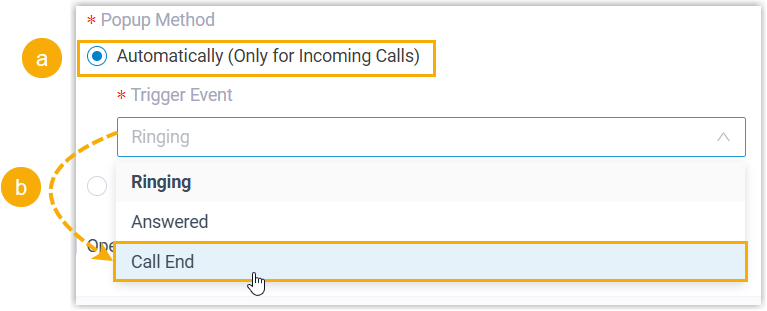
- Ringing: opens as soon as an inbound call from a helpdesk contact starts ringing.
- Answered: opens the moment the agent picks up the call.
- Call End: opens after the agent hangs up.
-
Open it yourself. Select Manually so the agent decides when to pull up the contact’s page during the call.
-
-
Click Save.
What happens next
Section titled “What happens next”-
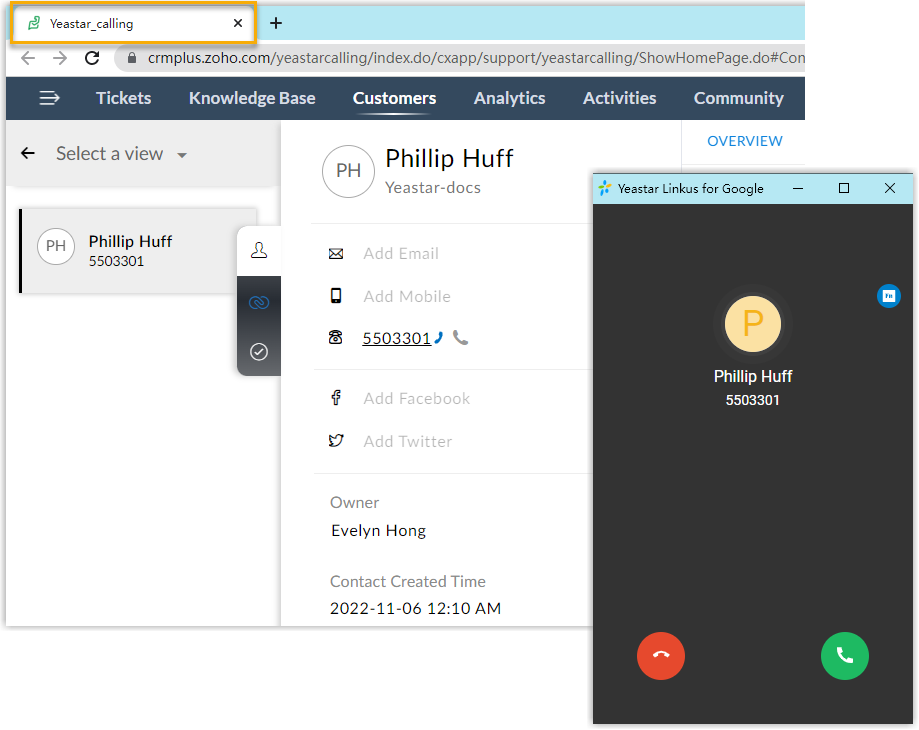
With automatic popup on, the chosen trigger event during an inbound call from a Zoho Desk contact opens a new browser tab showing that contact’s Zoho Desk record.
-
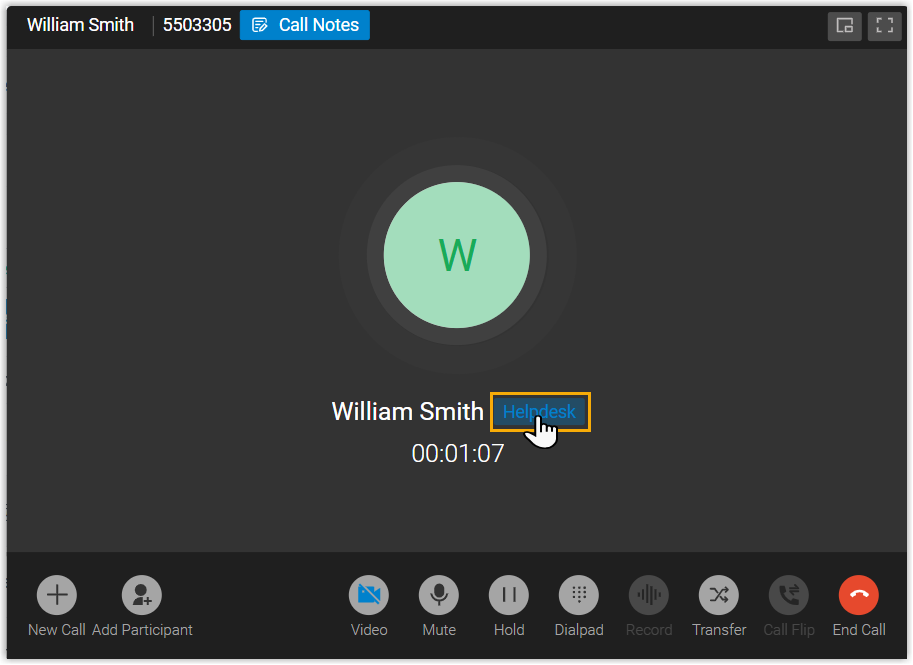
With manual popup on, the agent clicks the Helpdesk label in the call window to open the contact’s details whenever they want during the call.
Question about this page?
Ask the AI assistant. It starts from this page, then searches the rest of the docs.
Ask Cloud Voice AI
Answers are AI-generated from the docs and may contain mistakes. Verify with the linked pages.