
Report Cloud Voice App Problems
When the Cloud Voice App desktop client misbehaves (calls drop, audio fails, the app freezes, or a feature will not load), the fastest way to get help is to capture its debug logs and hand them to support. There are two things to do: export the log file from the client, then open a support ticket and attach it.
Step 1: Export the debug logs
Section titled “Step 1: Export the debug logs”First open the client menu. Where you find it depends on your operating system.
-
Open the Cloud Voice App menu.
-
Windows: Find the Cloud Voice App icon in the system tray (the notification area at the bottom-right of the taskbar, next to the clock), then right-click it.
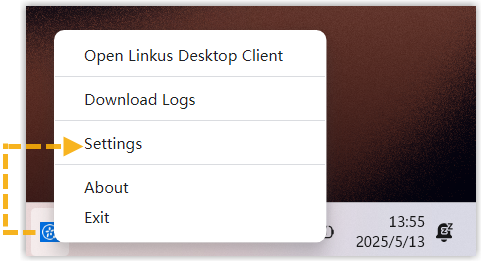
-
macOS: In the menu bar at the top of the screen, click the Cloud Voice App application menu.
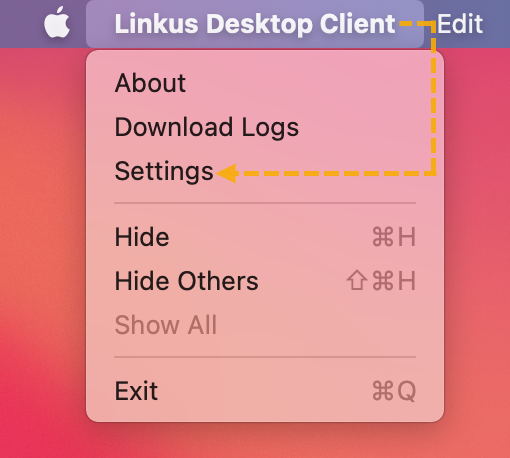
-
-
Choose Download Logs from the menu.
-
Save the generated log file somewhere you can find it again, such as your Desktop or Downloads folder.
Step 2: Send the logs to support
Section titled “Step 2: Send the logs to support”- Open a support ticket describing the problem.
- Attach the log file you saved in Step 1.
- Add as much detail as you can: what you were doing when the issue happened, the exact time it occurred, whether it happens every time or only sometimes, and the steps to reproduce it. The more context you give, the faster support can investigate.
Question about this page?
Ask the AI assistant. It starts from this page, then searches the rest of the docs.
Ask Cloud Voice AI
Answers are AI-generated from the docs and may contain mistakes. Verify with the linked pages.