
Set up Contact Creation
When a call involves a number that is not yet in Dynamics 365 (your CRM, or Customer Relationship Management system), Cloud Voice can turn that number into a new record. You decide how this happens: let the integration create records on its own for the call directions you choose, or keep control and add each unknown number yourself while you are on the call.
Choose a contact-creation method
Section titled “Choose a contact-creation method”-
Sign in to the Cloud Voice App for Dynamics 365 plugin, then click the preferences icon
 .
. -
Open the Dynamics Integration tab.
-
Set up creation to match how you want to work:
To have records created for you automatically:
a. Select the Auto Create Dynamics Contact checkbox.
b. Use the Call Type list to pick which calls trigger a new record:
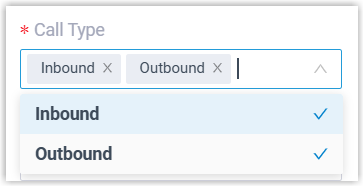
- Inbound: an incoming call from a number that matches no existing Account, Contact, or Lead.
- Outbound: an outgoing call to a number that matches no existing Account, Contact, or Lead.
c. Use the Contact Type list to choose the kind of record to create:
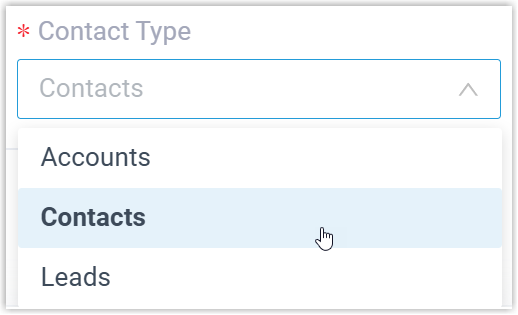
- Accounts: store the unknown number as an Account.
- Contacts: store the unknown number as a Contact.
- Leads: store the unknown number as a Lead.
To review unknown numbers and add them yourself, leave Auto Create Dynamics Contact cleared.
-
Click Save.
What happens next
Section titled “What happens next”-
With automatic creation on, any inbound or outbound call to an unrecognized number (per your Call Type choice) adds that number to Dynamics 365 as the record type you selected.
-
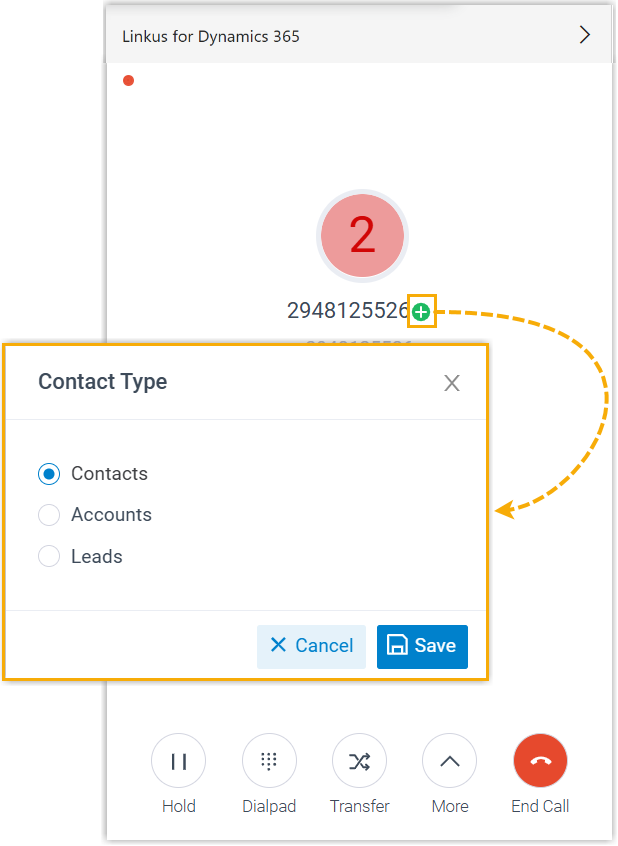
With automatic creation off, you can save an unknown number as a new record on the fly during the call.
Question about this page?
Ask the AI assistant. It starts from this page, then searches the rest of the docs.
Ask Cloud Voice AI
Answers are AI-generated from the docs and may contain mistakes. Verify with the linked pages.