
AI Text-to-Speech
AI Text-to-Speech (TTS) lets you create greetings by typing what you want callers to hear. The system converts your text into lifelike speech, so you never have to record a message yourself or upload an audio file. This page walks through generating a TTS greeting from the Cloud Voice App on desktop.
Where you can use TTS greetings
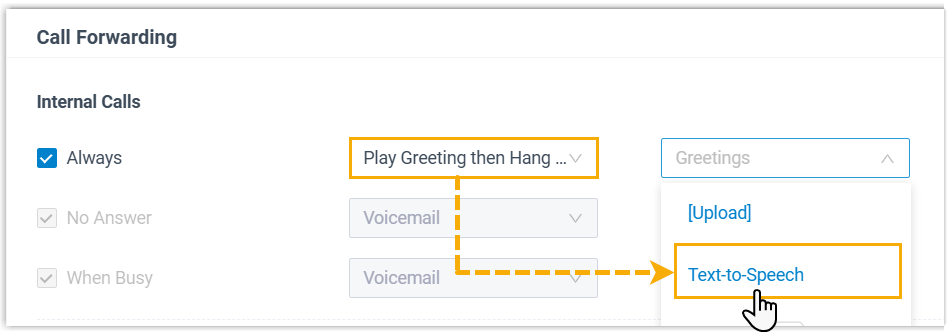
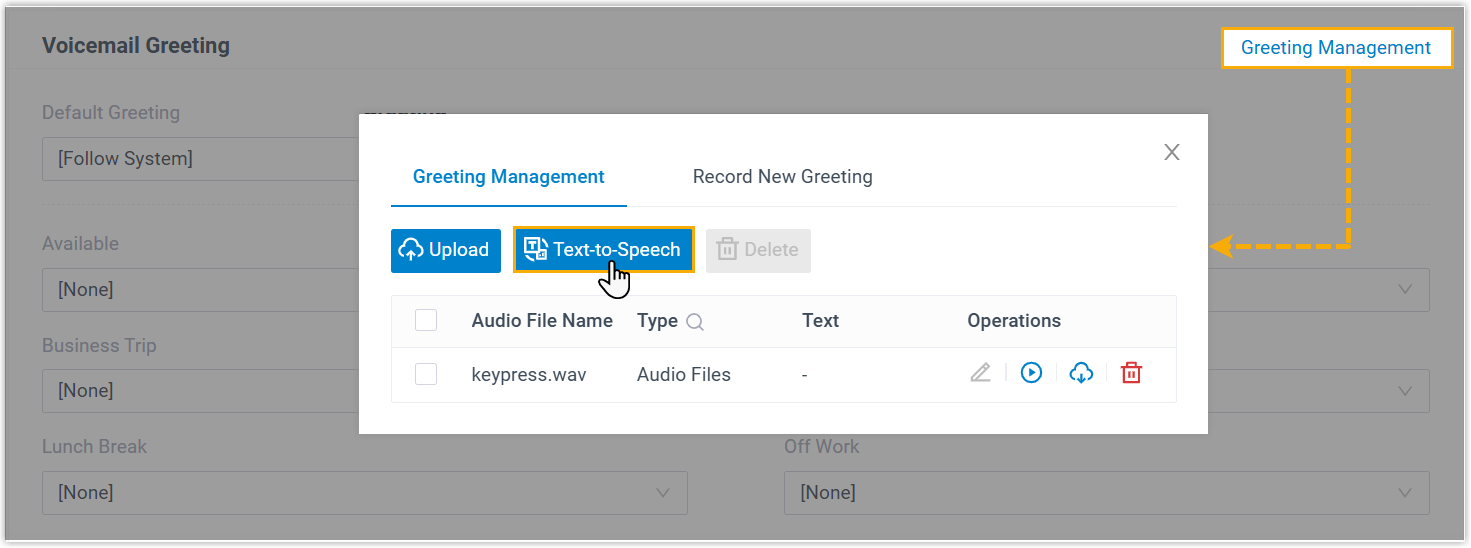
Section titled “Where you can use TTS greetings”You can generate a greeting with AI TTS in either of these places:
| Feature | Where to set it |
|---|---|
| Call Forwarding | Preferences > Presence > Call Forwarding |
| Voicemail Greeting | Preferences > Voicemail > Voicemail Greeting |
Before you begin
Section titled “Before you begin”- The PBX (Private Branch Exchange, the phone system server) firmware is 84.20.0.128 or later.
- Your system administrator has turned on the AI Text-to-Speech feature.
Create a TTS greeting
Section titled “Create a TTS greeting”-
Open the settings for the feature you want a greeting for, then click Text-to-Speech.
-
In the window that opens, fill in the prompt details.
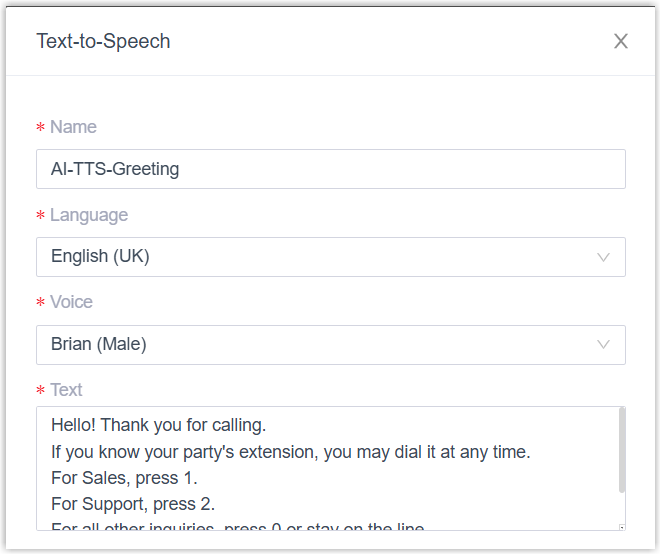
- Name: A label that helps you recognize this prompt later.
- Language: The language the prompt will be spoken in.
- Voice: The voice profile used to read the text.
- Text: The words you want converted to audio.
-
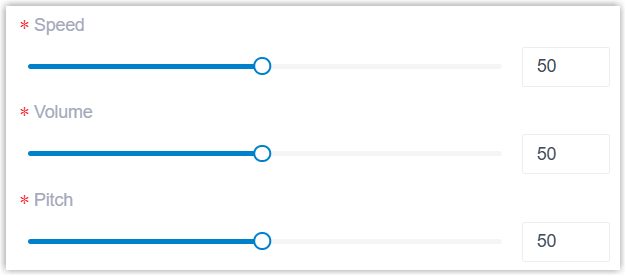
Optional: fine-tune the audio and preview it before saving.
a. Drag the Speed, Volume, and Pitch sliders to the values you want.
b. Click Listen to preview the prompt.
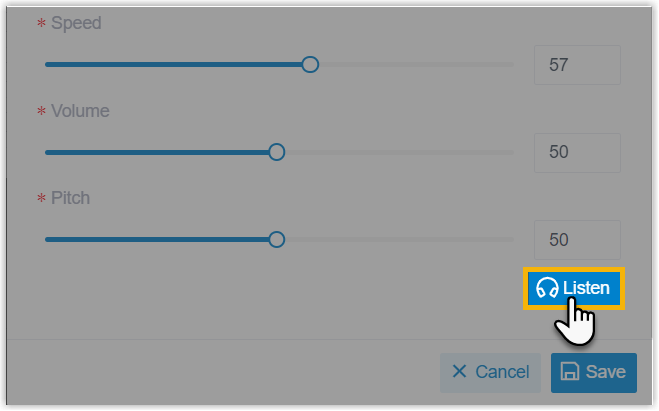
The button reads Generating while the audio is being created, then switches to Play once it is ready.

c. Click Play, then click
 in the pop-up window to hear the prompt.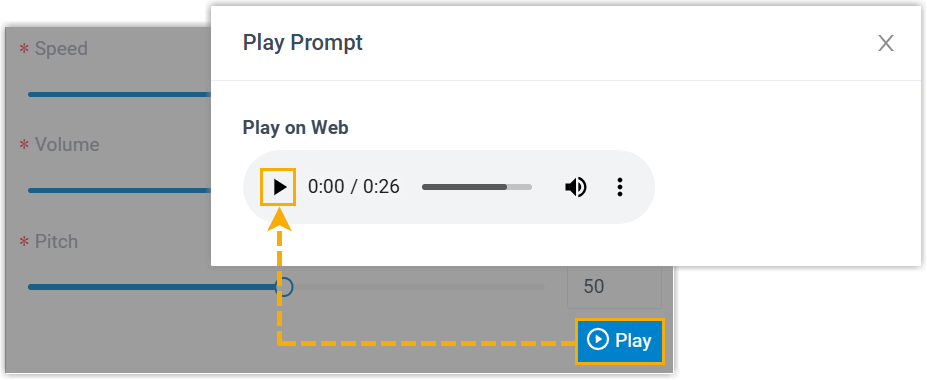
-
Click Save.
Result
Section titled “Result”- The audio prompt is saved and ready to apply to the feature you set it up for.
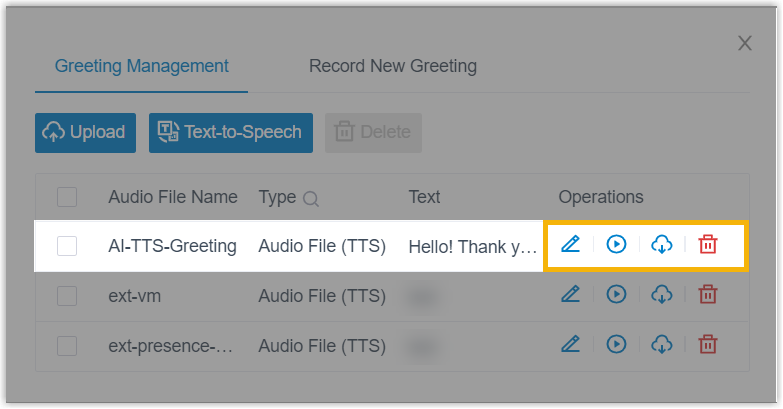
- To review or update your prompts later, go to Preferences > Voicemail > Voicemail Greeting > Greeting Management. See Manage Personal Voicemail Greetings for details.
Question about this page?
Ask the AI assistant. It starts from this page, then searches the rest of the docs.
Ask Cloud Voice AI
Answers are AI-generated from the docs and may contain mistakes. Verify with the linked pages.