
Enable or Disable Call Waiting
Call Waiting lets a second caller reach you while you are already on a call. Say you are talking with a coworker and a customer dials in: rather than sending the customer straight to voicemail, you can put your coworker on hold and take the new call. Turn this behavior on or off in the Cloud Voice App whenever it suits you.
Turn on Call Waiting
Section titled “Turn on Call Waiting”- On the Calls page, tap your account in the top-left corner.
- Open Settings > Advanced.
- Enable the Call Waiting switch.

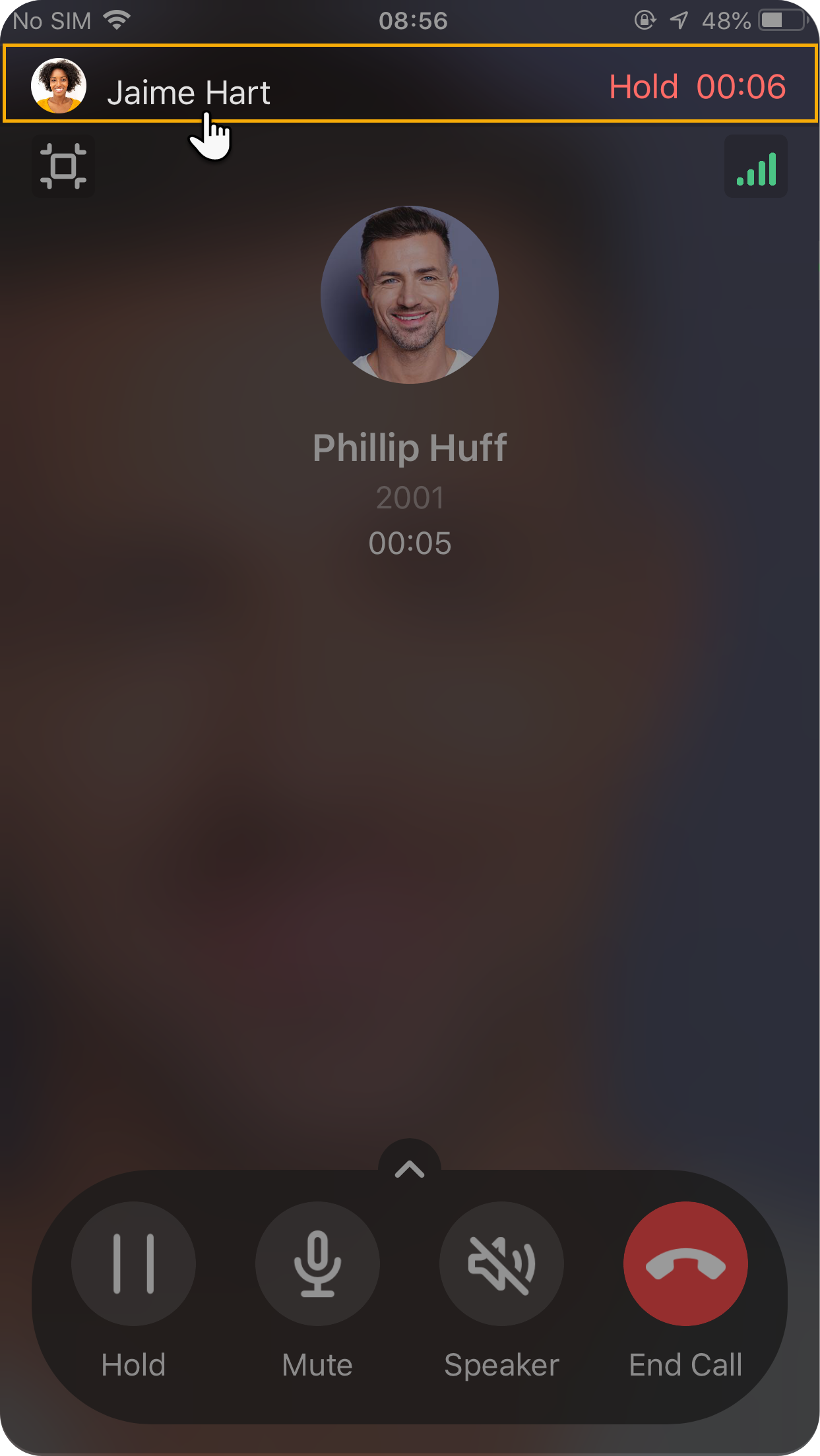
With Call Waiting on, a second incoming call plays an alert tone during your active call and gives you three options for the new call:
 Hang up: end the call in progress and pick up the new one.
 Reject: decline the incoming call and stay on your current call.
 Answer: put the current call on hold and answer the new one.
Turn off Call Waiting
Section titled “Turn off Call Waiting”- On the Calls page, tap your account in the top-left corner.
- Open Settings > Advanced.
- Disable the Call Waiting switch.

With Call Waiting off, callers who dial in while you are on a call cannot break through. Depending on your When Busy forwarding destination, each caller is either asked to leave a voicemail or routed to the destination you configured.
Question about this page?
Ask the AI assistant. It starts from this page, then searches the rest of the docs.
Ask Cloud Voice AI
Answers are AI-generated from the docs and may contain mistakes. Verify with the linked pages.