
Join a Meeting as a Participant
When you receive a meeting invitation by email, or someone shares the join details with you directly, you can enter the meeting without a Cloud Voice account. The meeting opens in your web browser, so you do not need to sign in or set up anything in advance. Follow the steps below to join as a participant.
Procedure
Section titled “Procedure”-
Open the invitation link.
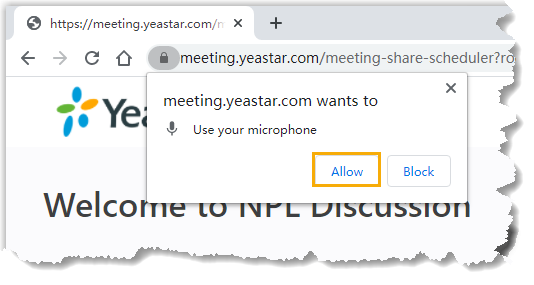
Your browser loads the meeting landing page and prompts you to let the meeting site use your microphone.
-
Grant the browser permissions the meeting needs.
a. Choose Allow to permit microphone access. Your microphone switches on.
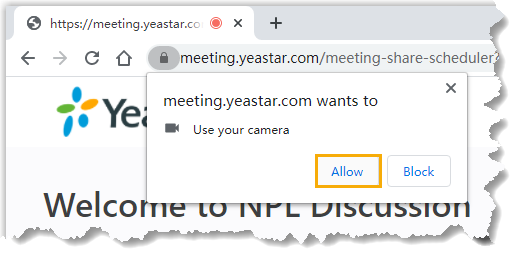
b. Choose Allow to permit camera access. Your camera switches on, and a preview of your video appears on the left side of the page.
-
On the right side of the page, set up how you want to join.
a. For a scheduled meeting, select the Participant tab so that you enter as a participant rather than a host.
b. Fill in your details:
- Your Name: The name that every other attendee sees during the meeting.
- Meeting Password: Enter it only if the meeting requires a password. Leave it blank when no password is requested.
c. Keep the default camera, microphone, and speaker, or pick different devices if you prefer.
-
Select Join.
Result
Section titled “Result”If the host has not started the meeting yet, you wait in the meeting until they arrive. While you wait, you cannot see or hear any of the other participants.
Question about this page?
Ask the AI assistant. It starts from this page, then searches the rest of the docs.
Ask Cloud Voice AI
Answers are AI-generated from the docs and may contain mistakes. Verify with the linked pages.