
IVR Configuration Example
This example walks through building an interactive voice response (IVR) menu that greets callers and sends them to the right destination based on the key they press.
Scenario
Section titled “Scenario”A business wants one IVR to answer incoming calls and hand each caller off to the team they need: pre-sales, support, after-sales, or a specific account manager. Callers reach the menu by dialing extension 6200, listen to the greeting, and press a key to choose where their call goes.
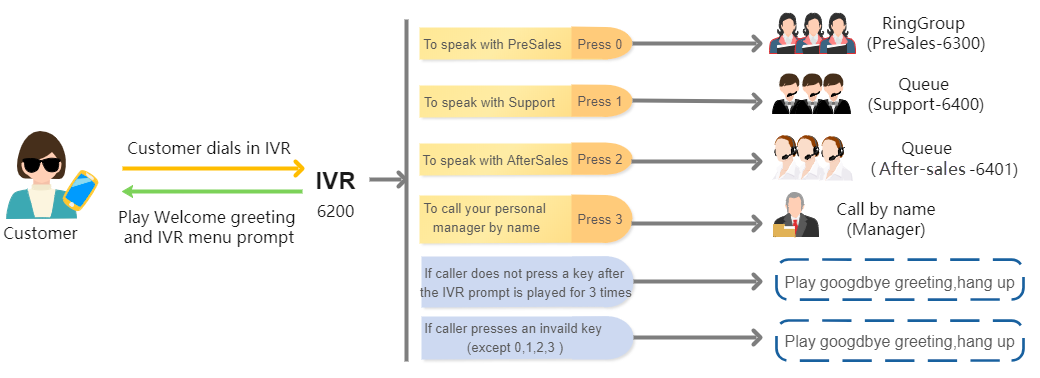
Step 1: Design the menu
Section titled “Step 1: Design the menu”Before you configure anything, map out which service each key press should reach. In this scenario, everyone who dials 6200 hears the same greeting and then selects a department, so decide up front which key routes to which ring group, queue, or extension.
Step 2: Upload the voice prompts
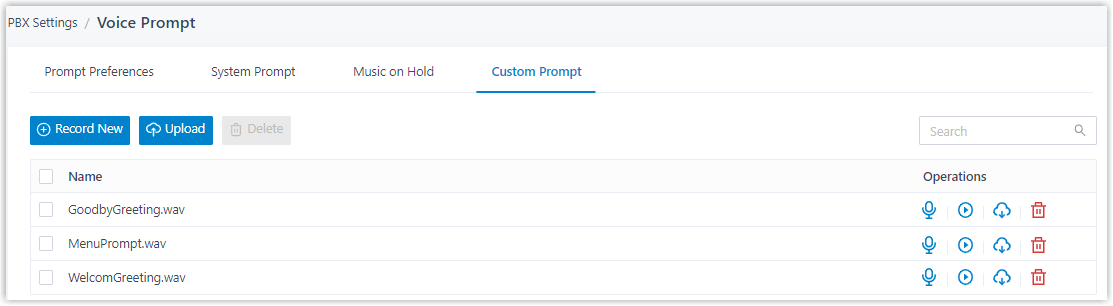
Section titled “Step 2: Upload the voice prompts”Load the recordings the IVR will play, such as the greeting and any spoken menu options.
-
Go to PBX Settings > Voice Prompt > Custom Prompts and click Upload.
-
Select the audio files you want to add.
-
Click Save, then Apply.
Step 3: Create the IVR
Section titled “Step 3: Create the IVR”-
Go to Call Features > IVR and click Add.
-
On the Basic tab, enter the general settings for the IVR, including its number (
6200) and the greeting prompt you uploaded.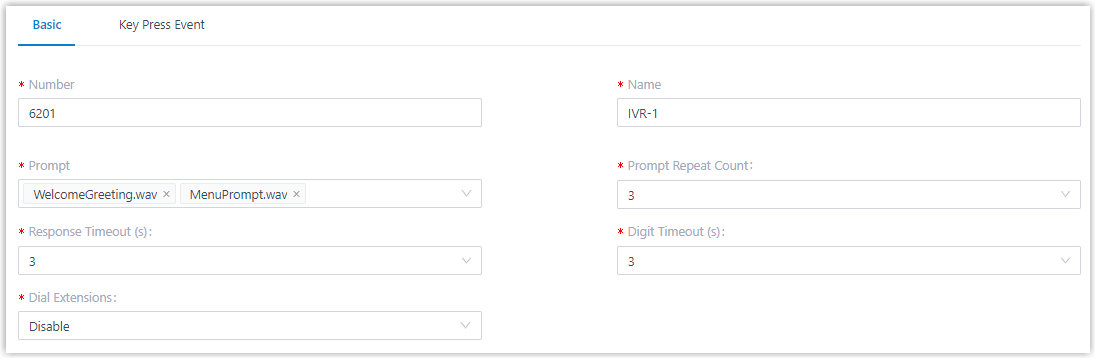
-
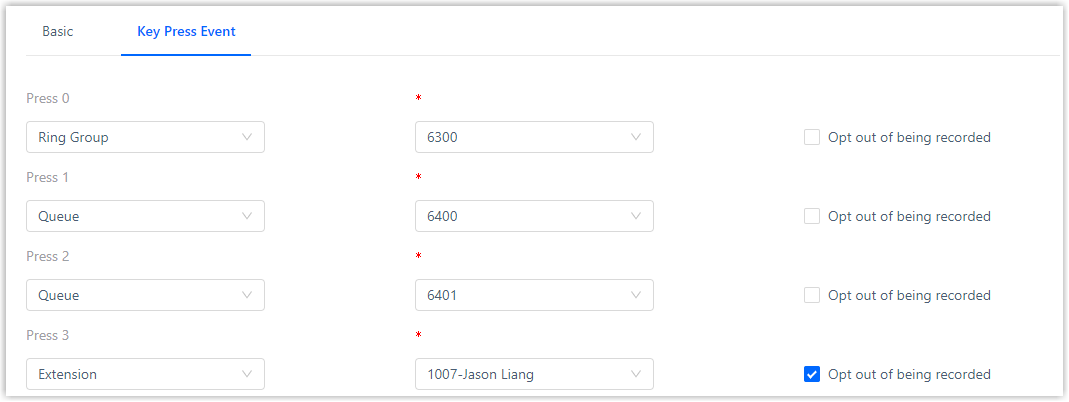
On the Key Press Event tab, assign each menu key to its destination so callers are routed to the correct team.

-
Click Save, then Apply.
Question about this page?
Ask the AI assistant. It starts from this page, then searches the rest of the docs.
Ask Cloud Voice AI
Answers are AI-generated from the docs and may contain mistakes. Verify with the linked pages.