
Audio Conference Call Operations
Once an audio conference is underway, what you can do depends on your role. The host runs the meeting and manages everyone on the line, while participants have a smaller, self-focused set of controls. This page lists who can do what, then walks through the controls you’ll use during a live call.
What hosts and participants can do
Section titled “What hosts and participants can do”The table below shows which actions are available to the host and which are available to a participant.
| Action | Host | Participant |
|---|---|---|
| Turn your own audio on or off | Yes | Yes |
| Turn participants’ audio on or off | Yes | No |
| Record the conference | Yes | No |
| End the conference | Yes | No |
| Leave the conference | Yes | Yes |
| View the participant list * | Yes | Yes |
| Invite participants * | Yes | Yes |
| Remove participants | Yes | No |
Run a live audio conference
Section titled “Run a live audio conference”The conference call window
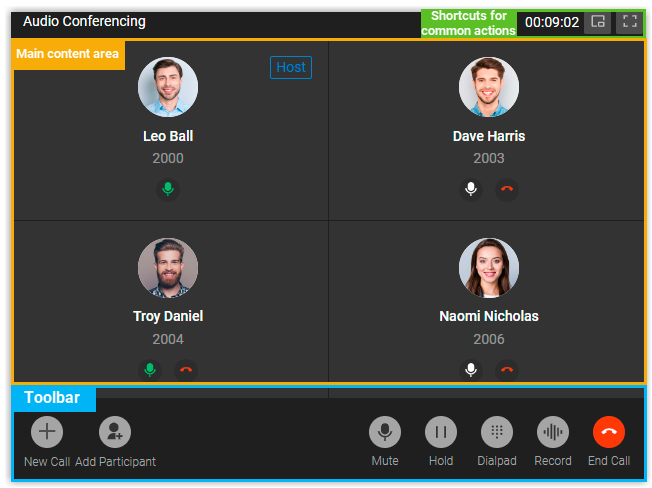
Section titled “The conference call window”While a conference is in progress, the call window gives you the participant view and every control in one place.
Resize the window
Section titled “Resize the window”Two shortcuts let you adjust how the call window fills your screen.
 Zoom the call window out to a smaller size.
 Switch to full-screen mode.
Manage participants
Section titled “Manage participants”The main area of the window shows the audio feed for everyone on the call. As the host, you can act on any individual participant from here:
 Mute or unmute that participant.
 Remove a participant who has already joined, or cancel an invitation you’ve sent to someone who hasn’t answered yet.
Toolbar controls
Section titled “Toolbar controls”The toolbar holds the controls you’ll reach for most during the call.
- New Call: Start a second call without leaving the conference.
- Add Participant: Bring more people into the conference.
- Mute: Mute or unmute yourself.
- Hold/Resume: Put yourself on hold or come back.
- Dialpad: Tap a key to send a DTMF (Dual-Tone Multi-Frequency) tone, the beep tones a phone makes when you press keys. Use it to respond to menu prompts during the call.
- Record: Start or stop recording the conference.
- End Call: Leave the conference, or end it for everyone.
Question about this page?
Ask the AI assistant. It starts from this page, then searches the rest of the docs.
Ask Cloud Voice AI
Answers are AI-generated from the docs and may contain mistakes. Verify with the linked pages.