
Desktop Client Overview
The Cloud Voice App desktop client puts your phone system on your computer. Installed on Windows or macOS, it gives you full access to your organization’s telephony features straight from the desktop, so you can call, message, and manage your extension without a physical handset.
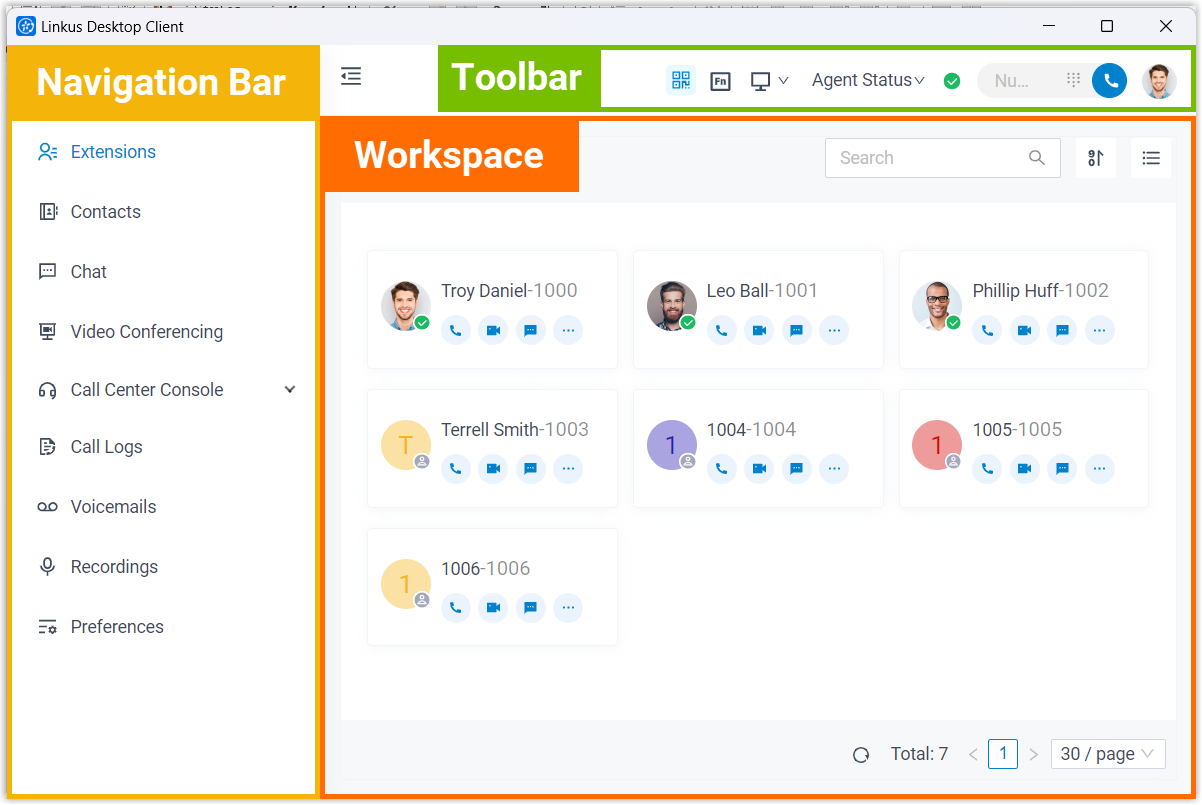
Interface layout
Section titled “Interface layout”The desktop client is split into three main regions:
- Navigation bar on the left, where you switch between features.
- Toolbar across the top, which holds common one-click actions.
- Workspace filling the center, where the feature you selected is displayed.
Navigation bar
Section titled “Navigation bar”The navigation bar is your jumping-off point for the app’s main features. Click an entry here and its screen opens in the workspace.
| Feature | What you can do |
|---|---|
| Extensions | See colleague details, place audio or video calls to them, leave them voicemails, and add the people you contact most to your Favorites list. |
| Contacts | View, add, and manage both your private personal contacts and your organization’s shared company contacts. |
| Chat | Start a one-on-one or group conversation with colleagues, and receive and reply to messages coming in from other channels such as SMS (Short Message Service text messages) and social media. |
| Video Conferencing | Hold face-to-face online meetings for instant collaboration with teammates and customers. |
| Operator Panel | Oversee and handle the calls of a specific group of members. |
| Call Center Console | Work queue calls with real-time call monitoring, management, and reporting. |
| Fax Management | Send and receive faxes in the app, build custom cover pages, and keep a record of every fax. |
| Call Logs | Review and manage your call history. |
| Voicemails | Review and manage your voicemail messages. |
| Recordings | Review and manage your call recording files. |
| Preferences | Adjust your personal settings, including your extension profile, presence, voicemail, audio and video devices, email notifications, call-handling rules, call quality monitoring, function keys, AI (automatic speech-to-text) transcription, and Outlook and TAPI (Telephony Application Programming Interface) integration. |
Toolbar
Section titled “Toolbar”The toolbar gathers actions you reach for often into a single row at the top of the window.
| Button | What it does |
|---|---|
 | Show quick download links for the Cloud Voice App mobile client and Cloud Voice App for Google. |
 | Use function keys to monitor the status of specific objects or to trigger specific actions in one click. |
 | Switch between desktop client mode and CTI (Computer Telephony Integration) mode. |
| Agent Status | Change your status in a queue. |
 | Change your extension presence. |
  | Place an audio or video call. |
| Account | Change your password, set up two-factor authentication (2FA), review the Privacy Policy Agreement, open the Help Center or the Support Portal, and log out of the app. |
Workspace
Section titled “Workspace”The workspace is the central area of the window. Whatever feature you pick from the navigation bar opens here, giving you room to view its content and manage it.
Question about this page?
Ask the AI assistant. It starts from this page, then searches the rest of the docs.
Ask Cloud Voice AI
Answers are AI-generated from the docs and may contain mistakes. Verify with the linked pages.