
Set Ringtones for Incoming Calls
The Cloud Voice App lets you choose the sound that plays when a call comes in. Beyond a single default tone, you can give different callers their own ringtones, so a glance-free listen tells you whether the phone is ringing for a coworker, a customer, or one specific contact.
How ringtone rules apply
Section titled “How ringtone rules apply”Ringtone settings belong to the individual app. Each Cloud Voice App keeps its own tones, and they are not shared between your desktop, web, and mobile clients. Set them separately wherever you want them.
Your administrator can also assign ringtones at the system level for calls that reach you through a ring group, a queue, or an IVR (interactive voice response) menu. When more than one rule could apply to the same call, the Cloud Voice App plays the first match in this order:
- A distinctive ringtone you set for a contact or phonebook
- A ringtone your administrator assigned (ring group, queue, or IVR)
- A distinctive ringtone you set for internal or external calls
- Your default ringtone
Set your ringtones
Section titled “Set your ringtones”-
In the Cloud Voice App, go to Preferences > Features > Ringtone.
-
Select Play Ringtone.

With this turned on, the app rings for every incoming call. Clear the checkbox and calls arrive silently.
-
From the Default Ringtone drop-down, choose a built-in tone or upload your own. This tone plays for every incoming call that doesn’t match a distinctive rule below.
-
To override the default for particular callers, use the Distinctive Ringtone Settings section. Set up as many of the following call sources as you need.
Contacts or phonebooks
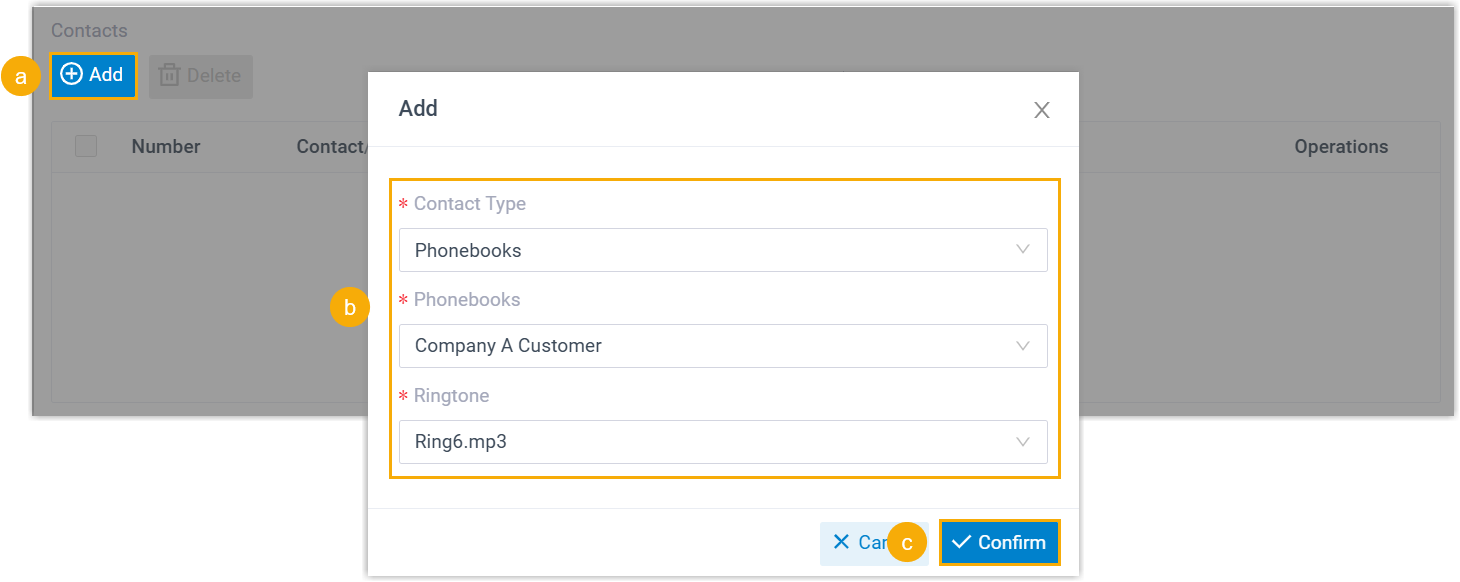
- Click Add.
- Configure the rule:
- Contact Type: choose whether the tone applies to a single contact or a group of contacts.
- Contacts / Phonebooks: select the company or personal contact, or the phonebook that holds the contacts you want.
- Ringtone: select or upload the tone to play.
- Click Save.
- Repeat these steps to add more rules. Calls from those contacts or phonebooks now use the tone you assigned.
External calls
From the External Calls drop-down, pick a tone. Calls from outside numbers use it.
Internal calls
From the Internal Calls drop-down, select or upload a tone. Calls from other extensions use it.
-
Click Save.
Question about this page?
Ask the AI assistant. It starts from this page, then searches the rest of the docs.
Ask Cloud Voice AI
Answers are AI-generated from the docs and may contain mistakes. Verify with the linked pages.