
The other party can't see your video during a video call
When you place a video call from the Cloud Voice App in a browser and the person on the other end sees no picture from your camera, the problem is usually a browser setting rather than the call itself. This most often affects the web client running in Google Chrome (version 88) on macOS, where a disabled hardware acceleration option can stop your video from being sent.
To fix it, confirm that hardware acceleration is turned on in Chrome:
-
In the top-right corner of Chrome, click the
 menu button, then choose Settings.
 -
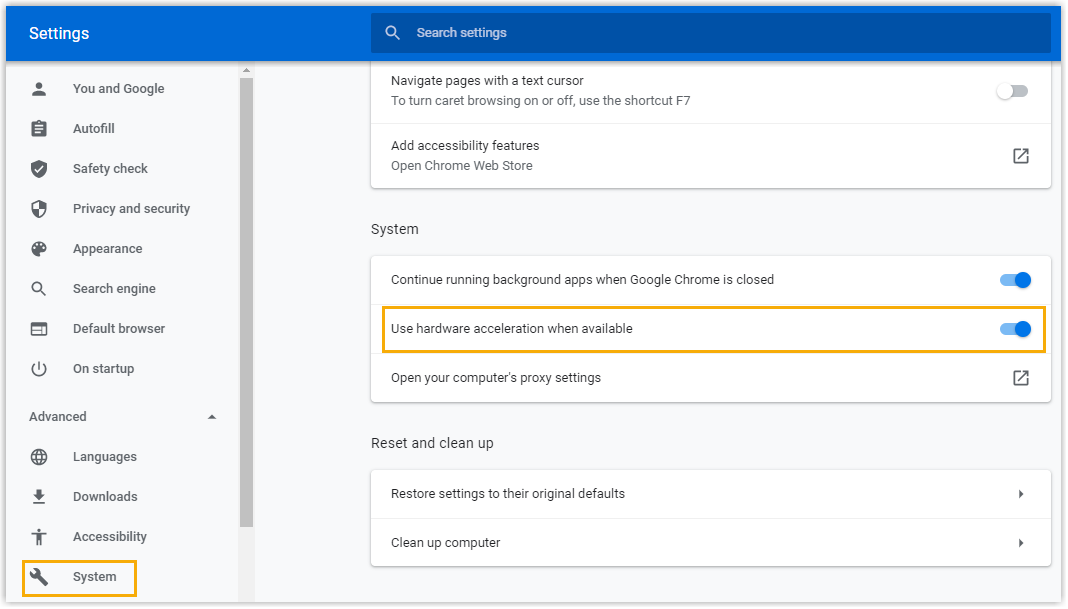
In the left-hand navigation, go to Advanced > System.
-
Under System, look at Use hardware acceleration when available. If it is switched off, turn it on.
Question about this page?
Ask the AI assistant. It starts from this page, then searches the rest of the docs.
Ask Cloud Voice AI
Answers are AI-generated from the docs and may contain mistakes. Verify with the linked pages.