
Mark or Remove Favorite Contacts
Flagging a contact as a favorite pins them to a dedicated list, so the people you reach out to most often are always a tap away. This page walks through adding and removing favorites in the Cloud Voice App on your phone.
Before you begin
Section titled “Before you begin”Make sure your Cloud Voice App is up to date. This feature is only available on these versions or later:
- iOS: version 5.4.4 or later
- Android: version 5.4.9 or later
Add a contact to your favorites
Section titled “Add a contact to your favorites”-
In the Cloud Voice App, open Directory > Contacts.
-
Locate the person you want to save, then flag them:
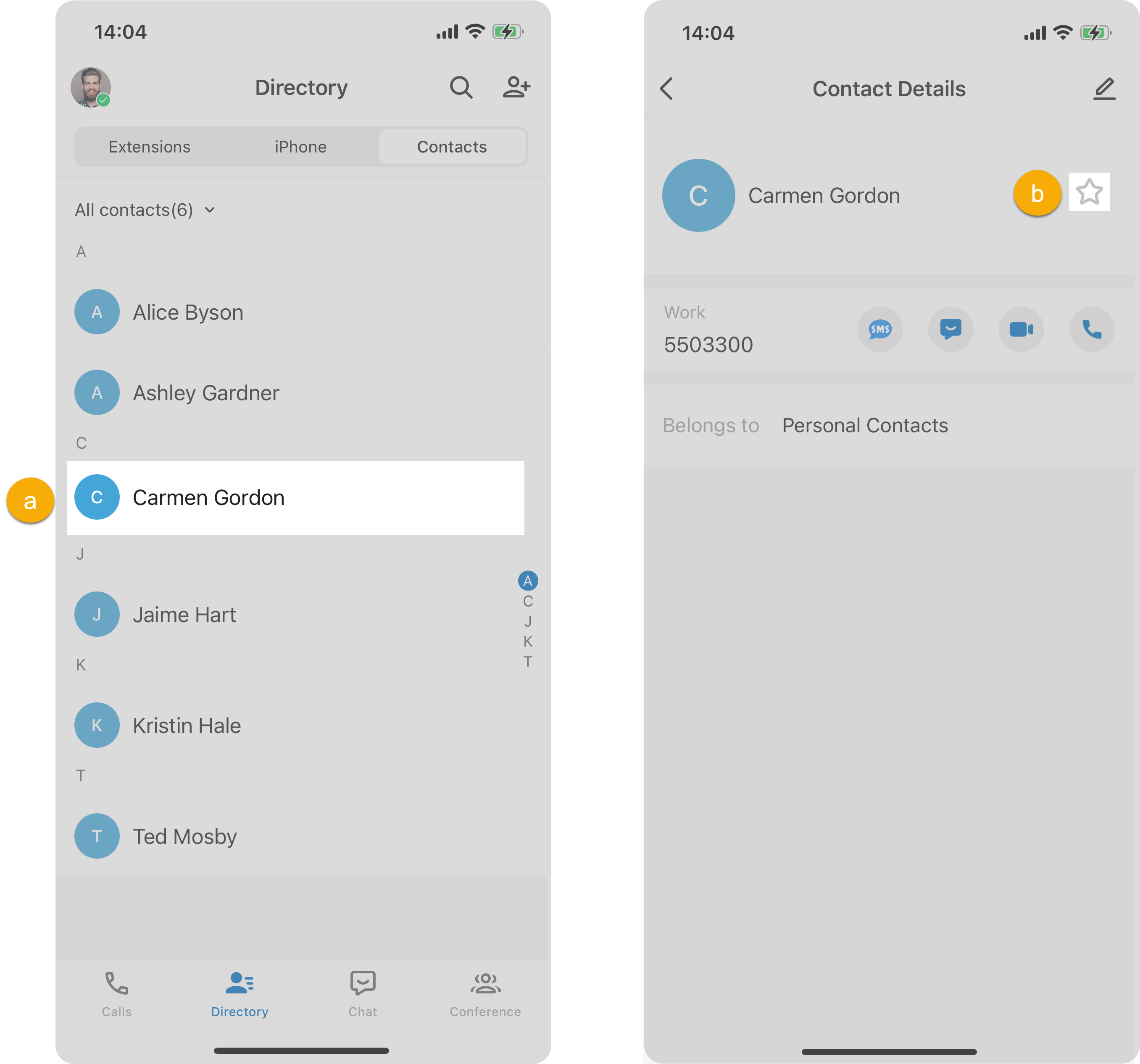
a. Tap the contact’s name. b. On the Contact Details page, tap
 next to their name.
The contact now appears in your Favorite Contacts list.
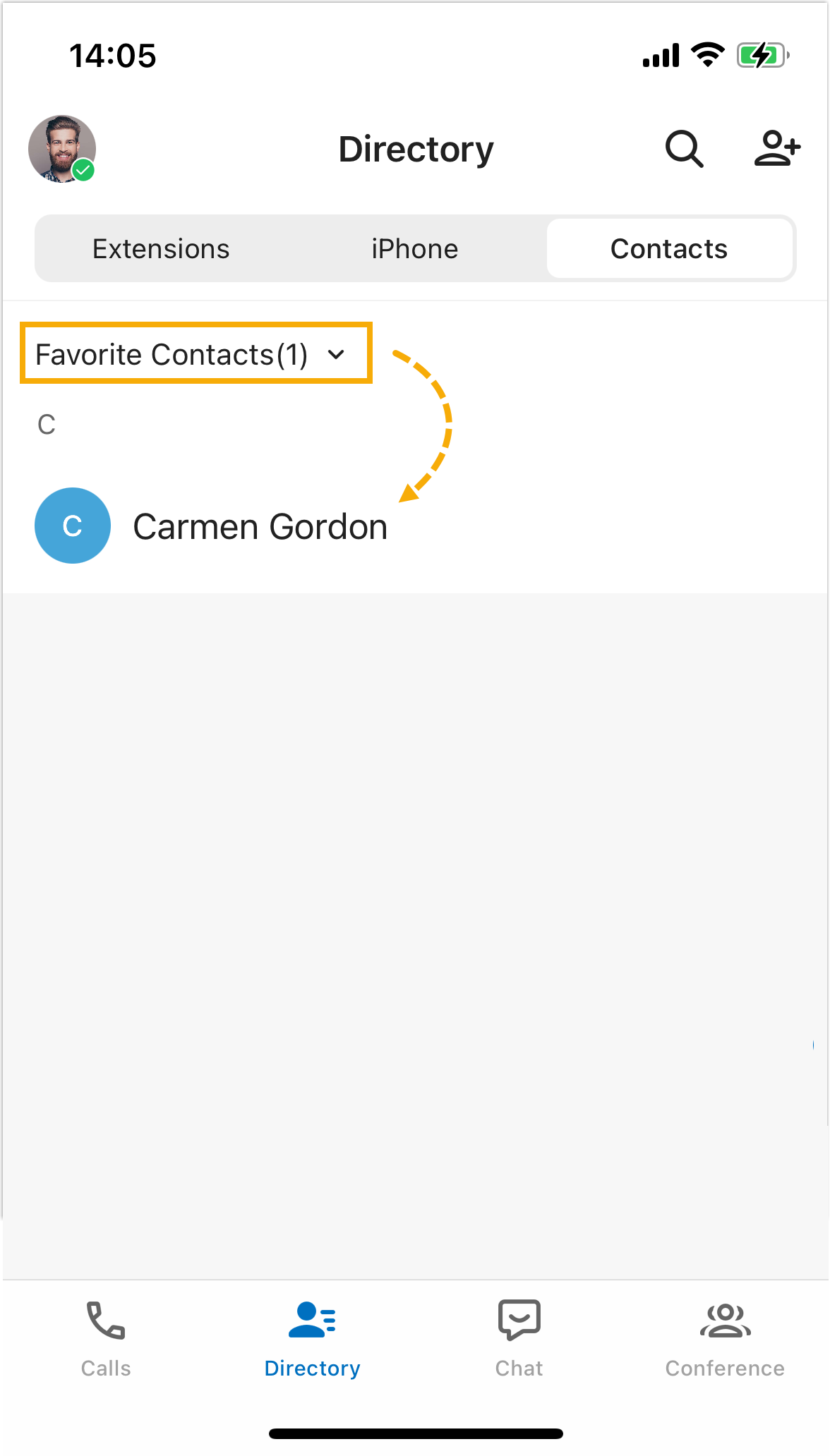
Remove a contact from your favorites
Section titled “Remove a contact from your favorites”-
In the Cloud Voice App, open Directory > Contacts.
-
In the top-left corner, switch to Favorite Contacts.
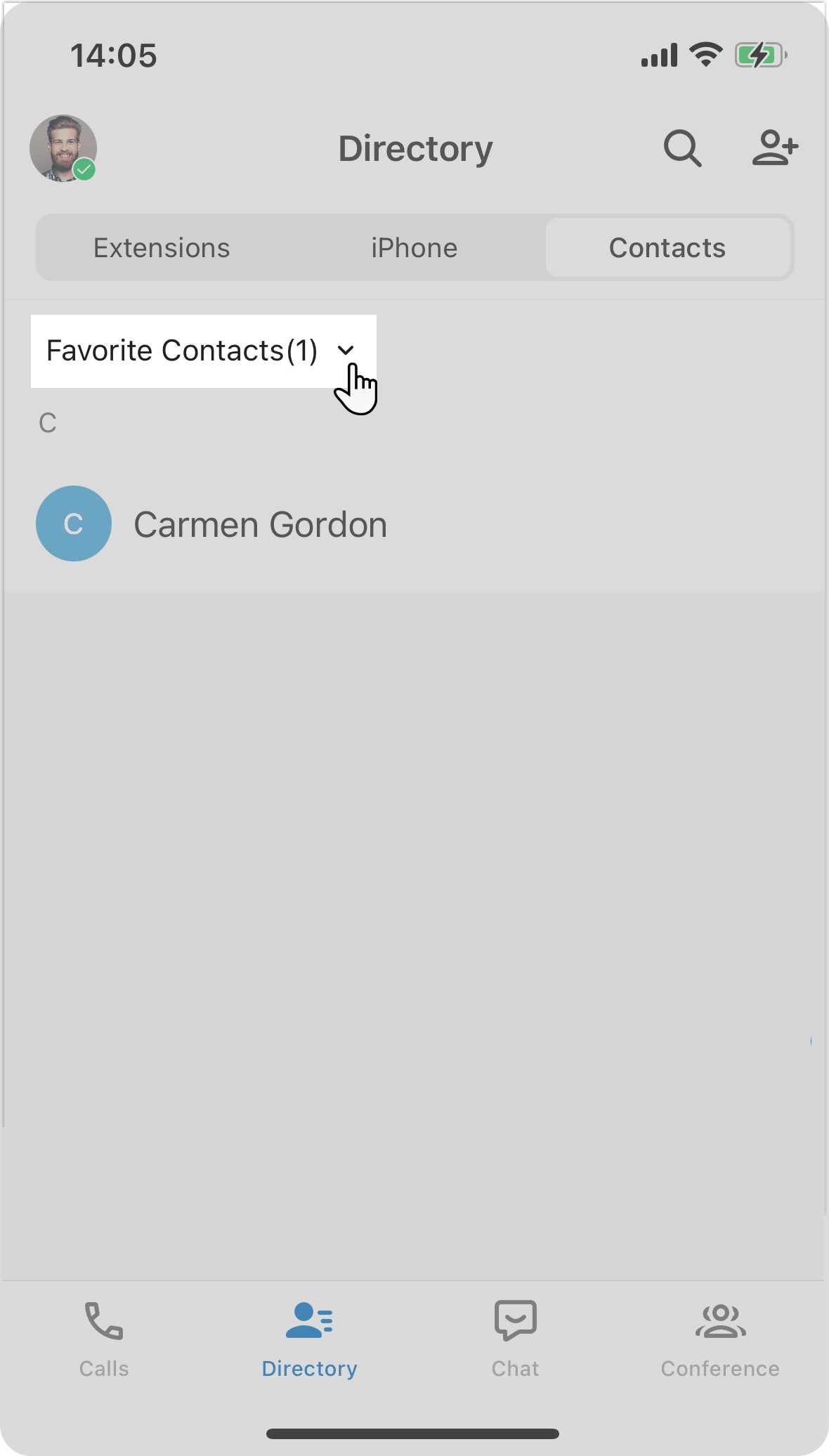
-
Tap the contact you want to drop, then tap
 next to their name.
The contact is removed from your Favorite Contacts list.
Question about this page?
Ask the AI assistant. It starts from this page, then searches the rest of the docs.
Ask Cloud Voice AI
Answers are AI-generated from the docs and may contain mistakes. Verify with the linked pages.