
Delete Fax Cover Pages
A fax cover page is the intro sheet that goes in front of a sent fax, usually carrying sender, recipient, and subject details. When one of your custom cover pages is no longer useful, you can remove it from the Cloud Voice App whenever you like to keep your list tidy.
What you can delete
Section titled “What you can delete”You can only delete cover pages that you created yourself. Cover pages that your system administrator set up are locked, so they cannot be removed from your account.
Remove one or more cover pages
Section titled “Remove one or more cover pages”-
Sign in to the Cloud Voice App and open Fax > Cover Pages.
Every cover page available to you appears in the list.
-
Remove the cover pages you no longer need. Use whichever method fits how many you want to clear out.
To remove a single cover page:
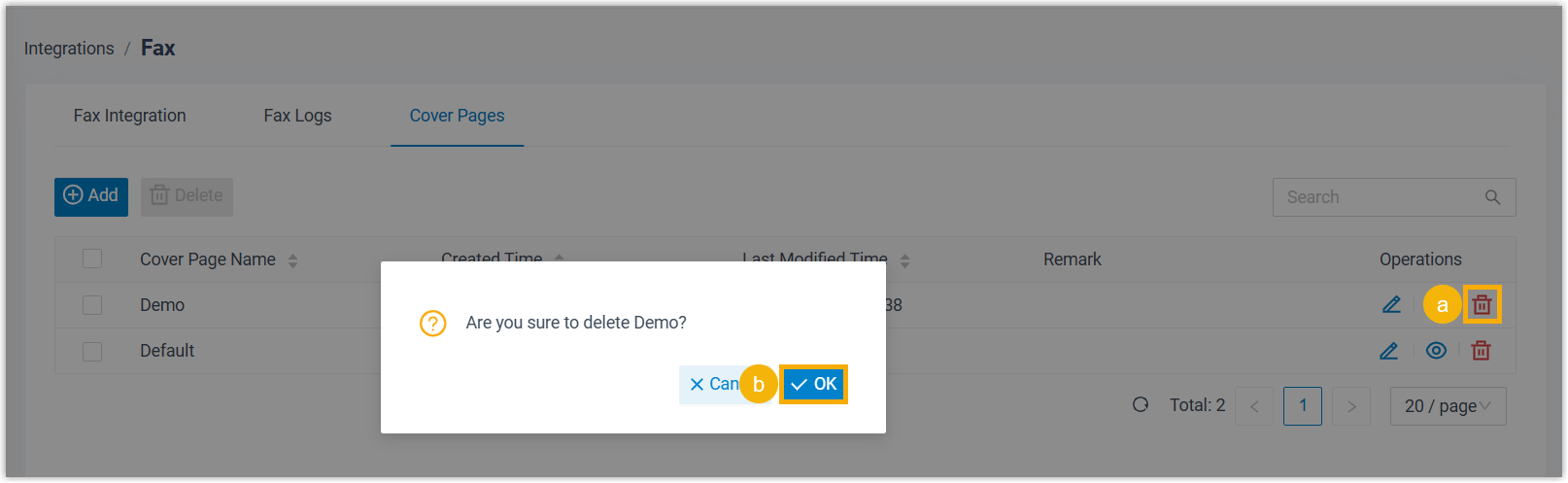
- Find the cover page in the list and click the delete icon
 at the end of its row.
 - Confirm by clicking OK in the dialog that appears.
To remove several cover pages at once:
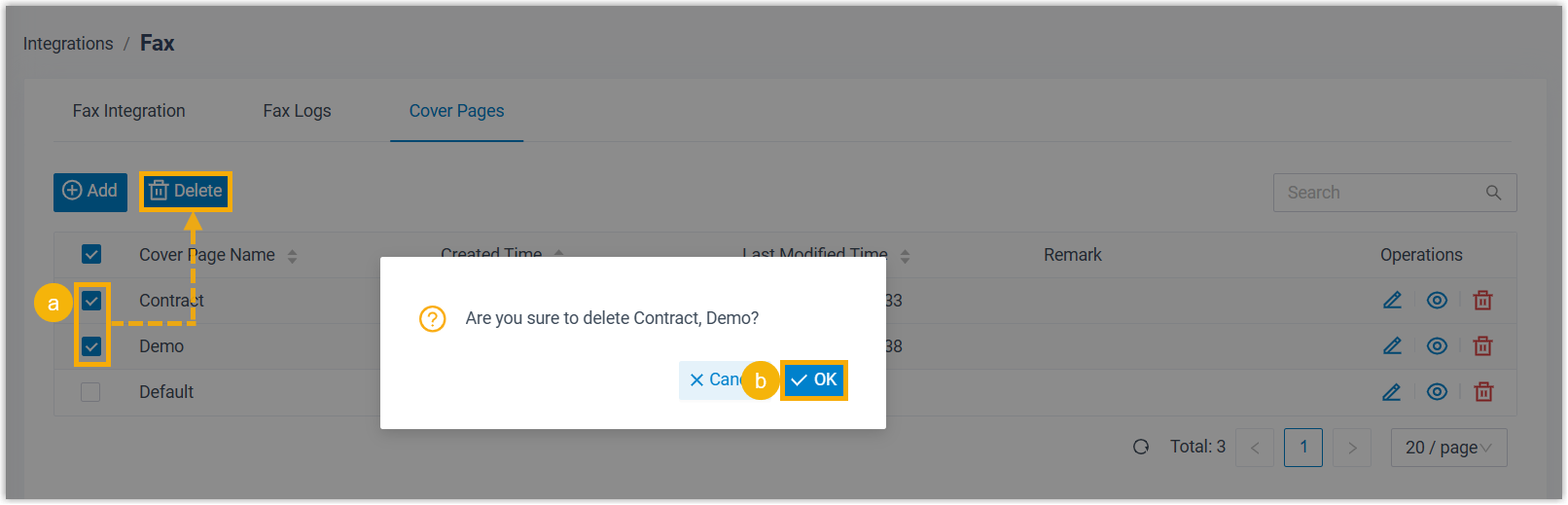
- Select the checkbox beside each cover page you want to remove, then click Delete.
- Confirm by clicking OK in the dialog that appears.
- Find the cover page in the list and click the delete icon
The selected cover pages are cleared from your Cloud Voice App.
Question about this page?
Ask the AI assistant. It starts from this page, then searches the rest of the docs.
Ask Cloud Voice AI
Answers are AI-generated from the docs and may contain mistakes. Verify with the linked pages.