
Configure Two-factor Authentication using Authenticator Application
Two-factor authentication adds a second check to your login: after your password, you also supply a short code generated by an authenticator app on your phone. This page walks you through turning it on from the Cloud Voice App Web Client.
Before you start
Section titled “Before you start”Install one of the following authenticator apps on your mobile phone:
- Google Authenticator
- FreeOTP
- Twilio Authy
- Microsoft Authenticator
Turn on two-factor authentication
Section titled “Turn on two-factor authentication”-
In the Cloud Voice App Web Client, click your account name in the top-right corner, then choose Change Password & Security > Security Settings.
-
Select the Two-Factor Authentication checkbox.
-
When the Password window appears, type your account password and click Confirm to verify the change.
-
Choose Authenticated by Authenticator.
-
Register your account in the authenticator app using either the QR code or the secret key.
Scan the QR code (fastest)
-
Open the authenticator app on your phone and choose the option to scan a QR code.
-
Scan the code displayed in the Web Client.
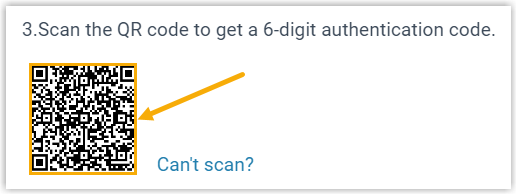
The app adds your account automatically and begins showing a 6-digit code.
Enter the secret key manually
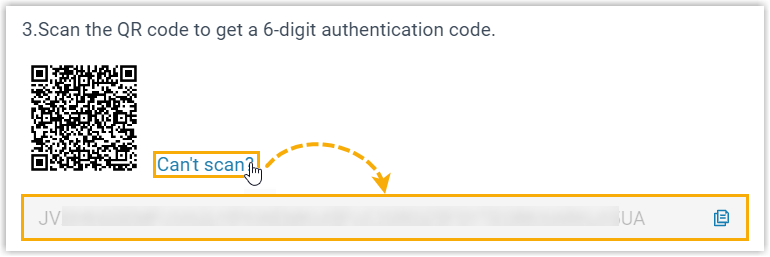
Use this method if you cannot scan the code.
-
Click Can’t scan next to the QR code. A secret key appears below the code; write it down for the next step.
-
Open the authenticator app on your phone and choose the option to add an account manually.
-
Fill in the requested details and paste the secret key.
Once saved, the app begins showing a 6-digit code for your account.
-
-
Back in the Web Client, type the current 6-digit code into the Authentication Code field.
-
Click Save.
What happens next
Section titled “What happens next”- The Web Client displays Edited successfully., confirming that two-factor authentication is active.
- From now on, signing in to any Cloud Voice App client (Web, Desktop, or Mobile) with your extension email address and password also prompts you for an authentication code.
Question about this page?
Ask the AI assistant. It starts from this page, then searches the rest of the docs.
Ask Cloud Voice AI
Answers are AI-generated from the docs and may contain mistakes. Verify with the linked pages.