
View and Manage a Colleague's Calls
With the right permission, the Extensions panel in the desktop Cloud Voice App tells you, in real time, which of your colleagues are ringing or already on a call, including the name and number of the person on the other end. You can also step in and handle those calls without leaving the panel.
This is useful in roles such as a receptionist or a team supervisor, where you need to see who is busy and rescue, redirect, or end a call on someone else’s behalf. This page explains how.
Before you begin
Section titled “Before you begin”Make sure the following are in place:
- Cloud Voice App (desktop): version 1.6.0 or later.
- Cloud Voice system: version 84.16.0.25 or later.
- Your extension: the Allow Call Operations in the Extension Page permission has been granted to it.
View a colleague’s call status
Section titled “View a colleague’s call status”-
Sign in to the desktop Cloud Voice App.
-
In the left navigation bar, click Extensions.
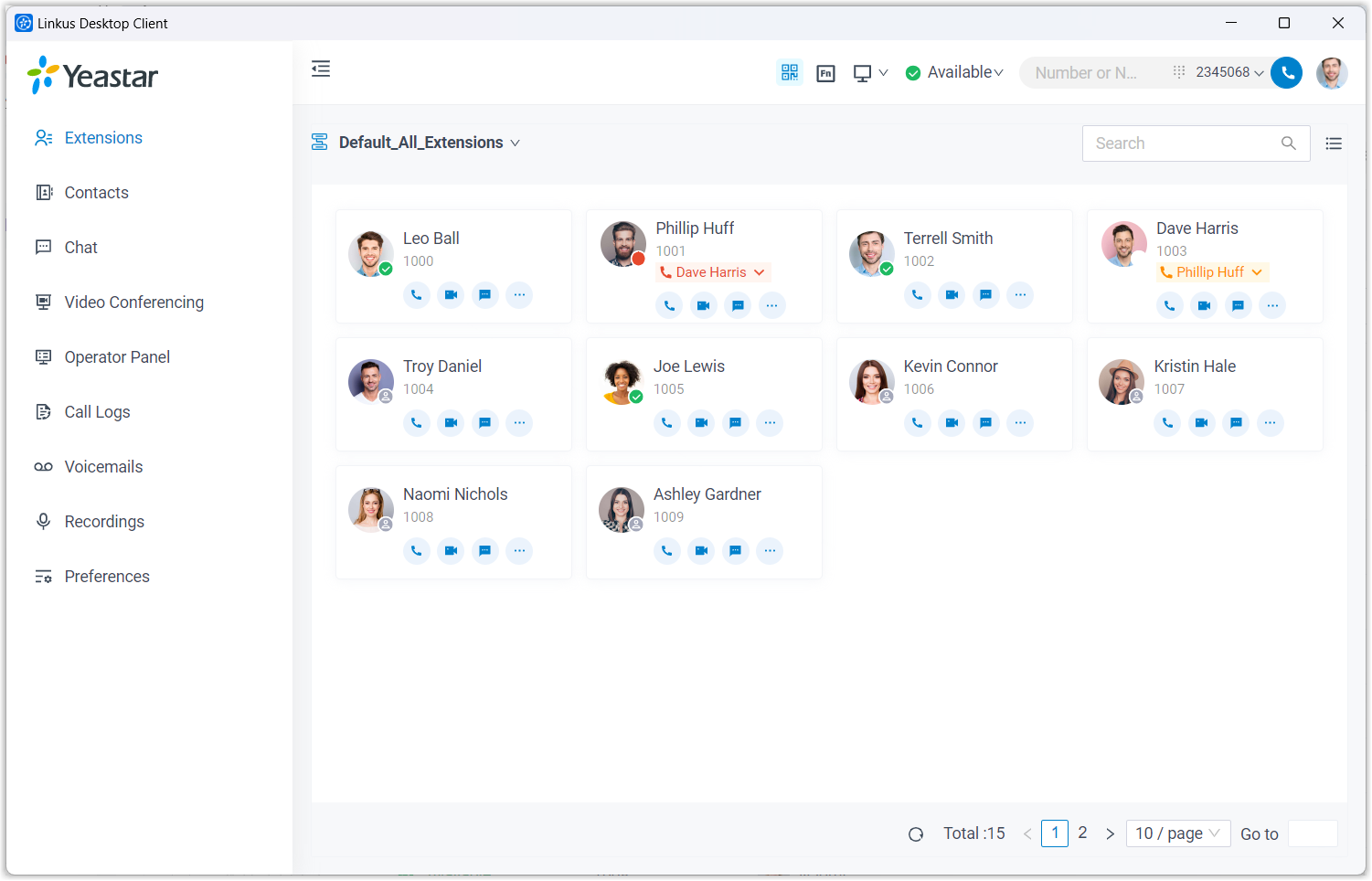
Each active extension shows a status marker, which updates live (no need to refresh). A colleague who is placing or already on a call is flagged with
 , while a colleague with an incoming, still-ringing call is flagged with
  .
.
Act on a colleague’s call
Section titled “Act on a colleague’s call”Click the call status label next to the colleague you want to help. The available actions depend on what the call is doing.
A colleague is placing a call. You can hang up the call (end it immediately).
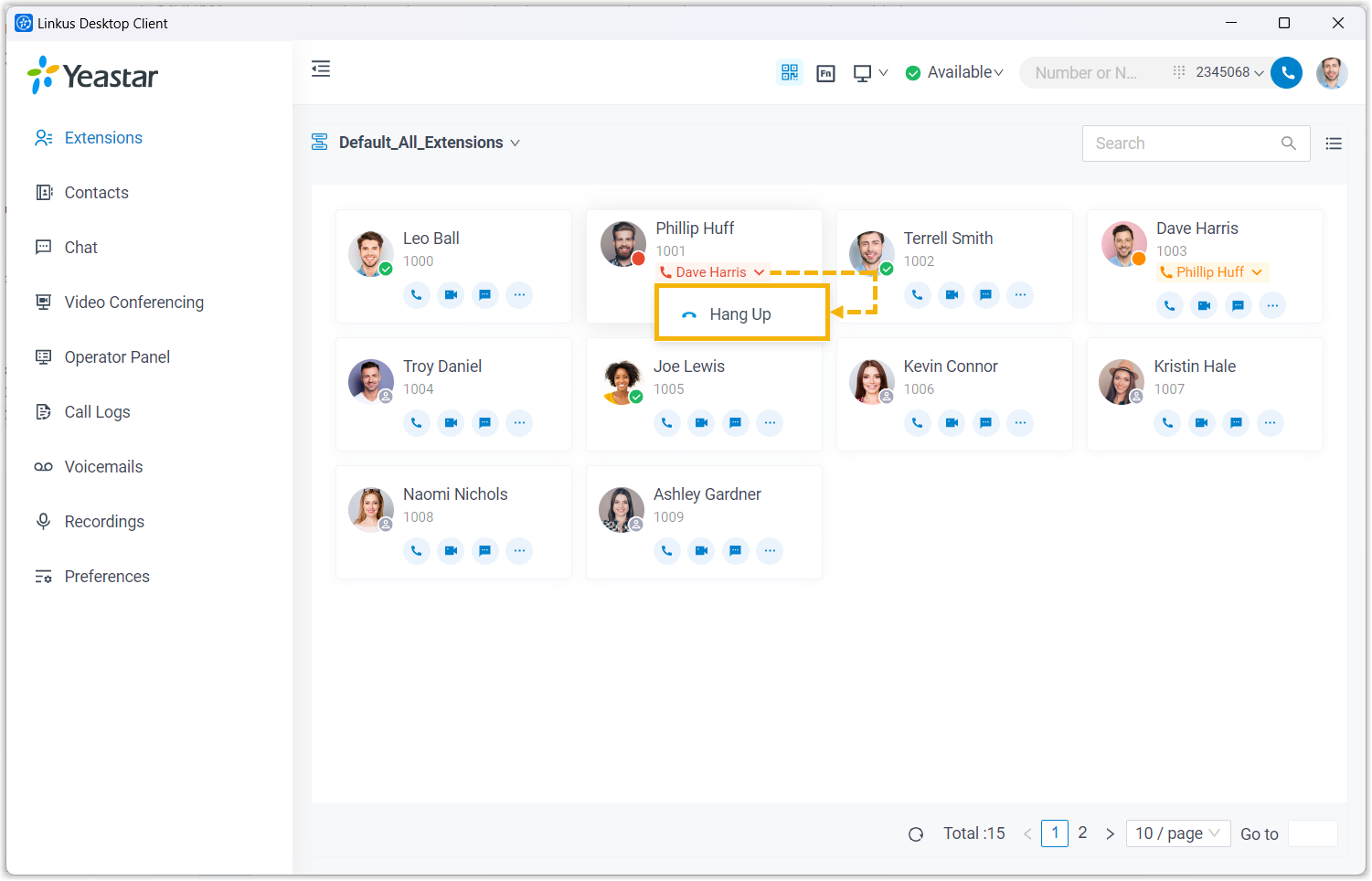
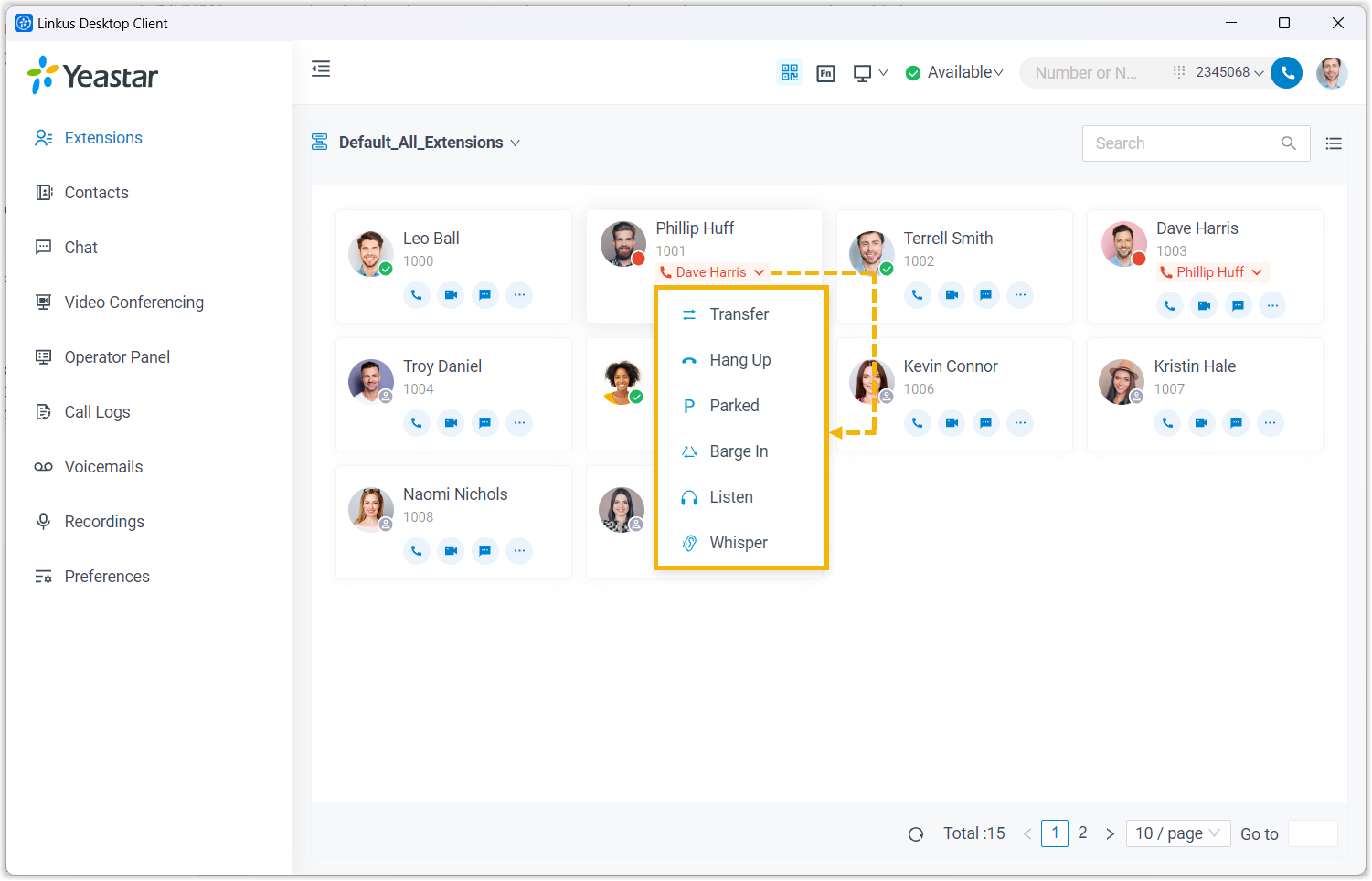
A colleague is on a connected call. You can:
- Transfer: move the call to another extension or an external number.
- Park: put the call on a shared hold (a parking spot that any extension can retrieve later).
- Monitor: silently listen to the live call without the other parties hearing you.
- Hang up: end the call.
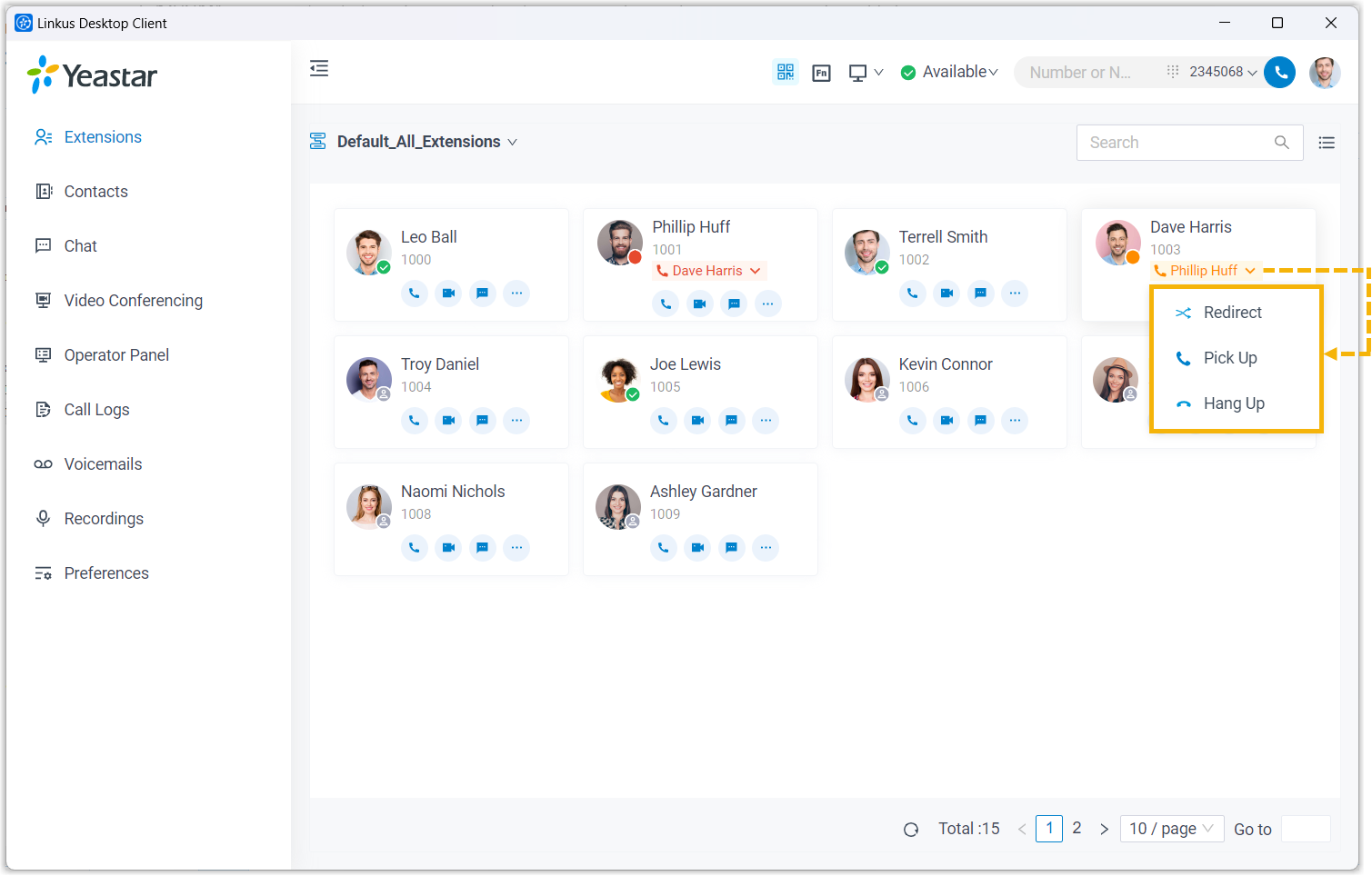
A colleague has an incoming call. You can:
- Redirect: send the still-ringing call to another destination before it is answered.
- Pick up: answer the ringing call yourself.
- Hang up: reject the call so it stops ringing.
Question about this page?
Ask the AI assistant. It starts from this page, then searches the rest of the docs.
Ask Cloud Voice AI
Answers are AI-generated from the docs and may contain mistakes. Verify with the linked pages.