
Log in to the Desktop App Using a Login Link
Your extension is your personal line and account on the phone system (the internal number that identifies you). When an administrator sets up your extension, you receive a welcome email that includes a personal login link. Pasting this link into the Cloud Voice App is the fastest way to sign in on your desktop, since you don’t have to enter a server address, username, or password by hand.
Before you start
Section titled “Before you start”Make sure the Cloud Voice App welcome email has arrived in your inbox.
Sign in with the login link
Section titled “Sign in with the login link”-
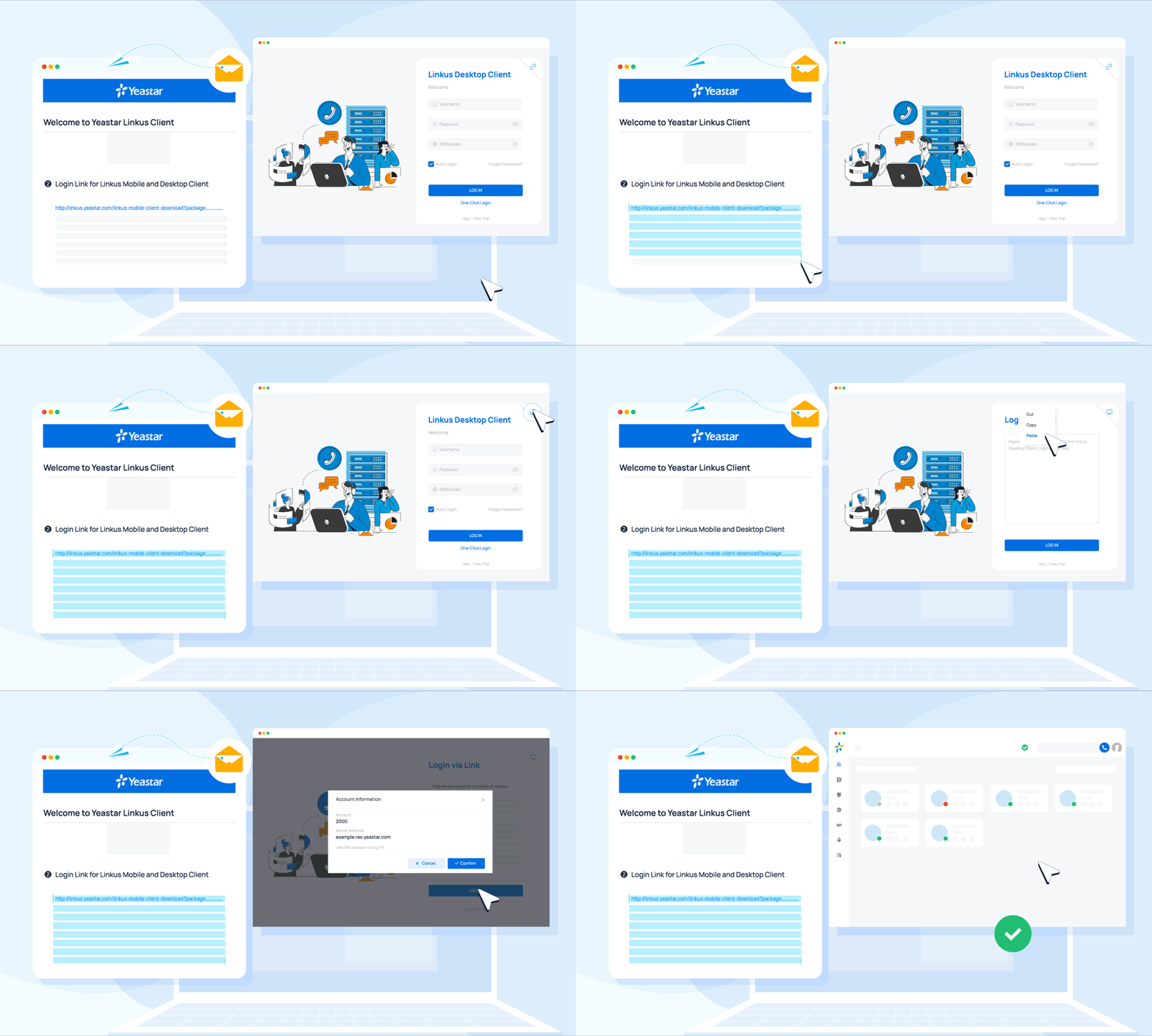
Open the welcome email and copy the login link it contains.
-
Launch the Cloud Voice App on your desktop and click the link icon
 in the top-right corner.
 -
Paste the copied link into the field, then click LOG IN.
The app reads the account details from the link and prompts you to confirm the sign-in.
-
In the pop-up window, click Confirm.
Question about this page?
Ask the AI assistant. It starts from this page, then searches the rest of the docs.
Ask Cloud Voice AI
Answers are AI-generated from the docs and may contain mistakes. Verify with the linked pages.