
Import and Export Personal Contacts
The Cloud Voice App lets you move your personal contacts in and out as a CSV file. Exporting gives you an editable copy you can update in bulk, and importing loads a prepared CSV back into your personal contact list.
Export personal contacts
Section titled “Export personal contacts”Exporting writes every personal contact to a single CSV file. Once you have the file, you can add, remove, or edit entries in a spreadsheet editor before bringing the changes back in.
-
In the Cloud Voice App, open Contacts.
-
In the top-left corner, click the contact-group icon
 , then choose Personal Contacts from the drop-down list.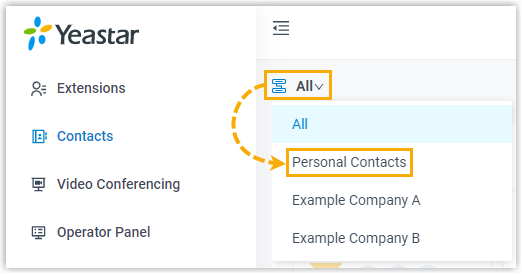
-
At the top of the page, click Export.
-
When the download prompt appears, save the file to the location you want.
Import personal contacts
Section titled “Import personal contacts”Before you import, confirm your CSV meets these requirements:
- Format: UTF-8 encoded
.CSV - Size: under 300 MB
- File name: fewer than 127 characters
- Fields: the columns and values in the file must match the accepted contact parameters
To import the file:
- In the Cloud Voice App, open Contacts.
- In the top-left corner, click the contact-group icon , then choose Personal Contacts from the drop-down list.
- At the top of the page, click Import.
- In the window that opens, click Browse and select your CSV file.
- Click Import.
The contacts from your file now appear under Personal Contacts.
Question about this page?
Ask the AI assistant. It starts from this page, then searches the rest of the docs.
Ask Cloud Voice AI
Answers are AI-generated from the docs and may contain mistakes. Verify with the linked pages.