
Control an Incompatible IP Phone by Cloud Voice App Web Client
CTI (Computer Telephony Integration) mode lets the Cloud Voice App Web Client take command of a physical IP phone (a desk phone that connects over the internet) registered to your extension. Once the two are linked, you place, answer, and manage calls from the web client’s on-screen controls, while the audio and the actual call handling stay on the desk phone.
When to use this
Section titled “When to use this”Follow these steps when your desk phone is not one of the models that support native CTI control. If your phone is on the supported list, it already works with CTI directly and you do not need this workaround.
To confirm whether your device qualifies for native CTI, check the compatibility lists:
- Compatible Yealink IP phones
- Compatible Fanvil IP phones
- Compatible Snom IP phones
- Compatible Grandstream IP phones
Link the phone in CTI mode
Section titled “Link the phone in CTI mode”- Verify that the extension registered on the IP phone is the same extension you are signed in with on the Cloud Voice App Web Client.
- Put the web client into CTI mode:
a. Sign in to the Cloud Voice App Web Client.
b. In the top-right corner, click the CTI icon
 , then choose your IP phone from the drop-down list.
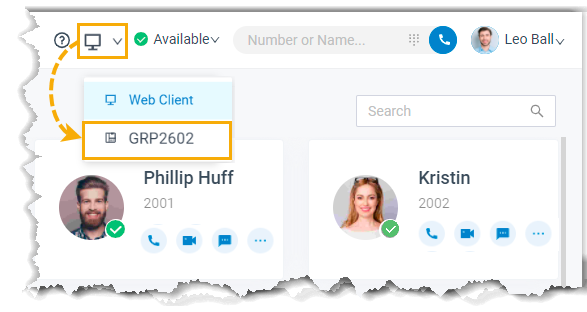
What you can control from the web client
Section titled “What you can control from the web client”With the phone connected, the following call actions are available directly from the Cloud Voice App Web Client:
- Make and end a call
- Reject an incoming call
- Hold and resume a call
- Blind transfer a call
- Record a call
Question about this page?
Ask the AI assistant. It starts from this page, then searches the rest of the docs.
Ask Cloud Voice AI
Answers are AI-generated from the docs and may contain mistakes. Verify with the linked pages.