
Park a Call
Parking a call holds it on a shared slot (a “parking number”) instead of on your own phone, so a teammate can resume the conversation from any other extension. Use it when the caller needs to reach someone who is not at their desk. The steps below walk through parking an active queue call.
Before you start
Section titled “Before you start”Parking an agent’s active call requires the Call parking operation permission. If you do not have it, ask your system administrator to grant it to you.
Park an active call
Section titled “Park an active call”-
Open the Cloud Voice App (web or desktop) and go to Call Center Console > Queue Panel.
-
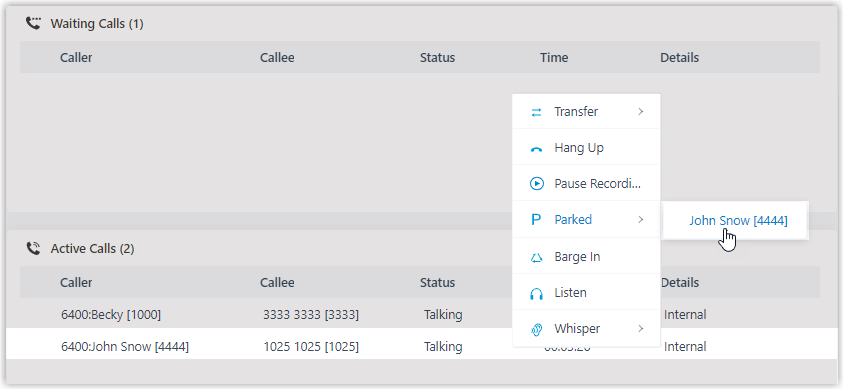
In the Active Calls panel, move your pointer over the answered call you want to park.
-
Right-click the call and choose Parked.
-
Choose the party you want to park.
The call moves to the first available parking number. Cloud Voice places that party on hold and plays a voice prompt to the other party, announcing which parking number to use when retrieving the call.
Question about this page?
Ask the AI assistant. It starts from this page, then searches the rest of the docs.
Ask Cloud Voice AI
Answers are AI-generated from the docs and may contain mistakes. Verify with the linked pages.