
Manage an Agent's Status in a Queue
Queue managers can adjust the availability of the agents they oversee without touching each agent’s device. A queue is the ordered list of agents that incoming calls are distributed to. From the Queue Panel you can bring an agent into a queue, take them out, pause them so calls skip over them, and put them back in rotation. This page walks through each action.
Before you begin
Section titled “Before you begin”A few conditions must be met before you can change another agent’s state:
- The account performing the change must be a queue manager. Regular agents cannot alter one another’s status.
- Your system administrator must have granted you the Switch group members’ presence permission.
Log an agent in to a queue
Section titled “Log an agent in to a queue”Use this to place a logged-out agent back into the queue so they begin receiving calls again.
-
Open the Cloud Voice App and navigate to Call Center Console > Queue Panel.
-
In the Agent panel, move your pointer over the agent who is currently logged out.
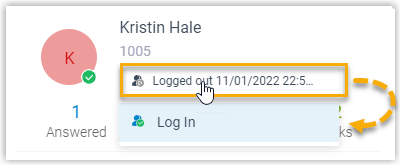
a. Select the agent’s current status.
b. Choose Log In.
Log an agent out of a queue
Section titled “Log an agent out of a queue”Removing an agent from the queue stops new calls from being routed to them.
-
Open the Cloud Voice App and navigate to Call Center Console > Queue Panel.
-
In the Agent panel, move your pointer over the agent who is currently logged in.
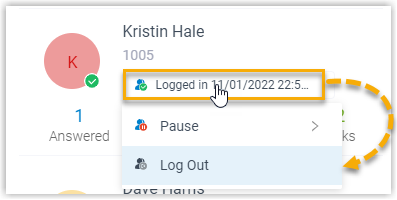
a. Select the agent’s current status.
b. Choose Log Out.
Pause an agent’s service
Section titled “Pause an agent’s service”Pausing keeps an agent logged in to the queue but temporarily holds calls back, which is useful for breaks, wrap-up time, or off-phone tasks. Because the agent stays logged in, they return to service the moment you unpause them, with no need to log back in.
-
Open the Cloud Voice App and navigate to Call Center Console > Queue Panel.
-
In the Agent panel, move your pointer over the agent who is currently logged in.
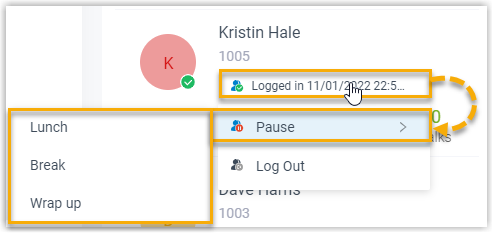
a. Select the agent’s current status.
b. Choose Pause.
c. Optionally pick an entry from the pause reason list.
While an agent is paused, the queue will not send them any calls.
Unpause an agent’s service
Section titled “Unpause an agent’s service”Bring a paused agent back so they can take queue calls once more.
-
Open the Cloud Voice App and navigate to Call Center Console > Queue Panel.
-
In the Agent panel, move your pointer over the agent you want to resume.
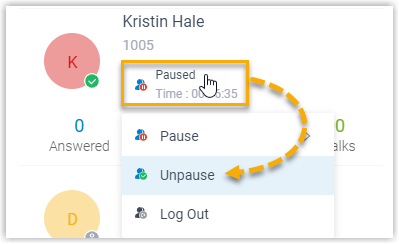
a. Select the agent’s current status.
b. Choose Unpause.
Once unpaused, the agent is again eligible to receive queue calls.
Question about this page?
Ask the AI assistant. It starts from this page, then searches the rest of the docs.
Ask Cloud Voice AI
Answers are AI-generated from the docs and may contain mistakes. Verify with the linked pages.