
Transfer
Transfer is one of the end components in a call flow. When a call reaches it, the caller is blind-transferred to a destination you pick, and their journey through the current flow stops there. You can also play a prompt beforehand to let the caller know they are being moved.
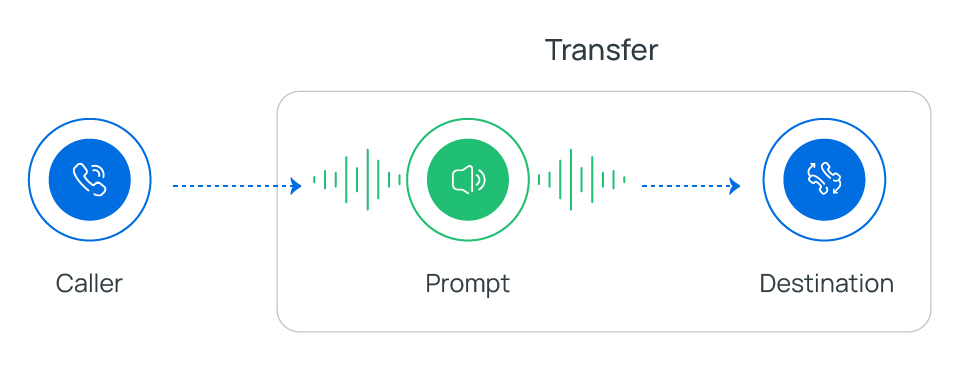
Where you can send callers
Section titled “Where you can send callers”A Transfer component can hand a call off to any of these destinations:
- Extension
- Extension Voicemail
- Ring Group
- Queue
- Group Voicemail
- Conference
- External Number
- Call Flow
- IVR (Interactive Voice Response, the automated menu that lets callers self-route by pressing keys)
- AI Receptionist
- Custom
Prompts you can play
Section titled “Prompts you can play”Before the transfer takes place, you can optionally play one of three prompt types:
- Custom Prompt: an existing custom prompt, or a new one you record from an extension or upload as an audio file.
- Music on Hold (MoH): one of your configured Music on Hold entries.
- Text to Speech (TTS): text you type, spoken aloud in the language and voice style you choose.
Configure the component
Section titled “Configure the component”-
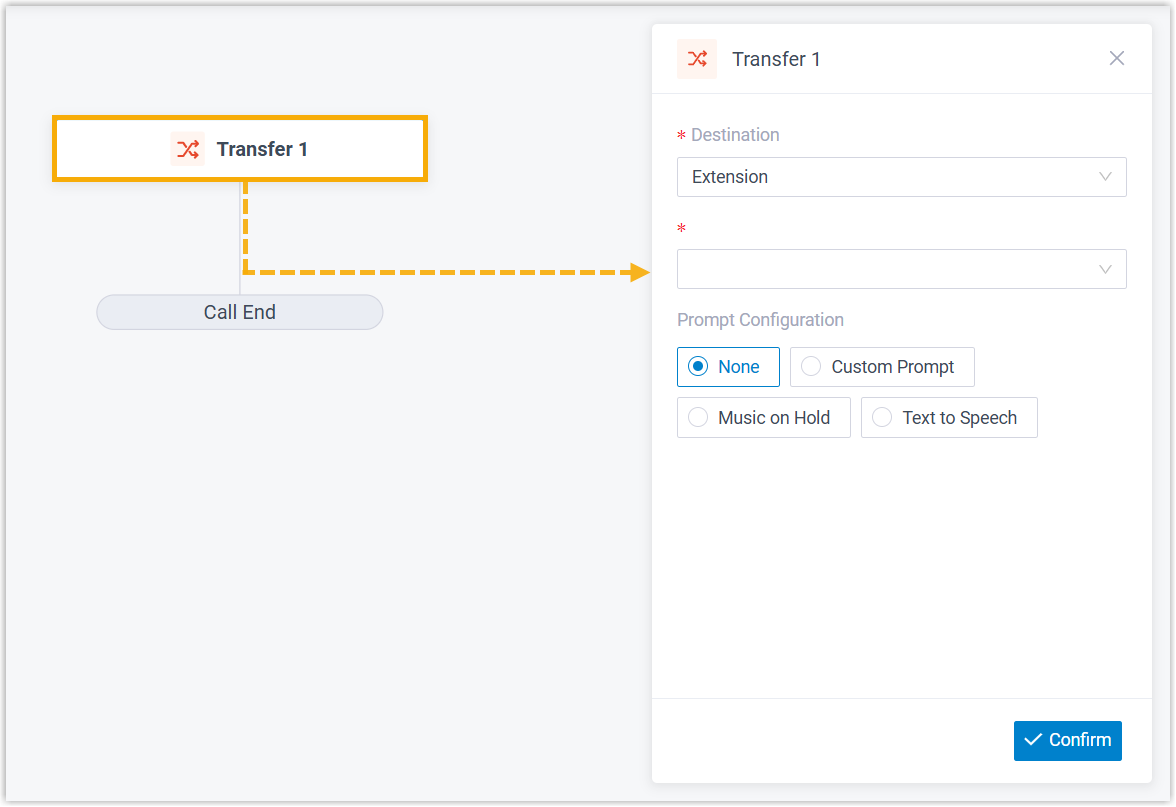
Drag the Transfer component onto your call flow, then click it to open its settings.
-
Use the Destination drop-down lists to choose where callers go.
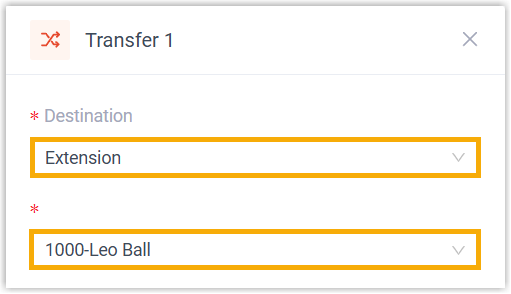
Option Sends the call to Extension A specific extension. Extension Voicemail A specific extension’s voicemail box. Ring Group A specific ring group. Queue A specific queue. Group Voicemail A specific group voicemail box. Conference A specific conference. External Number A specific external number. Call Flow Another call flow. IVR A specific IVR. AI Receptionist A specific AI receptionist. Custom A destination you define yourself (see below). Custom destinations
Section titled “Custom destinations”With Custom selected, define the target in one of two ways:
- Enter a number directly: type a value in the Destination Number field. It can be a regular phone number or a feature code.
- Regular number example:
1000sends callers to internal extension 1000. - Feature code example:
*781801dials the feature code and logs the caller into queue 81801.
- Regular number example:
- Build the number dynamically: click the fx icon (
 ) and enter an expression. For example,
 $HttpRequest1.responseContenttakes the on-duty number returned by an upstream HTTP Request 1 component and routes the caller there.
If the custom destination has its own mailbox, an extension voicemail or a group voicemail, say, you can turn on Transfer to Voicemail to drop callers straight into it.
- Enter a number directly: type a value in the Destination Number field. It can be a regular phone number or a feature code.
-
Optional: Add a prompt or a spoken message to announce the transfer.
Custom Prompt
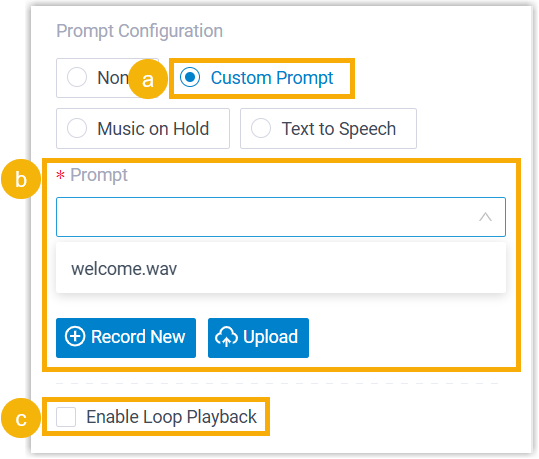
- Click Custom Prompt.
- Choose your prompt(s). Select an existing one from the Prompt list, or click Record New to capture one from an extension or Upload to add an audio file.
- Optional: Select Enable Loop Playback to repeat the prompt(s).
Music on Hold
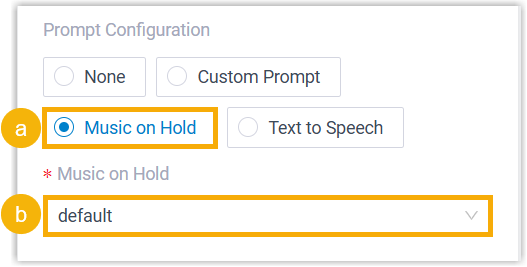
- Select Music on Hold.
- Pick an entry from the Music on Hold list.
Text to Speech (TTS)
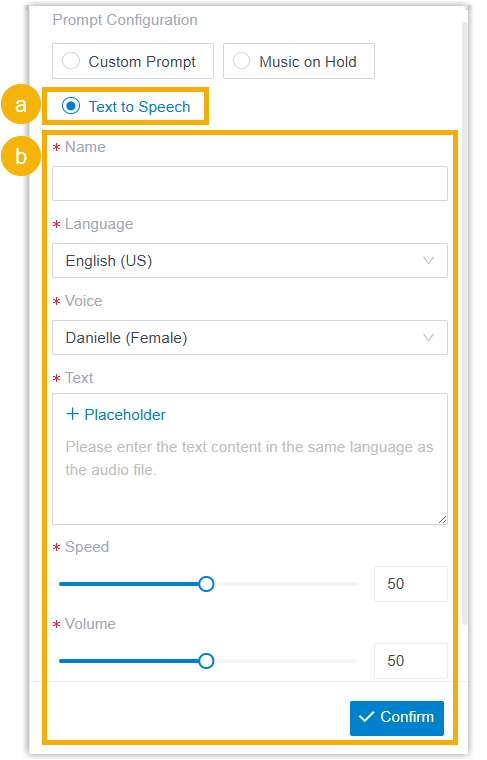
- Select Text to Speech.
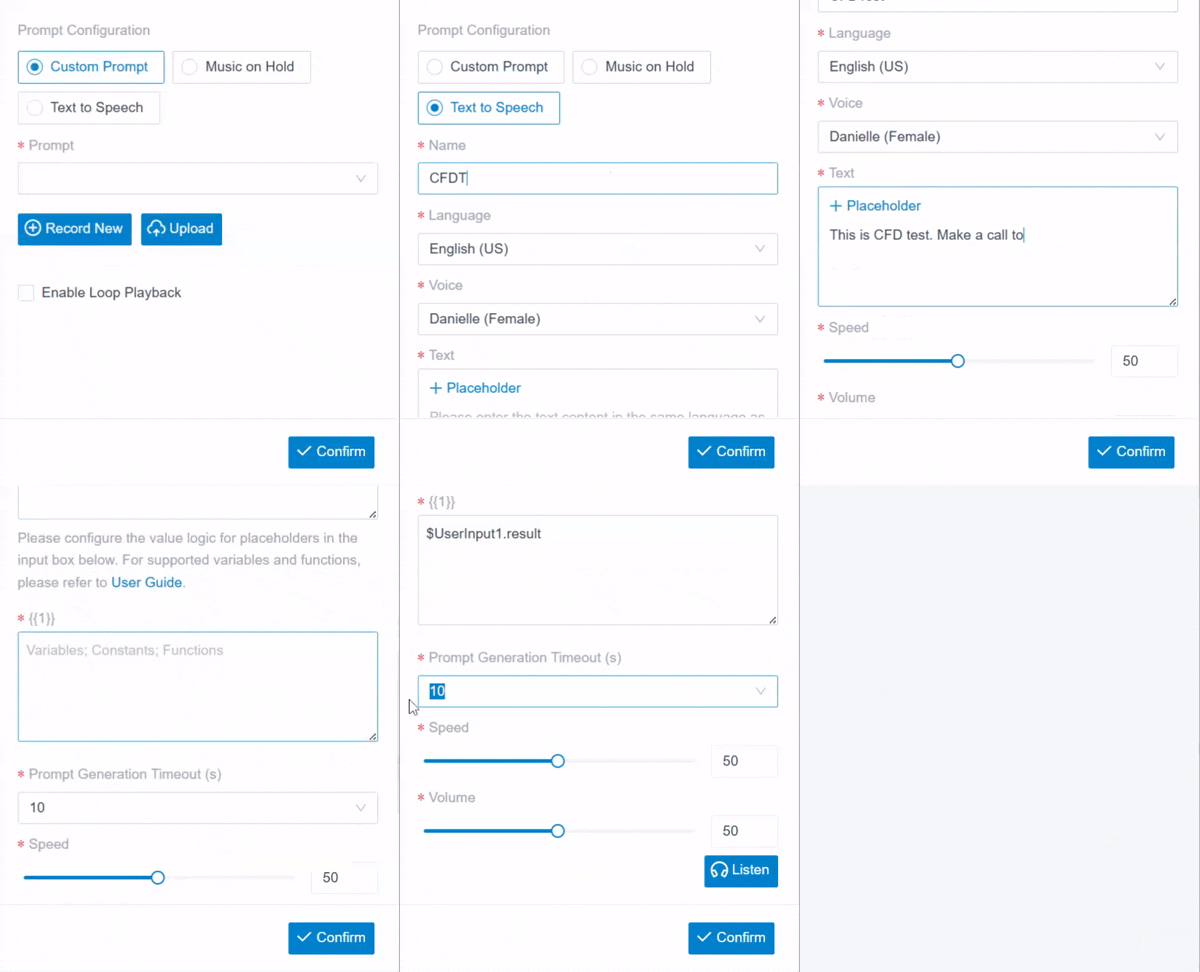
- Fill in the remaining fields to turn your text into speech. Both fixed and dynamic text are supported:
-
Static text: type it straight into the Text field.
-
Dynamic text: type text and drop in placeholders backed by variables so the message assembles itself at runtime. You can also set a generation timeout; if the speech isn’t ready in time, the caller moves on to the next component without hearing anything.
-
-
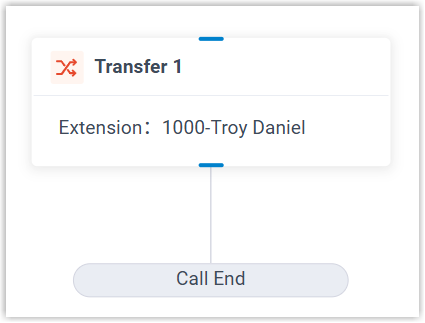
Click Confirm in the bottom-right corner. The destination you picked now shows on the component.
Variables
Section titled “Variables”When a Transfer component uses TTS, the system records the outcome in a variable. You can read that value from any expression-aware component, Condition, for instance, and branch the call on it.
| Variable | Type | Description | Example |
|---|---|---|---|
$Transfer{index}.ttsResult | String | The result of the component’s Text-to-Speech conversion.TransferTTSResult.Success, the text was converted and played to the caller.TransferTTSResult.Timeout, the text wasn’t converted before the timeout, so the caller was sent to the next component without a prompt. | $Transfer1.ttsResult(STRING)=TransferTTSResult.Success |
What it can connect to
Section titled “What it can connect to”Transfer has a single built-in Call End branch, which you can connect to one of the components below.
| Component | Purpose |
|---|---|
| Internal Data Ops | Read from and write to the Cloud Voice system’s own database. See Get Extension Presence Status, Set Extension Presence Status, Get Queue Agent, Get Queue Info, Get Agent Status, Set Agent Status, Get System Info, Get System Capacity, Get Extension Info, and Get Company Contact Info. |
| Email Sender | Send an email for real-time notifications, alerts, or user-specific details. |
| Database Access | Run a SQL (Structured Query Language) operation against a database mid-flow to read or update data. |
| HTTP Request | Send an HTTP (HyperText Transfer Protocol) request to an external server to exchange data with a third-party service. |
Question about this page?
Ask the AI assistant. It starts from this page, then searches the rest of the docs.
Ask Cloud Voice AI
Answers are AI-generated from the docs and may contain mistakes. Verify with the linked pages.