
Set up Call Journal to HubSpot CRM
With the integration in place, you can have Cloud Voice write a record to HubSpot CRM (Customer Relationship Management, the system that stores your contact and deal records) each time a linked user finishes a call with one of your contacts. This keeps a running history of call activity in the CRM without anyone logging it by hand.
Before you begin
Section titled “Before you begin”Make sure the HubSpot CRM integration is already set up. Call journaling relies on that connection.
Turn on and configure call journaling
Section titled “Turn on and configure call journaling”-
Sign in to the Cloud Voice portal and open Integrations > CRM.
-
On the CRM integration page, enable Call Journal.
-
Adjust the settings below to match how you want calls recorded.
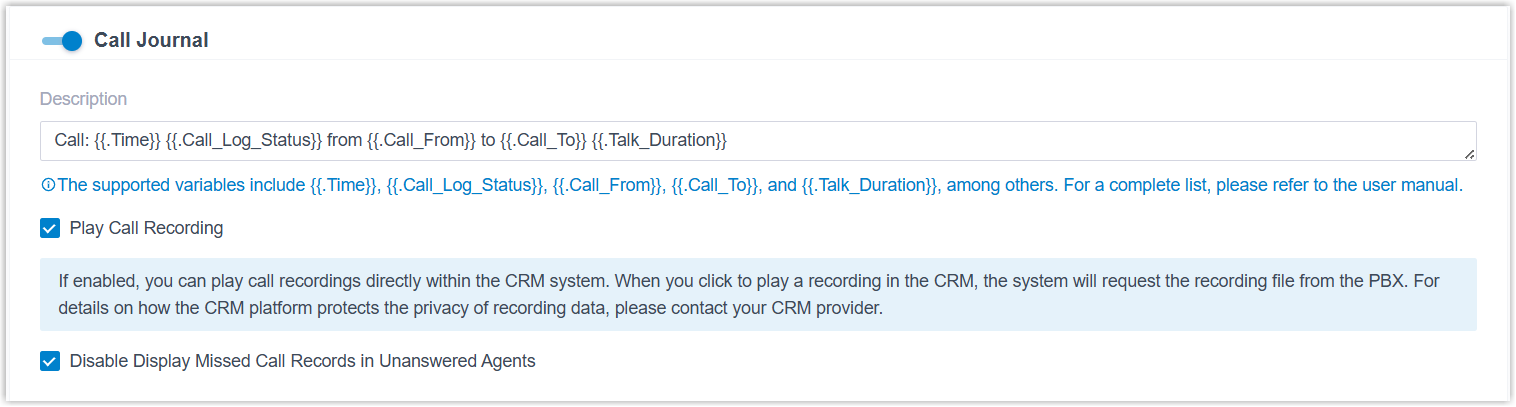
Setting What it does Description The text written into the body of each logged call. You can build this text from variables so that details such as the caller, the number, and the call outcome are filled in automatically for every entry. Play Call Recording When enabled, users whose extensions are linked to the CRM can open and play the call’s recording, stored on Cloud Voice, straight from HubSpot. Disable Display Missed Call Records in Unanswered Agents For queue and ring group calls, this limits synchronization to the agent who actually answers. The missed-call entry for that same call is not written to the CRM of agents who did not pick up. -
Click Save.
What happens next
Section titled “What happens next”-
Once a linked user hangs up on a call with a CRM contact, Cloud Voice automatically creates the activity in HubSpot using the subject and description you defined.
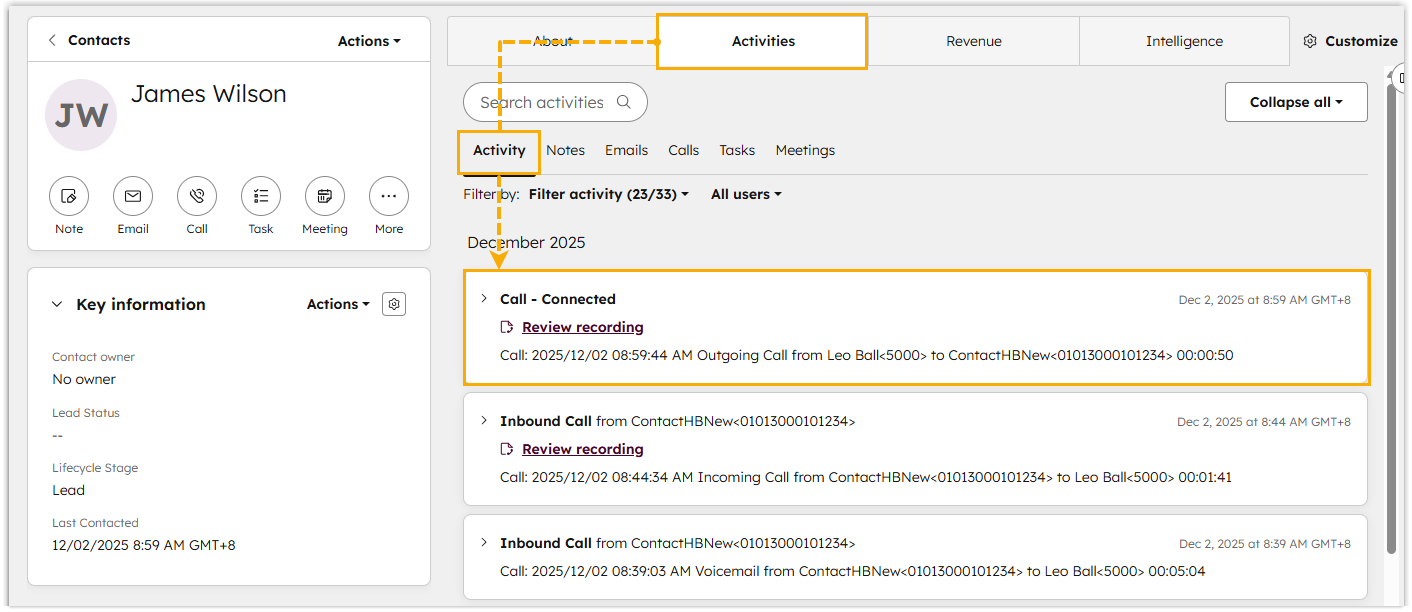
-
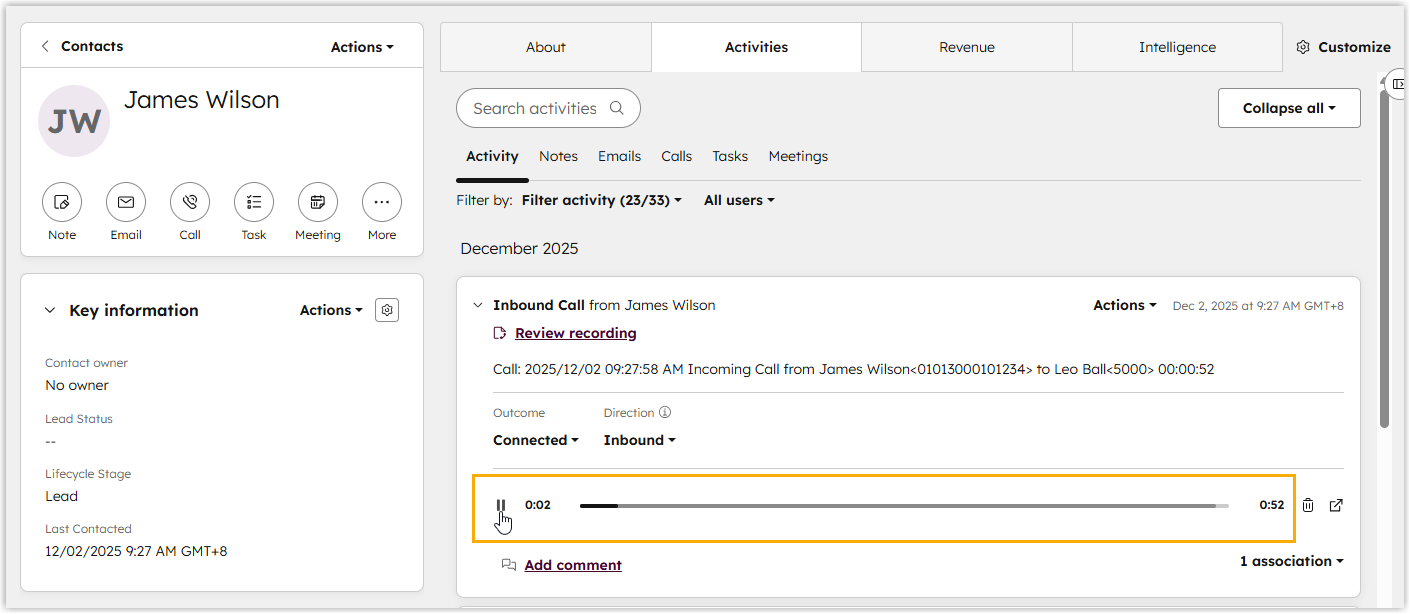
If you turned on Play Call Recording, the recording can be opened and played directly from that logged activity.
Question about this page?
Ask the AI assistant. It starts from this page, then searches the rest of the docs.
Ask Cloud Voice AI
Answers are AI-generated from the docs and may contain mistakes. Verify with the linked pages.