
Update Client Secret for Red Hat SSO Integration
Single Sign-On (SSO) lets your users sign in to Cloud Voice with their existing Red Hat credentials instead of a separate password. Cloud Voice secures that connection using an OpenID Connect (OIDC) client, which proves its identity to Red Hat SSO with a shared client secret.
If that secret is rotated or regenerated on the Red Hat side, the copy stored in Cloud Voice becomes stale. Update it so the two values match again and keep user synchronization working. The steps below replace the stored secret from the web portal.
Procedure
Section titled “Procedure”-
Sign in to the Cloud Voice web portal and open Integrations > Collaboration.
-
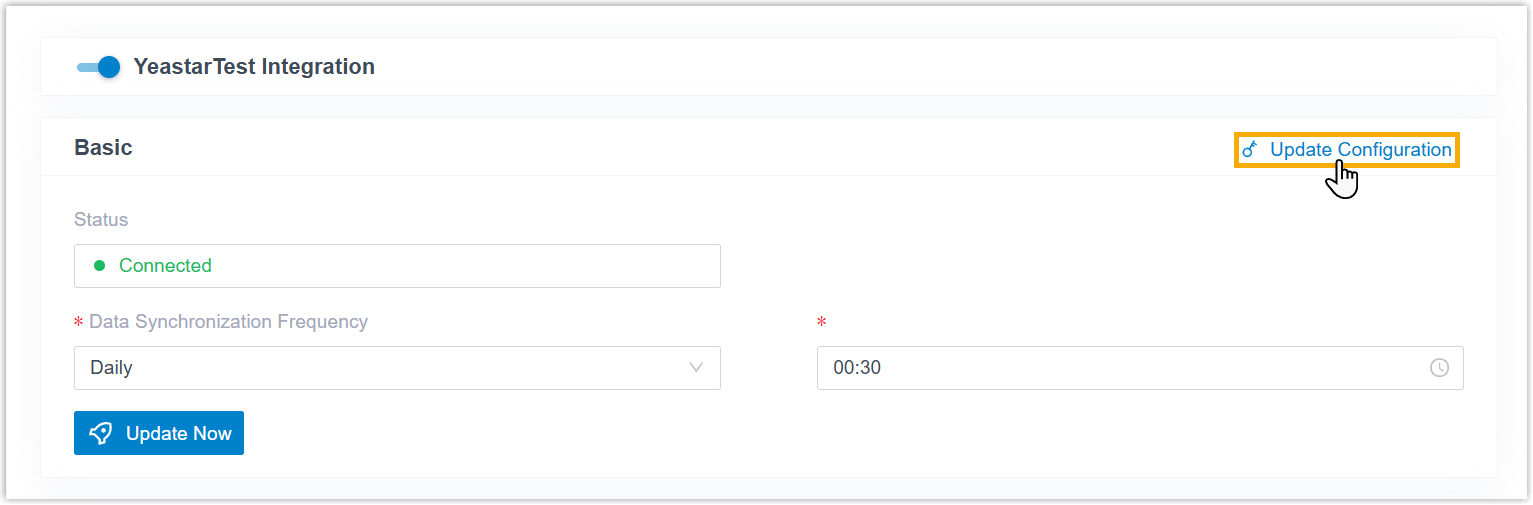
In the Basic section, select Update Configuration from the top-right corner.
-
Move down to the User Synchronization section and enter the new secret in the Client Secret field.

-
Select Save.
Question about this page?
Ask the AI assistant. It starts from this page, then searches the rest of the docs.
Ask Cloud Voice AI
Answers are AI-generated from the docs and may contain mistakes. Verify with the linked pages.