
Integrate Cloud Voice with Microsoft Teams
The Teams integration is set up per person: each user adds the Cloud Voice App to their own Microsoft Teams client and signs in with either a Cloud Voice extension or a Microsoft account. Once connected, you can make, answer, and control calls straight from Teams. The steps below walk a single user through the whole process.
Before you begin
Section titled “Before you begin”Have the domain name of your Cloud Voice web app on hand. Your administrator can provide it if you don’t already know it, and you enter it partway through setup.
Step 1: Add the Cloud Voice App to Teams
Section titled “Step 1: Add the Cloud Voice App to Teams”-
Sign in to Microsoft Teams.
-
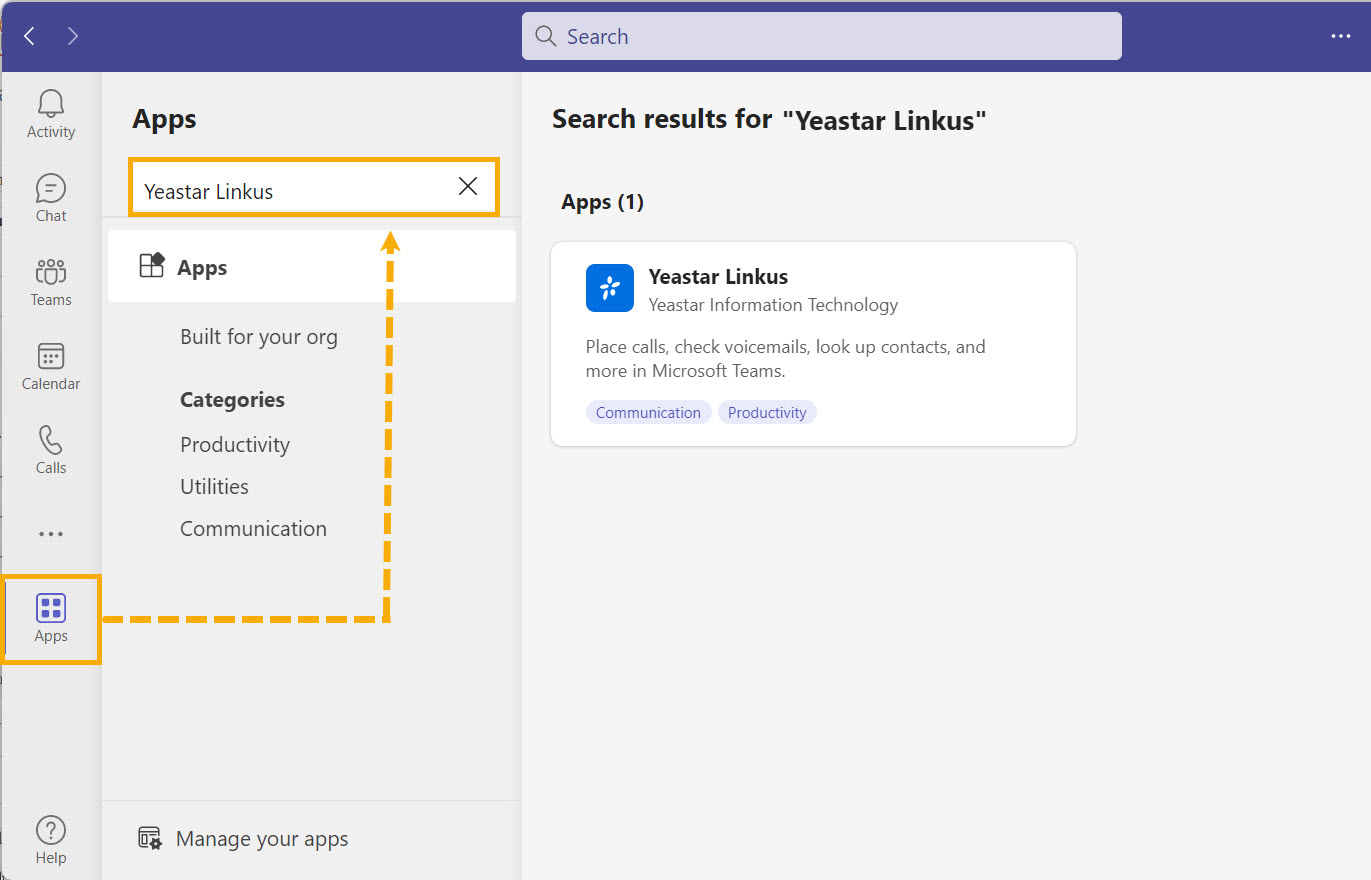
In the left sidebar, select Apps and search for Cloud Voice App.
-
In the results, select Cloud Voice App and click Add. Teams opens a new tab where you can reach the Cloud Voice web app and sign in.
Step 2: Open Cloud Voice inside Teams
Section titled “Step 2: Open Cloud Voice inside Teams”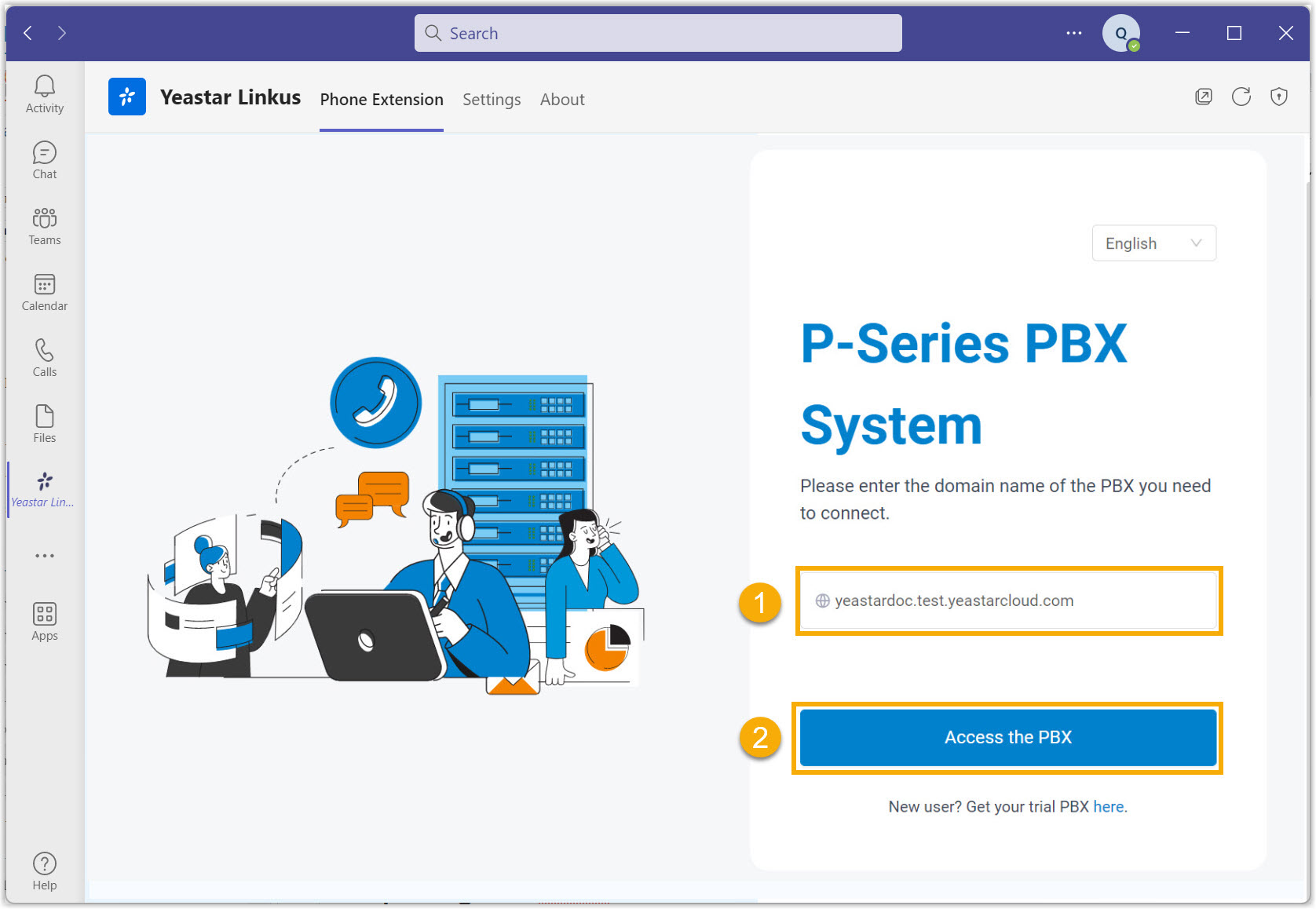
- On the Phone Extension tab, type the domain name of your Cloud Voice web app.
- Click Access the PBX. The sign-in page opens.
Step 3: Sign in
Section titled “Step 3: Sign in”Choose one of the two sign-in methods below.
Sign in with a Cloud Voice extension
Section titled “Sign in with a Cloud Voice extension”-
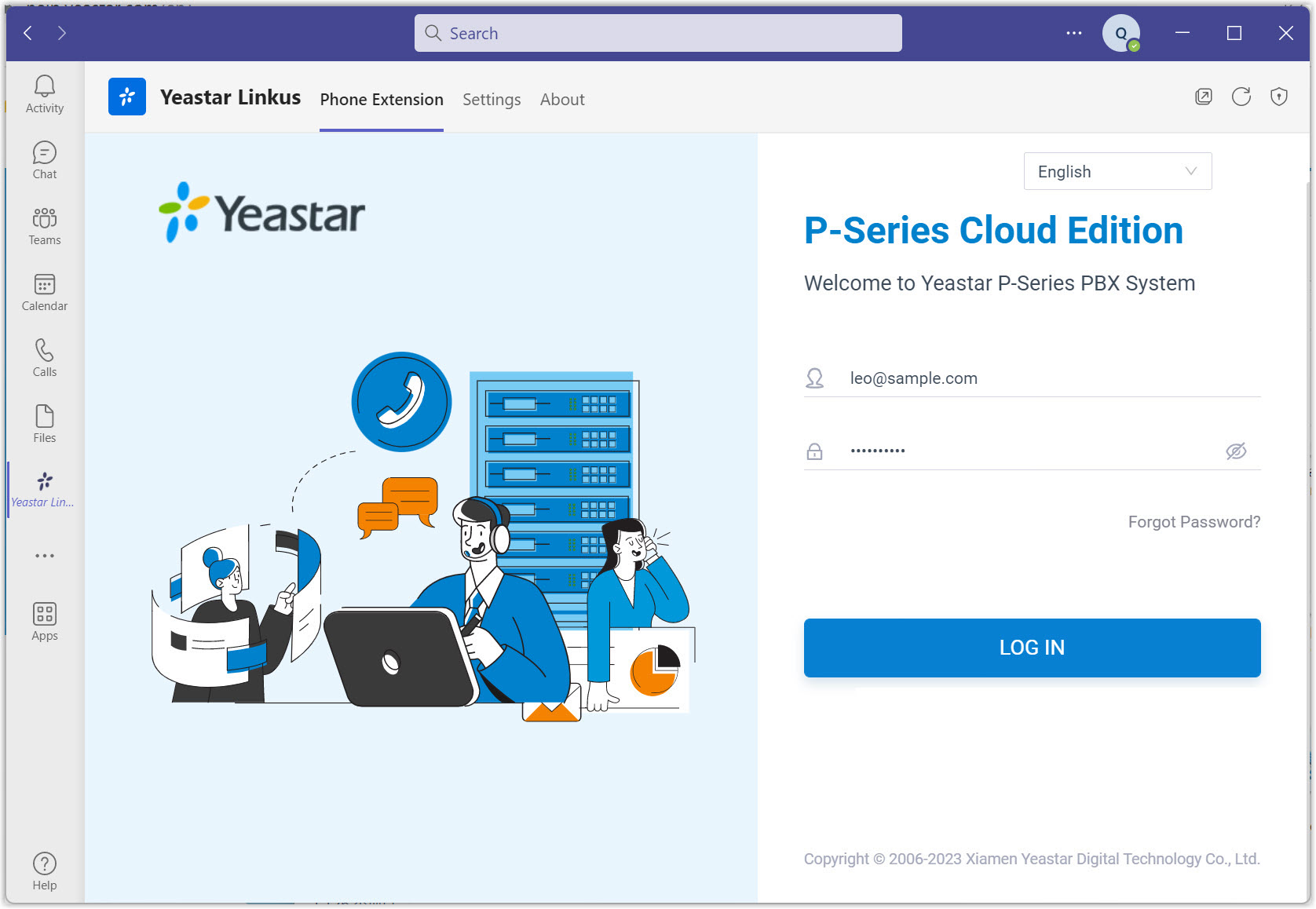
Enter your extension credentials, then click LOG IN:
- Username: the email address tied to your extension.
- Password: your extension password.
-
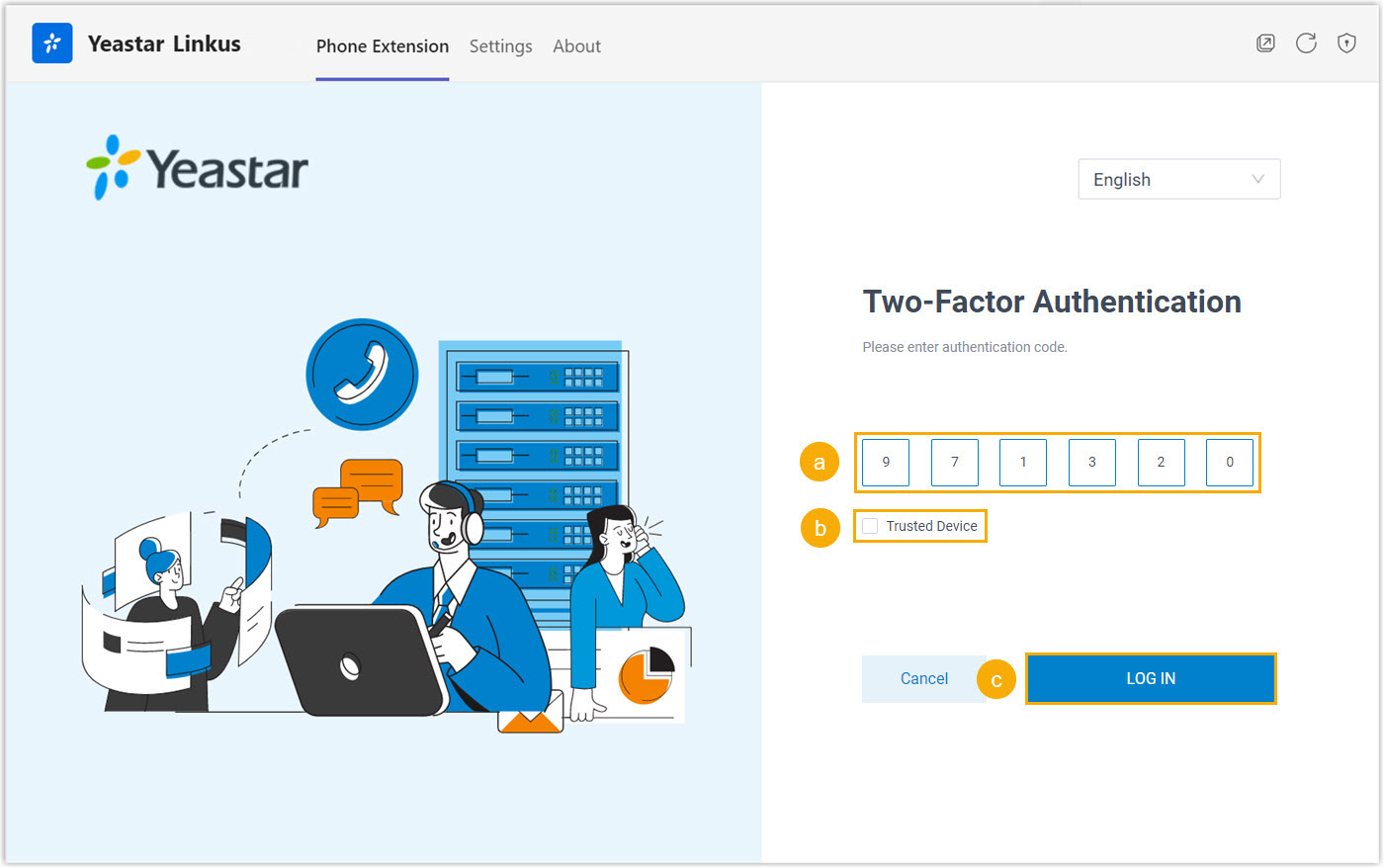
If two-factor authentication is enabled on your extension, supply a verification code.
-
Enter the code from your authenticator app or email.
-
(Optional) Select Trusted Device.
-
Click LOG IN.
-
-
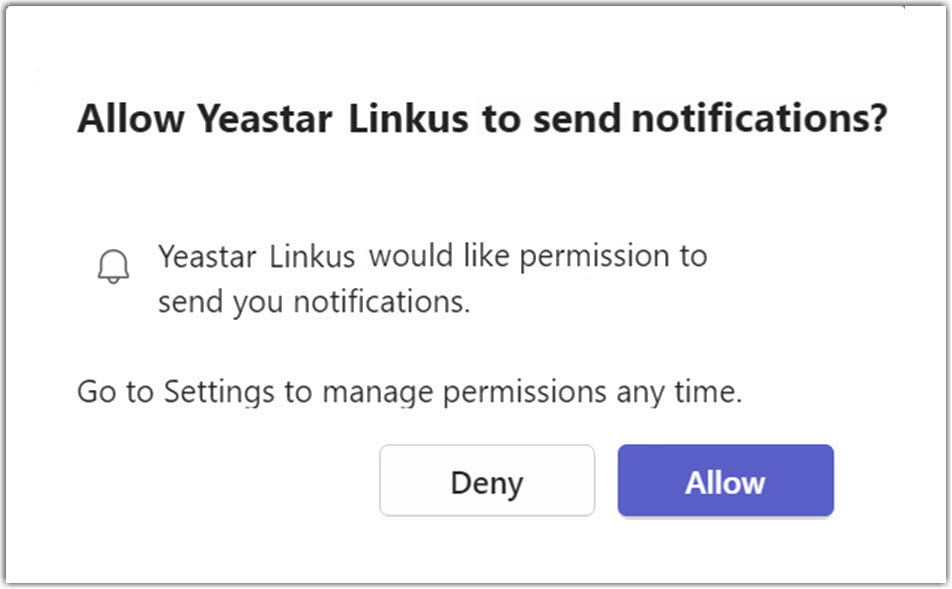
When the prompt appears, decide whether to let Cloud Voice notify you of incoming chat messages and calls.
Sign in with a Microsoft account
Section titled “Sign in with a Microsoft account”-
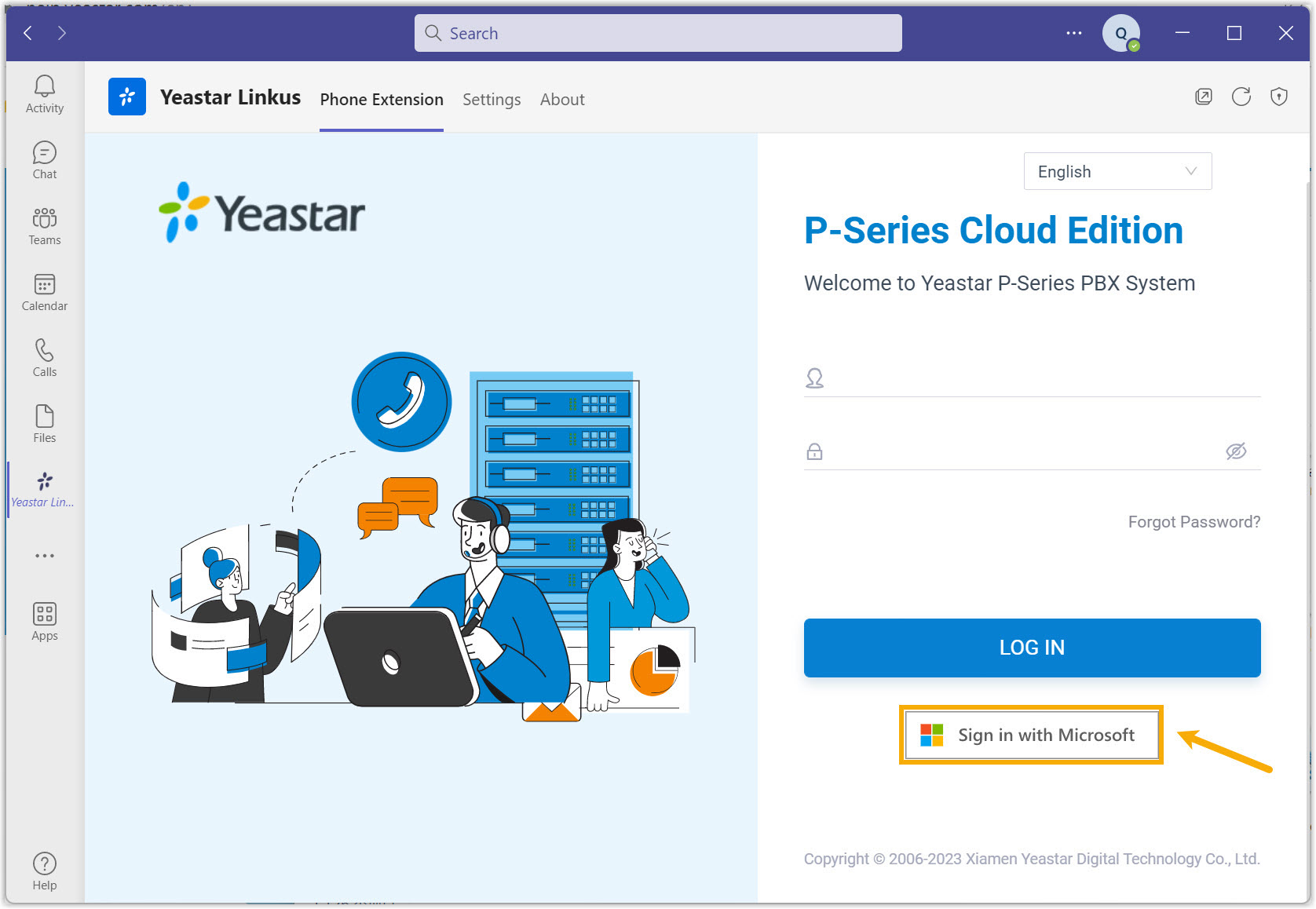
On the sign-in page, click Sign in with Microsoft.
-
In the pop-up window, sign in with your Microsoft account.
-
When the prompt appears, decide whether to let Cloud Voice notify you of incoming chat messages and calls.
Step 4: Choose a calling endpoint
Section titled “Step 4: Choose a calling endpoint”You control calls from within Teams, but the call audio runs through an endpoint you enable for CTI (Computer Telephony Integration, the link that lets Teams drive calls placed and answered on another device). Pick the endpoint that suits how you work: the Cloud Voice App (Web), the Cloud Voice App (Desktop), or a desk phone.
Cloud Voice App (Web)
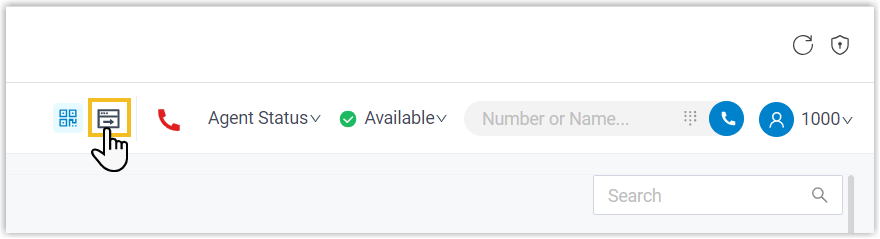
Section titled “Cloud Voice App (Web)”In the top-right corner, click the open control  to launch the Cloud Voice web app.
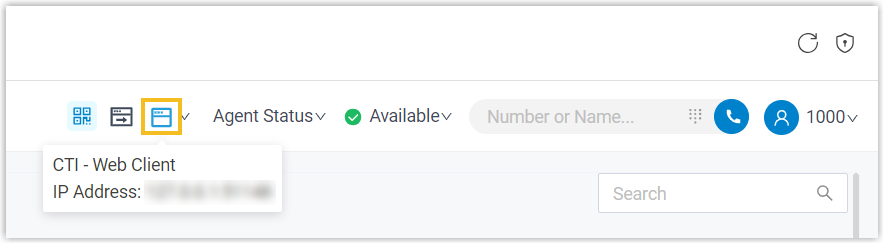
The call-status indicator then changes to show that CTI control is active, meaning the web app now handles your calls.
Cloud Voice App (Desktop)
Section titled “Cloud Voice App (Desktop)”-
Update the Cloud Voice App (Desktop) to version 1.5.4 or later.
-
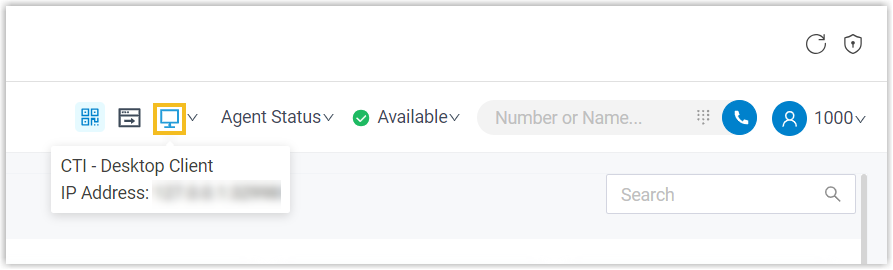
Sign in to the desktop app with your extension. The call-status indicator changes to the CTI icon, confirming the desktop app now handles your calls.
Desk phone
Section titled “Desk phone”-
Use a Yealink, Fanvil, or Snom IP phone whose model and firmware version meet the CTI supported-device requirements.
-
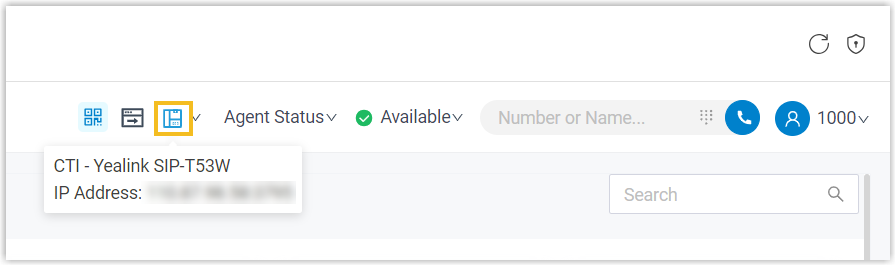
Register your extension on the phone. The call-status indicator changes to the phone icon, confirming the desk phone now handles your calls.
Step 5 (optional): Pin Cloud Voice to the Teams sidebar
Section titled “Step 5 (optional): Pin Cloud Voice to the Teams sidebar”Pin the app to keep it one click away in Teams.
-
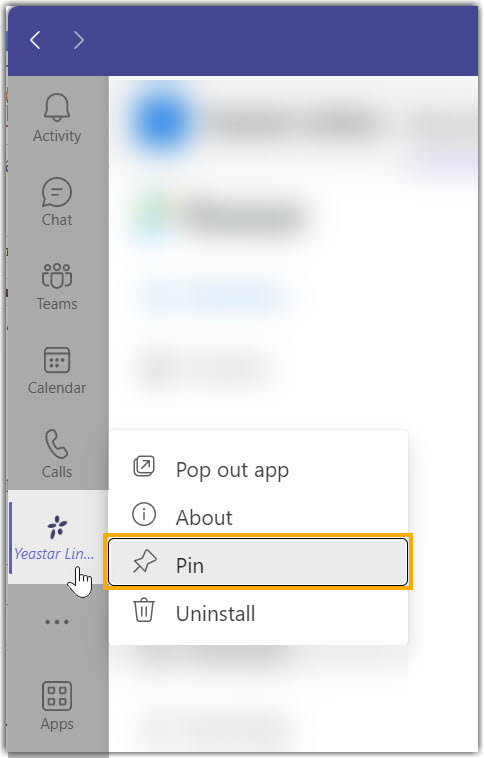
In the left sidebar, right-click Cloud Voice App.
-
Click Pin. The app stays fixed to your Teams sidebar.
What you can do now
Section titled “What you can do now”The integration is live. You can place and answer internal and external calls through your phone system without leaving Microsoft Teams.
Question about this page?
Ask the AI assistant. It starts from this page, then searches the rest of the docs.
Ask Cloud Voice AI
Answers are AI-generated from the docs and may contain mistakes. Verify with the linked pages.