
Use Zoho CRM Integration
Once Zoho CRM is connected to Cloud Voice, your phone system and your customer relationship management (CRM) tool start working as one. This page walks through what the integration lets you do day to day, from placing calls straight out of a contact record to keeping every conversation logged automatically.
Click to call
Section titled “Click to call”Prerequisites: Install the Cloud Voice extension for Chrome and configure the Cloud Voice web app to work alongside it.
Cloud Voice recognizes phone numbers on any Zoho CRM page. Click a detected number and the call goes out immediately through your PBX (private branch exchange, the phone system that routes your calls) extension, so there is no need to copy a number or dial by hand.
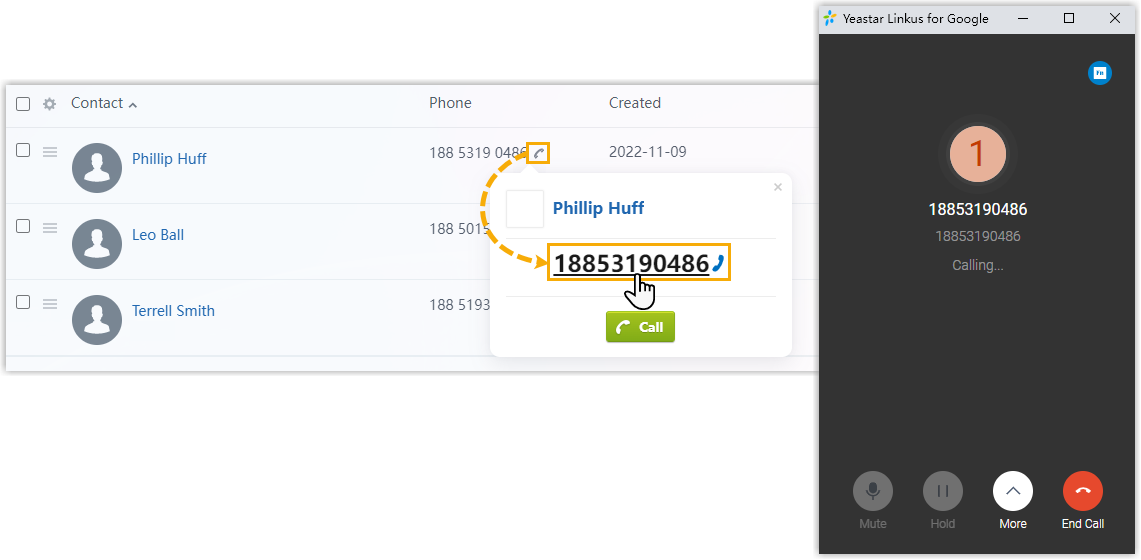
Call popup
Section titled “Call popup”Prerequisites: Stay signed in to at least one of these clients:
- Cloud Voice desktop app
- Cloud Voice web app
When you receive or answer an inbound call from a CRM contact, or wrap up a call with one, Cloud Voice opens a new browser tab showing that contact’s record. You can also pull up the record yourself from the call window at any point during a call.
| Automatic popup | Manual popup |
|---|---|
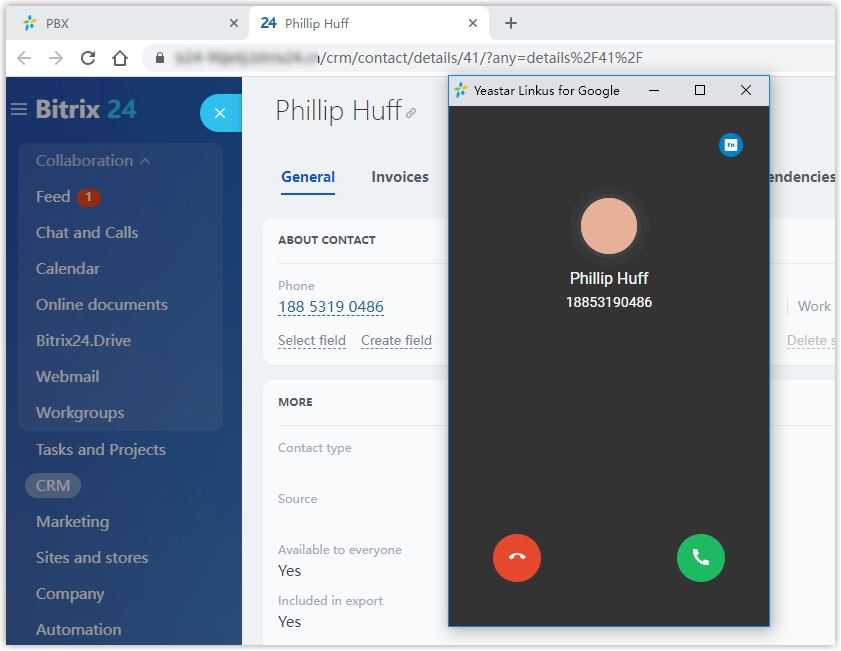 | 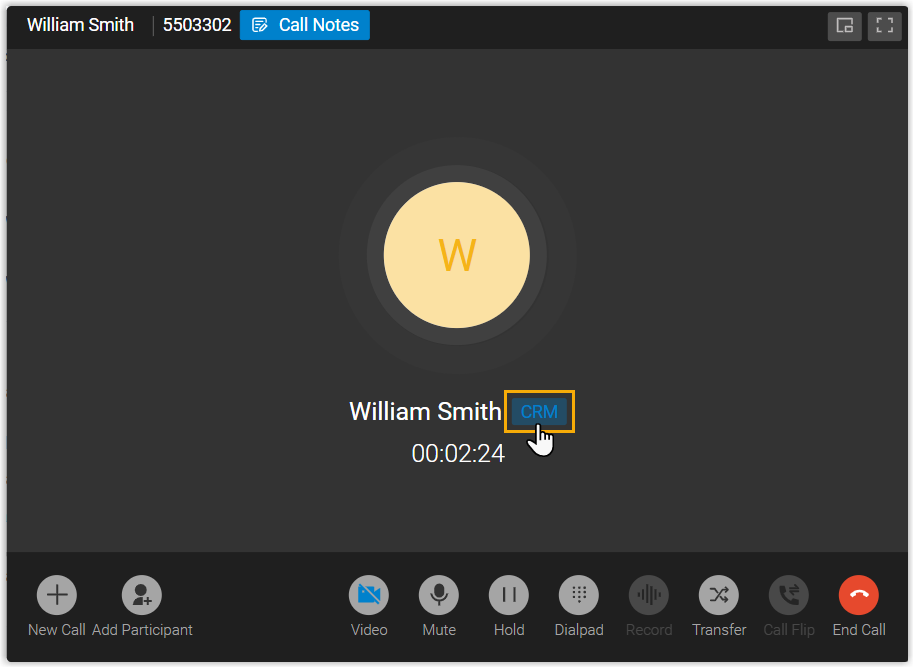 |
To choose when the popup appears and whether it opens on its own or on demand, see Set up Call Popup.
Call journal
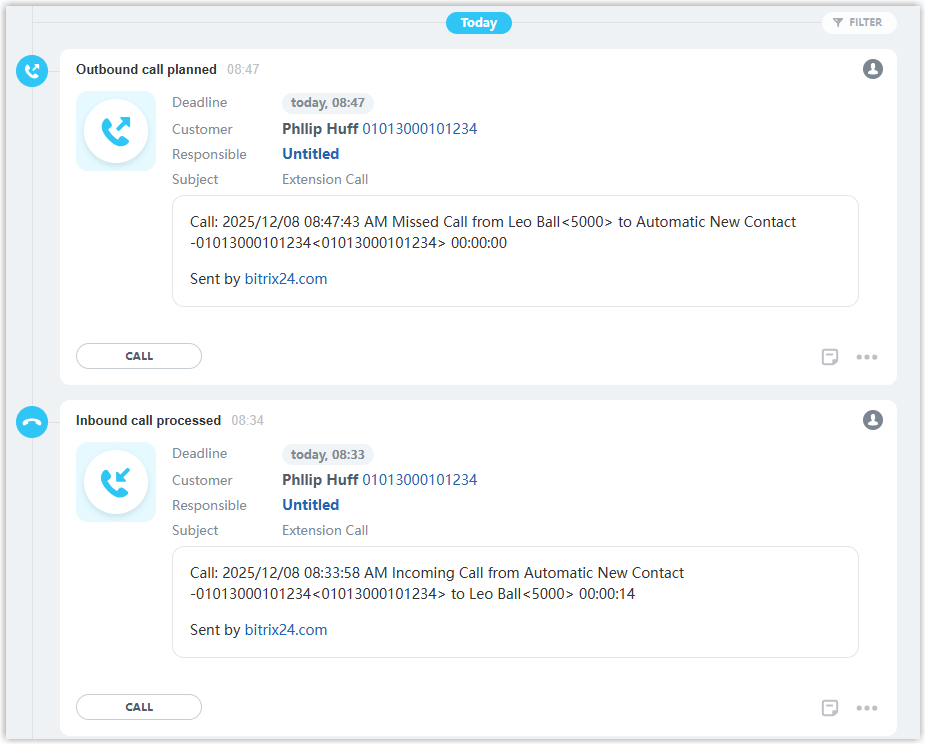
Section titled “Call journal”With the integration in place, every outbound, inbound, and missed call is written to Zoho CRM automatically, giving you a reliable record of each conversation.
-
In Zoho CRM, open a contact’s detail page and check the Closed Activities section to see the logged calls.
-
If call recording playback is turned on, you can view and play the matching recordings without leaving the CRM.
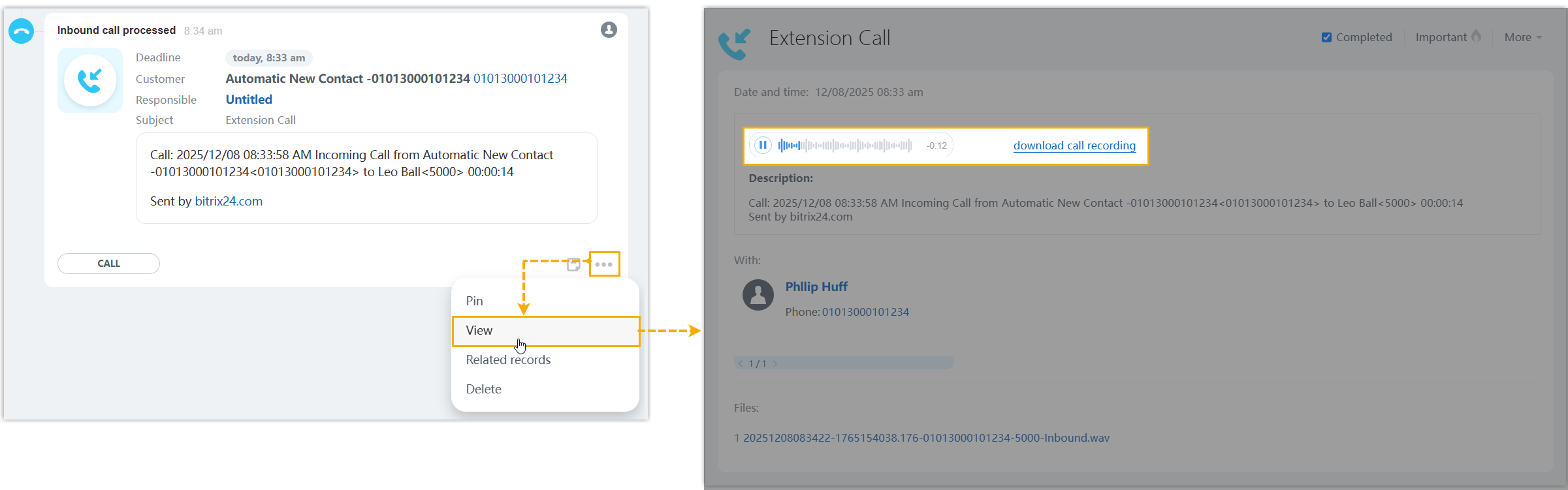
For the full setup, see Set up Call Journal to Zoho CRM.
Chat journal
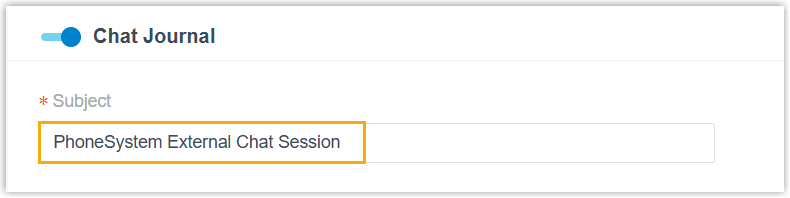
Section titled “Chat journal”When an external chat session between a Cloud Voice user and a CRM contact ends, whether the user closes it or the system does, all of that session’s messages sync to Zoho CRM automatically, so the customer’s interaction history stays complete.
To read the synced messages, open the contact’s detail page in Zoho CRM.
Contact synchronization
Section titled “Contact synchronization”Both inbound calls from CRM contacts and outbound calls to them trigger a lookup in Zoho CRM. When the number matches an existing CRM contact, that contact is copied into the associated PBX phonebook.
For the full setup, see Set up Contact Synchronization from Zoho CRM.

Contact or lead creation
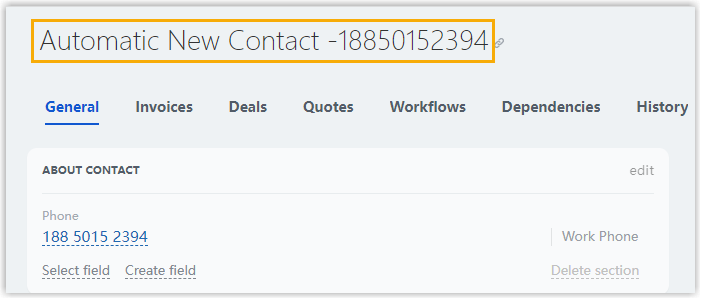
Section titled “Contact or lead creation”When a call comes from, or goes to, a number that is not yet in your CRM, Cloud Voice can create a new contact or lead in Zoho CRM, either automatically or on demand.
For the full setup, see Set up Lead or Contact Creation for Zoho CRM.
Question about this page?
Ask the AI assistant. It starts from this page, then searches the rest of the docs.
Ask Cloud Voice AI
Answers are AI-generated from the docs and may contain mistakes. Verify with the linked pages.