
Manually Trigger Data Synchronization to a Third-party Database
A Data Connector links Cloud Voice to an outside database so records such as call logs and extension data can be copied out for reporting or other systems. By default, Cloud Voice sends the data you have selected to that linked database on a fixed schedule. When you need the latest records in place sooner, you can run a sync yourself. A manual sync captures everything created since the previous run and writes it to the database right away, without changing the regular schedule.
Run a sync on demand
Section titled “Run a sync on demand”-
Sign in to the PBX (Private Branch Exchange, the phone system that manages your calls and extensions) web portal and open Integrations > Data Connectors.
-
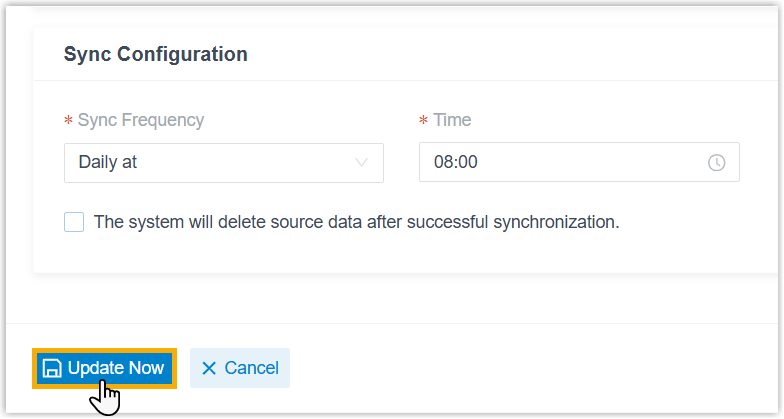
Scroll to the bottom of the page and click Update Now.
-
Click OK in the confirmation window. Cloud Voice tests the connection to the database before proceeding.
-
Click Confirm to start the transfer.
Result
Section titled “Result”All data generated since the last synchronization is written to the third-party database immediately. The next scheduled sync still runs as normal.
Question about this page?
Ask the AI assistant. It starts from this page, then searches the rest of the docs.
Ask Cloud Voice AI
Answers are AI-generated from the docs and may contain mistakes. Verify with the linked pages.