
Integrate Cloud Voice with Active Directory
Linking Cloud Voice to Active Directory (AD) lets your directory become the source of truth for user accounts. The connection runs over the Lightweight Directory Access Protocol (LDAP), and once it is in place you can build rules that turn AD users, organizational units, and groups into extensions automatically. This page walks through establishing the connection.
Requirements
Section titled “Requirements”- Operating system: Windows Server 2008, 2008 R2, 2012, 2012 R2, 2016, or 2019.
- Phone system: firmware version
84.23.0.24or later, on the Ultimate Plan (UP).
Before you begin
Section titled “Before you begin”Confirm that the phone system can reach your Active Directory over LDAP. On the firewall in front of the directory, open the ports that carry LDAP(S) queries from the phone system so the directory can answer them:
- TCP/UDP 389 for LDAP
- TCP/UDP 636 for LDAPS (strongly recommended)
Collect these details from Active Directory ahead of time:
- The IP address of the network segment where the Active Directory Domain Controller lives.
- The Distinguished Name (DN) of the directory node where searches should begin.
- The username and password of an AD domain account. The username must be supplied as a Distinguished Name (DN) or a User Principal Name (UPN), and the account needs full read access to the target directory so it can read directory data during synchronization.
Set up the connection
Section titled “Set up the connection”-
Sign in to the phone system portal and go to Integrations > Collaboration.
-
Find the Active Directory (AD) service and click Integrate.
-
Under Connect to Active Directory Domain, complete the following fields.
Setting Description Host IP The IP address of the network where the Active Directory Domain Controller resides. Protocol The communication protocol: LDAP for unencrypted traffic, or LDAPS for LDAP secured with SSL/TLS. Port The port used to reach Active Directory. Defaults are 389 for LDAP and 636 for LDAPS; enter a different value if your directory listens on a custom port. Base DN The distinguished name of the entry that anchors directory searches. For example, to search from the organizational unit salesin the domainlocaldirectory.com, enterOU=sales,dc=localdirectory,dc=com. -
Under Administrator Account Authorization, supply the AD domain account credentials.
Setting Description Administrator Logon Username The account username, given as either a fully distinguished name (DN) or a User Principal Name (UPN). Examples: DN cn=Administrator,cn=Users,dc=localdirectory,dc=com; UPNAdministrator@localdirectory.com.Administrator Password The password that goes with the username. -
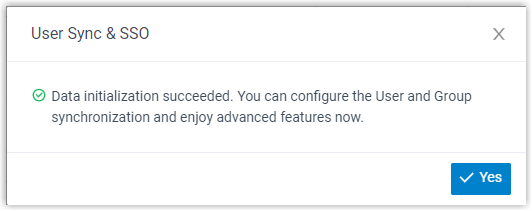
Click Save. A dialog confirms that the integration succeeded.
-
Click Yes to dismiss the dialog.
Result
Section titled “Result”On the integration page, Status now reads “Connected”, confirming that the phone system is talking to Active Directory.

What to do next
Section titled “What to do next”Create synchronization rules to bring the AD users, organizational units, and groups you want into the phone system. For details, see:
Question about this page?
Ask the AI assistant. It starts from this page, then searches the rest of the docs.
Ask Cloud Voice AI
Answers are AI-generated from the docs and may contain mistakes. Verify with the linked pages.