
Manage Voicemails
The Cloud Voice App for Dynamics 365 keeps your voicemails alongside your contacts, so you can listen to messages, return calls, and tidy up your inbox without leaving Dynamics 365. This page walks through the actions available on the Voicemails tab.
Open your voicemails
Section titled “Open your voicemails”-
In the plugin, select Voicemails.
-
Optional: To narrow a long list, use the search box or filters to find the messages you want.
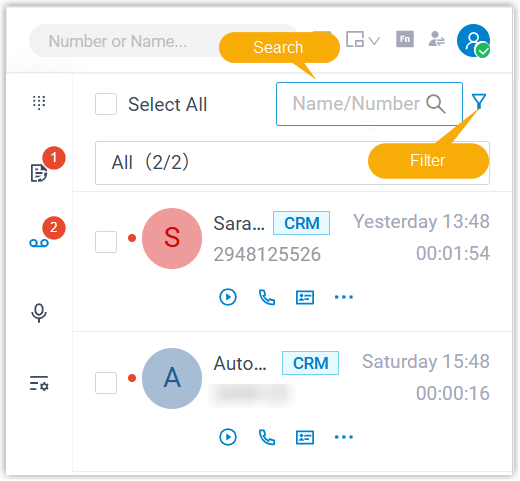
What you can do with a voicemail
Section titled “What you can do with a voicemail”Once you have the message you need, use the actions below.
| Action | How to do it |
|---|---|
| Play a voicemail | Click the play icon  on the message. An unread message is marked as read once you play it. on the message. An unread message is marked as read once you play it. |
| Call the sender back | Return the call in either of these ways: double-click the record, or click the call icon  on the message. on the message. |
| Open the Dynamics contact | Click the contact icon  on the message. The matching contact record opens in the main Dynamics 365 workspace. on the message. The matching contact record opens in the main Dynamics 365 workspace. |
| Download a voicemail | Click the more icon  on the message, then choose Download. The audio file is saved to your computer. on the message, then choose Download. The audio file is saved to your computer. |
| Mark one message read or unread | Click the more icon on the message, then click Mark as Read or Mark as unread. |
| Mark several messages as read | Select the checkbox for each message, then click the read icon  in the top-right corner. in the top-right corner. |
| Delete one message | Click the more icon on the message, then choose Delete. |
| Delete several messages | Select the checkbox for each message, then click the delete icon  in the top-right corner. in the top-right corner. |
Question about this page?
Ask the AI assistant. It starts from this page, then searches the rest of the docs.
Ask Cloud Voice AI
About
Answers are AI-generated from the docs and may contain mistakes. Verify with the linked pages.