
Synchronize Users from Red Hat SSO to Cloud Voice
Once Cloud Voice is connected to Red Hat SSO (Red Hat’s Single Sign-On service, which lets people use one set of credentials across apps), you can pull accounts from your Red Hat directory into Cloud Voice and give each person an extension. Synced users then place and receive calls on their office extension while signing in with the Red Hat credentials they already have.
Before you begin
Section titled “Before you begin”The number of users you can bring across is limited by how many extensions your Cloud Voice system can create. The sync never adds more extensions than your system supports.
You also decide which accounts are pulled in. Cloud Voice offers four synchronization scopes:
- All users: every account in the organization. Extensions are created and linked automatically, following the assignment rule you set.
- Users in a specific organizational unit: only accounts in the organizational unit(s) you choose. Extensions are created and linked automatically.
- Users in a specific group: only accounts in the group(s) you choose. Extensions are created and linked automatically.
- Specific users: a hand-picked list of accounts. You assign each extension yourself, so the extensions must already exist before you set up the sync.
The first three scopes share one procedure, covered next. For a curated list, skip to Synchronize specific users.
Synchronize all users, an organizational unit, or a group
Section titled “Synchronize all users, an organizational unit, or a group”-
Sign in to the Cloud Voice management portal and go to Integrations > Collaboration. Scroll down to the User Synchronization section.
-
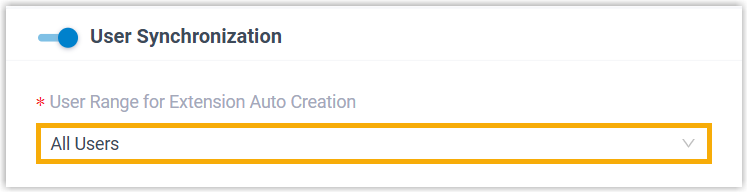
In the User Range for Extension Auto Creation list, choose the scope you want:
-
All Users: no further selection is needed.
-
Users in Specific Organizational Unit: then pick one or more units in the Organizational Units list.

-
Users in Specific Group: then pick one or more groups in the Group list.

-
-
For an organizational unit or group scope, select Auto delete the Extensions no longer in sync if you want Cloud Voice to remove extensions automatically once their user falls outside the chosen scope.
-
Define how extensions are assigned to the synced users.

-
In the User’s Extension Number list, choose the numbering rule:
- Assign Automatically: extension numbers are handed out in sequence, starting from the value you enter in Start Extension Number from.
- Read Specific Property Value: extension numbers are taken from a user account property; name that property in the Property Name field.
-
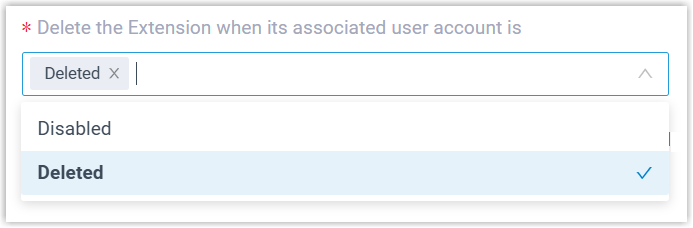
In the Delete the Extension when its associated user account is list, choose the account status(es) that make Cloud Voice stop syncing a user and delete their extension.
-
For Auto associate Extensions with the Users that share the same email address, decide how Red Hat users whose email matches an existing extension are handled:
-
Selected: a user whose Red Hat email (read from the Red Hat field you map to Email Address) matches the Email Address of an existing extension is synced and linked to that extension. The extension’s existing user details are overwritten with the user’s.
-
Cleared: such a user is not synced, because Cloud Voice does not allow duplicate email addresses.
-
-
-
To have Cloud Voice email each new user their Cloud Voice App sign-in details as soon as the extension is created, select Send Welcome Email automatically after an extension is created.
-
In the Map section, choose and pair the fields for the user information you want to bring over.

-
Click Save. Cloud Voice runs the first synchronization immediately. See After the sync completes for what to expect.
Synchronize specific users
Section titled “Synchronize specific users”-
Sign in to the Cloud Voice management portal, go to Integrations > Collaboration, and scroll down to the User Synchronization section.
-
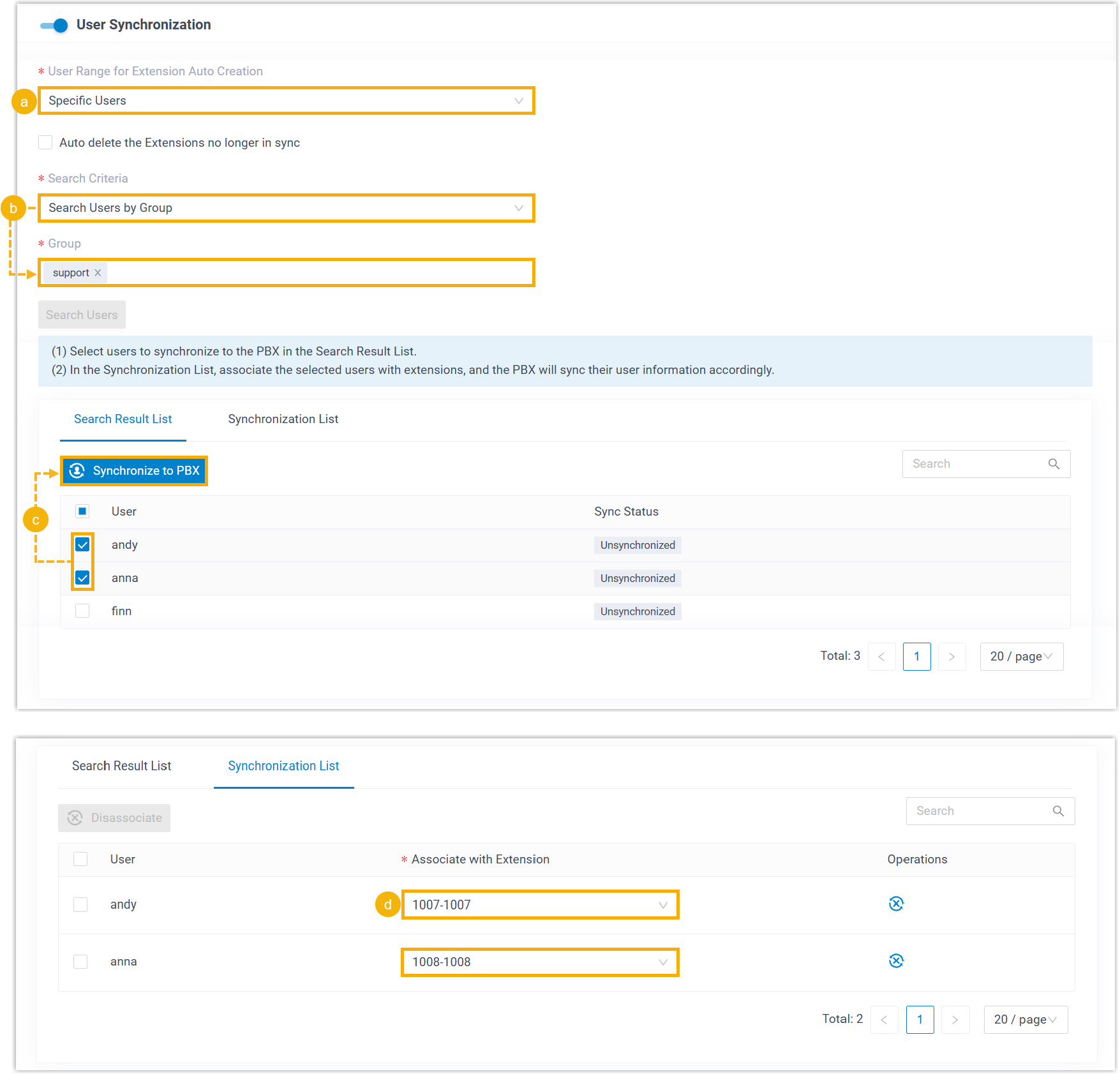
Select the users you want and match each to an extension.
-
In the User Range for Extension Auto Creation list, select Specific Users.
-
In the Search Criteria list, choose whether to look up users by organizational unit or by group, specify the target unit or group, and click Search Users. Matching accounts appear in the results.
-
In the Search Result List, select the users you want, then click Synchronize to Cloud Voice.
-
In the Synchronization List, pick an extension from the list to pair with each user.
-
-
Set the extension management policies that apply when the sync scope or an account status changes.
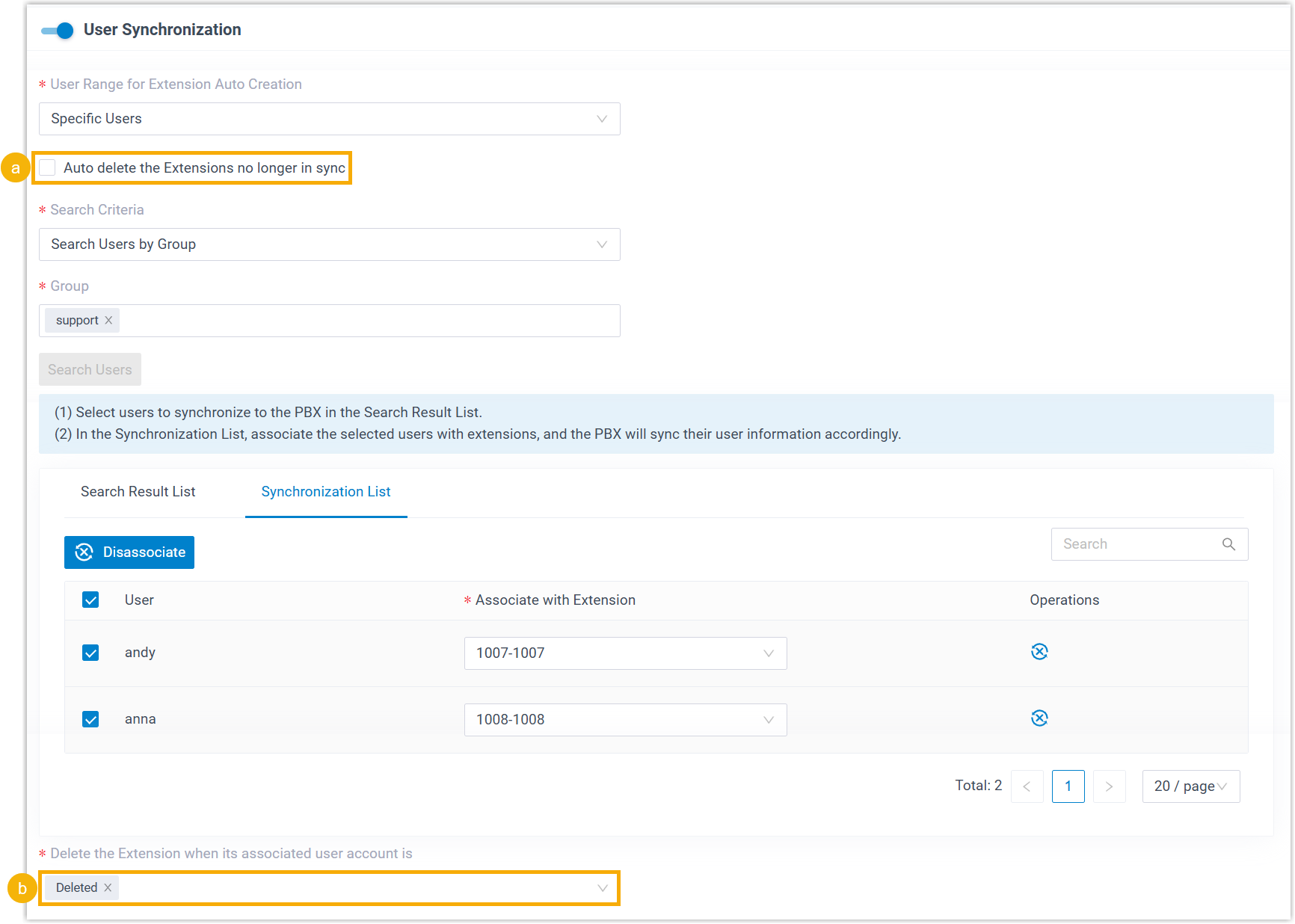
- Select Auto delete the Extensions no longer in sync to have Cloud Voice remove extensions tied to users who leave the sync.
- In the Delete the Extension when its associated user account is list, choose the account status(es) that make Cloud Voice stop syncing a user and delete their extension.
-
To send new users their Cloud Voice App sign-in details automatically, select Send Welcome Email automatically after an extension is created.
-
In the Map section, choose and pair the fields for the user information you want to bring over.
-
Click Save. Cloud Voice runs the first synchronization immediately. See After the sync completes.
After the sync completes
Section titled “After the sync completes”When you save, Cloud Voice performs the initial synchronization right away. Once it finishes:
-
A notification banner reports the result.

-
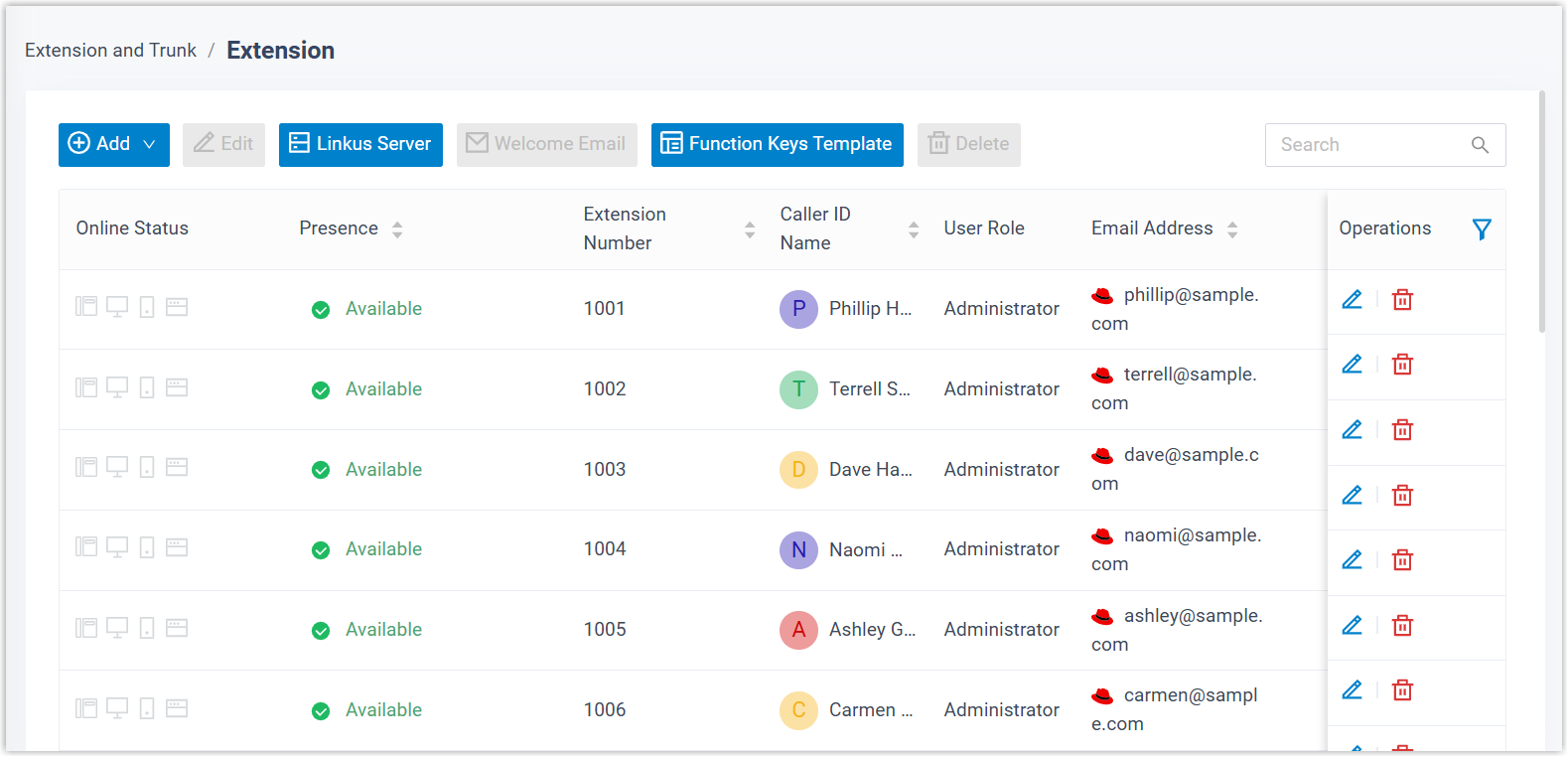
The synced users appear as extensions under Extension and Trunk > Extension. Each one is tagged with a Red Hat marker and cannot be deleted from Cloud Voice.
What to do next
Section titled “What to do next”Turn on Single Sign-On so the synced users can log in to the Cloud Voice App with their Red Hat credentials. See Allow Users to Log in to the Cloud Voice App with Red Hat SSO.
Question about this page?
Ask the AI assistant. It starts from this page, then searches the rest of the docs.
Ask Cloud Voice AI
Answers are AI-generated from the docs and may contain mistakes. Verify with the linked pages.