
Allow Users to Log in to Cloud Voice App with Red Hat SSO
Once your Red Hat SSO users have been synced into Cloud Voice, you can switch on single sign-on (SSO) so those users sign in to the Cloud Voice App with the same Red Hat credentials they already use elsewhere, rather than a separate extension password. SSO lets one identity provider (here, Red Hat) handle authentication for many applications, which means fewer passwords for users to manage and one place to disable access when someone leaves.
Before you begin
Section titled “Before you begin”- You have integrated Cloud Voice with Red Hat SSO.
- You have synchronized users from Red Hat SSO to Cloud Voice.
Turn on single sign-on
Section titled “Turn on single sign-on”-
Sign in to the PBX (Private Branch Exchange, your phone system) web portal and go to Integrations > Collaboration.
-
Scroll down to the Single Sign-on (SSO) section and switch it on.

-
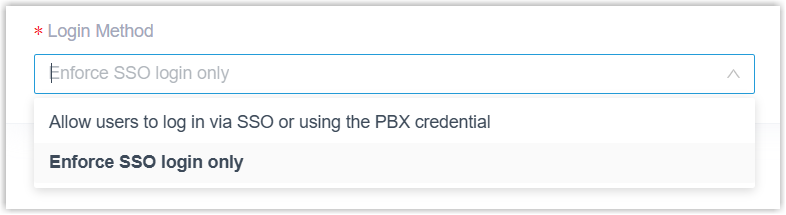
Optional: Use the Login Method drop-down list to control how your Red Hat users are allowed to authenticate.
-
Allow users to log in via SSO or using the PBX credential: users may sign in either through Red Hat SSO or with the account credentials of their assigned extension.
-
Enforce SSO login only: users may sign in only through Red Hat SSO.
-
-
Click Save.
Your synced users can now sign in to the Cloud Voice App directly with their Red Hat credentials.
Guide your users through signing in
Section titled “Guide your users through signing in”Let your users know how to reach the Cloud Voice App with their Red Hat credentials on each client they use.
Desktop client
Section titled “Desktop client”-
Update the Cloud Voice App desktop client to version 1.18.5 or later.
-
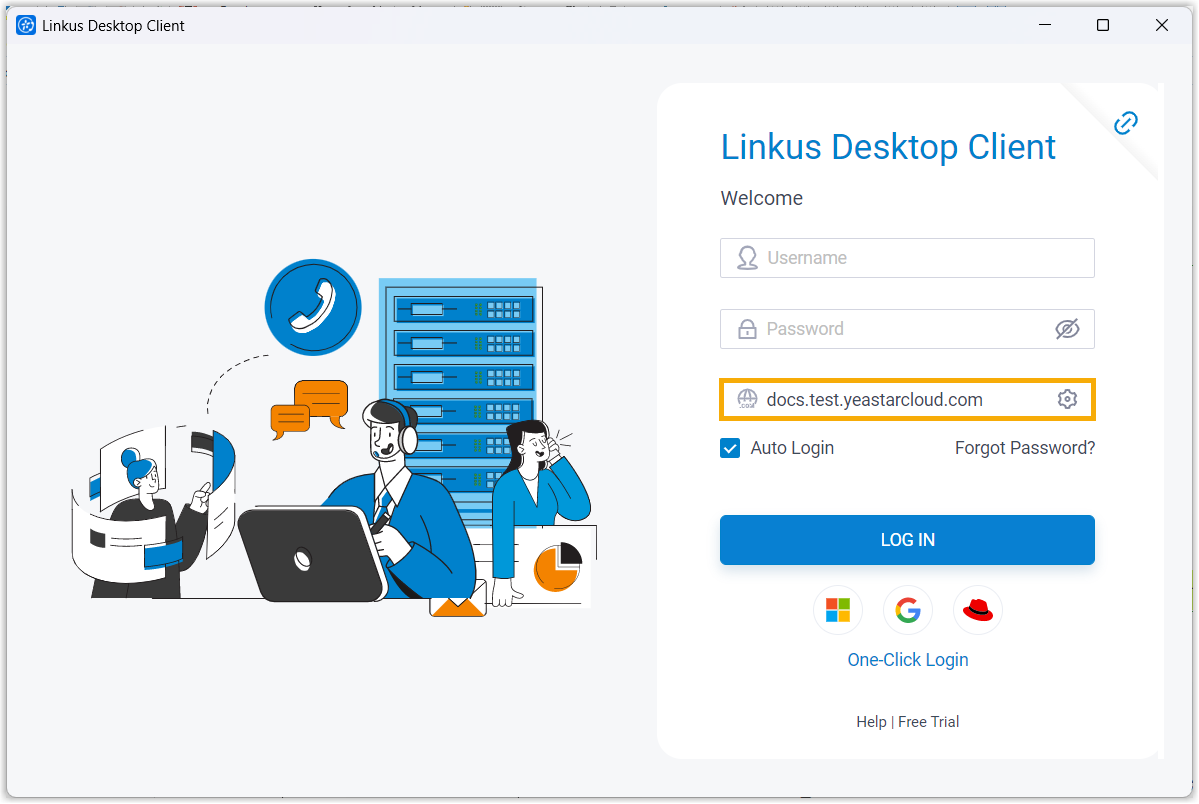
In the Domain field, enter the PBX address that is permitted for Red Hat SSO.
-
Click the Red Hat icon
 and sign in with your Red Hat credentials.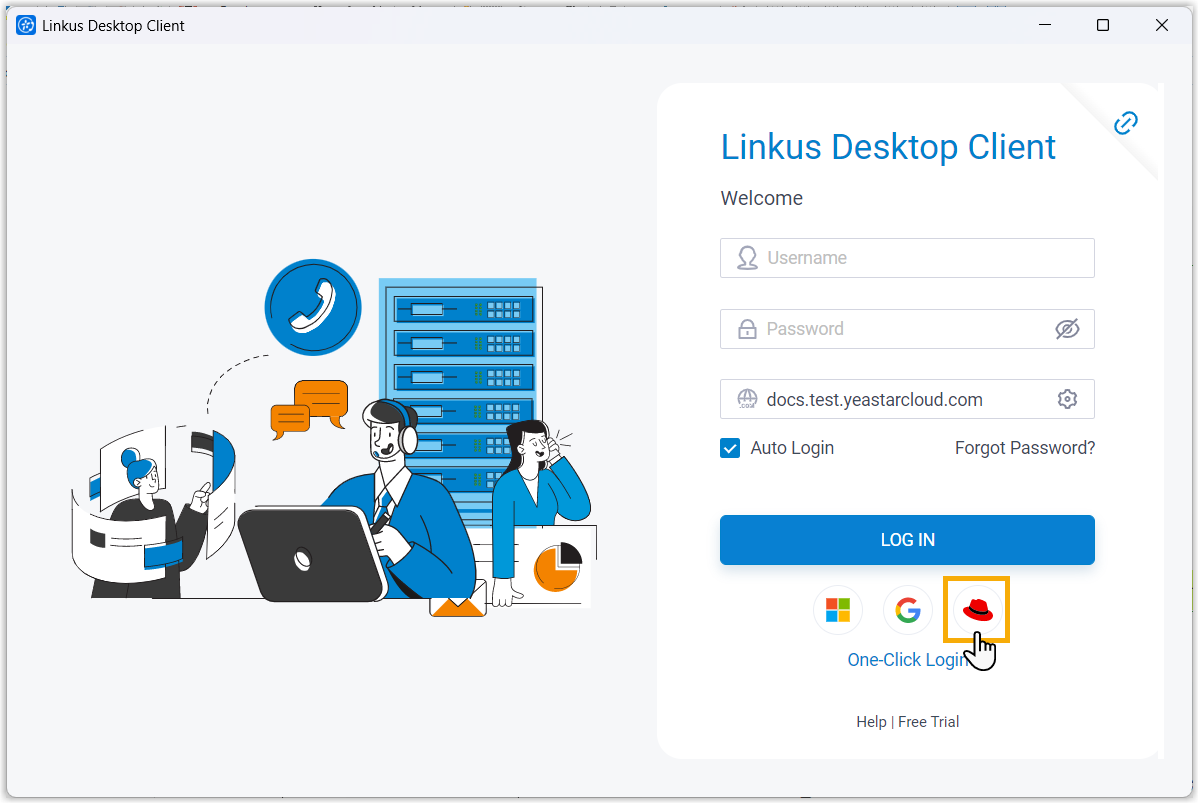
Web client
Section titled “Web client”-
Open the Cloud Voice App web client at the PBX address that is permitted for Red Hat SSO.
-
Click the Red Hat icon
and sign in with your Red Hat credentials.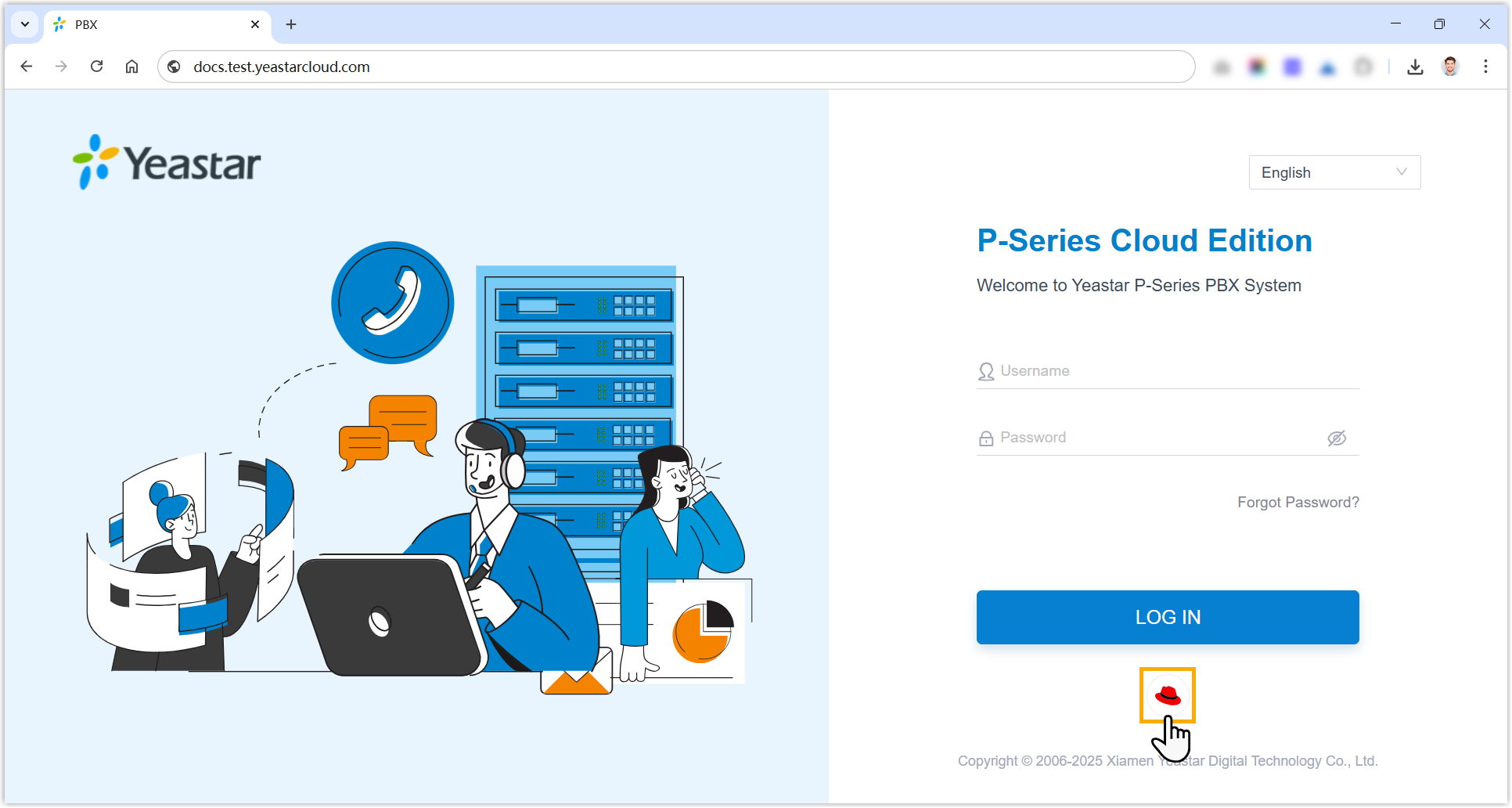
Question about this page?
Ask the AI assistant. It starts from this page, then searches the rest of the docs.
Ask Cloud Voice AI
Answers are AI-generated from the docs and may contain mistakes. Verify with the linked pages.