
Integrate Cloud Voice with Microsoft Entra ID
Linking Cloud Voice to Microsoft Entra ID (formerly Azure Active Directory) lets the phone system draw on your organization’s directory. Once the two are connected, you can define rules that pull users and groups from Entra ID into Cloud Voice as extensions and extension groups. This page walks through the one-time connection; setting up the actual synchronization comes afterward.
Requirements
Section titled “Requirements”| Item | Requirement |
|---|---|
| Microsoft Entra ID | Any edition works: Free, Office 365 apps, Premium P1, or Premium P2. |
| Cloud Voice server | Version 84.22.0.138 or later. |
Before you begin
Section titled “Before you begin”Confirm the following before starting:
- Your organization already has a Microsoft Entra tenant.
- You can sign in with a Microsoft account that holds the Global Administrator role. The connection cannot be completed without it.
Connect Cloud Voice to Microsoft Entra ID
Section titled “Connect Cloud Voice to Microsoft Entra ID”-
Sign in to the PBX web portal and open Integrations > Collaboration.
-
Find Microsoft 365 in the list and click Integrate next to it.

-
On the integration page, click Integration. Cloud Voice opens a connection page.

-
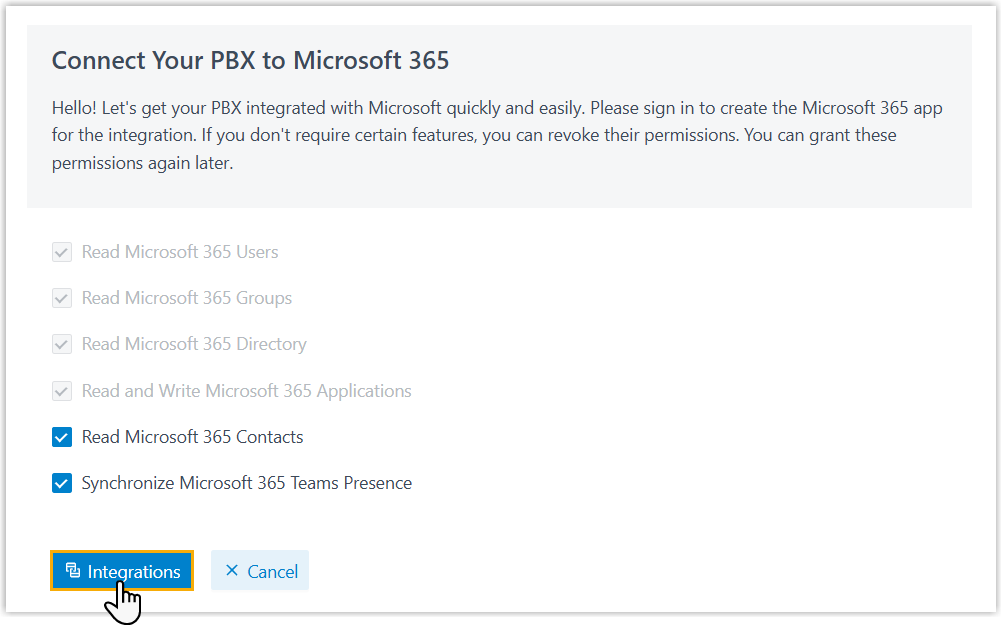
Review the access that the Microsoft 365 app will use, adjust it if needed, then click Integrations to continue. You are taken to the Microsoft sign-in page.
-
Sign in and approve the requested permissions:
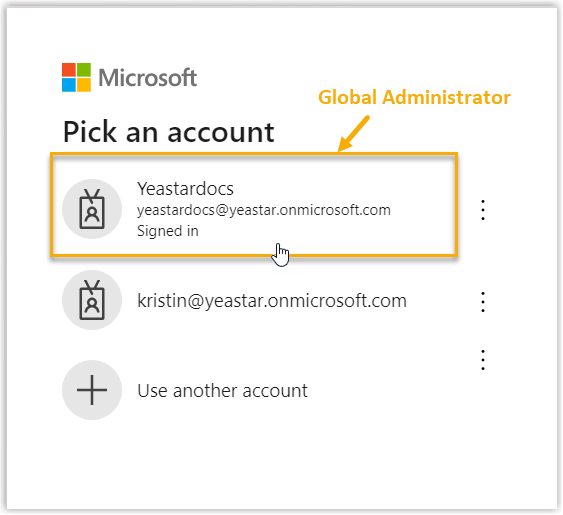
a. Sign in with the Microsoft account that has the Global Administrator role.
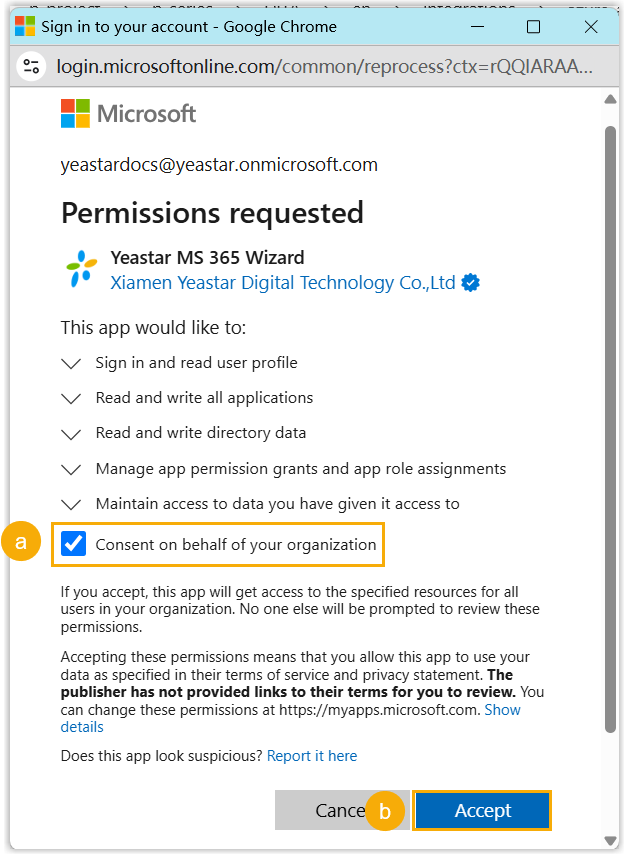
b. In the consent window, select the checkbox to grant the permissions requested by the Cloud Voice Microsoft 365 wizard, then click Accept.
-
Allow a few minutes for the settings to be applied.
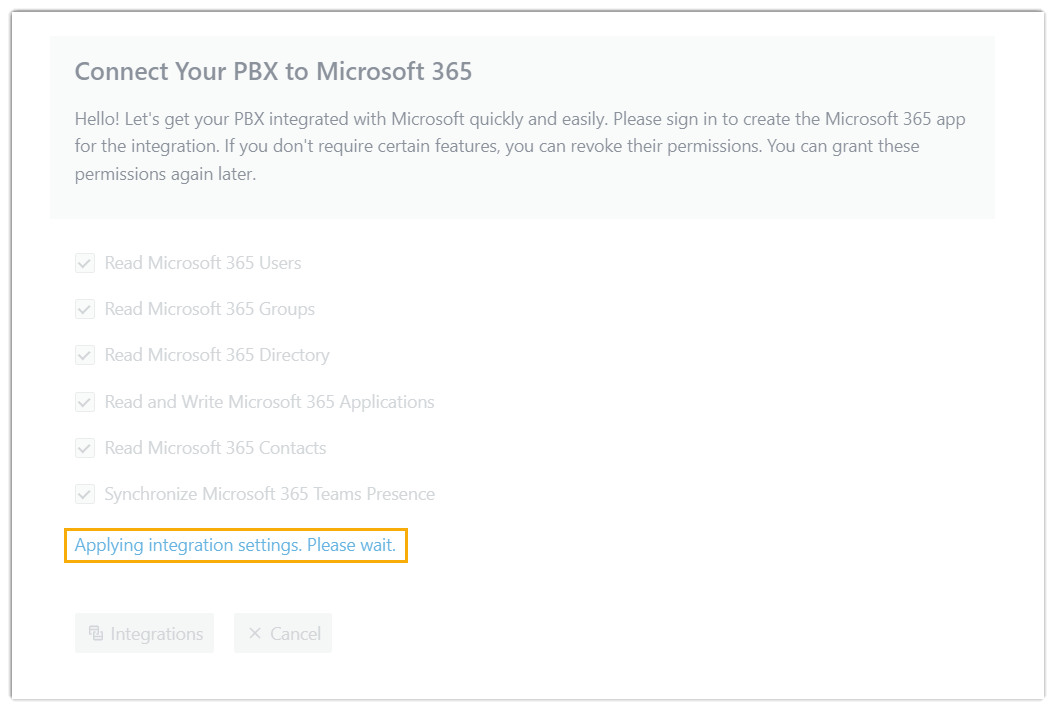
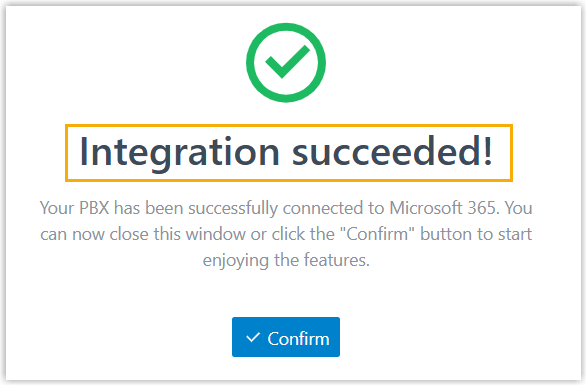
When it finishes, the connection page reports Integration succeeded.
-
Click Confirm to go back to the integration page.
Result
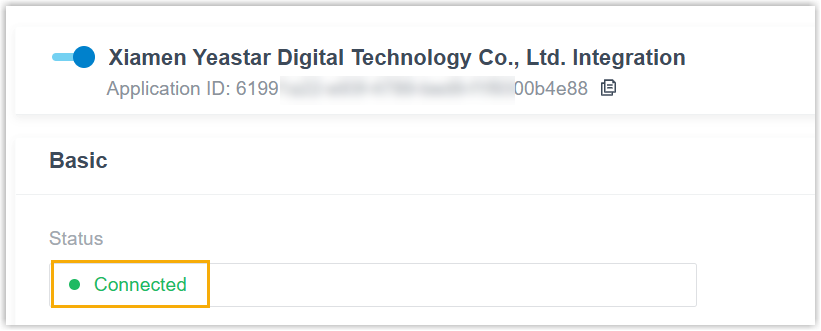
Section titled “Result”On the integration page, the status now reads Connected, confirming that Cloud Voice is linked to your organization’s Microsoft Entra ID.
Next steps
Section titled “Next steps”With the directory connected, create synchronization rules to bring the users and groups you want into Cloud Voice:
Question about this page?
Ask the AI assistant. It starts from this page, then searches the rest of the docs.
Ask Cloud Voice AI
Answers are AI-generated from the docs and may contain mistakes. Verify with the linked pages.