
Forward Door Phone Calls to an External Number
When a visitor rings the door phone but the person at the indoor monitor is away, on another call, or declines the call, the call would normally go unanswered. To close that gap, set up call forwarding on the extension assigned to the Akuvox indoor monitor. Cloud Voice can then hand the call off to an external number, such as a mobile phone, so someone can still respond.
Before you begin
Section titled “Before you begin”- Both Akuvox intercom devices, the door phone and the indoor monitor, must already be connected to Cloud Voice. You can do this by provisioning the Akuvox intercom devices or by registering them manually.
- The extension registered on the indoor monitor needs permission to dial the external number through the appropriate outbound route.
Choose a forwarding condition
Section titled “Choose a forwarding condition”You can forward door phone calls under either of these conditions, and you can configure both if you want full coverage:
- No Answer: the call rings the indoor monitor but no one picks up within the ring timeout. See Forward calls that go unanswered.
- When Busy: the extension user is already on a call or rejects the incoming call. See Forward calls when the extension is busy.
Forward calls that go unanswered
Section titled “Forward calls that go unanswered”-
Sign in to the PBX (Private Branch Exchange, your phone system) web portal and open Extension and Trunk > Extension.
-
Find the extension registered on the Akuvox indoor monitor and click the edit icon
 next to it.
 -
Open the Presence tab on the extension configuration page.
-
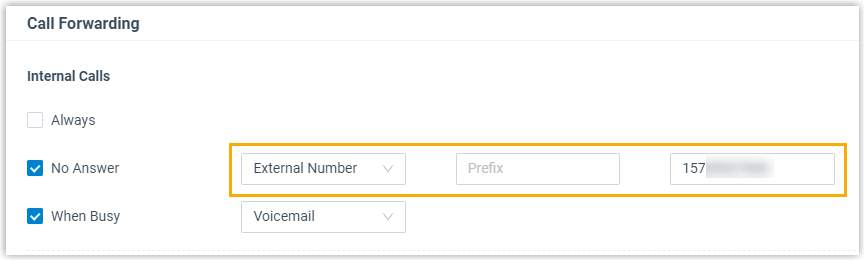
In the Call Forwarding section, set the destination for internal calls: a. Select the No Answer checkbox. b. In the drop-down list next to No Answer, choose External Number as the destination. c. In the Prefix field, enter the prefix of the outbound route you want the call to use.
d. In the field beside the prefix, enter the external number that should receive the call.
-
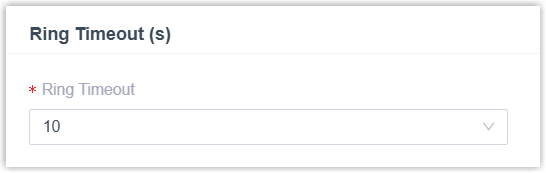
Scroll to the Ring Timeout (s) section and use the Ring Timeout drop-down list to set how long the monitor rings before the call is forwarded.
-
Click Save, then Apply.
Result: When a visitor calls the indoor monitor from the door phone and no one answers within the ring timeout, Cloud Voice forwards the call to the external number you specified.
Forward calls when the extension is busy
Section titled “Forward calls when the extension is busy”-
Sign in to the PBX web portal and open Extension and Trunk > Extension.
-
Find the extension registered on the Akuvox indoor monitor and click the edit icon
next to it. -
Open the Presence tab on the extension configuration page.
-
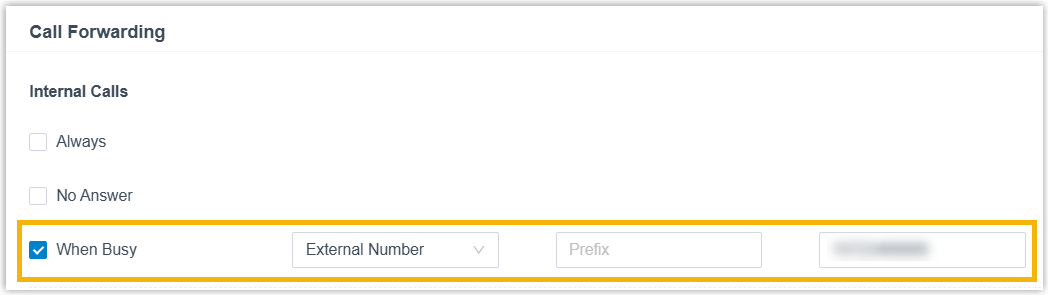
In the Call Forwarding section, set the destination for internal calls: a. Select the When Busy checkbox. b. In the drop-down list next to When Busy, choose External Number as the destination. c. In the Prefix field, enter the prefix of the outbound route you want the call to use.
d. In the field beside the prefix, enter the external number that should receive the call.
-
Open the Feature tab, scroll to the Call section, and select the checkboxes that match how you want “busy” to be detected:
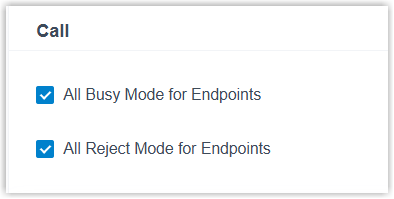
- All Busy Mode for Endpoints: forwards the call to the external number when the extension user is on a call on any one endpoint.
- All Reject Mode for Endpoints: forwards the call to the external number when the extension user rejects it on any one endpoint.
-
Click Save, then Apply.
Result: When a visitor calls the indoor monitor from the door phone and the extension user is already on a call or manually rejects it, Cloud Voice forwards the call to the external number you specified.
Question about this page?
Ask the AI assistant. It starts from this page, then searches the rest of the docs.
Ask Cloud Voice AI
Answers are AI-generated from the docs and may contain mistakes. Verify with the linked pages.