
Monitor a Call
Call monitoring lets a queue manager sit in on the live conversations agents are having with customers. You use it to keep quality high, coach agents while they work, and step in when a caller needs more help. This page explains the three monitoring modes and how to start one from the Queue Panel.
When to monitor a call
Section titled “When to monitor a call”In a sales or support queue, listening to live calls helps you manage call quality, boost agent efficiency, improve agent performance, and shape your sales or marketing approach. Cloud Voice gives you three monitoring modes, each with a different level of involvement:
- Listen: Follow the live conversation between the agent and the caller without either of them hearing you. Use this to confirm quality standards are being met.
- Whisper: Speak privately to the agent during the call to guide or prompt them. The caller cannot hear what you say, so you can coach in real time.
- Barge In: Join the call as a third party so you can talk with the agent and the caller at the same time, offer immediate help, and keep the customer satisfied.
Before you begin
Section titled “Before you begin”Make sure both of the following are true:
- You are a manager of the queue whose calls you want to monitor.
- The system administrator has granted you the Call monitoring operations (Listen, Whisper, Barge In) permission.
Monitor an active call
Section titled “Monitor an active call”-
In the Cloud Voice App (Web or Desktop), go to Call Center Console > Queue Panel.
-
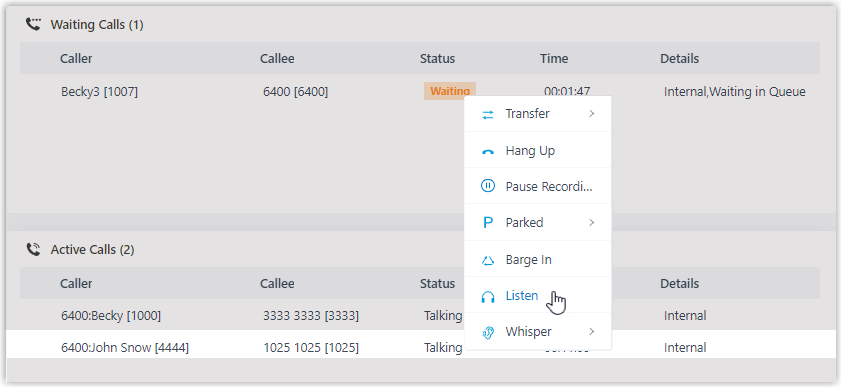
On the Active Calls panel, move your pointer over the call you want to monitor.
-
Right-click the call and choose a mode: Barge In, Listen, or Whisper.
Cloud Voice then rings your extension (the desk phone or Cloud Voice App registered to your account).
-
Answer the call on your extension to start monitoring.
Question about this page?
Ask the AI assistant. It starts from this page, then searches the rest of the docs.
Ask Cloud Voice AI
Answers are AI-generated from the docs and may contain mistakes. Verify with the linked pages.