
Grant Call Permission to Guest Rooms
Out of the box, a guest room phone can only reach the service number and emergency services. Room-to-room calls and calls to outside numbers are both turned off. This page explains how to open up internal (room-to-room) and external (outbound) calling when your property needs it.
Enable room-to-room calling
Section titled “Enable room-to-room calling”Internal calling between rooms is governed by extension visibility: a room can dial another room only when its extension is allowed to see the destination extension. No such rule exists by default, so you need to create one.
How you do that depends on how your property’s extensions are organized. Use the group-based approach if all guest rooms sit in a single hotel room group, or the department-based approach if rooms are split across departments.
Group-based properties
Section titled “Group-based properties”-
Sign in to the Cloud Voice management portal and open Hotel Management.
-
On the Hotel Settings tab, scroll down to the Room Settings section.
-
Configure the call rule.
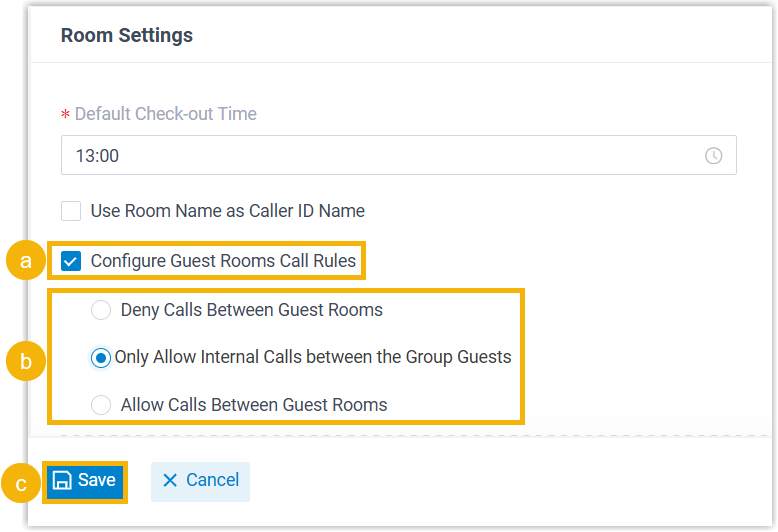
a. Select the Configure Guest Rooms Call Rules checkbox.
b. Choose the call rule you want.
c. Click Save.
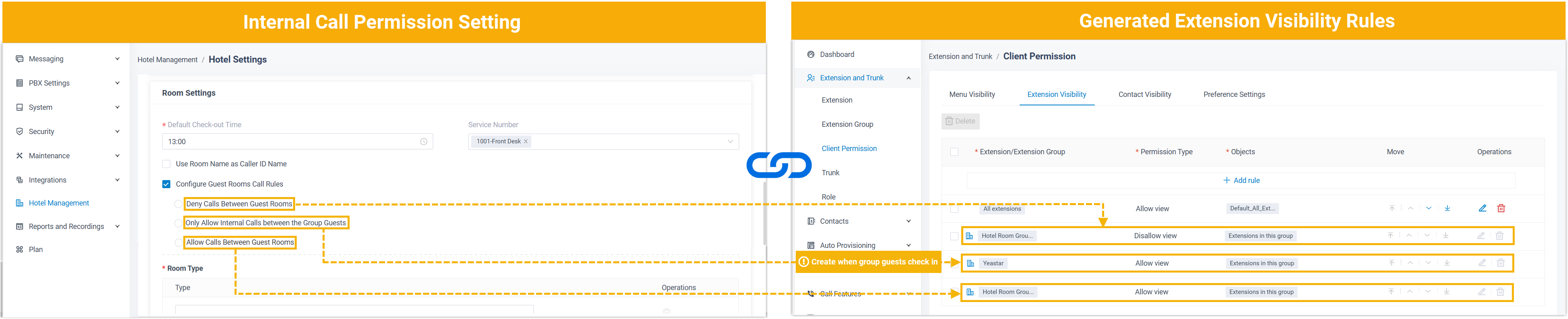
Cloud Voice then writes the matching rule into Extension and Trunk > Client Permission > Extension Visibility for you. Each call rule maps to a visibility rule as follows.
| Call rule you select | Visibility rule Cloud Voice generates |
|---|---|
| Deny Calls Between Guest Rooms | The Hotel Room Group is set to Disallow view for extensions in the same group. |
| Only Allow Internal Calls between the Group Guests | A {tour_group} entry is set to Allow view for extensions in that group. |
| Allow Calls Between Guest Rooms | The Hotel Room Group is set to Allow view for extensions in the same group. |
Department-based properties
Section titled “Department-based properties”-
Sign in to the Cloud Voice management portal and open Extension and Trunk > Client Permission > Extension Visibility.
-
Add a visibility rule.
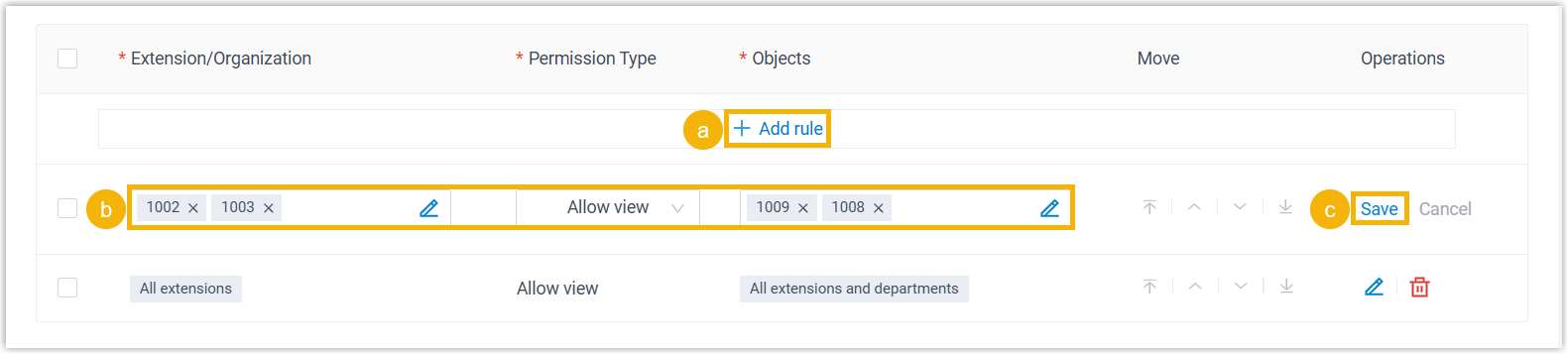
a. Click Add rule.
b. Define the rule:
- Extension/Organization: Select the member or members you want to grant viewing permission to.
- Permission Type: Select Allow view.
- Objects: Select the member extensions that are allowed to be viewed.
c. Click Save.
The members you selected can now call the member extensions you allowed them to view.
Enable outbound calling
Section titled “Enable outbound calling”Outbound calls from room phones are blocked by default. As a best practice, don’t open outbound calling for every room. Instead, set up the outbound calling configuration ahead of time and grant permission only to the guests who ask for it, either at check-in or later from the room’s page.
Enable domestic outbound calling
Section titled “Enable domestic outbound calling”-
Prepare the domestic outbound calling configuration.
a. Set up a trunk to carry outbound calls. A trunk is the connection between Cloud Voice and the outside telephone network (your carrier).
b. Create an outbound route that sends calls to external numbers. An outbound route is the rule that decides which trunk carries a call and which dialed numbers are allowed out.
c. Add a call rate rule so guest calls can be billed.
-
Grant a guest domestic calling permission at check-in.
a. On the check-in page, set Call Privilege to Allow Domestic Calls.
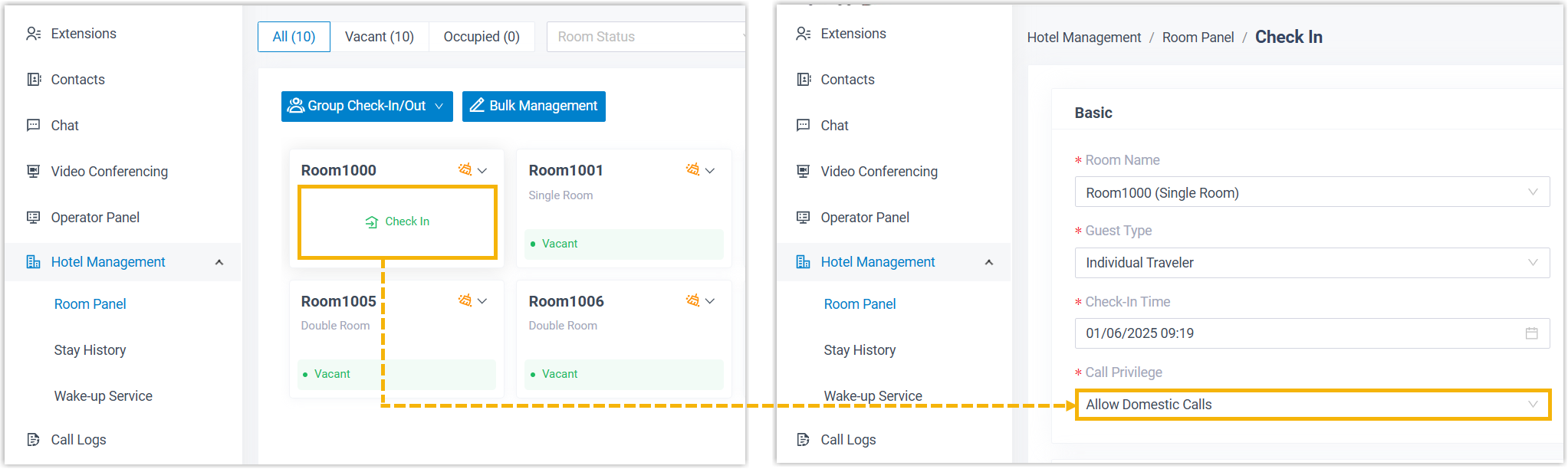
b. Click Save.
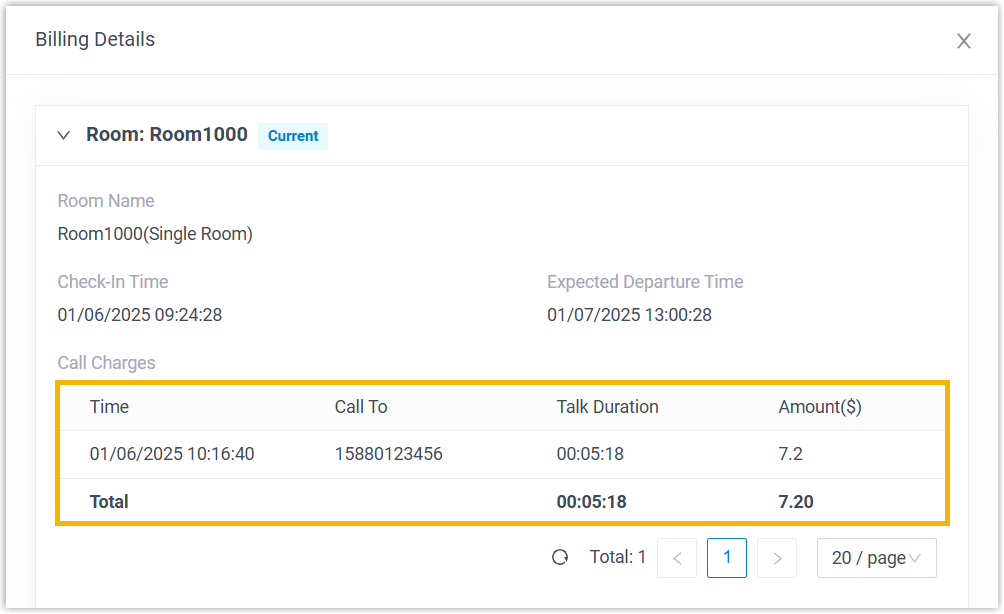
The guest can now place domestic outbound calls from the room phone. When a call ends, Cloud Voice calculates the charge from the applicable rate and posts it to the guest’s bill.
Enable international outbound calling
Section titled “Enable international outbound calling”-
Prepare the international outbound calling configuration.
a. Set up a trunk to carry outbound calls.
b. Set up an international dialing code so the system can recognize international calls, and restrict them to the countries and regions you trust.
c. Create an outbound route that sends calls to external numbers.
d. Add a call rate rule so guest calls can be billed.
-
Grant a guest international calling permission at check-in.
a. On the check-in page, set Call Privilege to Allow International Calls.
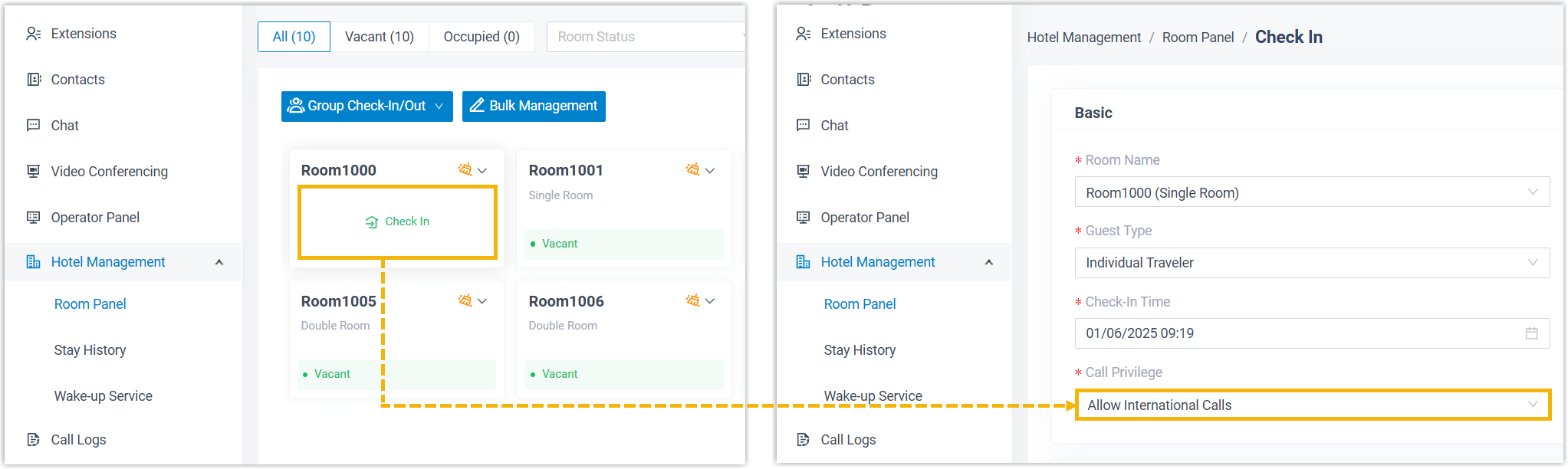
b. Click Save.
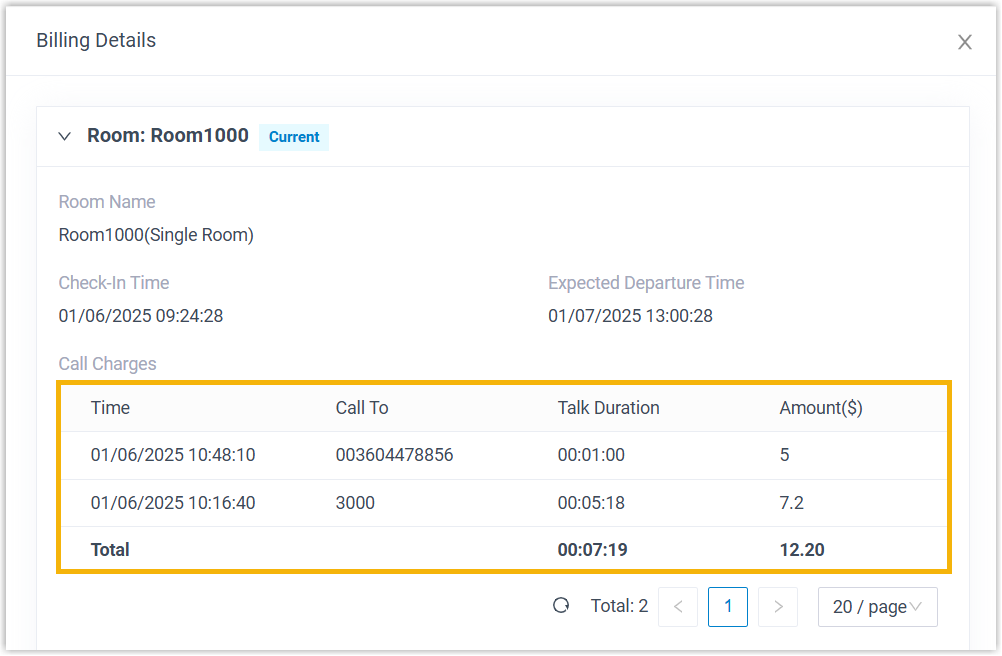
The guest can now place both international and domestic outbound calls from the room phone. When a call ends, Cloud Voice calculates the charge from the applicable rate and posts it to the guest’s bill.
Question about this page?
Ask the AI assistant. It starts from this page, then searches the rest of the docs.
Ask Cloud Voice AI
Answers are AI-generated from the docs and may contain mistakes. Verify with the linked pages.