
Schedule Wake-up Calls
Wake-up calls let the hotel ring a guest room at a set time and play a recorded message. Front-desk staff can create these alarms from the Cloud Voice App, and guests can also set their own directly from the room phone. This page covers all three approaches.
Set a wake-up call from the Wake-up Service panel
Section titled “Set a wake-up call from the Wake-up Service panel”The Wake-up Service panel is built specifically for managing alarm calls, so it works well when you need to program the same wake-up for several rooms in one pass.
-
Sign in to the Cloud Voice App and open Hotel Management > Wake-up Service.
-
On the Wake-Up Task tab, click Add in the top-left corner.
-
Fill in the task details.
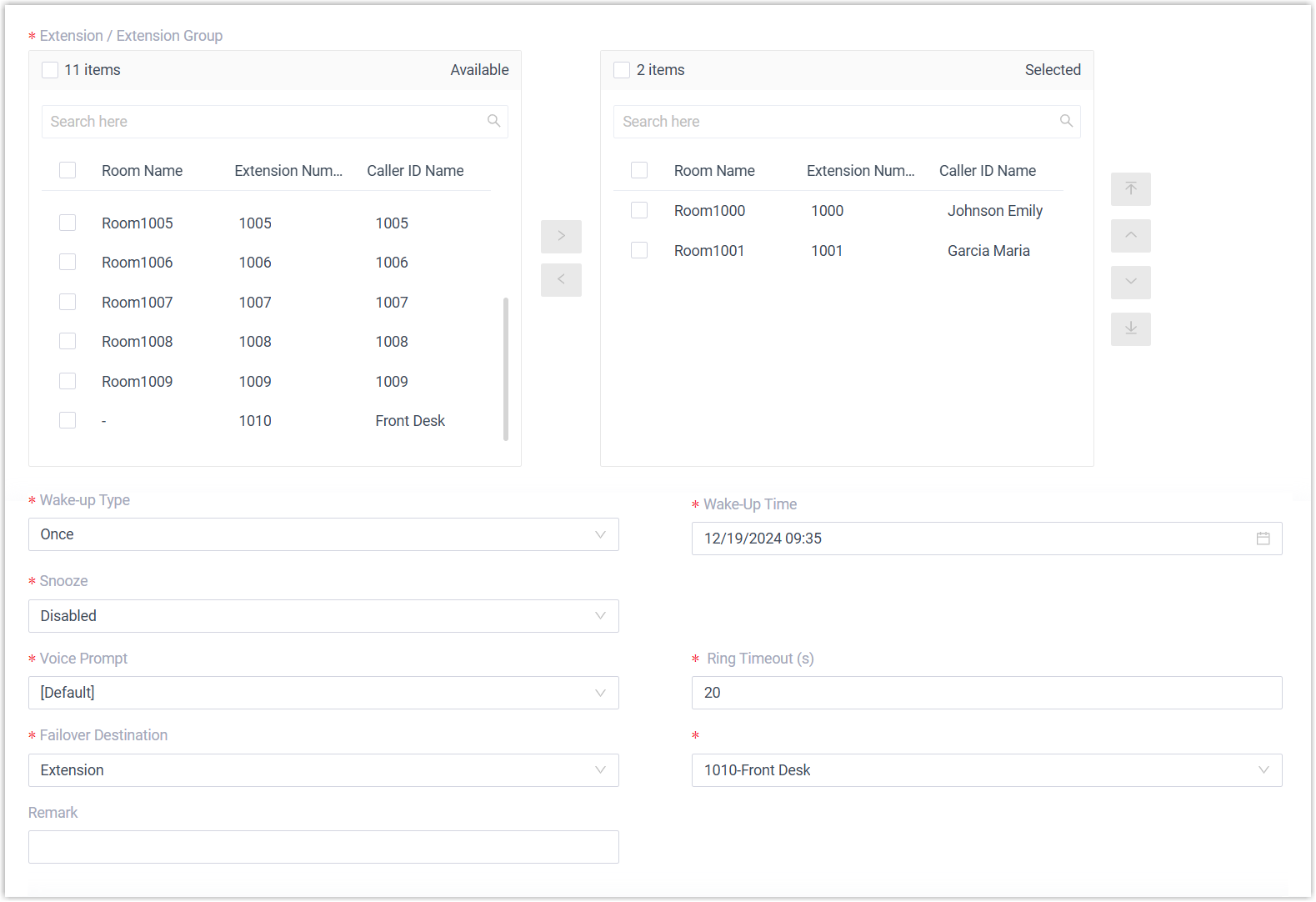
Setting Description Extension / Extension Group Choose the guest room or rooms that should receive the wake-up call. Wake-up Type Set how often the call repeats: Once, At Daily, Week, or Month. Wake-Up Time Pick the time the call should be placed. Snooze Decide how many times the call retries when the guest does not answer, and how long to wait between attempts. Voice Prompt Choose the recording the guest hears after answering. Ring Timeout (s) Set how long the call rings before giving up, in seconds. Accepted range is 5 to 300. Failover Destination Choose where an unanswered call is routed: Hang Up, Extension, or Ring Group. Remark Add any notes you want to keep with the task. -
Click Save.
The new task appears in the list once saved.
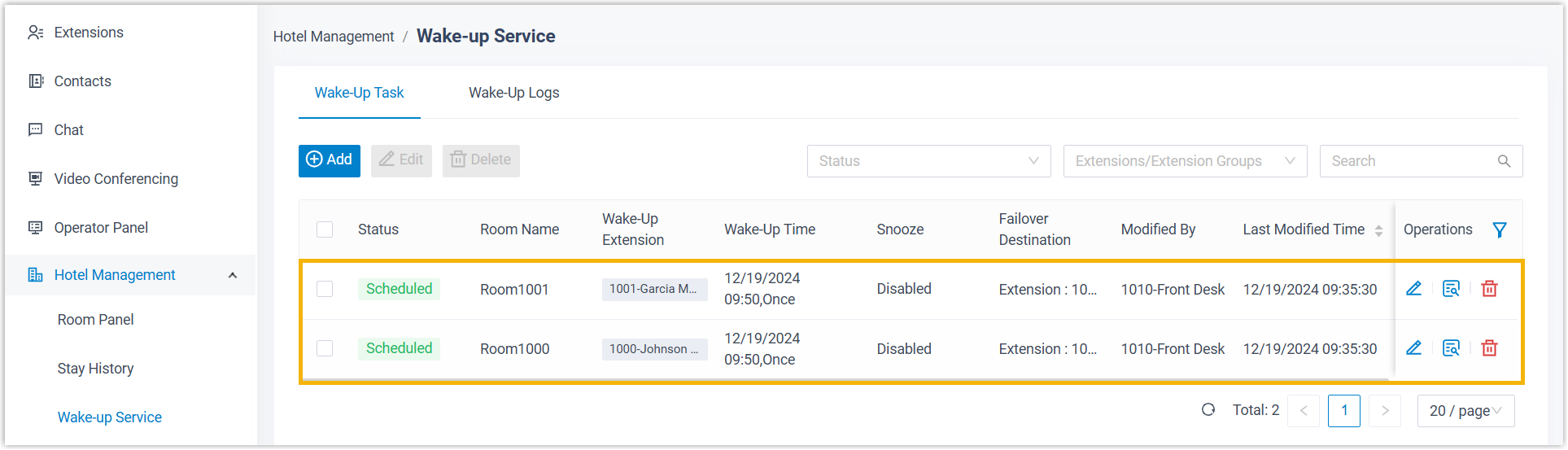
When the scheduled time arrives, the system dials the room phone, plays the selected prompt after the guest picks up, and then ends the call.
Set a wake-up call from the Room Panel
Section titled “Set a wake-up call from the Room Panel”The Room Panel lays out every guest room visually, which makes it convenient for adding an alarm to a single occupied room or to a group of them.
-
Sign in to the Cloud Voice App and open Hotel Management > Room Panel.
-
Open the wake-up settings for the rooms you want.
For a single room
On a checked-in room, click the wake-up icon
 in its top-right corner.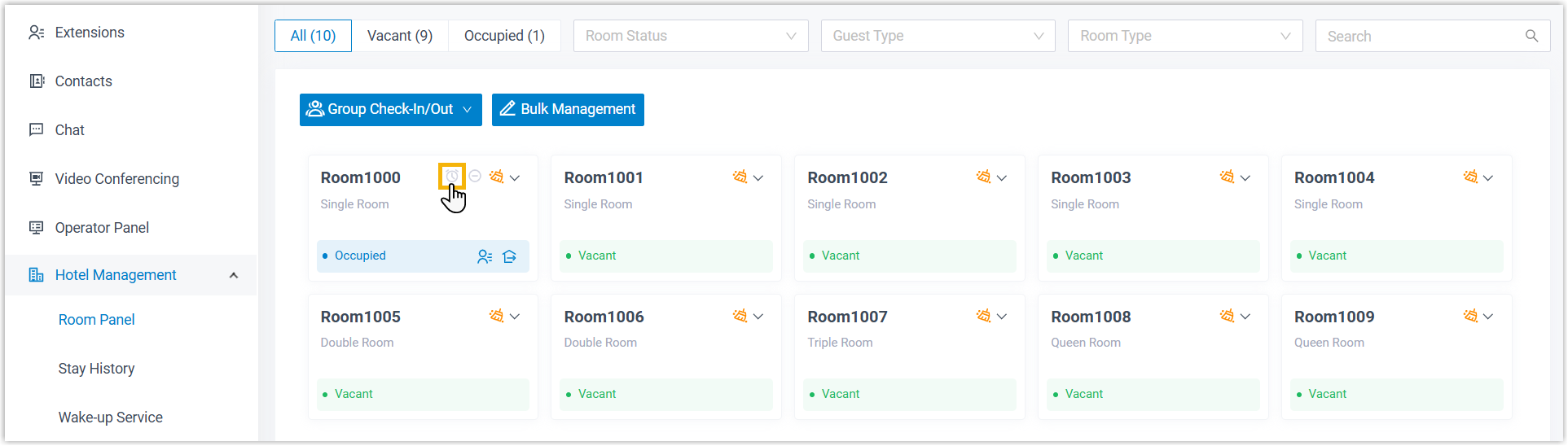
For several rooms
-
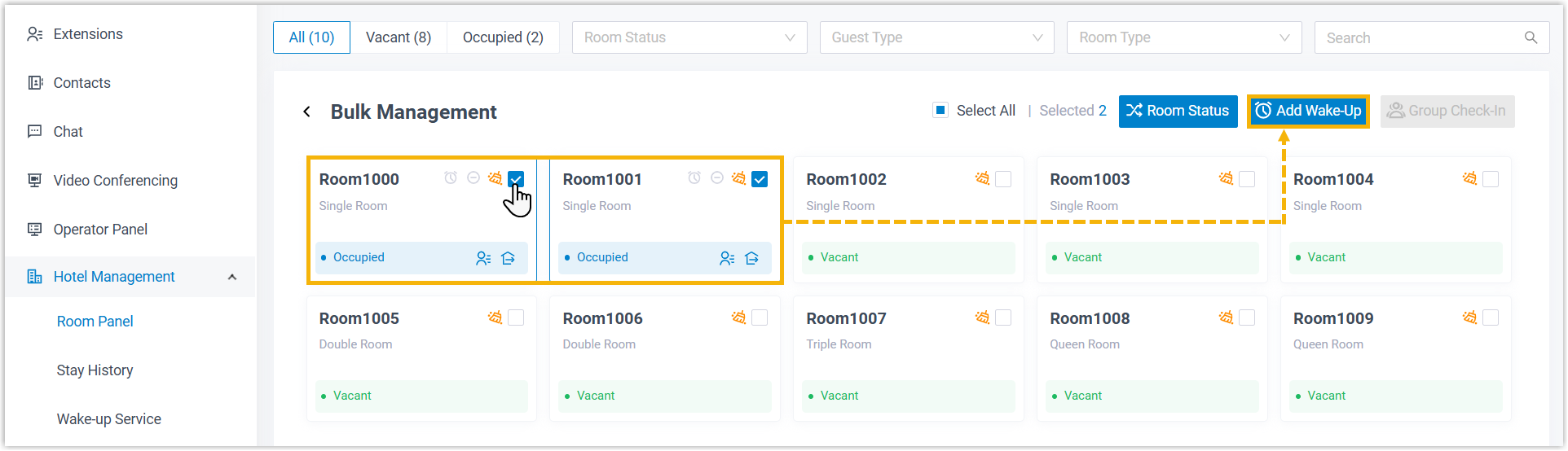
Click Bulk Management in the top-left corner.
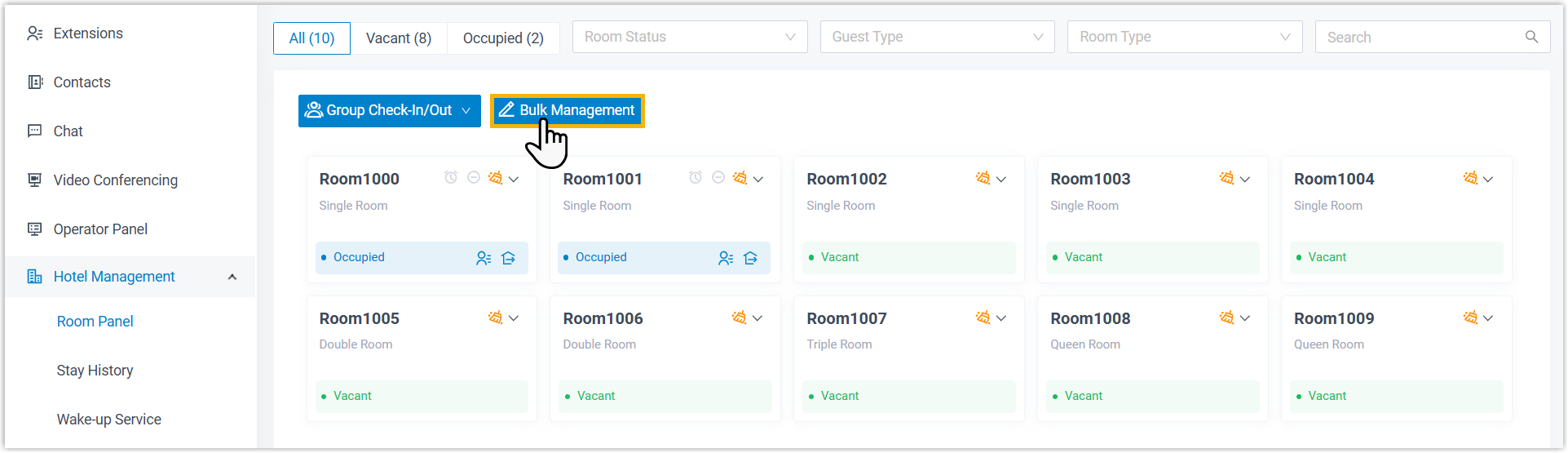
-
Select the checkboxes of the checked-in rooms, then click Add Wake-Up.
-
-
In the window that opens, enter the wake-up details and save.
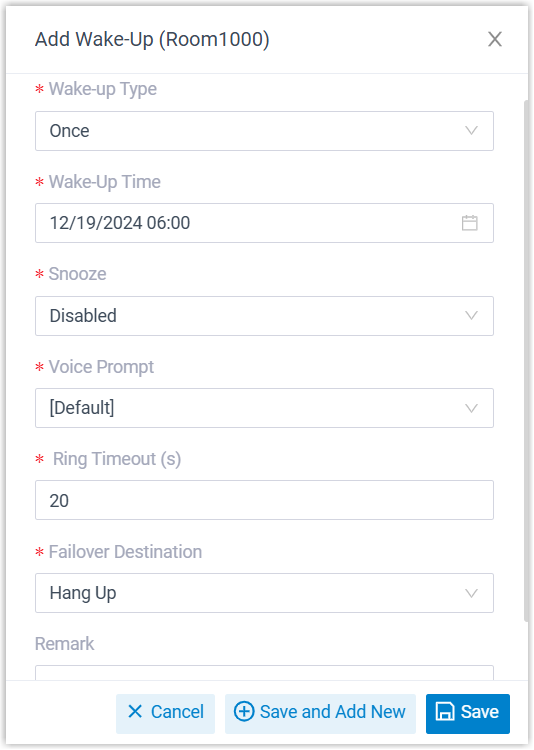
Setting Description Wake-up Type Set how often the call repeats: Once, At Daily, Week, or Month. Wake-Up Time Pick the time the call should be placed. Snooze Decide how many times the call retries when the guest does not answer, and how long to wait between attempts. Voice Prompt Choose the recording the guest hears after answering. Ring Timeout (s) Set how long the call rings before giving up, in seconds. Accepted range is 5 to 300. Failover Destination Choose where an unanswered call is routed: Hang Up, Extension, or Ring Group. Remark Add any notes you want to keep with the task.
The scheduled call is added to the list.
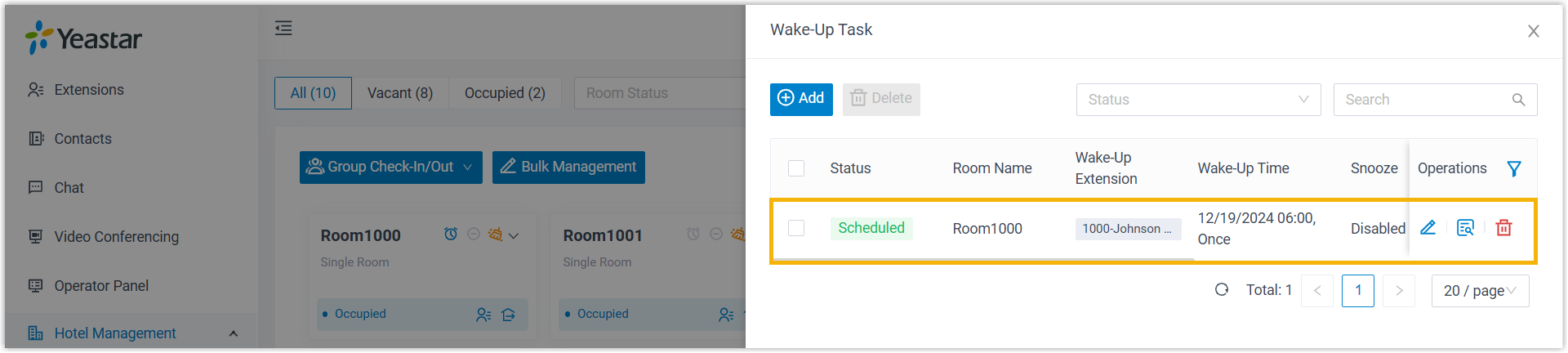
At the scheduled time the system dials the room phone, plays the selected prompt after the guest answers, and then hangs up.
Let guests set their own wake-up call from the room phone
Section titled “Let guests set their own wake-up call from the room phone”Guests can program a wake-up call themselves without calling the front desk. Ask the hotel manager for the wake-up number, share it with guests, and let them follow the voice menu.
The steps below walk through setting an alarm for 6:00 AM tomorrow from a room phone.
- Dial the wake-up number. The system announces: “Please choose your operation. Press 1 to add wake-up calls. Press 2 to query wake-up calls. Press 3 to delete wake-up calls. Press 0 to delete all wake-up calls. Press # to exit.”
- Press
1to add a call. The system announces: “Please choose the date for your wake-up call. Press 1 to choose today. Press 2 to choose tomorrow. Press 3 to set custom date.” - Press
2to schedule the call for tomorrow. The system announces: “Please enter your wake-up call time in a 24-hour format. For example, 1400 means 2:00 PM.” - Press
0600to set the time to 6:00 AM. The system confirms: “Operate Successfully. Your wake-up call is set for {wakeup_time}.” - Hang up, or repeat steps 2 through 4 to add another wake-up call.
Question about this page?
Ask the AI assistant. It starts from this page, then searches the rest of the docs.
Ask Cloud Voice AI
Answers are AI-generated from the docs and may contain mistakes. Verify with the linked pages.