
(Optional) Add a Tester for Meta App
When you first create a Meta app, your Meta Developer account is the only account allowed to work with it. Rather than share your own credentials, you can bring in a colleague as a Tester. They gain just enough access to help you exercise the app during setup, and your account stays protected.
This step is optional. Skip it if you plan to handle all testing yourself.
Step 1. Invite the user to your business portfolio
Section titled “Step 1. Invite the user to your business portfolio”-
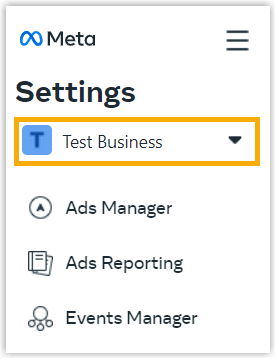
Open Business settings in Meta Business Manager and choose the business portfolio that is linked to your Meta app.
-
Navigate to Users > People and click Invite people.

-
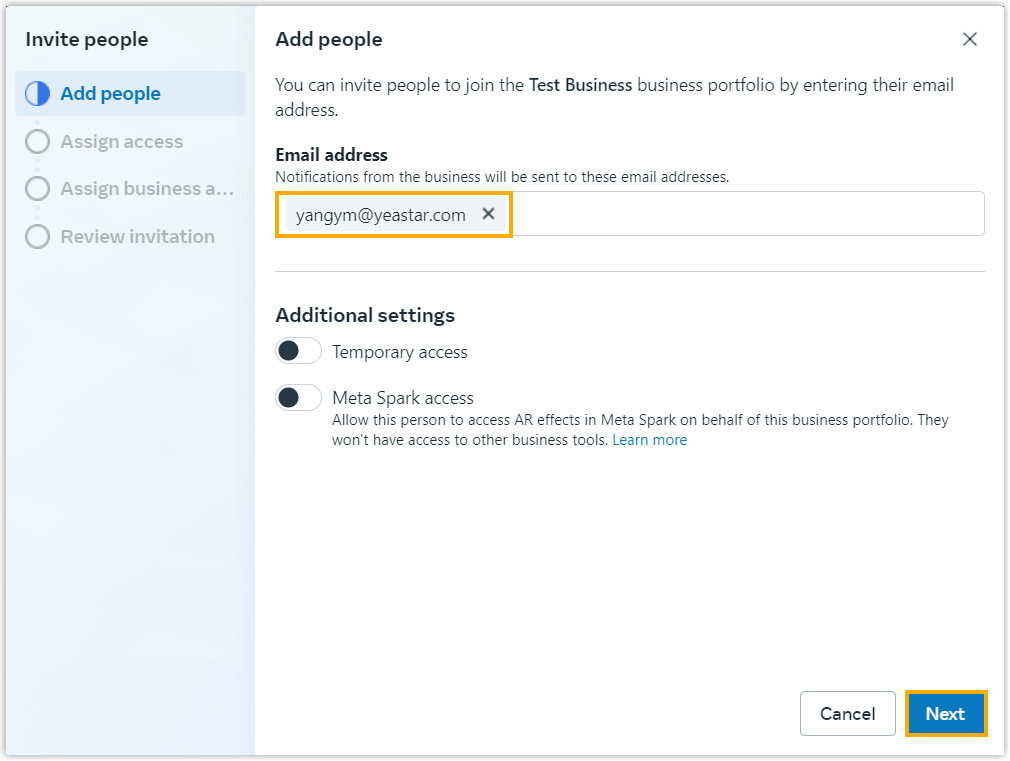
Type the person’s email address in the Email address field, then click Next.
-
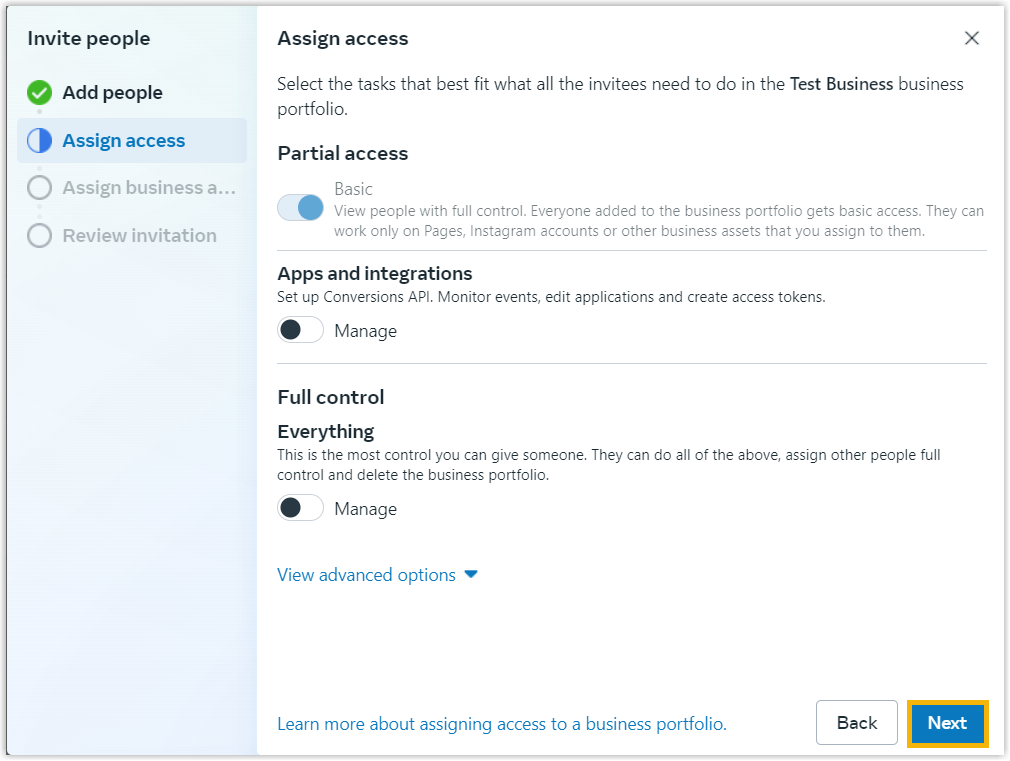
Choose the level of access to grant the user, then click Next.
-
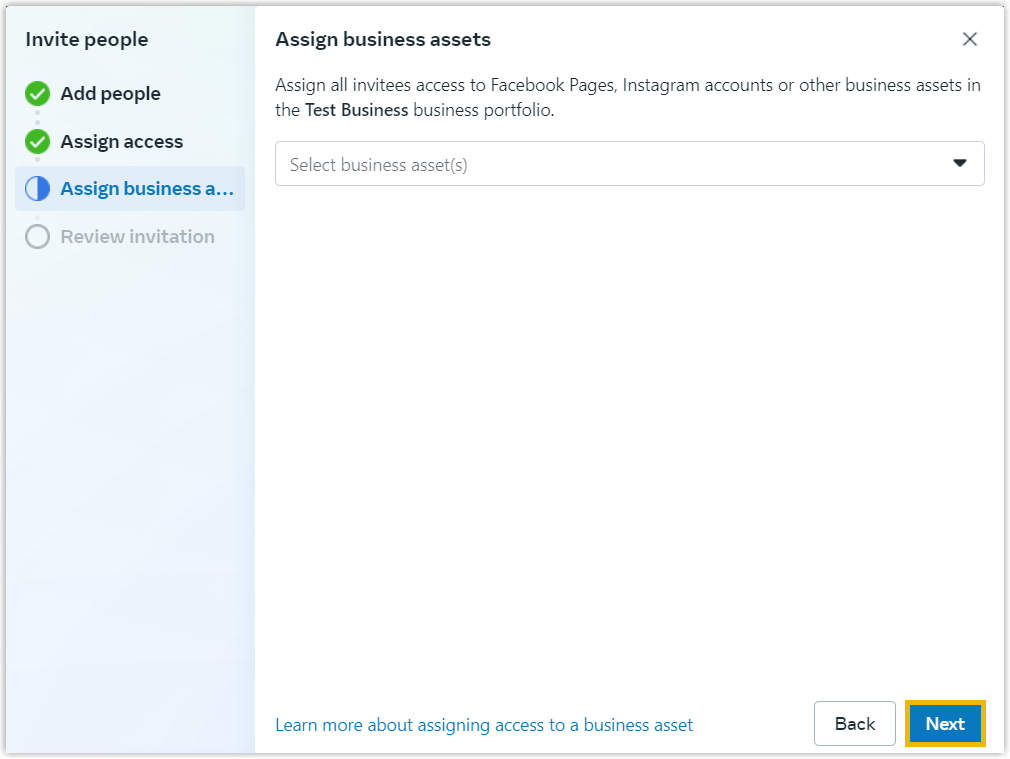
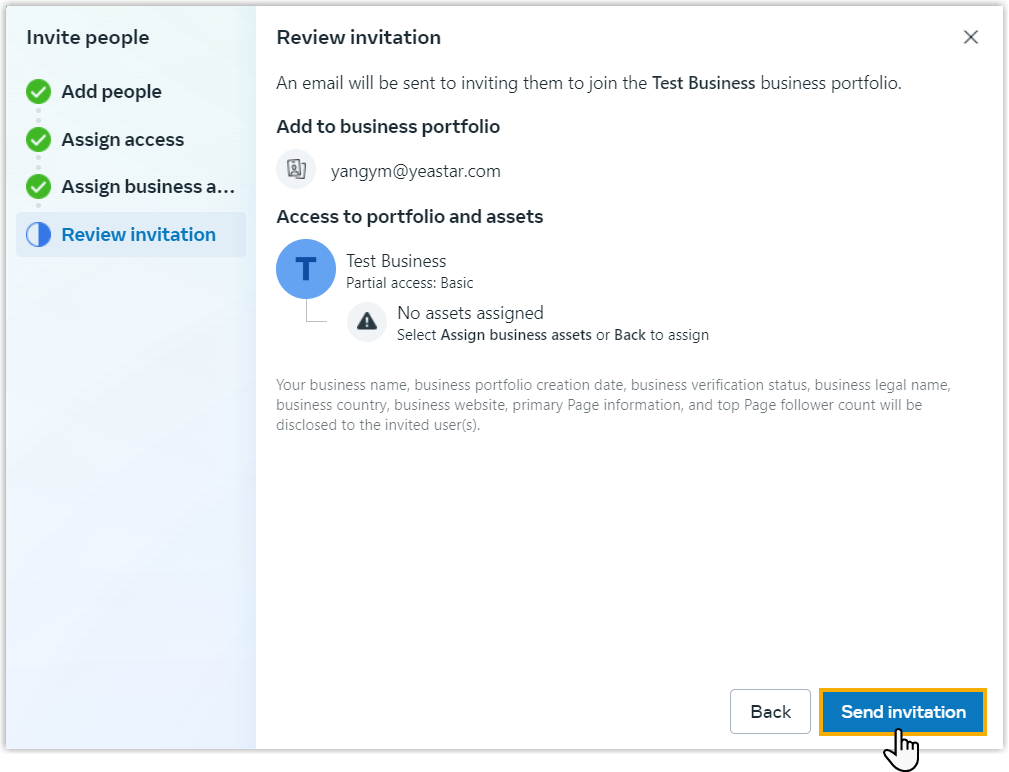
Do not select any business assets at this stage. Leave the selection empty and click Next.
-
Click Send invitation.
-
Click Done to close the dialog.
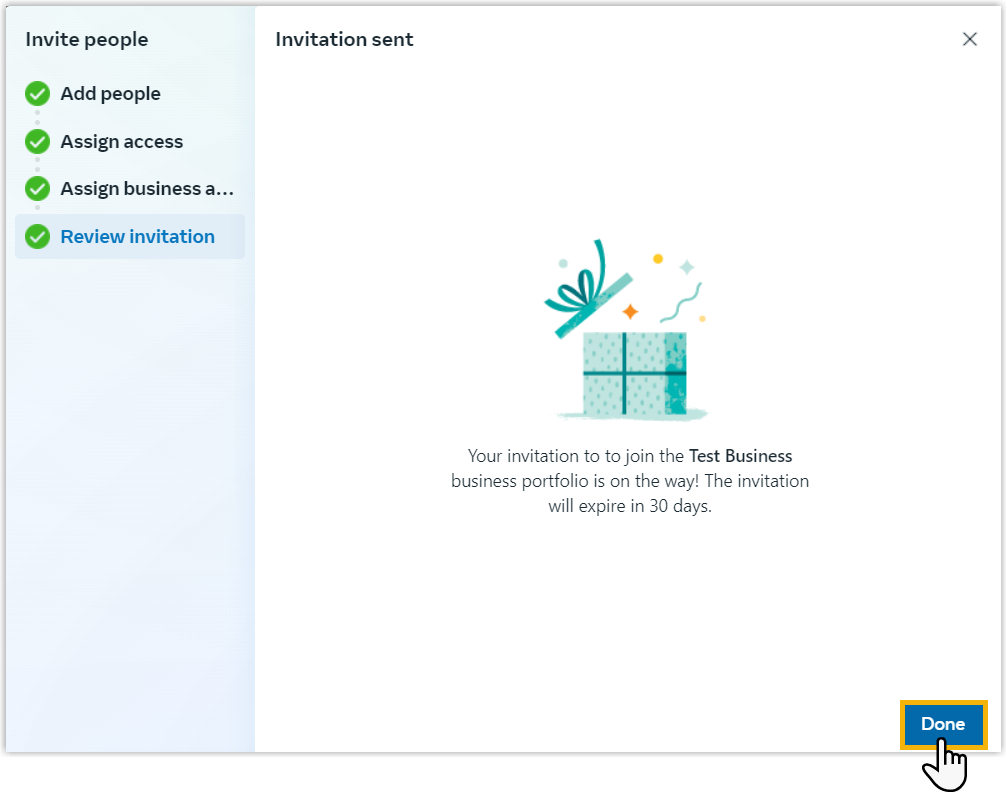
Meta emails the user an activation link. They must accept the invitation to join your business portfolio.
Step 2. Assign the Meta app to the user
Section titled “Step 2. Assign the Meta app to the user”-
Find the user in the list, click the more-options icon
 to the right of their name, and choose Assign assets.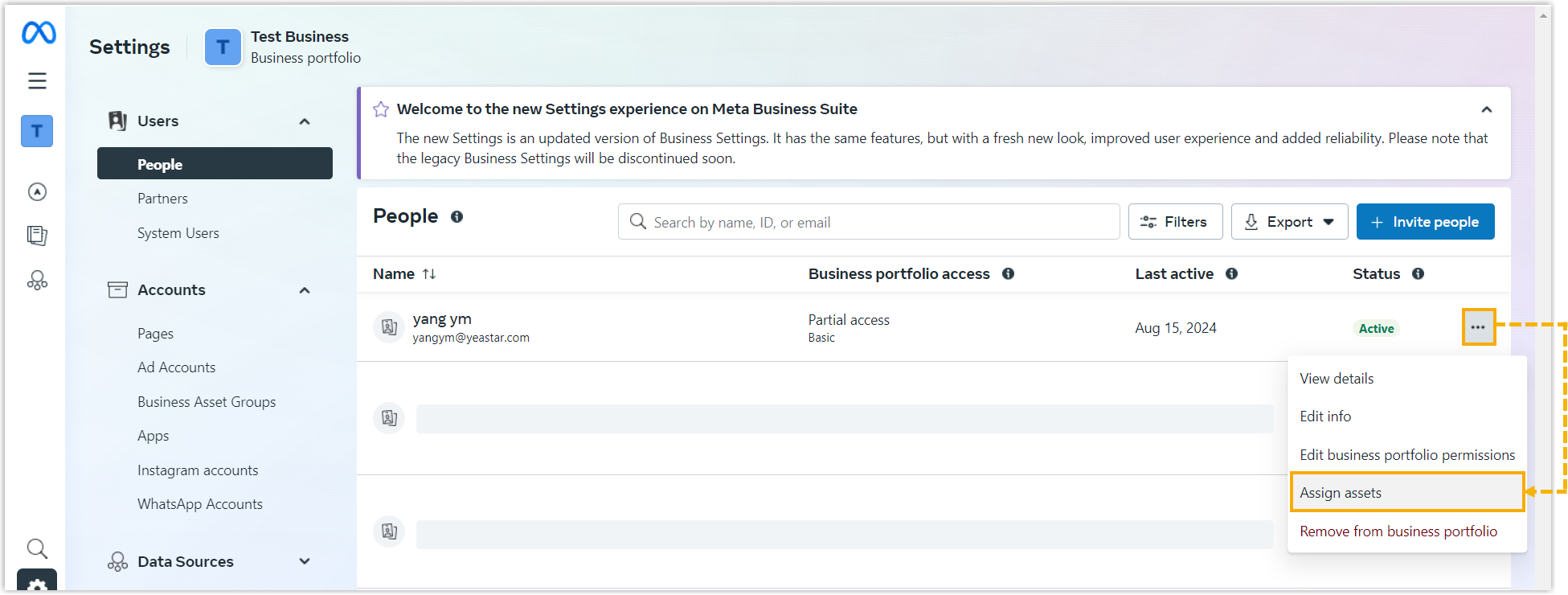
-
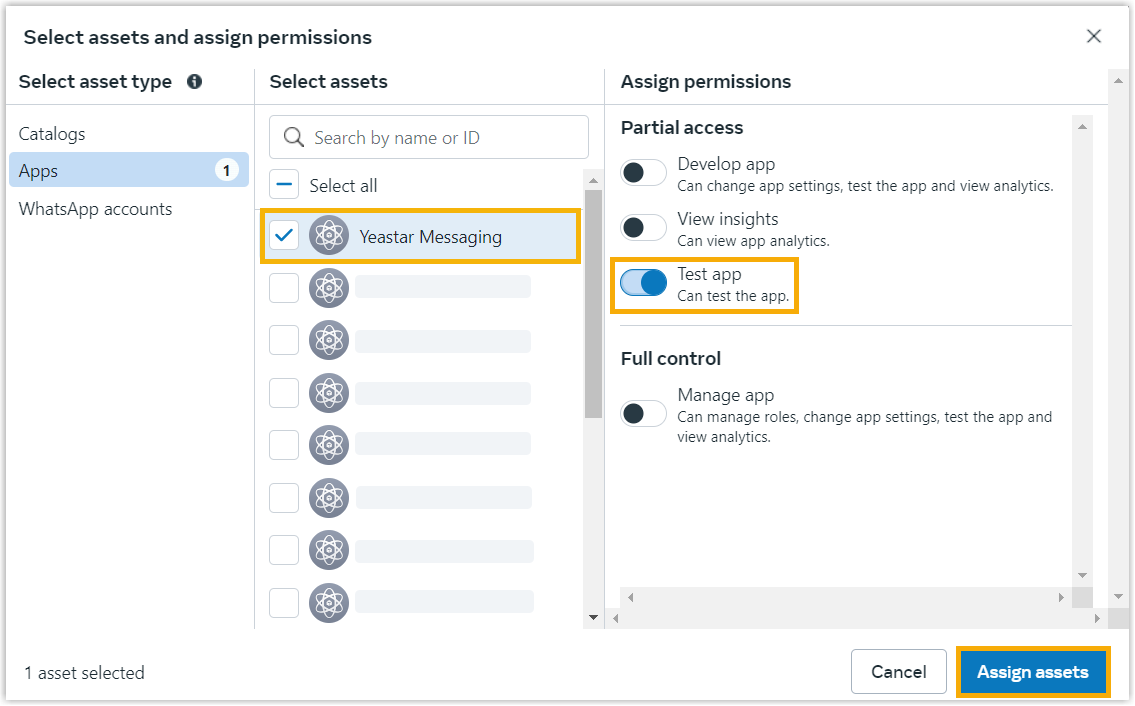
Select your Meta app, grant test access, then click Assign assets.
-
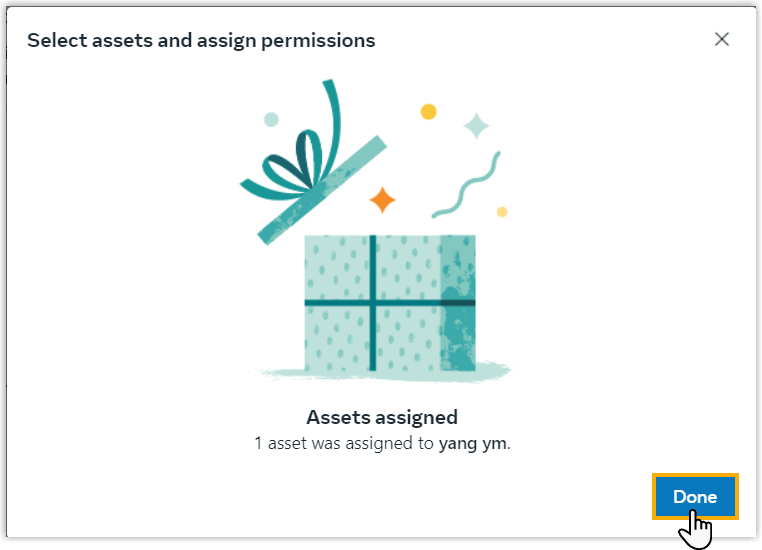
Click Done to close the dialog.
Result
Section titled “Result”The user is now a Tester on your Meta app and can help you work through the remaining setup and testing.
What to do next
Section titled “What to do next”Question about this page?
Ask the AI assistant. It starts from this page, then searches the rest of the docs.
Ask Cloud Voice AI
Answers are AI-generated from the docs and may contain mistakes. Verify with the linked pages.