
Manage Customer Queries from External Messaging Channels on the Mobile App
When customers reach your team through an external messaging channel, you can respond and work each conversation from the Cloud Voice App on your mobile device. This page walks through the everyday actions an agent performs on a session, from claiming an incoming chat to closing it out.
Every task below starts from the same place in the app: open Chat, then tap External Chat.
Before you begin
Section titled “Before you begin”Confirm the following with your system administrator and on your own device.
Your Cloud Voice system
- Runs version
84.20.0.128or later. - Is on the Enterprise or Ultimate plan.
- Has at least one messaging channel configured.
Your mobile app
- Cloud Voice App version 5.19.7 or later.
Claim an incoming session
Section titled “Claim an incoming session”If you belong to a message queue, new conversations that arrive in the queue appear so that any agent can take them. You claim one by picking it up.
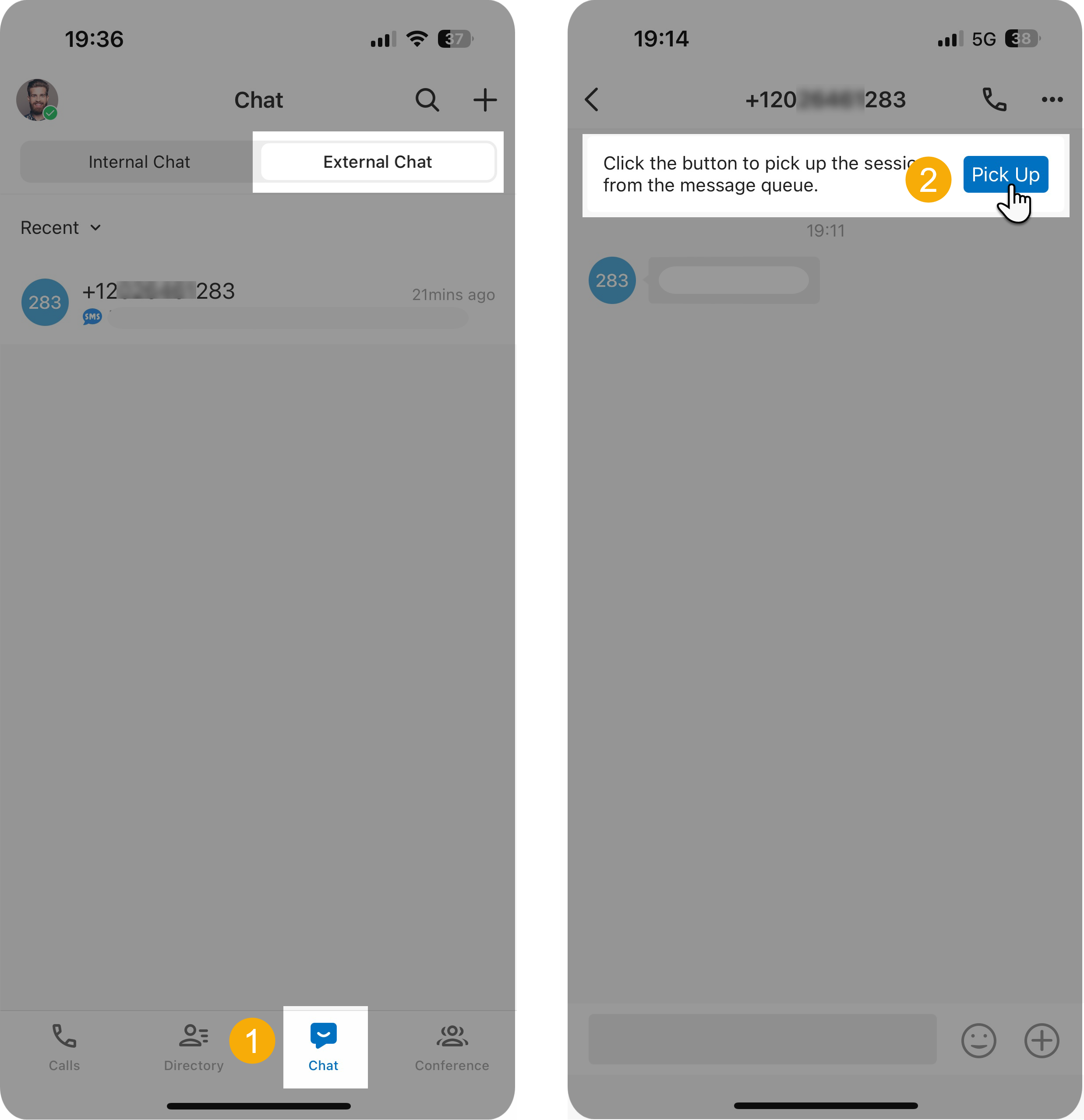
- Go to Chat > External Chat.
- Open the queued session and tap Pick Up at the top.
Once you pick up a session it belongs to you alone: no other agent can see it or reply to it, and a confirmation prompt lets you know the handoff succeeded.
Hand a session to someone else
Section titled “Hand a session to someone else”While you are working a conversation you can pass it to a colleague or to another message queue. If your administrator has connected Cloud Voice to an outside message analytics service, you can route the session there instead for extra processing or automation.
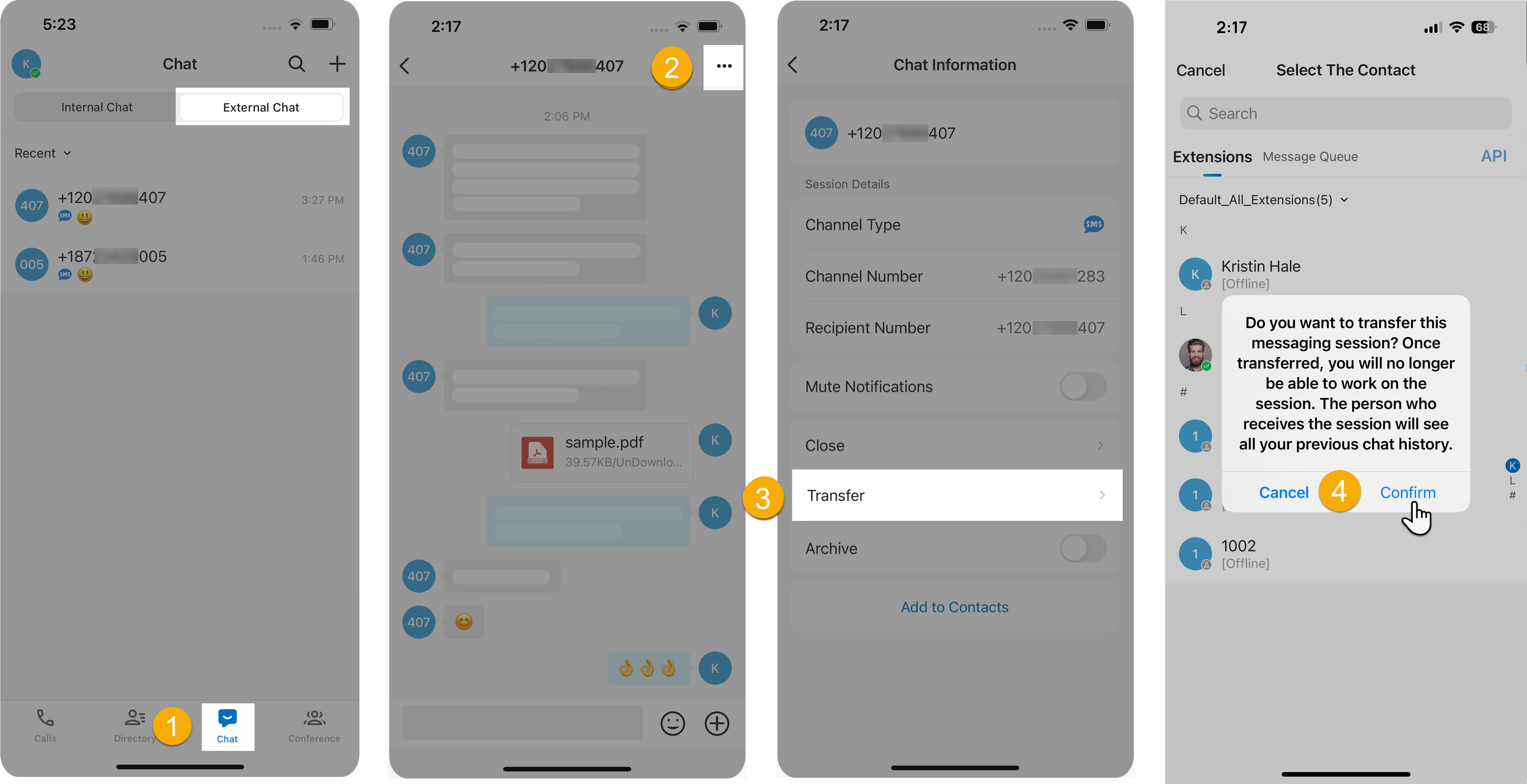
- Go to Chat > External Chat and open the active session.
- Tap the more (three-dot) icon in the top-right corner.
- On the Chat Information page, tap Transfer.
- Search for and select the colleague, queue, or analytics platform, then tap Confirm in the pop-up.
The session leaves your external chat list and moves to the chosen destination together with its full message history.
Call the customer from a chat
Section titled “Call the customer from a chat”When a conversation is easier to resolve by voice, you can dial the customer straight from the session.
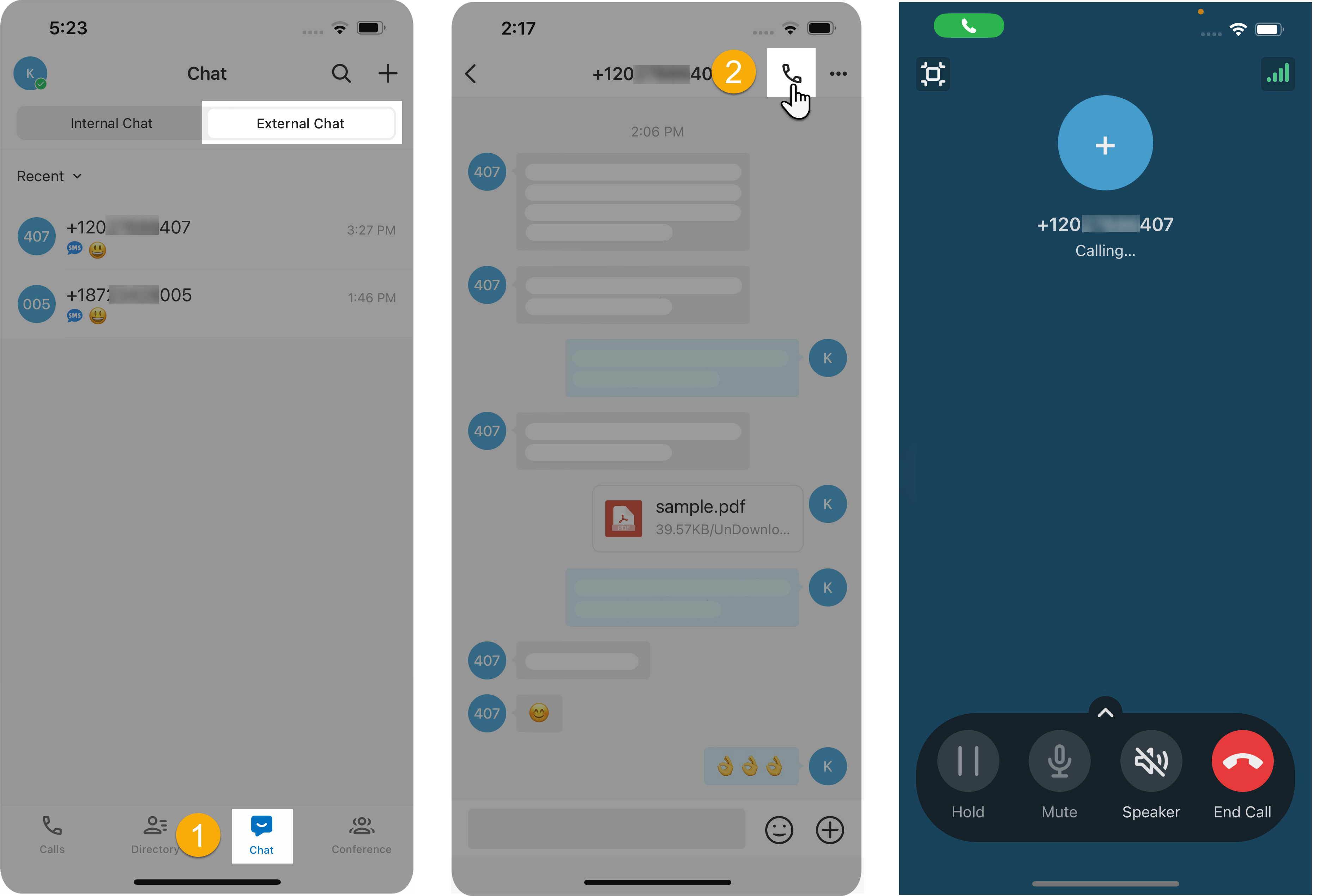
- Go to Chat > External Chat and open the session.
- Tap the call icon in the top-right corner.
The app dials the customer’s number right away and routes the call through Cloud Voice.
Save the customer to Contacts
Section titled “Save the customer to Contacts”You can add the person you are chatting with to your contacts without leaving the conversation.
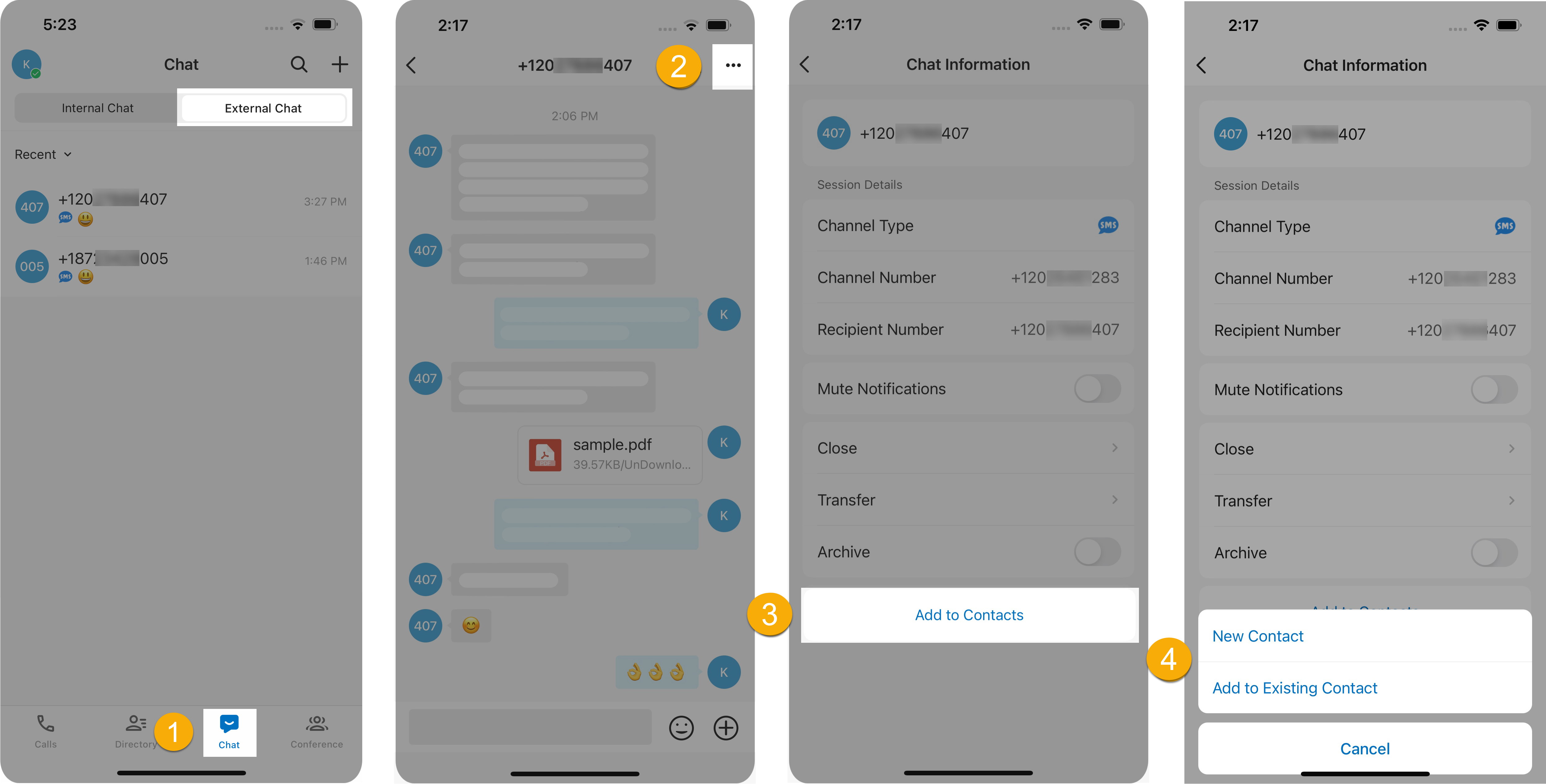
- Go to Chat > External Chat and open the session.
- Tap the more (three-dot) icon in the top-right corner.
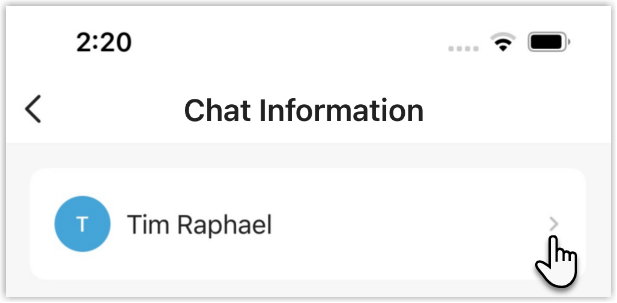
- At the bottom of the Chat Information page, tap Add to Contacts.
- Choose how to save them:
- Tap New Contact and fill in the customer’s details, or
- Tap Add to Existing Contact, pick the record, and update its details as needed.
Review session details
Section titled “Review session details”Open a session’s details to see information such as the source channel and the channel number it came in on.
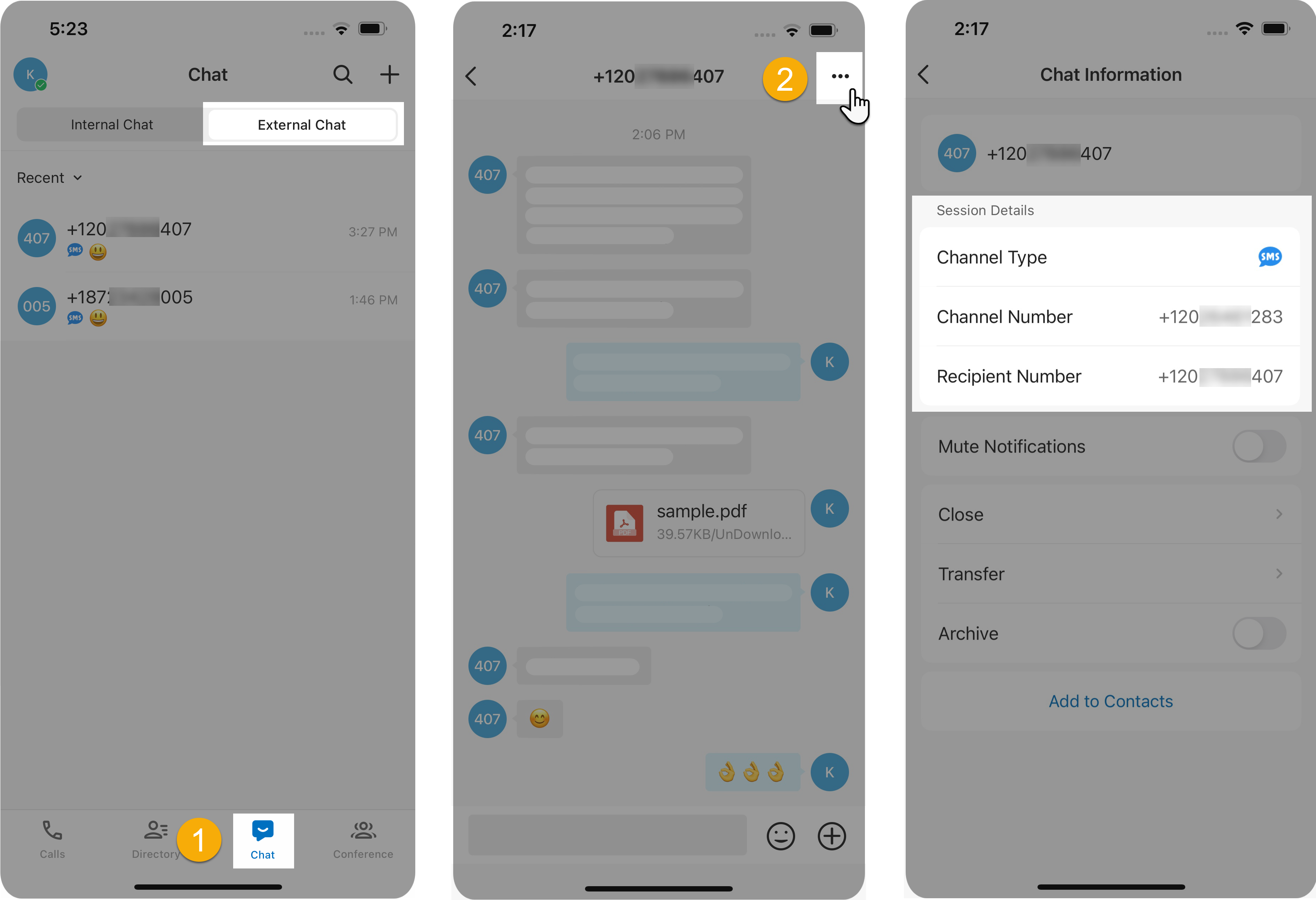
- Go to Chat > External Chat and open the session.
- Tap the more (three-dot) icon in the top-right corner.
The Session Details section lists the conversation’s details.
Archive a session
Section titled “Archive a session”Archive a session when the customer has gone quiet or when you simply want to set it aside and return to it later.
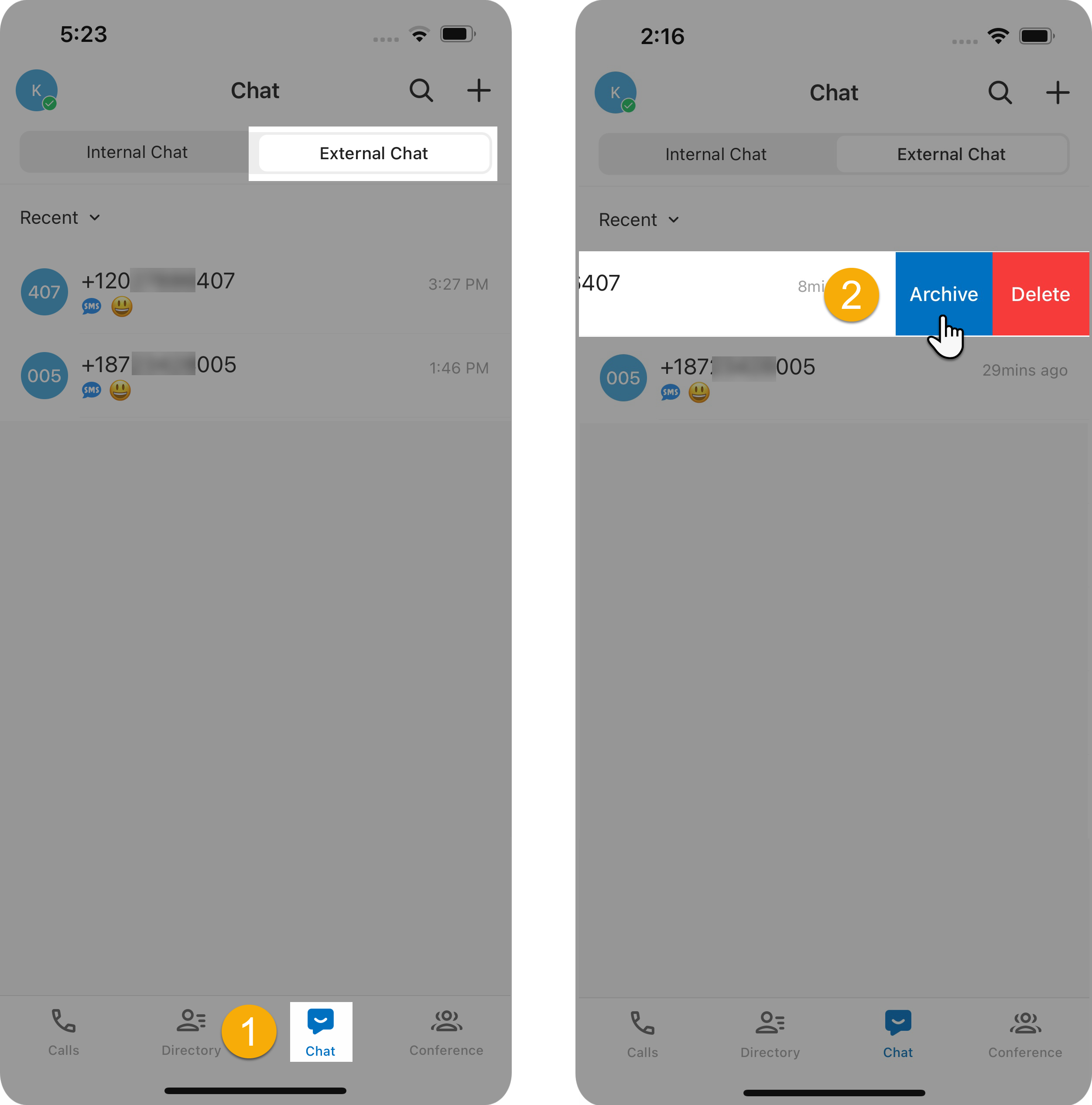
- Go to Chat > External Chat.
- In the chat list, press and hold the active session, then tap Archive.
The session moves from the Recent list to the Archived list.
End a session
Section titled “End a session”When you have finished helping a customer, close the session out.
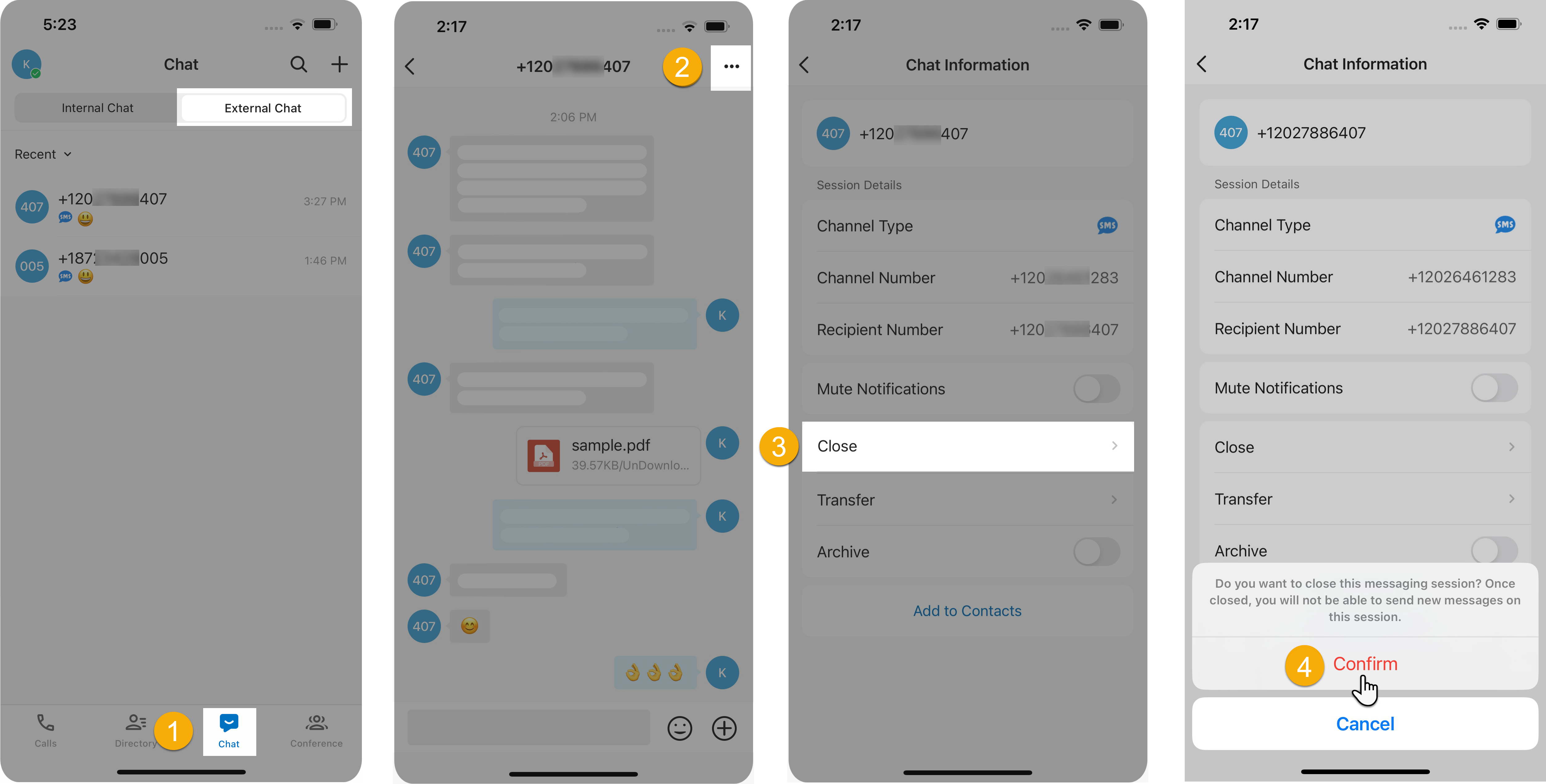
- Go to Chat > External Chat and open the active session.
- Tap the more (three-dot) icon in the top-right corner.
- On the Chat Information page, tap Close.
- Tap Confirm in the pop-up.
The session closes and moves to the Archived list.
Remove a session
Section titled “Remove a session”To take a session off your chat list entirely, do the following.
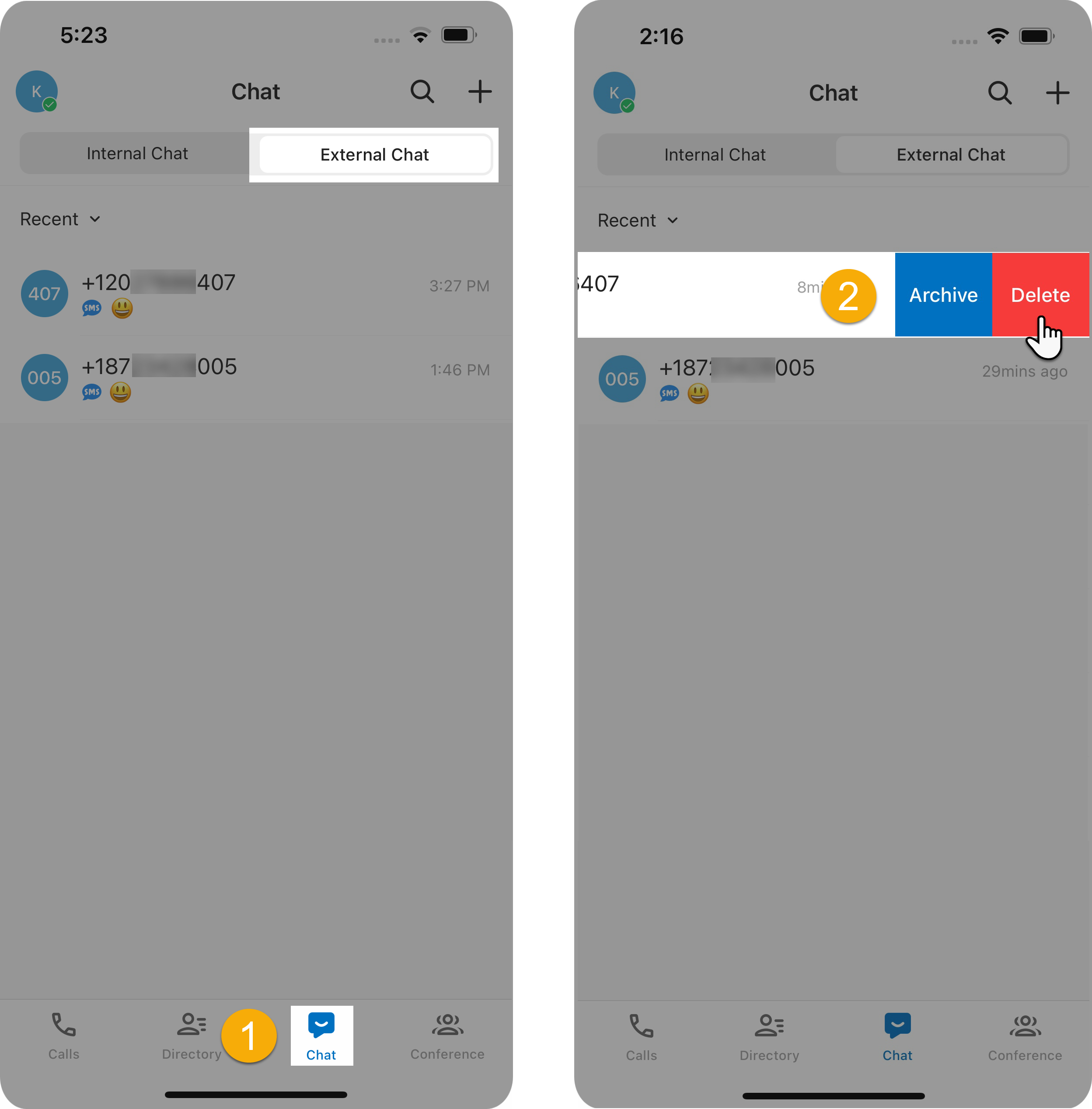
- Go to Chat > External Chat.
- In the chat list, press and hold the session, then tap Delete.
The session disappears from your chat list across every Cloud Voice App you are signed in to.
Work campaign sessions
Section titled “Work campaign sessions”If your administrator runs message campaigns that send bulk messages and assigns those campaign sessions to your extension or to a queue you belong to, you can view and reply to them here.
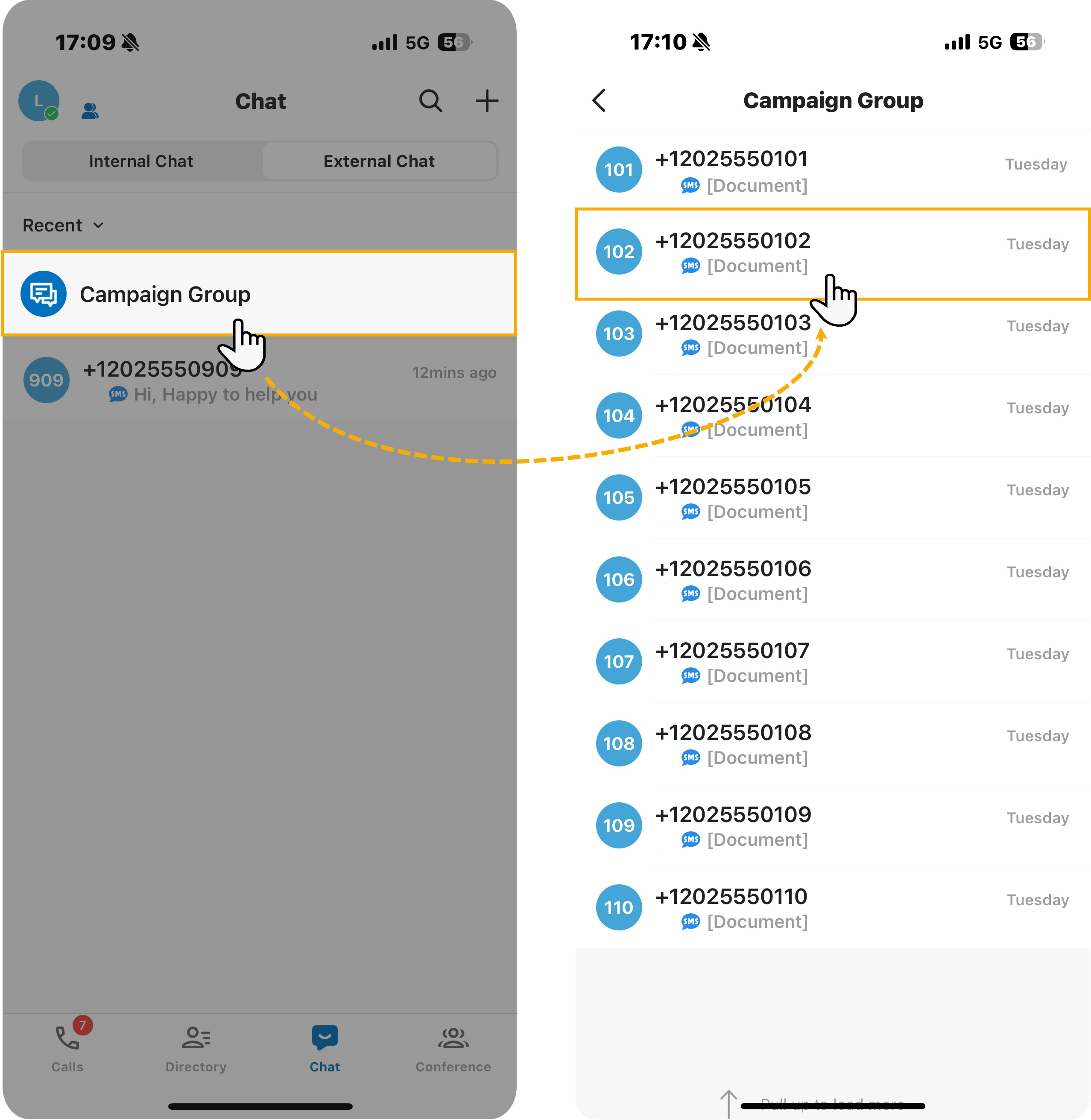
- Go to Chat > External Chat.
- Tap Campaign Group to list every session created by message campaigns.
- Tap any session to read and reply to the customer’s responses.
Question about this page?
Ask the AI assistant. It starts from this page, then searches the rest of the docs.
Ask Cloud Voice AI
Answers are AI-generated from the docs and may contain mistakes. Verify with the linked pages.