
Call Monitoring Overview
Call monitoring lets an authorized user tune in to an employee’s live call without disrupting it or being added to the conversation as a third party. It is a practical tool for reviewing the quality of sales calls, understanding how customers respond, and building better coaching and training for your team.
Monitoring modes
Section titled “Monitoring modes”Cloud Voice offers three ways to sit in on an active call, each suited to a different level of involvement. The main difference between them is who can hear the supervisor.
Listen mode
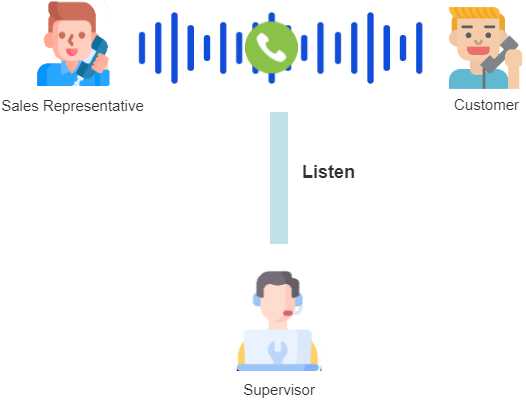
Section titled “Listen mode”In listen mode, the authorized user hears the call as it happens but cannot speak to either the extension or the far party. It is a good fit for supervisors who want to follow what sales representatives do day to day and assess how they work through the sales process.
Whisper mode
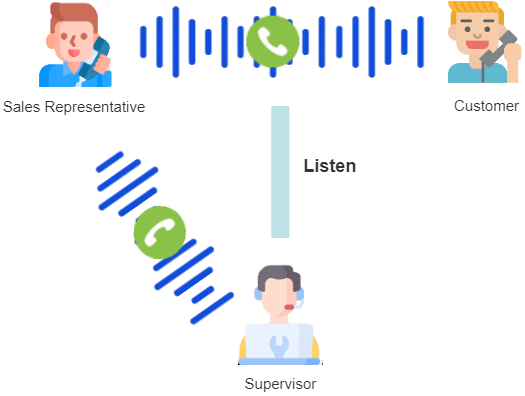
Section titled “Whisper mode”Whisper mode lets the authorized user hear the live call and speak directly to the monitored extension, while the other party hears none of it. Use it to coach a remote representative or guide them in real time as a sales call unfolds.
Barge-in mode
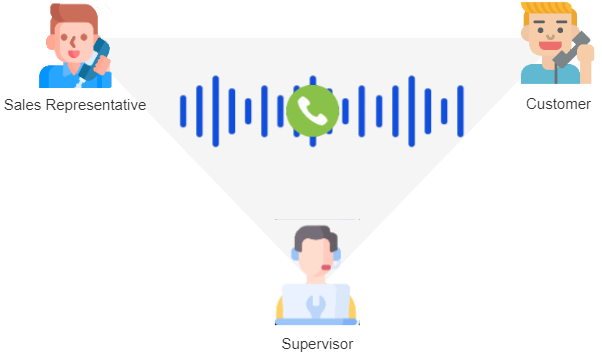
Section titled “Barge-in mode”Barge-in mode lets the authorized user hear the call and talk to both parties at once. It is the right choice when a supervisor needs to step in, help a representative work past a tough objection, and keep the deal moving.
Ways to monitor a call
Section titled “Ways to monitor a call”An authorized user can start monitoring a call through any of the following methods. Each one requires that you first grant the user permission for the monitoring operations.
Operator Panel
Section titled “Operator Panel”The Operator Panel is the web dashboard that receptionists and operators use to see and manage live calls. If a user has access to it, you can grant them permission to run call monitoring operations there. Once authorized, they can listen in on any active call using any of the three modes while working in the panel.
To grant monitoring permission on the Operator Panel, see View or Change Permissions for Group Members. For the steps to start a monitor once permission is granted, see the Operator Panel User Guide.
Queue Panel
Section titled “Queue Panel”The Queue Panel is the console that queue managers use to watch a call queue in real time. For managers who have access to it, you can assign permission to perform call monitoring operations. Authorized managers can then monitor any active call in any of the three modes from within the panel.
You grant this permission through the Contact Center console permissions (Grant Call Center Console Permission). For the steps to start a monitor from the Queue Panel once permission is granted, see the Contact Center guide.
Feature code plus extension number
Section titled “Feature code plus extension number”For users who work from a physical phone, set up a feature code for each monitoring mode and assign the corresponding permission to the users you choose. An authorized user can then monitor a live call in the selected mode by dialing the feature code followed by the extension number on their phone.
To configure the feature codes and assign monitoring permission, see Allow Users to Monitor a Call by Dialing a Feature Code.
Question about this page?
Ask the AI assistant. It starts from this page, then searches the rest of the docs.
Ask Cloud Voice AI
Answers are AI-generated from the docs and may contain mistakes. Verify with the linked pages.