
Auto Provision a Poly IP Phone
Auto provisioning lets Cloud Voice push a phone’s configuration to it from the server, so you never touch the handset’s local menus. This page walks through provisioning a Poly IP phone, using a Poly VVX_450 (firmware 6.4.6.2494) as the working example. The same steps apply to the other supported Poly models.
Supported models and firmware
Section titled “Supported models and firmware”Before you begin, confirm that both the phone and Cloud Voice are running a compatible firmware version.
| Model | Phone firmware | Cloud Voice version |
|---|---|---|
| Edge_E100 | 8.0.0.15602 or later | 84.15.0.22 or later |
| Edge_E220 | 8.0.0.15602 or later | 84.15.0.22 or later |
| Edge_E300 | 8.0.0.15602 or later | 84.15.0.22 or later |
| Edge_E320 | 8.0.0.15602 or later | 84.15.0.22 or later |
| Edge_E350 | 8.0.0.15602 or later | 84.15.0.22 or later |
| Edge_E400 | 8.0.0.15602 or later | 84.15.0.22 or later |
| Edge_E450 | 8.0.0.15602 or later | 84.15.0.22 or later |
| Edge_E500 | 8.0.0.15602 or later | 84.15.0.22 or later |
| Edge_E550 | 8.0.0.15602 or later | 84.15.0.22 or later |
| VVX_101 | 6.4.3.5059 or later | 84.15.0.22 or later |
| VVX_150 | 6.4.3.5059 or later | 84.15.0.22 or later |
| VVX_201 | 6.4.3.5059 or later | 84.15.0.22 or later |
| VVX_250 | 6.4.3.5059 or later | 84.15.0.22 or later |
| VVX_301 | 6.4.3.5059 or later | 84.15.0.22 or later |
| VVX_310 | 5.9.8 or later | 84.15.0.22 or later |
| VVX_311 | 6.4.3.5059 or later | 84.15.0.22 or later |
| VVX_350 | 6.4.3.5059 or later | 84.15.0.22 or later |
| VVX_401 | 6.4.3.5059 or later | 84.15.0.22 or later |
| VVX_410 | 5.9.8 or later | 84.15.0.22 or later |
| VVX_411 | 6.4.3.5059 or later | 84.15.0.22 or later |
| VVX_450 | 6.4.3.5059 or later | 84.15.0.22 or later |
| VVX_501 | 6.4.3.5059 or later | 84.15.0.22 or later |
| VVX_601 | 6.4.3.5059 or later | 84.15.0.22 or later |
Before you start
Section titled “Before you start”- Make sure the default auto provisioning template for your phone model has been downloaded. You’ll find the templates under Auto Provisioning > Resource Repository > Default Templates.
- If the phone was used previously, factory-reset it first.
- Have the phone’s details on hand: vendor, model, and MAC (Media Access Control) address. The MAC address is a unique hardware ID printed on the label on the back of the phone.
Provision the phone
Section titled “Provision the phone”-
Sign in to the Cloud Voice web portal and go to Auto Provisioning > Phones.
-
Click Add > Add.
-
In the IP Phone section, fill in the phone’s details.
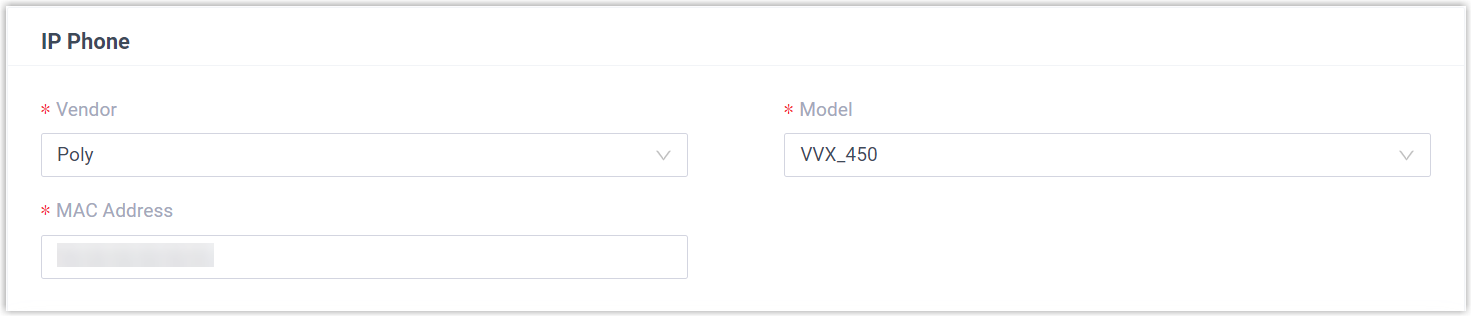
- Vendor: Choose Poly.
- Model: Pick your phone model. This example uses VVX_450.
- MAC Address: Type the phone’s MAC address.
-
In the Option section, set the following.

-
Template: Select a template from the drop-down list.
-
Provisioning Link: This link is created for you automatically. It points to where the phone’s configuration file lives on the server.
-
-
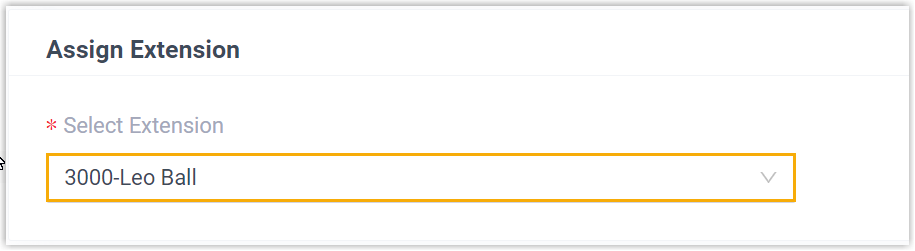
In the Assign Extension section, assign an extension to the phone.
-
Click Save. Cloud Voice raises a RPS Request Success event notification.
-
Reboot the IP phone manually. On restart the phone contacts the redirection service, downloads its configuration file, and registers the extension.
Result
Section titled “Result”-
The phone pulls its configuration from Cloud Voice and applies the settings on its own.
-
The extension registers successfully on the phone. To confirm, check the registration status under Auto Provisioning > Phones in the web portal.

Question about this page?
Ask the AI assistant. It starts from this page, then searches the rest of the docs.
Ask Cloud Voice AI
Answers are AI-generated from the docs and may contain mistakes. Verify with the linked pages.