
Provision a Grandstream FXS Gateway with Cloud Voice
Cloud Voice can auto-provision Grandstream FXS (Foreign Exchange Station) gateways, the devices that provide the analog phone jacks, so the analog phones plugged into their ports come online as extensions without manual per-device setup. This page uses a Grandstream HT802 (firmware 1.0.63.3) as the working example, but the same workflow applies to the other supported models.
Supported models and firmware
Section titled “Supported models and firmware”Confirm that your gateway is running a supported firmware version before you begin.
| Model | Gateway firmware | Cloud Voice requirement |
|---|---|---|
| GXW4216 | 1.0.23.4 or later | 84.6.0.24 or later |
| GXW4224 | 1.0.23.4 or later | 84.6.0.24 or later |
| GXW4232 | 1.0.23.4 or later | 84.6.0.24 or later |
| GXW4248 | 1.0.23.4 or later | 84.6.0.24 or later |
| HT801 | 1.0.63.3 or later | 84.6.0.24 or later |
| HT802 | 1.0.63.3 or later | 84.6.0.24 or later |
| HT812 | 1.0.5.10 or later | 84.6.0.24 or later |
| HT814 | 1.0.63.3 or later | 84.6.0.24 or later |
| HT818 | 1.0.63.3 or later | 84.6.0.24 or later |
Before you start
Section titled “Before you start”- Run a third-party DHCP (Dynamic Host Configuration Protocol) server on the same subnet as the gateway so the device can lease an IP address.
- Download the auto-provisioning template for your model in advance, under Auto Provisioning > Resource Repository > Default Templates.
- If the gateway has been used before, reset it to factory defaults, then give it an IP address.
- Collect the gateway’s vendor, model, and MAC (Media Access Control) address. The MAC address is the unique hardware identifier printed on a label on the device.
How provisioning works
Section titled “How provisioning works”Provisioning takes two stages:
- Add the Grandstream gateway in Cloud Voice, which builds a configuration file keyed to the device’s MAC address.
- Point the gateway at that configuration by publishing the provisioning link through DHCP option 66.
Step 1. Add the gateway in Cloud Voice
Section titled “Step 1. Add the gateway in Cloud Voice”Adding the gateway generates a configuration file based on its MAC address.
-
Sign in to the PBX (Private Branch Exchange) web portal and open Auto Provisioning > Phones.
-
Click Add > Add.
-
In the IP Phone section, fill in the device details.

- Vendor: Select Grandstream.
- Model: Select your model. This example uses HT802.
- MAC Address: Enter the gateway’s MAC address.
-
In the Options section, set the following.

- Template: Choose a template from the drop-down list.
- Provisioning Link: A link is generated automatically. It points to where the gateway’s configuration file is stored.
-
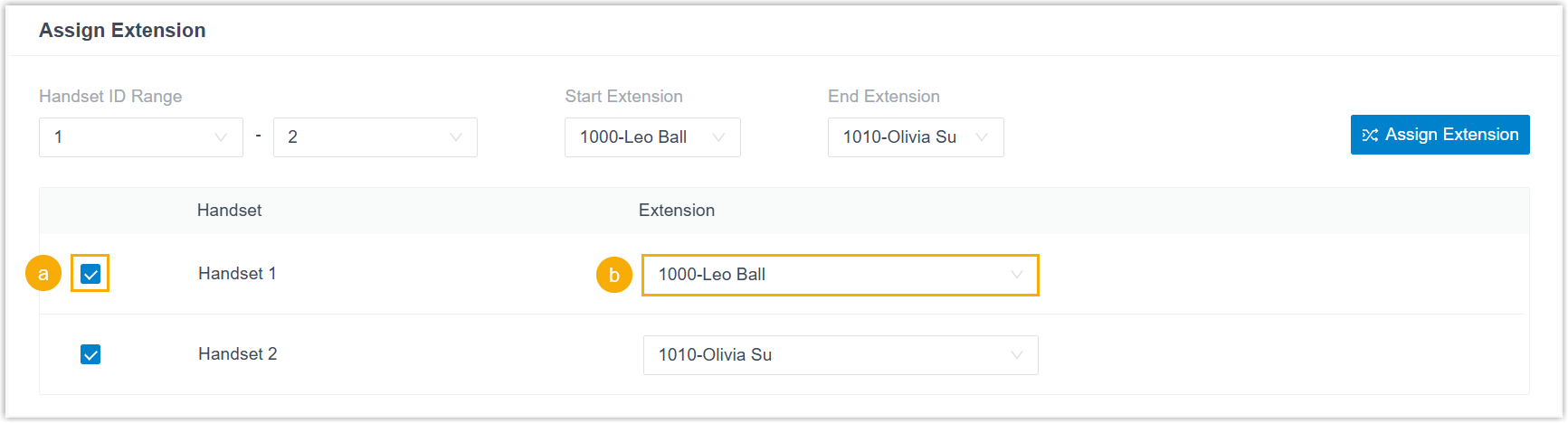
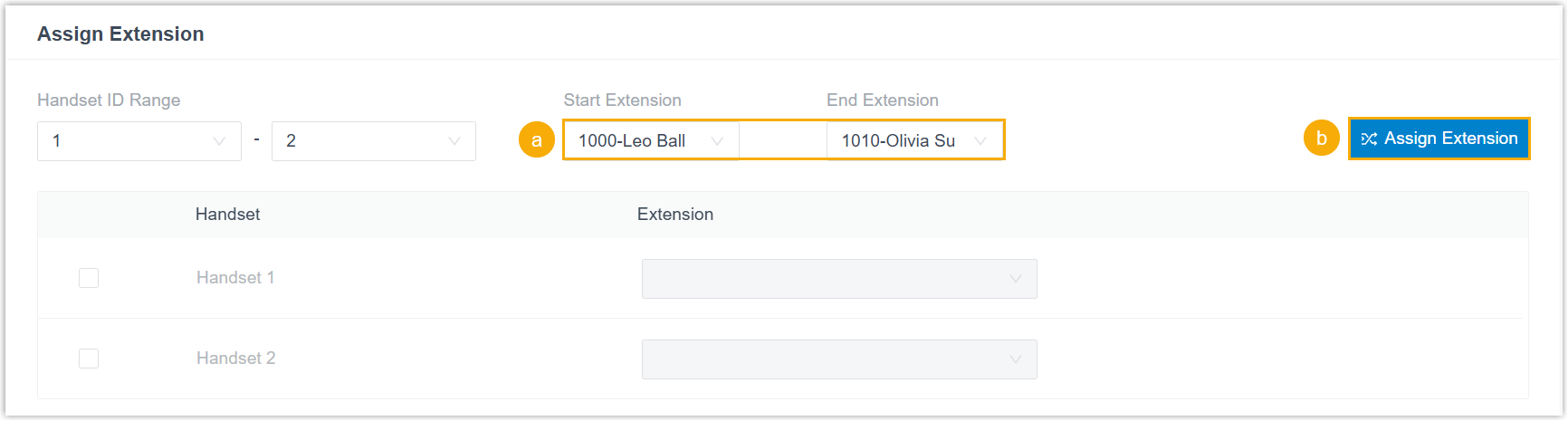
In the Assign Extension section, map extensions to the handsets you want to enable. Assigned extensions bind to the gateway’s FXS ports, so the analog phones on those ports place and receive calls using those extension numbers.
-
To assign extensions individually, select a handset’s checkbox and pick an extension from the Extension drop-down.
-
To assign extensions in bulk, set a range with the Start Extension and End Extension drop-downs, then click Assign Extension. The handsets are enabled automatically and filled with available extensions in order.
-
-
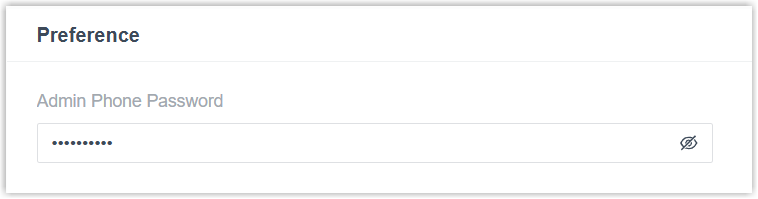
Optional: In the Preference section, change the value in Admin Phone Password if you want a different gateway admin password.
-
Click Save.
Step 2. Configure DHCP option 66
Section titled “Step 2. Configure DHCP option 66”Publish the provisioning link through option 66 on the DHCP server that serves the gateway’s subnet.
-
In the PBX web portal, open the gateway’s detail page and copy its provisioning link.

-
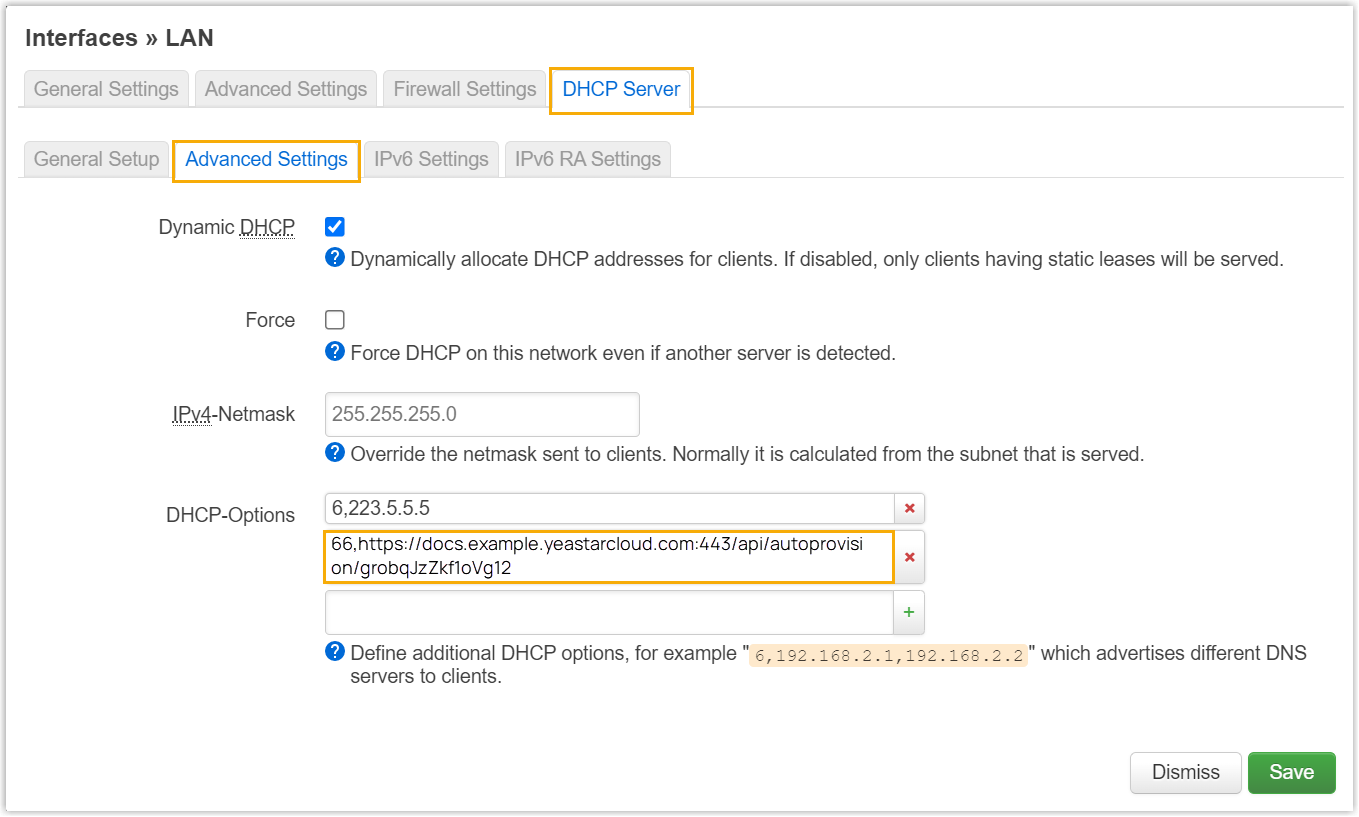
On the third-party DHCP server, create option 66 and set its value to the provisioning link. The example below shows a typical configuration.
Result
Section titled “Result”-
Reboot the gateway manually. On startup it leases an IP address from the DHCP server, pulls its configuration from Cloud Voice over the provisioning link, and applies the settings on its own.
-
The extensions register through the gateway. Confirm their status under Auto Provisioning > Phones in the PBX web portal.

Question about this page?
Ask the AI assistant. It starts from this page, then searches the rest of the docs.
Ask Cloud Voice AI
Answers are AI-generated from the docs and may contain mistakes. Verify with the linked pages.