
Auto Provision Snom IP Phone
An IP (Internet Protocol) phone is a desk phone that carries calls over the data network instead of a traditional phone line. With auto provisioning, Cloud Voice delivers a ready-made configuration to a Snom handset, and the phone registers its assigned extension on its own. There is no need to key SIP (Session Initiation Protocol, the signaling that lets a phone register and place calls) credentials into the device by hand. The walkthrough below uses a Snom D865 on firmware 10.1.137.15 as its example, but the procedure is the same for every model in the supported list.
Supported models and firmware
Section titled “Supported models and firmware”Check that both the handset and your Cloud Voice system are running at least the firmware shown for your model before you begin.
| Model | Minimum phone firmware | Minimum system firmware |
|---|---|---|
| D120 | 10.1.54.13 | 84.5.0.86 |
| D140 | 10.1.148.1 | 84.12.0.34 |
| D150 | 10.1.148.1 | 84.12.0.34 |
| D315 | 10.1.73.16 | 84.5.0.86 |
| D335 | 10.1.73.16 | 84.5.0.86 |
| D385 | 10.1.73.16 | 84.5.0.86 |
| D710 | 8.9.3.80 | 84.19.0.22 |
| D712 | 8.9.3.61 | 84.19.0.22 |
| D713 | 10.1.73.16 | 84.6.0.46 |
| D715 | 10.1.33.33 | 84.19.0.22 |
| D717 | 10.1.73.16 | 84.5.0.86 |
| D720 | 8.9.3.80 | 84.19.0.22 |
| D725 | 10.1.175.16 | 84.19.0.22 |
| D735 | 10.1.73.16 | 84.5.0.86 |
| D765 | 10.1.73.16 | 84.5.0.86 |
| D785 | 10.1.73.16 | 84.5.0.86 |
| D810 | 10.1.198.22 | 84.5.0.86 |
| D812 | 10.1.184.14 | 84.12.0.30 |
| D815 | 10.1.184.14 | 84.12.0.30 |
| D862 | 10.1.137.15 | 84.9.0.22 |
| D865 | 10.1.137.15 | 84.9.0.22 |
| D892 / D892M | 10.1.214.2 | 84.5.0.86 |
| D895 | 10.1.214.0 | 84.5.0.86 |
| E303 | 1.0.2.5 | 84.14.0.26 |
| HD100 | 1.0.0.3-0 | 84.14.0.26 |
| HD101 | 1.0.0.3-0 | 84.14.0.26 |
| HD300 (HD30L) | 1.0.0.7 | 84.14.0.26 |
| HD331 | 1.0.2.5-0 | 84.14.0.26 |
| HD340 | 1.0.4.2 | 84.14.0.26 |
| HD341 | 1.0.4.2 | 84.14.0.26 |
| HD350W | 1.0.0.3-0 | 84.14.0.26 |
| HD351W | 1.0.0.3-0 | 84.14.0.26 |
| HM201 | 1.0.0.3-0 | 84.14.0.26 |
| M100 KLE | 1.0.5.7 | 84.14.0.24 |
| M250 | 1.15.5 | 84.21.0.66 |
| M500 | 1.12.2 | 84.14.0.24 |
| M300 | BSV530B2 | 84.8.0.25 |
| M400 | BSV610B5 | 84.8.0.25 |
| M900 | BSV530B7 | 84.8.0.25 |
| SP800 | 10.1.169.15 | 84.17.0.60 |
| PA1+ | 10.1.184.15 | 84.17.0.60 |
Firmware entries list the earliest version that works; anything newer is fine.
Before you begin
Section titled “Before you begin”- Confirm the default provisioning template for your model is already loaded under Auto Provisioning > Resource Repository > Default Templates.
- If the phone was in service previously, restore it to factory defaults so old settings do not carry over.
- Collect the phone’s identifying details: its vendor, model, and MAC (Media Access Control) address, which is the unique hardware ID printed on a label on the back or underside of the phone.
Step 1: Add the phone in Cloud Voice
Section titled “Step 1: Add the phone in Cloud Voice”-
Sign in to the management portal and open Auto Provisioning > Phones.
-
Click Add > Add.
-
Under IP Phone, describe the device you are adding:
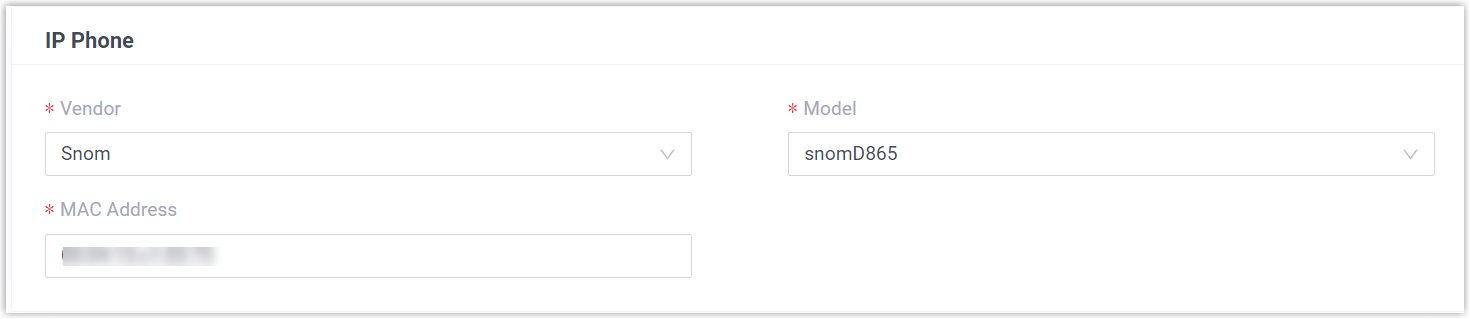
- Vendor: Select Snom.
- Model: Select the phone model. For this example, choose snomD865.
- MAC Address: Enter the MAC address printed on the handset.
-
Under Option, set how provisioning behaves:

- Template: Choose a template from the list. This can be the default template that pairs with the model, or a custom template you have created yourself.
- Provisioning Link: Cloud Voice generates this link automatically. It points to where the phone’s configuration file lives, so you can leave it as is.
- Authentication for the First-time Auto Provisioning: When enabled, the user is asked to enter authentication details on the phone before the first provisioning run starts.
-
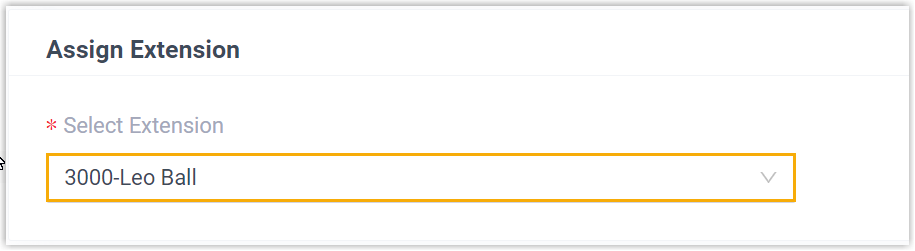
Under Assign Extension, choose the extension to associate with this phone.
-
Click Save. Cloud Voice posts an RPS Request Success event notification to confirm the request went through.
Step 2: Trigger provisioning on the phone
Section titled “Step 2: Trigger provisioning on the phone”-
Reboot the Snom phone.
-
If Authentication for the First-time Auto Provisioning is enabled, the phone prompts for credentials. Enter them on the handset:
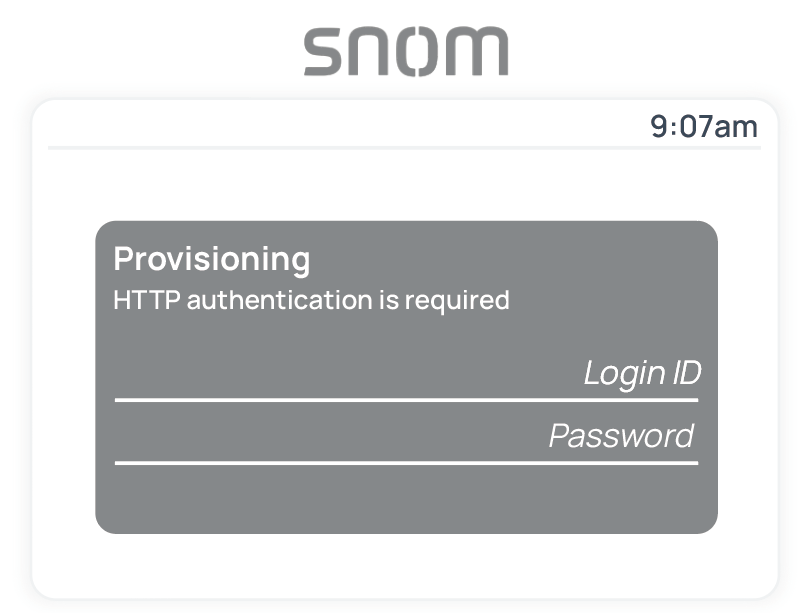
- Login ID: The extension number assigned to the phone.
- Password: The extension’s Voicemail Access PIN.
Result
Section titled “Result”-
The phone downloads its configuration from Cloud Voice and applies the settings automatically.
-
The extension registers on the handset. Verify the registration state under Auto Provisioning > Phones in the portal.

Question about this page?
Ask the AI assistant. It starts from this page, then searches the rest of the docs.
Ask Cloud Voice AI
Answers are AI-generated from the docs and may contain mistakes. Verify with the linked pages.