
Auto Provision a Flyingvoice IP Phone
Cloud Voice can push an extension’s configuration to a Flyingvoice IP (Internet Protocol) phone for you, so the device registers with the PBX (Private Branch Exchange, the phone system that routes your calls) without any manual SIP (Session Initiation Protocol) entry. You add the phone on the PBX, then trigger a one-time authentication on the handset. The steps below use a Flyingvoice P20P (firmware V0.8.18.6) as the example, but the same flow applies to every supported model.
Supported models and firmware
Section titled “Supported models and firmware”Auto provisioning works only when both the handset and your Cloud Voice system meet the minimum firmware shown here. Confirm your device’s model and running firmware before you begin.
| Model | Minimum phone firmware | Minimum Cloud Voice version |
|---|---|---|
| FIP10 | 0.7.23.1 | 84.8.0.25 |
| FIP11C | 0.7.23.1 | 84.8.0.25 |
| FIP12WP | 0.7.23.1 | 84.8.0.25 |
| FIP13G | 0.7.23.1 | 84.8.0.25 |
| FIP14G | 0.7.23.1 | 84.8.0.25 |
| FIP15G | 0.7.23.1 | 84.8.0.25 |
| FIP15G Plus | 0.7.23.1 | 84.8.0.25 |
| FIP16 | 0.7.23.1 | 84.8.0.25 |
| FIP16 Plus | 0.7.23.1 | 84.8.0.25 |
| P10 | V0.7.56 | 84.9.0.20 |
| P10P | V0.7.56 | 84.9.0.20 |
| P10G | V0.7.56 | 84.9.0.20 |
| P10W | V0.7.56 | 84.9.0.20 |
| P10LTE | V0.7.56 | 84.9.0.20 |
| P11 | V0.7.56 | 84.9.0.20 |
| P11P | V0.7.56 | 84.9.0.20 |
| P11G | V0.7.56 | 84.9.0.20 |
| P11W | V0.7.56 | 84.9.0.20 |
| P11LTE | V0.7.56 | 84.9.0.20 |
| P20 | V0.7.57 | 84.9.0.20 |
| P20P | V0.7.57 | 84.9.0.20 |
| P20W | V0.7.57 | 84.9.0.20 |
| P20G | V0.7.57 | 84.9.0.20 |
| P21 | V0.7.57 | 84.9.0.20 |
| P21P | V0.7.57 | 84.9.0.20 |
| P21W | V0.7.57 | 84.9.0.20 |
| flyphone | V0.7.57 | 84.9.0.20 |
| P22P | V0.7.57 | 84.9.0.20 |
| P22G | V0.7.57 | 84.9.0.20 |
| P23G | V0.7.57 | 84.9.0.20 |
| P23GW | V0.7.57 | 84.9.0.20 |
| P24G | V0.7.57 | 84.9.0.20 |
| i86Box_Basic | V0.0.16.1 | 84.9.0.20 |
| i86Box_Indoor | V0.0.16.1 | 84.9.0.20 |
| i86Box_2Line | V0.0.16.1 | 84.9.0.20 |
| i86Box_PCBA | V0.0.16.1 | 84.9.0.20 |
| i86Box_NFC | V0.0.16.1 | 84.9.0.20 |
Before you begin
Section titled “Before you begin”-
Download the default provisioning template for your phone model from Auto Provisioning > Resource Repository > Default Templates. Without this template, the model has nothing to provision from.
-
If the phone was used previously, reset it to factory defaults first.
-
Have the phone’s details on hand: vendor, model, and MAC (Media Access Control) address. The MAC address is the phone’s unique hardware ID, usually printed on a label on the underside of the phone or on its box.
Step 1: Add the phone on the PBX
Section titled “Step 1: Add the phone on the PBX”-
Sign in to the PBX web portal and open Auto Provisioning > Phones.
-
Click Add > Add.
-
Under IP Phone, fill in the device details:
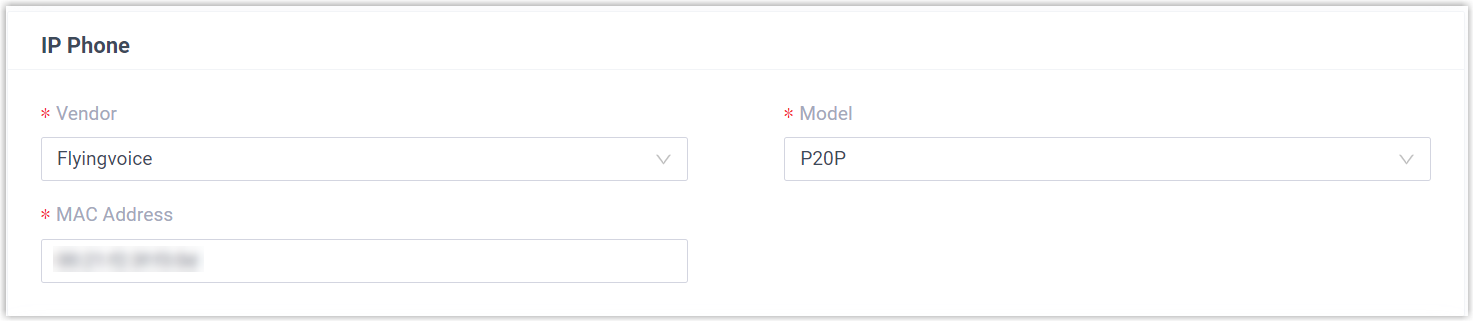
- Vendor: Choose Flyingvoice.
- Model: Choose the phone model. This example uses P20P.
- MAC Address: Type the phone’s MAC address.
-
Under Options, set the following:

- Template: Pick a template from the list. You can use the default template that matches the model, or a custom template you have created.
- Provisioning Link: This is generated for you and points to where the phone’s configuration file is stored. No action needed.
- Authentication for the First-time Auto Provisioning: When on, the phone prompts the user for authentication details before the first provisioning runs.
-
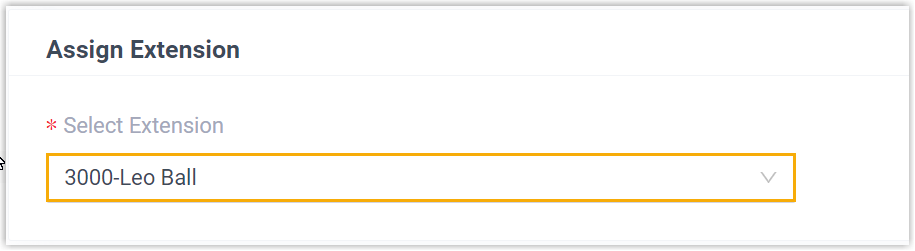
Under Assign Extension, select the extension to bind to this phone.
-
Click Save. The PBX reports an RPS Request Success event notification.
Step 2: Authenticate the phone
Section titled “Step 2: Authenticate the phone”-
Reboot the phone. Once it finishes starting up, an HTTP (web) Authentication prompt appears on the screen.
-
Press OK to open the Auto Provision page.
-
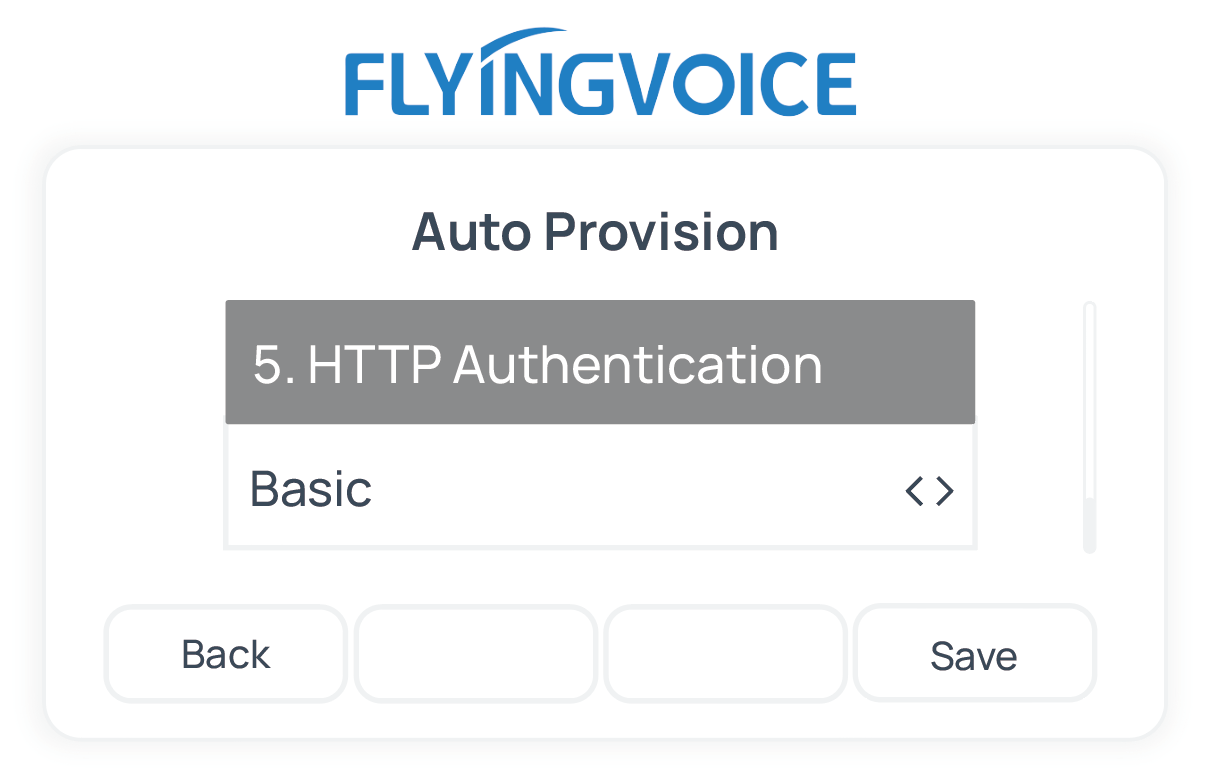
On the Auto Provision page, set these fields:
-
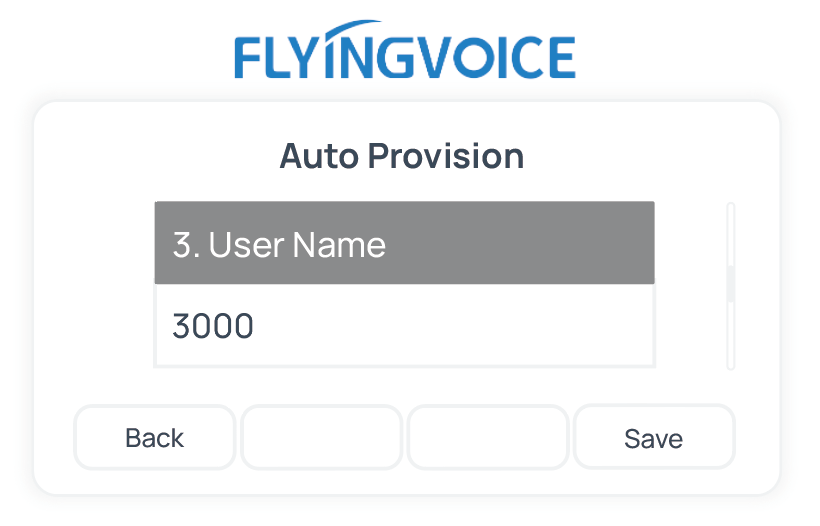
Scroll to User Name and enter the extension number assigned to the phone.
-
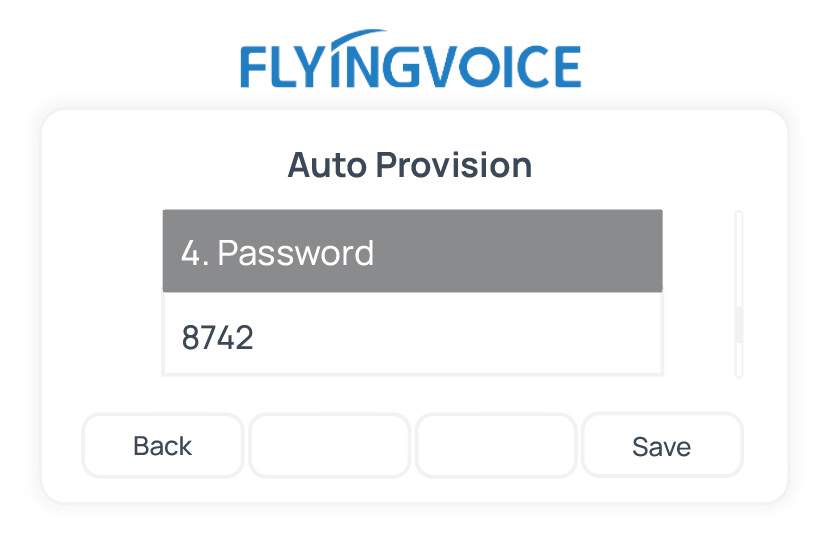
Scroll to Password and enter the extension’s Voicemail Access PIN (Personal Identification Number).
-
Scroll to HTTP Authentication and select Basic.
-
Press Save. The phone asks whether to update now.
-
Press OK to start the update.
-
Result
Section titled “Result”- The phone downloads its configuration from the PBX and applies the settings.
- The extension registers on the phone. Confirm the registration status under Auto Provisioning > Phones in the PBX web portal.

Question about this page?
Ask the AI assistant. It starts from this page, then searches the rest of the docs.
Ask Cloud Voice AI
Answers are AI-generated from the docs and may contain mistakes. Verify with the linked pages.