
Manually Register Alcatel-Lucent Enterprise (ALE) Phone with Cloud Voice
When a phone can’t be auto provisioned, you can point it at your Cloud Voice system yourself by typing the extension’s SIP credentials into the phone’s web interface. This page walks through that manual registration on an Alcatel-Lucent Enterprise (ALE) handset, using an ALE M3 (firmware 2.13.39.000.2217) as the working example.
Supported devices
Section titled “Supported devices”Any Alcatel-Lucent Enterprise IP phone that supports SIP (Session Initiation Protocol) can register with Cloud Voice using this method.
Step 1: Collect the extension’s registration details
Section titled “Step 1: Collect the extension’s registration details”Sign in to the Cloud Voice management portal and gather the values below. You’ll type them into the phone in Step 2.
Extension credentials
Go to Extension and Trunk > Extension, click the edit icon next to the extension, then open User > Extension Information. Note down:
- Extension Number
- Registration Name
- Registration Password

Transport protocol
Go to Extension and Trunk > Extension, click the edit icon, then open Advanced > VoIP Settings > Transport and note the protocol set for the extension. The transport protocol controls how the phone and Cloud Voice exchange SIP messages. This example uses UDP (User Datagram Protocol).

PBX domain name
The domain name of your Cloud Voice system. This example uses pbx.example.com.
SIP registration port
The default SIP registration port is 5060.
Step 2: Register the extension on the ALE phone
Section titled “Step 2: Register the extension on the ALE phone”-
Log in to the phone’s web interface.
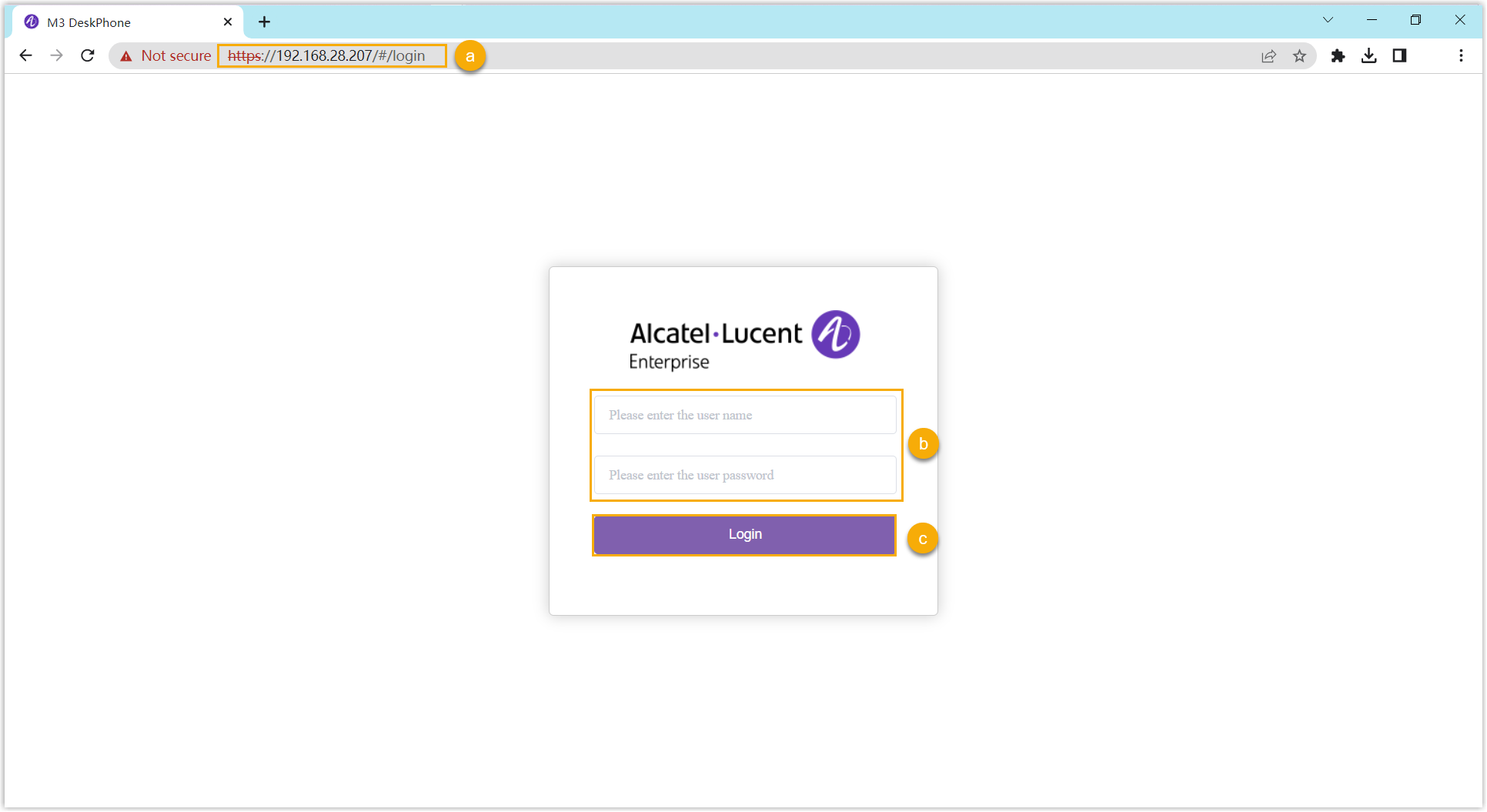
a. Enter the phone’s IP address in your browser’s address bar.
b. Enter the user name
adminand its password. This example uses the default password123456.c. Click Login.
-
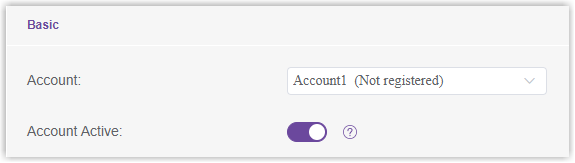
In the left navigation bar, go to Account > Basic and fill in the registration settings.
a. In the Account drop-down, pick an available account, then turn on Account Active.
b. Enter the extension credentials.
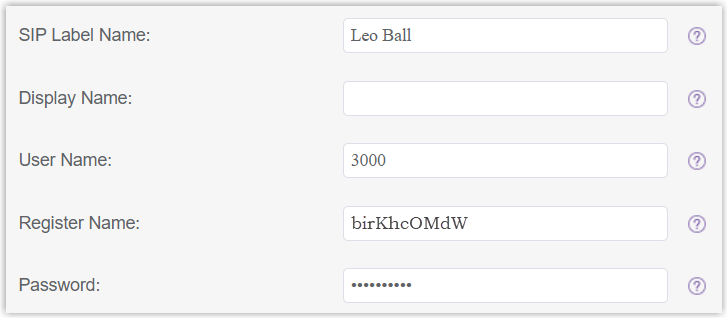
- SIP Label Name: A name for the account, shown on the phone’s screen.
- User Name: The extension number.
- Register Name: The extension’s registration name.
- Password: The extension’s registration password.
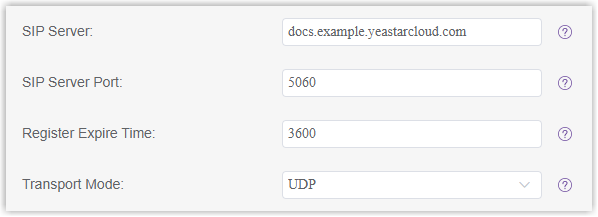
c. Enter the PBX details and, if you like, a registration period.
-
SIP Server: The domain name of your Cloud Voice system.
-
SIP Server Port: The SIP registration port. Enter
5060. -
Register Expire Time: Optional. Sets how often the phone re-registers.
-
Transport Mode: Select the extension’s transport protocol. This example uses UDP.
d. Click Submit.
Result
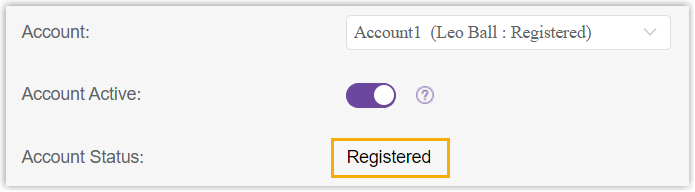
Section titled “Result”The extension registers successfully. You can confirm its state in the Account Status field on the phone.
Question about this page?
Ask the AI assistant. It starts from this page, then searches the rest of the docs.
Ask Cloud Voice AI
Answers are AI-generated from the docs and may contain mistakes. Verify with the linked pages.