
Allow Users to Select Outbound Caller ID (DOD) to Call
Whenever an extension places an outbound call, Cloud Voice normally presents the number set in the trunk’s From header as the caller ID. Direct Outward Dialing (DOD) lets you override that behavior: you assign specific outbound caller IDs to extensions on a per-trunk basis, and users can then choose which of their assigned numbers to show the person they are calling. This is handy when one person answers for several departments or brands and wants each call to display the right number.
Before you start
Section titled “Before you start”- Your Cloud Voice system must be running version
84.21.0.16or later. - Your trunk provider must permit custom outbound caller IDs. If the carrier ignores or rewrites the caller ID, DOD has no effect.
Step 1. Assign outbound caller IDs to extensions on the trunk
Section titled “Step 1. Assign outbound caller IDs to extensions on the trunk”Map DOD numbers to the extensions that should be allowed to send them, so the correct number goes out when a user dials.
-
Sign in to the phone system web portal and open Extension and Trunk > Trunk, then edit the trunk you want to use.
-
Select the Outbound Caller ID tab.
-
In the Outbound Caller ID List section, click Add under the Outbound Caller ID tab. You can add numbers using either of the two methods below.
-
To point a single outbound caller ID at several extensions, choose Shared Outbound Caller ID and complete these fields:
Setting Description Short Code Optional. A short code that identifies this outbound caller ID. Combined with the feature code prefix, it lets users select the caller ID for actions such as setting a default or placing a call. The short code must be unique across the system. See Set DOD Feature Code for how to use it. Outbound Caller ID The number shown as the caller ID on the recipient’s device. Outbound Caller ID Name Optional. The name shown next to the caller ID on the recipient’s device. Default DOD Label Optional. A default label that identifies the caller ID. Users can rename this label for themselves in the Cloud Voice App (Web or Desktop) under Preferences > User > Outbound Caller ID (DOD) > Outbound Caller IDs > Label; a user’s custom label is visible only to that user. Associated Extensions The extension or extensions allowed to use this number on outbound calls. -
To tie a block of consecutive numbers to a block of consecutive extensions one for one, choose Outbound Caller ID Range and complete these fields:
Setting Description Outbound Caller ID Range The first and last numbers in the range of outbound caller IDs. Extension Range The range of extensions, matched one-to-one with the caller IDs above. Outbound Caller ID Name Optional. The name shown next to the caller ID on the recipient’s device. Default DOD Label Optional. A default label that identifies the caller ID. Users can rename this label for themselves in the Cloud Voice App (Web or Desktop) under Preferences > User > Outbound Caller ID (DOD) > Outbound Caller IDs > Label; a user’s custom label is visible only to that user. -
Click Save, then Apply.
Step 2. Add the trunk and extensions to an outbound route
Section titled “Step 2. Add the trunk and extensions to an outbound route”For users to reach the DOD numbers, their calls must leave through the trunk you just configured.
- Open Call Control > Outbound Route and edit the route you want.
- In the Trunk section, select the trunk that carries your DOD numbers.
- In the Extension / Extension Group section, select the extensions you associated with those numbers.
- Click Save, then Apply.
Step 3. Let extensions choose a DOD when dialing
Section titled “Step 3. Let extensions choose a DOD when dialing”Grant each extension permission to pick a caller ID, and set how the choices appear in the user’s app.
-
Open Extension and Trunk > Extension and edit the extension you want.
-
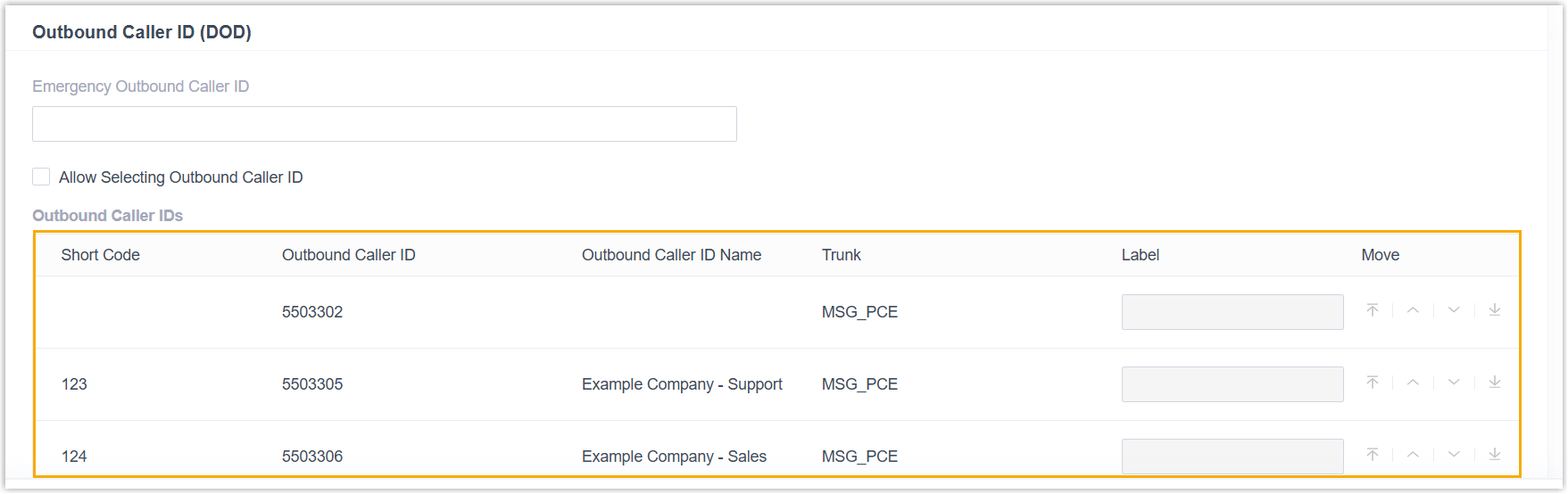
Scroll to the Outbound Caller ID (DOD) section. The numbers you assigned to this extension appear in the Outbound Caller IDs list.
-
Select the Allow Selecting Outbound Caller ID checkbox.
-
Adjust how each DOD appears in the user’s Cloud Voice App:
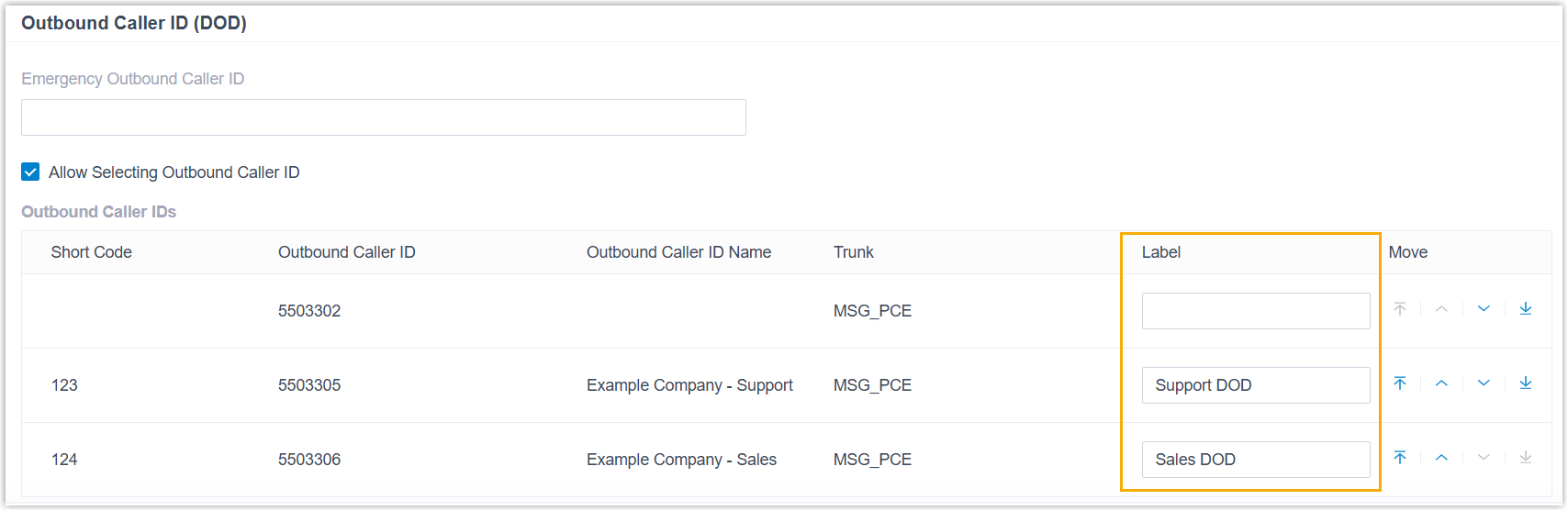
- Label: Keep the default DOD label or type a short description of your own. For example, labeling DOD
5503305asSupport DODmakes it appear as5503305 (Support DOD)in the Cloud Voice App. - Move: Use the move-to-top, up, down, and move-to-bottom controls to set the order in which the DODs are listed in the Cloud Voice App.
- Label: Keep the default DOD label or type a short description of your own. For example, labeling DOD
-
Click Save, then Apply.
Result
Section titled “Result”Users can now select a DOD to present when placing outbound calls from the Cloud Voice App.
Question about this page?
Ask the AI assistant. It starts from this page, then searches the rest of the docs.
Ask Cloud Voice AI
Answers are AI-generated from the docs and may contain mistakes. Verify with the linked pages.